Home Blog Page 9

GPT-5.5 After Launch: What the Historical Headline Means Now

0

Editorial status, checked September 4, 2026: GPT-5.5 is a real OpenAI model, but it is no longer the newest model named in OpenAI’s official product pages. OpenAI introduced GPT-5.5 on April 23, 2026 and added GPT-5.5 and GPT-5.5 Pro to the API on April 24. The original headline behind this page therefore pointed to a genuine launch, although its framing is now historical. OpenAI has since introduced GPT-5.6 and announced GPT-6 Astra. Current access depends on the product, plan, workspace controls, region, and rollout stage.

This replacement guide keeps the historical URL useful without pretending that an April launch headline is a current buying or deployment guide. It explains what the GPT-5.5 name means today, how ChatGPT labels differ from API identifiers, where to verify access, how published token prices compare, and how to test a migration without trusting a model name alone.
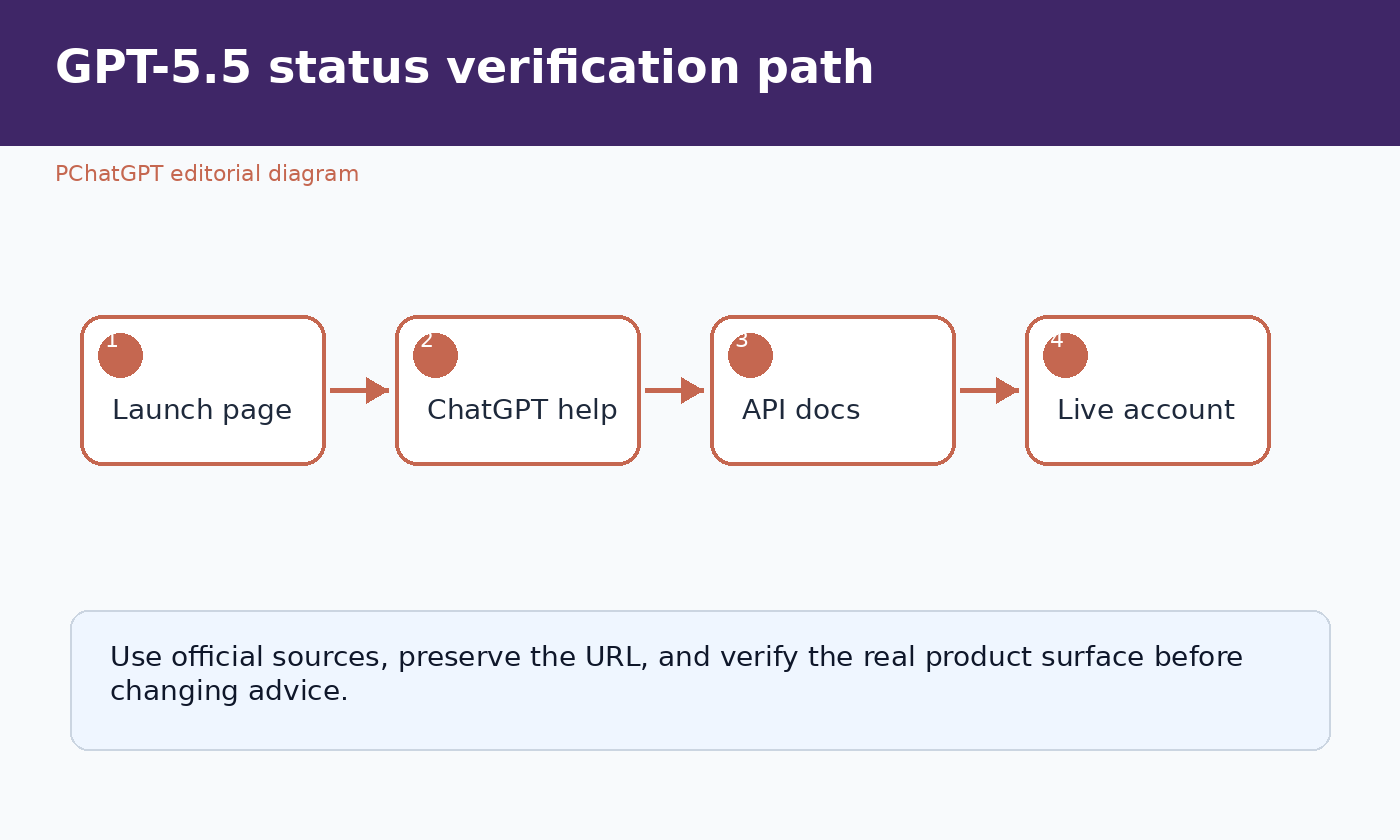
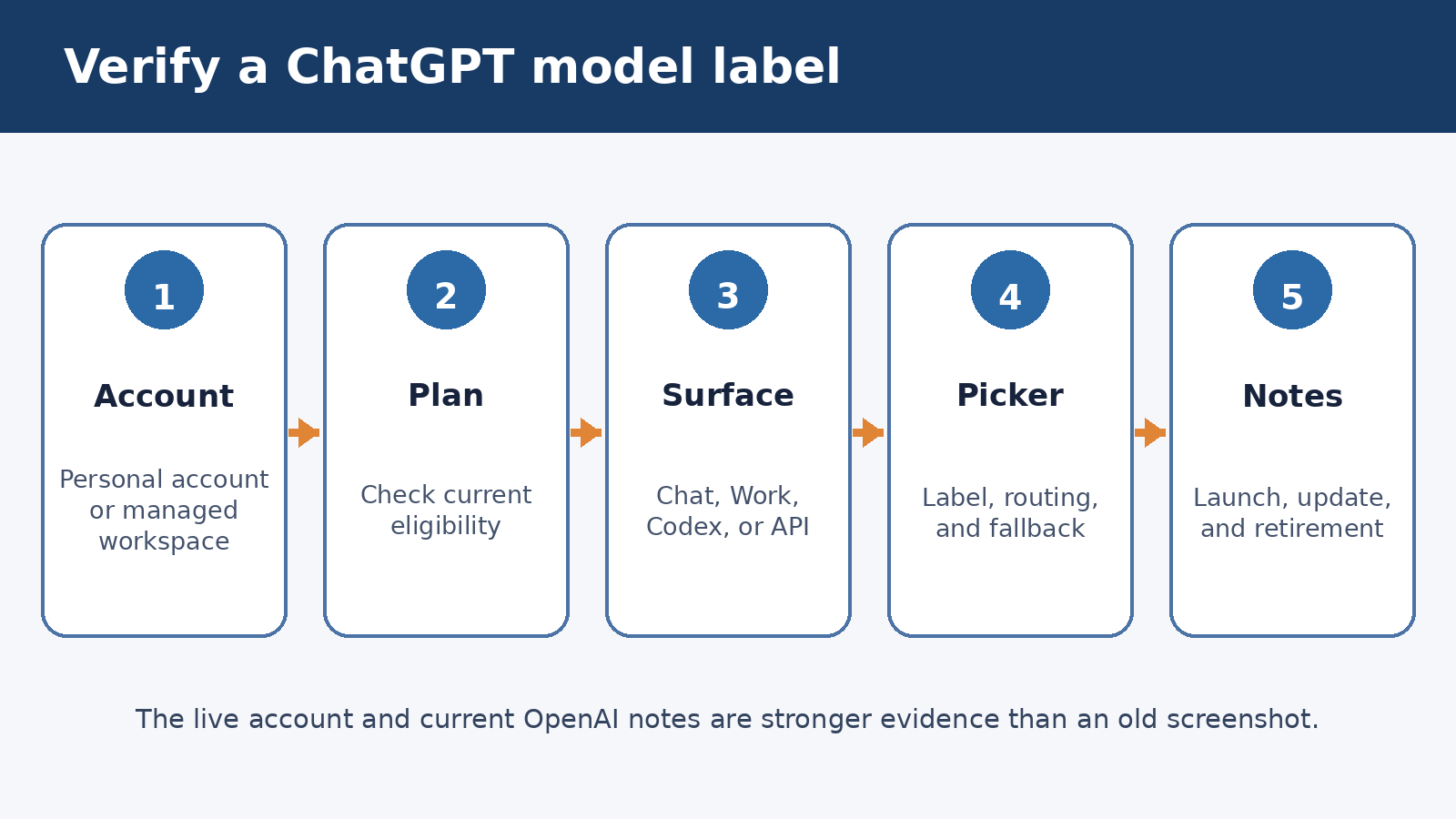
Decision path for checking GPT-5.5 status through official OpenAI launch, ChatGPT help, and API model pages

The corrected status of GPT-5.5

There are two truths to hold at the same time. First, GPT-5.5 was officially launched. OpenAI’s announcement calls it a model for real work and covers coding, knowledge work, scientific research, inference efficiency, cybersecurity, availability, and evaluations. The page carries an April 23, 2026 date and an April 24 update confirming API availability. That primary source resolves the basic historical question: GPT-5.5 was not merely an unverified label.

Second, GPT-5.5 is not the current endpoint of OpenAI’s model line. The same announcement now tells readers that the post introduced GPT-5.5 and directs them to GPT-5.6 as a later model. OpenAI’s current ChatGPT help article says GPT-5.6 Sol is rolling out as the updated experience for eligible paid users, while GPT-5.6 Luna serves Free and Go users. OpenAI has also announced GPT-6 Astra, with a staged rollout rather than a claim that every account already has it.

That distinction matters because “officially released,” “still documented,” “selectable in my ChatGPT account,” and “recommended for a new API workload” are separate statuses. GPT-5.5 remains in the API documentation with an exact model ID and published specifications. At the same time, the current model catalog points developers who are unsure where to start toward GPT-5.6 Sol, with Terra and Luna offered for different cost and throughput needs. GPT-6 Astra occupies another position: OpenAI describes it as its most capable model, but access is rolling out and its ChatGPT plan rules are narrower than a casual reading of a launch announcement might suggest.

ChatGPT labels are not API model IDs

A model name in the ChatGPT interface is a product label. It sits inside a managed experience that can include automatic routing, tools, reasoning controls, usage allowances, fallback behavior, and workspace policy. An API model ID is a value a developer sends in a request. Treating those two things as interchangeable is the fastest way to write an inaccurate guide.

OpenAI’s current ChatGPT documentation describes choices such as Instant, Medium, High, Extra High, and Pro. On eligible paid plans, GPT-5.6 Sol powers Instant and the listed reasoning levels, while a Pro choice can use GPT-5.6 Sol Pro. Free and Go users receive GPT-5.6 Luna, including through the Think option for harder questions. OpenAI also says GPT-6 Astra appears as GPT-6 Pro on eligible plans as it rolls out. A user can therefore see a simple experience label without seeing the literal API identifier that a developer would type.

In the API, identifiers are explicit. The GPT-5.5 documentation names gpt-5.5 and the dated snapshot gpt-5.5-2026-04-23. The higher compute version is gpt-5.5-pro, with the documented snapshot gpt-5.5-pro-2026-04-23. For the next family, gpt-5.6 is an alias that routes to gpt-5.6-sol. OpenAI separately lists gpt-5.6-terra and gpt-5.6-luna. The GPT-6 Astra API identifier is gpt-6-astra.

Do not infer API access from a ChatGPT subscription, and do not infer ChatGPT picker access from a successful API request. The products have separate billing and access checks. A model can also remain callable in an API integration after the main ChatGPT experience has moved to newer labels. Always check the surface you actually intend to use.

What GPT-5.5 officially supports in the API

The GPT-5.5 model page documents text and image input with text output. It lists a 1,050,000 token context window, a 128,000 token maximum output, and a December 1, 2025 knowledge cutoff. OpenAI marks reasoning token support, function calling, and structured outputs as supported. Fine tuning is not supported.

For Responses API use, the same page lists web search, file search, image generation, code interpreter, hosted shell, apply patch, computer use, and tool search. This is a statement about supported API tools, not a promise that every tool should be enabled for every request. Each tool changes cost, latency, permissions, and risk. A production application still needs least privilege, clear confirmation rules for consequential actions, and tests that verify the final answer as well as tool behavior.

GPT-5.5 Pro is a different choice, not a free quality switch. OpenAI describes it as using more compute for tougher problems and warns that some requests may take several minutes. Its model page recommends background mode to avoid timeouts. It supports the Responses API and Batch API, but its documented tool support differs from standard GPT-5.5. For example, the page marks computer use as unsupported for GPT-5.5 Pro. Read the model page before assuming that a workflow built for the standard model can move to Pro without changes.

The dated snapshots matter when behavioral stability is important. An alias is convenient, but a snapshot helps keep a test baseline stable. That does not remove every source of variation, since generated output remains nondeterministic and tool results can change. It does make the selected model version explicit, which is valuable for regulated reviews, regression investigations, and repeatable release comparisons.
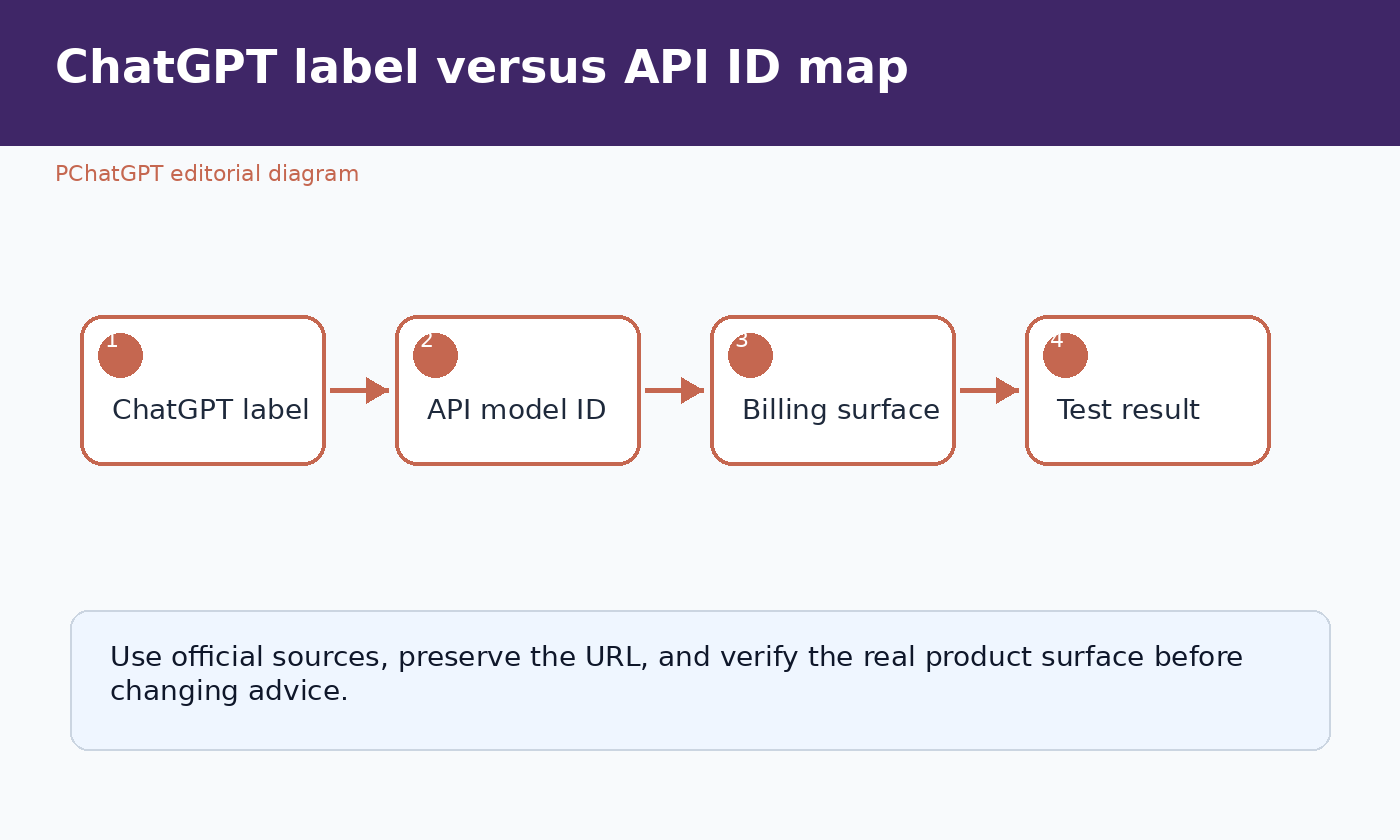
Comparison graphic showing ChatGPT model labels as product choices and API model IDs as developer request values

How to check ChatGPT access today

Start by signing in to the exact account and workspace you intend to use. Open a new chat, inspect the model selector or reasoning control, and note the labels that actually appear. Do not use an old conversation as the only check because OpenAI can route continuing chats to a current corresponding model. If your interface shows Instant or a reasoning level rather than GPT-5.5, that is consistent with OpenAI’s newer ChatGPT design.

Next, compare your plan with the current official help article. OpenAI says GPT-5.6 Sol’s Medium and High choices are included for Plus, Pro, Business, and Enterprise. Extra High and Pro are listed for Pro, Business, and Enterprise, but not Plus. Free and Go receive GPT-5.6 Luna rather than GPT-5.6 Sol. Managed Business and Enterprise workspaces can add another gate because administrators may control model availability.

GPT-6 requires its own check. OpenAI’s current help page says GPT-6 Astra is rolling out in ChatGPT as GPT-6 Pro for Pro $100, Pro $200, Business, and Enterprise plans. It also says GPT-6 Pro is not included with Plus in Chat, and Enterprise access depends on workspace permissions. This is a useful example of why “coming to a plan” and “visible in this account now” are not identical claims.

  1. Confirm the signed in account, plan, and workspace.
  2. Check the current model or reasoning selector in a new conversation.
  3. Compare what you see with OpenAI’s current ChatGPT help page and release notes.
  4. For a managed workspace, ask an administrator whether model access is enabled for your role.
  5. If the documentation says “rolling out,” allow for account differences and check again later.
  6. Record the date of your check because labels, allowances, and rollout language can change.

This process is more dependable than copying a screenshot from another account. It also prevents a common support mistake: assuming that a missing model proves a broken subscription when the actual reason may be plan eligibility, phased rollout, a workspace setting, or a product specific limit.

How to check API access

For API work, use the intended organization, project, and API key. Confirm that billing and project limits are configured, then make a small request in a development environment with the exact identifier you want to test. A successful request is stronger evidence of access than seeing a model name on a general catalog page. If the request fails, preserve the error code and request identifier, then check authentication, project selection, usage tier, limits, and the model documentation before changing application logic.

Keep ChatGPT credentials and API credentials conceptually separate. Paying for a ChatGPT plan does not turn ChatGPT usage into API credits. API usage is metered under the API account and project. Likewise, an API model appearing in documentation does not mean that every API tier can call it. The GPT-5.5 model pages publish rate limit tables by usage tier, and their Free tier rows say the model is not supported.

When you need reproducibility, call the dated GPT-5.5 snapshot and log the model returned with the response. When you want OpenAI’s moving selection within a family, use an alias only after reading what it currently routes to. For new work, inspect the live model catalog rather than assuming the model named in this historical URL is still the recommended starting point.

Current published API pricing and the caveats around it

OpenAI’s GPT-5.5 model page lists standard text token prices per one million tokens as $5.00 for input, $0.50 for cached input, and $30.00 for output. It also says prompts above 272,000 input tokens are charged at twice the input rate and one and a half times the output rate for the full session across standard, Batch, and Flex processing. Regional processing endpoints carry a documented 10 percent uplift for GPT-5.5.

GPT-5.5 Pro is priced differently. Its model page lists $30.00 per million input tokens and $180.00 per million output tokens, with no cached input discount. OpenAI also documents a 10 percent regional processing uplift for that model. These rates explain why “Pro” should be evaluated on the hardest tasks where a quality gain can justify higher cost and latency, not enabled by default because its name sounds better.

For context, the GPT-5.6 Sol page currently lists $4.00 per million input tokens, $0.40 for cached input, and $20.00 per million output tokens. It labels those as promotional prices available at least through November 21, 2026. GPT-6 Astra’s model page lists $10.00 for input, $1.00 for cache reads, $12.50 for cache writes, and $50.00 for output per million tokens. Long prompts, tools, service tiers, regional processing, and other platform features can alter the bill.

Prices in an article age quickly. Before estimating a budget, open the linked model page and pricing documentation. Then calculate cost from real request logs, including input, cached input, output, reasoning work reported in usage, retries, and paid tool calls. ChatGPT subscription prices and allowances belong to a separate product and should not be inserted into an API cost model.

A sensible migration and testing plan

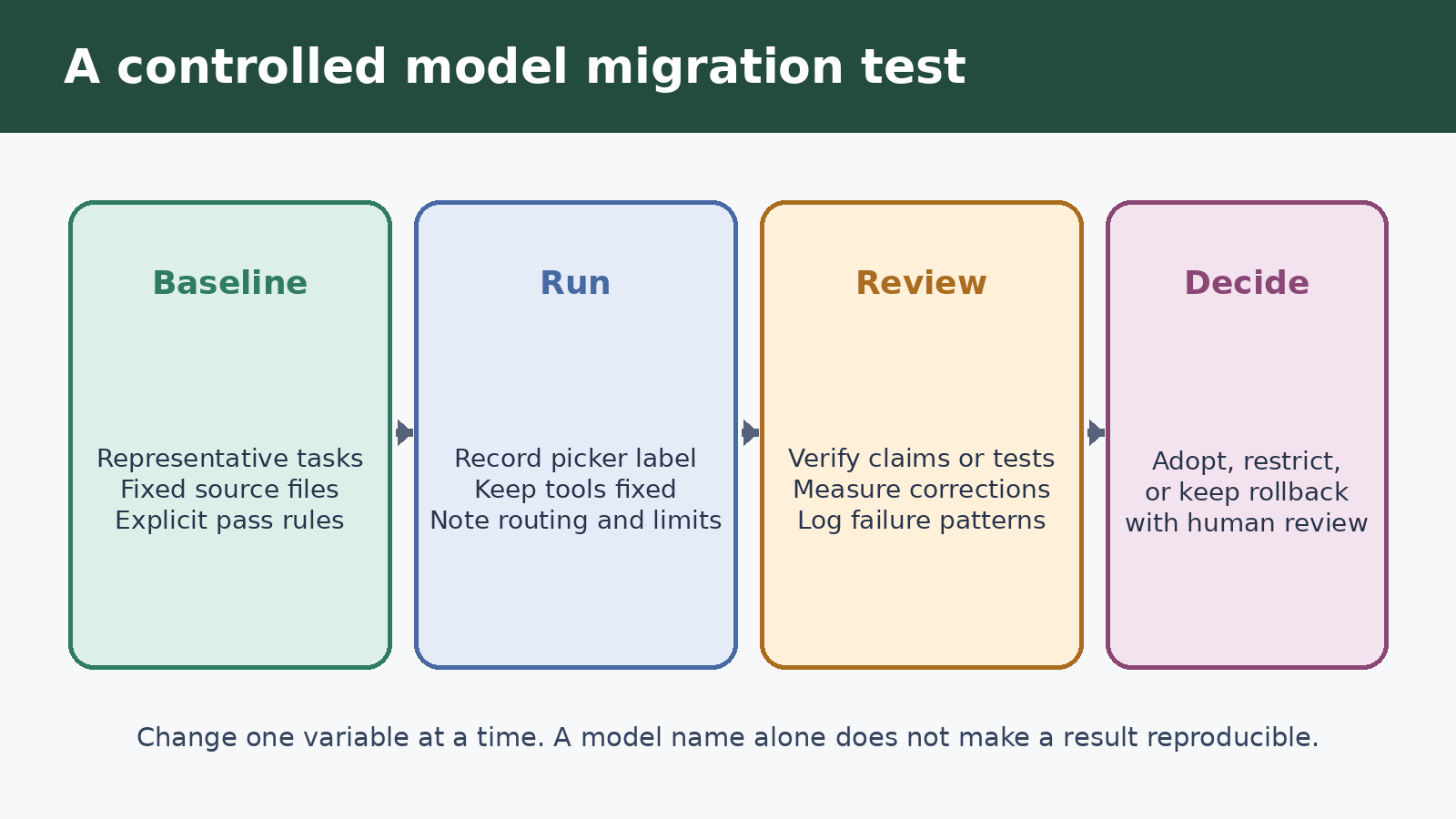
A model migration should begin with a representative evaluation set, not with a broad production switch. Collect real tasks that cover the work you care about: short answers, long documents, structured data, function calls, tool sequences, refusal boundaries, multilingual inputs, and difficult edge cases. Remove secrets and personal data. For each case, define what a passing response must contain and what would count as a serious failure.

OpenAI’s current model guidance says that when moving from GPT-5.5 or GPT-5.4 to GPT-5.6, developers should begin with their existing reasoning setting, then test that setting and one level lower. OpenAI notes that GPT-5.6 can often maintain or improve quality with fewer tokens, while emphasizing that the best setting depends on the workload. That is practical advice because maximum reasoning is not automatically the best choice for latency, cost, or even consistency.

Run old and candidate configurations against the same cases. Capture task success, schema validity, required facts, unsupported claims, tool selection, tool errors, total tokens, latency, and estimated cost. Review failures by category rather than averaging everything into one attractive score. A candidate that improves drafting but breaks a critical function call is not ready for a complete rollout.

  • Pin the baseline. Record the old model ID, snapshot where available, reasoning setting, prompt version, tool definitions, and decoding controls.
  • Change one major variable at a time. Test the model before rewriting every prompt and tool schema at once.
  • Test lower reasoning effort. A less expensive setting may meet the same acceptance criteria.
  • Validate structured outputs mechanically. Parse schemas, enforce required fields, and reject malformed results.
  • Exercise failure paths. Include timeouts, unavailable tools, empty retrieval results, permission denials, and partial responses.
  • Use a staged rollout. Start with internal traffic or a small percentage, monitor, and keep a tested fallback.

Do not grade only for eloquence. The most pleasant answer can still be wrong, omit a required caveat, or take an action outside scope. Human review is essential for high impact decisions, and tool using workflows need explicit confirmation before external messages, purchases, deletions, account changes, or other consequential actions.

What ordinary users should do with the old headline

Read it as a historical marker, not a promise about the model currently serving your chat. GPT-5.5 did launch, so the core model name is legitimate. What aged is the word “new.” OpenAI’s own GPT-5.5 announcement now points forward to GPT-5.6, while current OpenAI pages describe GPT-6 Astra as a newer, staged rollout.

If you use ChatGPT, choose among the options your account offers based on the task. Instant is appropriate for everyday questions. A reasoning level is worth trying when the work has several constraints, requires careful analysis, or needs validation. A Pro option should be reserved for difficult work where the extra allowance and waiting time have a clear payoff. The exact underlying model can change as OpenAI updates the product, which is why the live selector and current help page are the final authority.

If you build with the API, do not migrate merely to make the version number larger. Compare GPT-5.5 with the current catalog on your own tests. A newer or more capable model may improve difficult tasks, while a lower cost family member may be the better production choice for clear, repetitive work. The right model is the least costly configuration that reliably passes the requirements, stays within latency targets, and supports every tool your workflow needs.

For broader context, see our OpenAI GPT-5.4 guide and our practical overview of how ChatGPT works and how to verify its current features. Both links provide background, while OpenAI’s live documentation should settle current model and access questions.

Official OpenAI sources

FAQ

Was GPT-5.5 actually released by OpenAI?

Yes. OpenAI’s official announcement is dated April 23, 2026, and its update says GPT-5.5 and GPT-5.5 Pro became available in the API on April 24. The model remains documented in OpenAI’s API catalog. The historical headline is therefore grounded in a real release, but calling GPT-5.5 “new” is no longer current.

Why might GPT-5.5 not appear in my ChatGPT model picker?

ChatGPT now uses newer product labels and model routing. OpenAI says GPT-5.6 Sol is rolling out for eligible paid accounts, while GPT-5.6 Luna serves Free and Go users. Availability can also depend on rollout timing and managed workspace settings. Check a new chat, your plan, and the current OpenAI help page rather than expecting an API model ID to appear in the picker.

Can I still use GPT-5.5 through the API?

OpenAI’s current API documentation lists gpt-5.5, gpt-5.5-pro, and dated snapshots for both. Actual access still depends on the API project, billing, usage tier, rate limits, and model availability. Verify it with a small request from the intended project, not with a ChatGPT subscription or a documentation screenshot alone.

Should developers migrate from GPT-5.5 immediately?

Not without testing. OpenAI’s model guidance recommends comparing GPT-5.6 at the current reasoning setting and one level lower on representative tasks. Measure correctness, schema compliance, tool behavior, latency, token use, and cost. Roll out gradually and keep a tested fallback. A migration is successful only when the candidate passes the requirements of the real workload.

Top 5 local LLM tools and models in 2026 for private AI work

0

Local LLM tools are useful when you want to test AI workflows on hardware you control. They do not remove every privacy, security, or licensing question, but they give you a different starting point from cloud only chatbots. A local setup can help with drafting, code review, note analysis, search over approved documents, and experiments where sending text to an outside service is not appropriate.

This guide compares five practical tool categories rather than pretending there is one best local AI stack for everyone. The right choice depends on whether you want a simple desktop app, a local API, a command line workflow, a document chat environment, or low level inference control. Model choice matters too. Llama, Gemma, Qwen, Mistral family models, and other open or open weight models have different licenses, sizes, context behavior, and hardware needs.

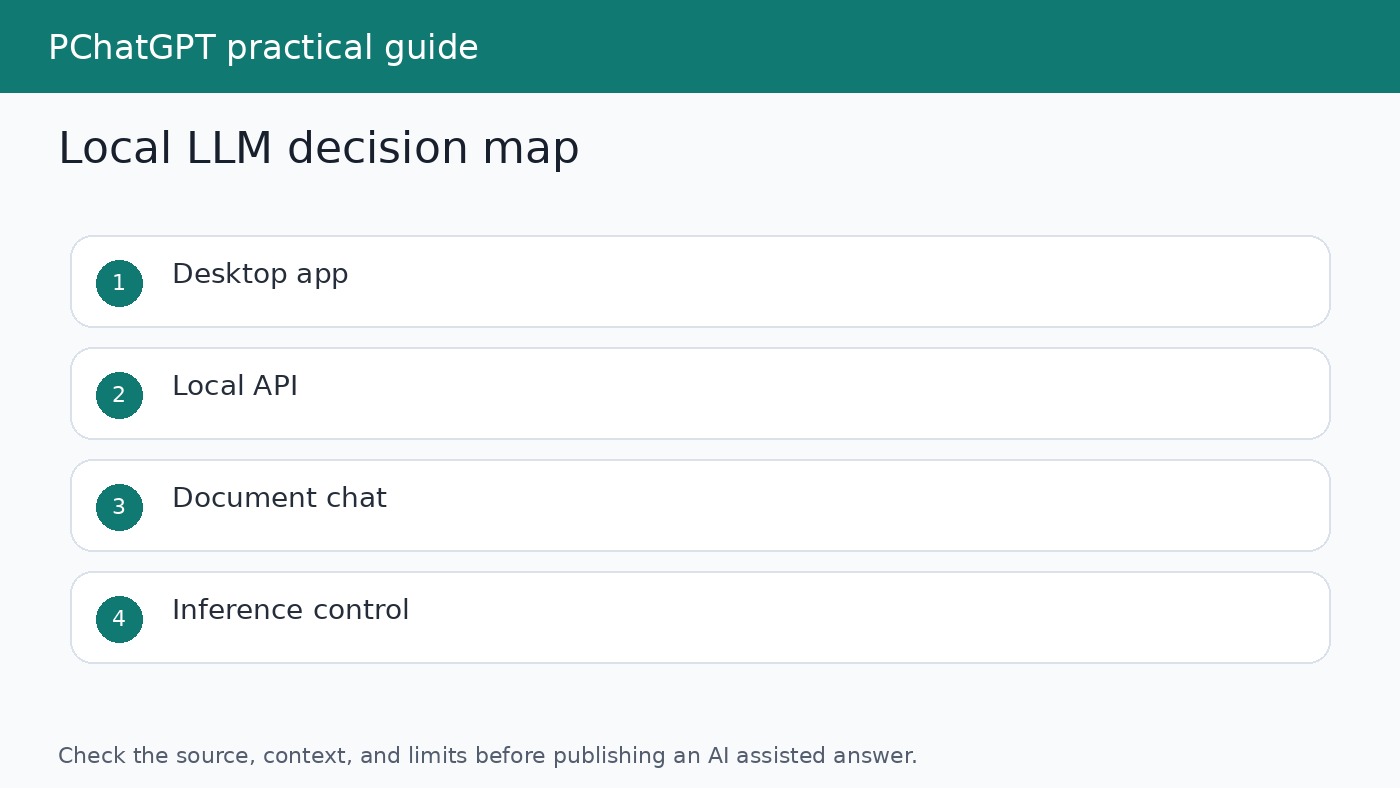
Decision map for choosing local LLM tools based on desktop use, local API, documents, and inference control
Choose a local LLM tool by workflow first, then choose a model that fits your hardware and license needs.

What local means in practice

Local usually means the model runs on your own machine or a server you control. That can be a laptop, desktop, workstation, or private server. Some tools also offer ways to connect to remote or cloud models, so do not assume every feature is offline just because the app can run local models. Check the settings, model source, and network behavior before using sensitive data.

Hardware also sets limits. Larger models need more memory and may run slowly without a suitable GPU or enough unified memory. Smaller models are easier to run but may be weaker for reasoning, long documents, or specialized tasks. Quantized models can reduce resource needs, but quality and speed depend on the model, quantization method, and hardware. Test with your own prompts before making a workflow decision.

1. Ollama for a simple local model server

Ollama is a practical choice when you want a straightforward way to download and run open models, then connect other apps or scripts to a local service. Its documentation presents it as a way to run models locally and work with model libraries from a command line or API style workflow. That makes it a good fit for developers, analysts, and writers who want a repeatable local setup without building the inference layer from scratch.

Choose Ollama if you want to test several models quickly, run a local assistant backend, or connect a personal tool to a model running on your own machine. Review each model card and license before business use. The tool can make model management easier, but it does not decide whether a model is suitable for regulated data, customer content, or production work.

2. LM Studio for a desktop first experience

LM Studio is useful for people who want a desktop interface for finding, downloading, and running local models. Its documentation highlights local model use and an API server style workflow. The appeal is that a non specialist can explore models without starting from a terminal, while a technical user can still test local endpoints and compare outputs.

Use LM Studio when your main need is exploration. It is a good place to compare how different models respond to the same writing, coding, or summarization prompt. Keep a short test set of real tasks and record which model handled them best. A model that sounds fluent in a demo may still fail on your own documents or formatting requirements.

3. Jan for an offline ChatGPT style workspace

Jan describes itself as an open source alternative to ChatGPT that can run offline on your computer. That positioning makes it interesting for users who want a familiar chat workspace around local models. A chat style tool can be easier for writers, students, researchers, and small teams than a command line server, especially when the goal is everyday drafting or document assisted work.

The tradeoff is that a friendly interface can hide important details. Before using Jan or any similar desktop app with sensitive material, check which model is selected, whether the app is using a local runtime or a connected provider, where files are stored, and what extensions or services are enabled. Local first should still be verified, not assumed.

Checklist for testing a local LLM setup for model source, license, hardware, privacy, and output quality
A local LLM setup needs checks for model source, license, hardware fit, privacy, and output quality.

4. GPT4All for local document and assistant workflows

GPT4All is another option for users who want local AI on a personal computer. Its documentation focuses on installing, running, and using local models, with workflows that can support private assistant style use. It can be helpful when the goal is to keep routine drafting, summarization, or document exploration close to the user rather than inside a hosted chatbot.

As with every local system, the details matter. A local document chat workflow should still have a source review step. If the model summarizes a document, open the document and verify the paragraph, page, or section that supports the answer. Local inference reduces one class of data exposure, but it does not make answers automatically accurate.

5. llama.cpp for low level control

llama.cpp is a widely used project for running large language models with efficient inference across different hardware. It is a better fit for technical users who want control over formats, performance, build options, and integration details. Many higher level tools and workflows are influenced by the ecosystem around llama.cpp and GGUF model files.

Choose llama.cpp when you need to understand the stack or integrate local inference into a custom workflow. It is less of a one click writing app and more of a foundation. That can be an advantage for developers, but it also means you need to pay attention to builds, model files, parameters, and testing.

How to choose models

The tool is only half the decision. Model families such as Llama, Gemma, Qwen, and Mistral family models differ in licenses, supported sizes, intended use, safety guidance, and ecosystem support. Do not choose only by leaderboard screenshots. Start with the task: coding, rewriting, classification, summarization, brainstorming, or document Q&A. Then choose a model size your hardware can run at an acceptable speed.

For business use, license review is part of the workflow. Some open weight models allow broad use with conditions. Some have acceptable use policies or specific restrictions. If the output will be used in a product, customer workflow, or commercial service, read the license and model documentation before you build around it.

Privacy is not the same as safety

Running a model locally can help keep prompts and files on hardware you control, but it does not solve every risk. The model can still produce inaccurate claims, unsafe code, biased summaries, or text that leaks sensitive details if you paste them into a draft. You still need access controls, device security, backups, document handling rules, and review before publication.

A local AI workflow should also have a deletion and retention habit. Know where the app stores chats, embeddings, downloaded models, logs, and attached files. If more than one person uses the machine, treat local storage as shared unless you have configured user level separation.

A practical test plan

Build a small benchmark from your own work. Use ten prompts: two writing tasks, two summaries, two coding or spreadsheet tasks, two document questions, and two refusal or safety edge cases. Run the same prompts across two or three tools and models. Score for correctness, speed, formatting, source handling, and how much editing the answer needs.

Do not keep a local model just because it is fashionable. Keep it if it solves a real task with acceptable quality and a clear privacy advantage. For some work, a cloud model with enterprise controls may be better. For other work, a local model is enough and safer. The value is in matching the tool to the task.

For related setup choices, read our ChatGPT cheat sheet router and our guide to ChatGPT data privacy controls. Those guides help you compare local, hosted, and account based privacy decisions without mixing them together.

When local AI is the wrong choice

Local AI is not always the best answer. If your team needs shared administration, audit logs, managed retention, support commitments, or the strongest available reasoning model, a governed hosted service may be more appropriate. A local model can be excellent for private drafts and experiments, but it can also become hard to maintain if every user downloads different models and stores files in different places.

The safest approach is to write a short use policy before local models spread across a team. Name the approved tools, allowed data types, model sources, license review owner, and review process for outputs. Keep the policy practical. People are more likely to follow a one page rule set than a long document that never answers which app they may open today.

For solo users, the same idea can be smaller. Write down where models are downloaded from, which folders the app can read, which documents are allowed, and how you will verify important answers. If a local assistant becomes part of daily work, treat it like any other tool that handles files. Update it deliberately, remove models you no longer use, and keep sensitive projects out of experiments unless you have a clear reason.

Local LLMs are most valuable when they are boring in the right ways. They should run reliably, use known models, respect your data boundary, and produce answers you can check. If the setup requires constant troubleshooting or encourages people to skip review because the model is on their own machine, it is not ready for important work.

A good rollout can start with one narrow task, such as summarizing approved notes or drafting internal checklists from non sensitive text. Once the task works, add a second model or tool and compare results. Expanding slowly keeps the workflow understandable and gives you time to catch problems with speed, hallucination, storage, or licensing before the setup becomes part of a larger process.

Official sources

FAQ

Can a local LLM fully replace ChatGPT?

Sometimes for drafts, summaries, coding help, or private experiments, but not for every task. Hosted tools may have stronger models, integrated tools, search, files, or enterprise controls.

Are local LLMs always private?

No. They can keep inference on your device when configured that way, but apps may still store chats, connect to external services, or use remote providers. Check settings and documentation.

Which local LLM tool should beginners try first?

A desktop app such as LM Studio, Jan, or GPT4All is usually easier for non technical users. Ollama is friendly for people comfortable with a command line and local services.

What should I check before commercial use?

Check the model license, acceptable use terms, data handling, output quality, hardware reliability, and whether a human review process exists for important answers.

How to Evaluate, Adapt, and Test ChatGPT Prompts

0

A prompt can look polished and still be useless. The only meaningful test is whether it produces an answer you can use for a particular task, with evidence you can check and a format that fits the next step. That makes prompt quality less like collecting clever phrases and more like editing a work instruction.

This guide shows how to evaluate, adapt, and test ChatGPT prompts for work, writing, and research. It is not another list of supposed “best prompts.” You will build a small test set, define what a good answer means, compare revisions, and keep a record of what changed. The method here is an editorial adaptation of current OpenAI guidance, not an official OpenAI framework or a promise that one prompt will behave identically on every request.

Start with the task, not the wording

Before revising a prompt, write down the job it must do. “Help with a report” is too broad to test. “Turn these meeting notes into a 250-word update for department heads, separating decisions from unresolved questions” gives you something observable. You can check the length, audience, structure, and treatment of uncertainty.

OpenAI’s prompt engineering best practices recommend putting instructions first, separating them from context, and being specific about the desired outcome, length, format, and style. Those ideas help, but they do not remove the need to judge the result. A detailed prompt may faithfully produce the wrong deliverable if the underlying task was poorly defined.

Write a one-sentence task contract before you write the prompt. Name the input, the intended reader, the output, and the decision or action that follows. For example: “Using the approved interview transcript, produce a factual profile outline that an editor can review before drafting.” This contract becomes the basis of your test rather than a decorative introduction pasted into every request.

Build a small prompt test card

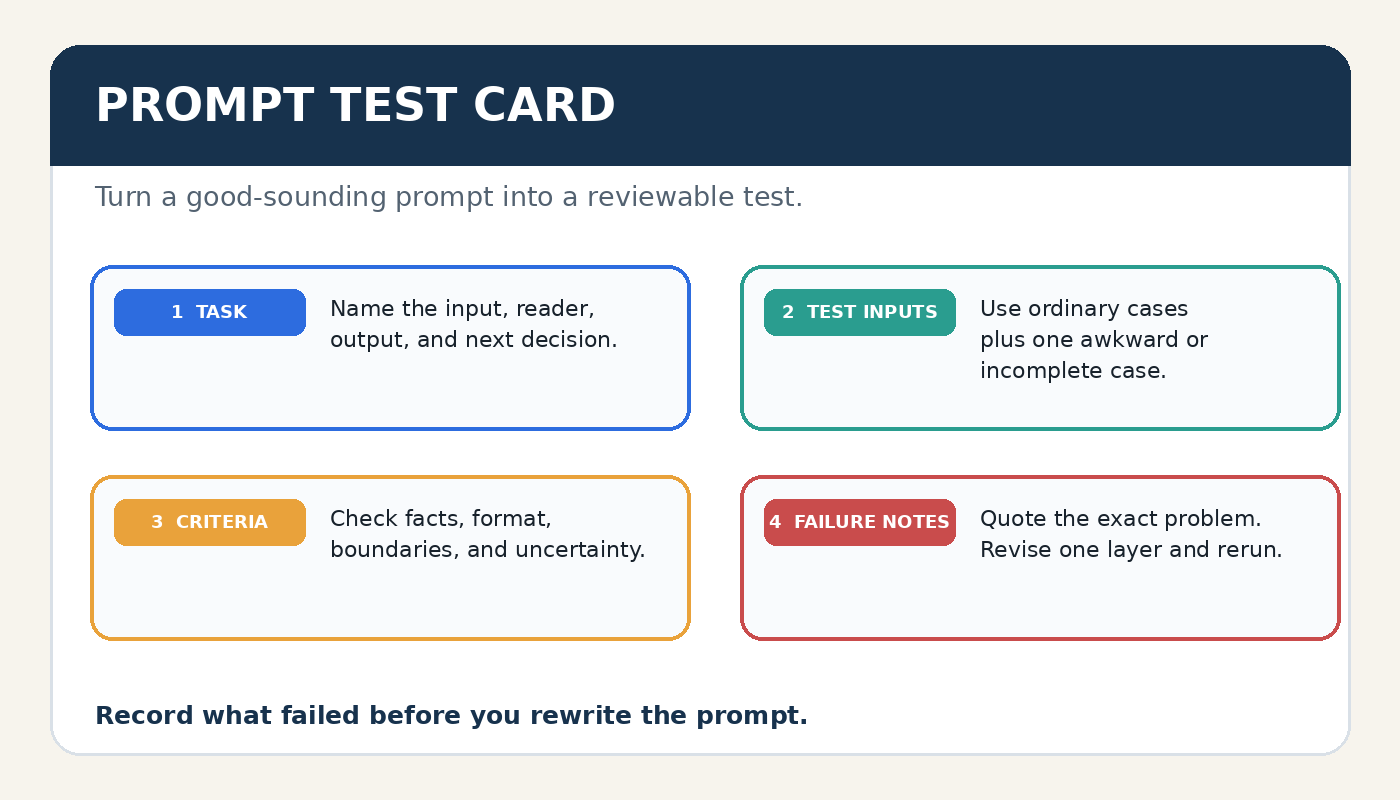
Prompt evaluation card showing task, test inputs, criteria, and failure notes
A prompt test card ties the wording to a task, examples, review criteria, and recorded failures.

A prompt test card can fit on one page. It prevents you from changing several things at once and then guessing why the output improved. Keep these fields:

  • Task contract: what the answer must help someone do.
  • Prompt version: the exact text you sent.
  • Test inputs: two ordinary examples and at least one awkward example.
  • Review criteria: the properties you will score or mark as pass and fail.
  • Failure notes: the exact sentence, omission, or formatting problem you found.
  • Revision: one purposeful change linked to a recorded failure.

The awkward example matters. A work prompt may face incomplete notes. A writing prompt may receive a source that contradicts the brief. A research prompt may encounter a claim with no traceable citation. If you test only the neatest input, you learn how the prompt behaves in a demo, not how it behaves during ordinary use.

Do not use sensitive company, client, student, patient, or personal material merely to make a realistic test. Use approved data, a redacted sample, or a synthetic case that preserves the structural difficulty without exposing private information. Your organization’s policies still apply when a prompt is being tested.

Choose criteria you can actually inspect

“Better” is not a criterion. Replace it with a short rubric that matches the task. A useful rubric might ask whether the response follows the requested structure, covers every supplied fact, labels uncertainty, avoids unsupported additions, and stays within the specified length. Not every task needs every criterion. A brainstorming prompt can allow novelty while a source summary should be judged more strictly for fidelity.

OpenAI’s evaluation best practices describe evaluations as structured tests for variable model output. The developer documentation recommends combining metrics with human judgment and including typical cases, edge cases, and adversarial cases. A personal ChatGPT workflow is smaller than a production evaluation system, but the principle transfers well: use repeatable examples and explicit criteria instead of relying on a vague impression.

Keep the scoring simple enough to use. A pass or fail mark works for hard requirements such as “contains exactly four headings.” A three-point scale can work for judgment calls: 0 means missing or wrong, 1 means partly useful, and 2 means ready with minor edits. Add a note beside every low score. The note is more useful than the total because it tells you what to revise.

Adapt the prompt by changing one layer

When a response fails, resist the urge to double the prompt’s length. First identify the layer that failed. Then make one focused change.

  1. Instruction layer: clarify the action. Replace “review this” with “identify unsupported claims and quote the sentence that needs evidence.”
  2. Context layer: supply only the source material and background required for the task. Label source text clearly so it is not confused with instructions.
  3. Constraint layer: state boundaries such as approved sources, excluded topics, length, and whether the answer must flag missing information.
  4. Format layer: provide headings, fields, or a short example when the output must follow a pattern.
  5. Review layer: ask for a final check against named criteria, but still inspect the result yourself.

This diagnosis keeps prompts readable. If the response includes invented facts, adding a prettier table will not fix the evidence problem. If the answer is accurate but impossible to paste into your workflow, the format layer needs attention. If the model overlooks a condition buried in a long paragraph, move that instruction near the top and make it concrete.

For a broader introduction to instruction structure, read our ChatGPT prompt engineering guide. If your recurring preferences belong across many conversations rather than in one task, our guide to setting Custom Instructions in ChatGPT explains that separate layer. Keep task-specific evidence and acceptance criteria in the task prompt.

Run a controlled comparison

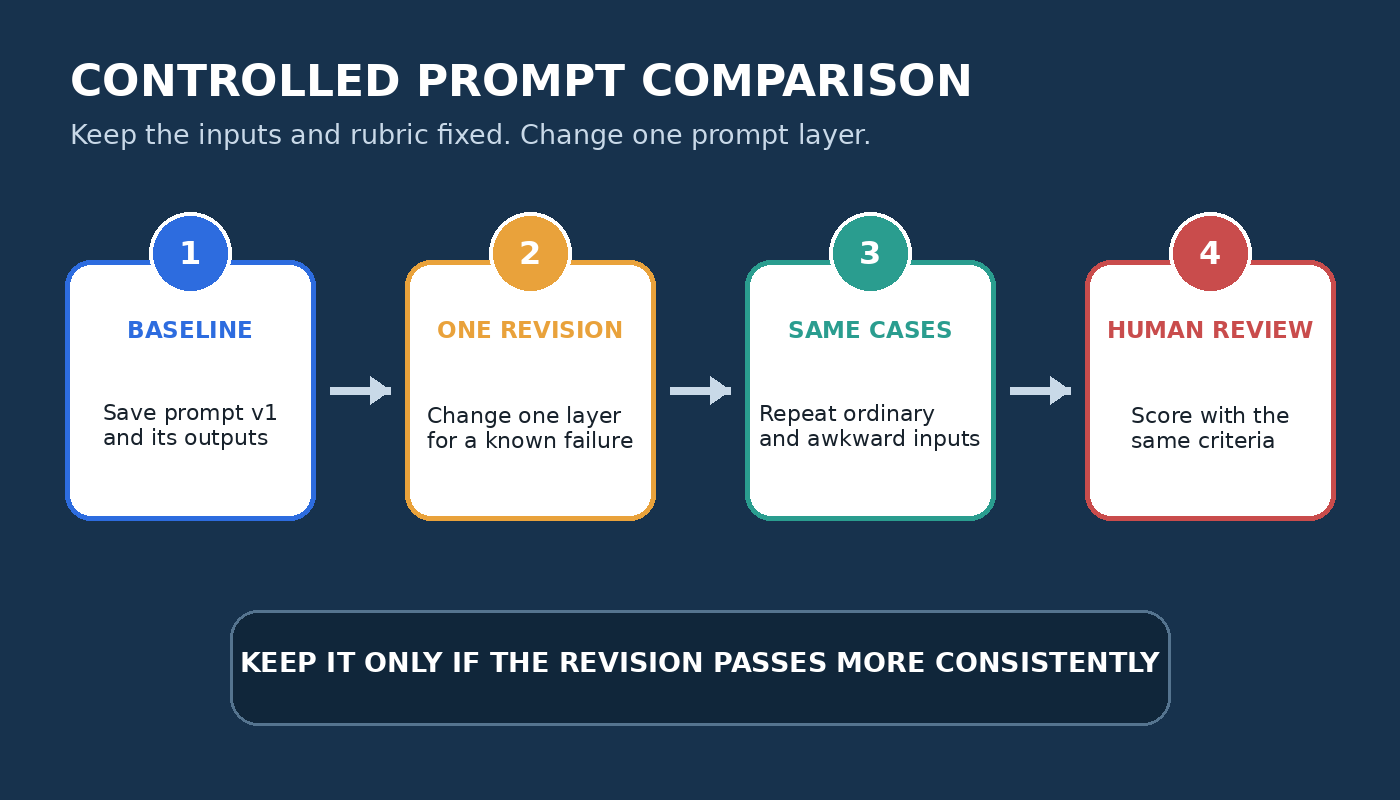
Controlled prompt comparison loop from baseline output to one revision and a human review
Change one prompt layer, repeat the same test inputs, and compare the outputs against the same rubric.

Save the baseline prompt and its outputs. Make one revision, then run the same test inputs again. Compare the two versions against the same rubric. If you change the prompt, source text, requested format, and model selection at the same time, the comparison cannot tell you which change mattered.

One run is useful for finding obvious failures, but it is weak evidence for a reusable prompt because generated answers can vary. Repeat the important cases and look for patterns. You do not need a laboratory or a large spreadsheet. A small table with the input name, prompt version, result, score, and reviewer note is enough for many personal and team tasks.

Do not choose a winner from the smoothest prose alone. A confident answer can still be wrong. OpenAI’s article Does ChatGPT tell the truth? warns that ChatGPT can produce incorrect facts, fabricated quotations, and nonexistent citations. It recommends checking important claims and visiting cited sources. For factual tasks, source fidelity and traceability should outweigh polish.

Apply the method to work prompts

Suppose you need a weekly project update. The first prompt says, “Summarize these notes for management.” The output mixes decisions, progress, and unresolved issues. Your failure note is specific: decision owners are missing, and risks are presented as settled facts.

Adapt the prompt by naming the reader and structure: “Using only the notes below, write a project update for department heads. Use the headings Decisions, Progress, Open questions, and Risks. For each decision, name the owner only if the notes provide one. If ownership or timing is missing, write ‘not stated.’ Keep the update under 300 words.” Then test it with complete notes, sparse notes, and notes that contain a disagreement.

Your rubric can check source fidelity, section placement, treatment of missing information, and length. A failed test may show that “not stated” appears too often and makes the report clumsy. Rather than removing the safeguard, narrow it to ownership and dates. That is adaptation based on evidence, not prompt decoration.

Apply the method to writing prompts

Writing prompts need different criteria at different stages. An outline prompt should be judged for logical coverage and source boundaries. A drafting prompt needs voice, pacing, and paragraph purpose. A revision prompt should diagnose a real weakness rather than rewriting every sentence into the same tone.

Start with a short piece you can review closely. Give ChatGPT the audience, purpose, approved notes, and a sample of the intended format. Ask it to mark any claim that lacks support instead of filling the gap. Test the prompt with one strong source packet and one that is incomplete. If the incomplete case produces made-up transitions or facts, revise the instruction about missing evidence and test again.

Our ChatGPT writing prompts workflow provides examples for distinct editorial stages. Use those examples as starting material, then evaluate them against your own publication standard. A prompt that works for an internal memo may be wrong for a reported article even when both outputs read cleanly.

Apply the method to research prompts

Research prompts should make the evidence boundary visible. State which documents are approved, whether outside knowledge is allowed, how citations should be represented, and what to do when the material does not answer the question. Requesting citations is not enough because a citation can look plausible without existing.

A practical test uses a source packet with known answers, one question the sources cannot answer, and one tempting but unsupported claim. Score whether the response distinguishes evidence from inference, points to the correct document, and refuses to manufacture support. Open every cited link or locate the quoted passage yourself. If the task carries legal, medical, financial, safety, or academic consequences, involve an appropriately qualified human reviewer.

When current information matters, confirm that the relevant tool is available and inspect its sources. Tool access can improve access to recent information, but it does not make every conclusion correct. Your test should cover source quality, date relevance, contradictory evidence, and whether the answer states what remains uncertain.

Keep a prompt only while it earns its place

A reusable prompt should include a short record: its purpose, owner, last test date, test cases, known limitations, and current version. Retest it when the task, source format, model, tool access, or quality standard changes. Archive versions that no longer pass rather than leaving several nearly identical prompts in a shared folder.

The final decision remains human. A passing prompt test means the version met your stated criteria on the cases you ran. It does not guarantee every future answer. That modest conclusion is still useful. You know what you tested, what failed, what you changed, and what still needs review.

Frequently asked questions

How many examples do I need to test a ChatGPT prompt?

Begin with two ordinary examples and one difficult example. Add cases when you discover a new failure pattern. The goal is not an arbitrary number. It is enough variation to expose the mistakes that matter for your task.

Should I make every failed prompt more detailed?

No. Diagnose the failure first. Add detail when an instruction, boundary, or format is ambiguous. Remove irrelevant context when it distracts from the task. A shorter, better placed instruction can be more useful than another paragraph of rules.

Can ChatGPT grade its own answer?

It can help apply a clear rubric or compare two outputs, but its judgment should not be your only evidence. Check important facts, citations, and high impact decisions yourself. For team use, compare automated ratings with human reviews before trusting the rating process.

When should I stop revising a prompt?

Stop when the prompt meets the agreed criteria across your test cases and the remaining editing cost is acceptable for the task. Record known limitations. Reopen the prompt when a new input, failure, or requirement shows that the old test set is no longer sufficient.

How to Read OpenAI Release Notes Without Mixing ChatGPT and API Updates

0

OpenAI release notes are useful when they help you answer a simple question: what changed for the product I actually use, on the plan I actually have, in the place where I actually work? They become confusing when every update is treated as one universal announcement. ChatGPT, ChatGPT Business, ChatGPT Enterprise, ChatGPT Edu, the OpenAI API, model behavior notes, platform changelogs, and status incidents can all mention similar model names, but they do not always describe the same surface or the same availability.

This guide gives you a practical way to read OpenAI release notes without mixing product and API changes. It is designed for everyday ChatGPT users, team admins, writers, developers who also use ChatGPT, and editors who need to update older articles responsibly. You do not need to memorize every entry. You need a routine that tracks the source, product surface, eligible plan, availability language, and difference between a ChatGPT feature and an API capability.

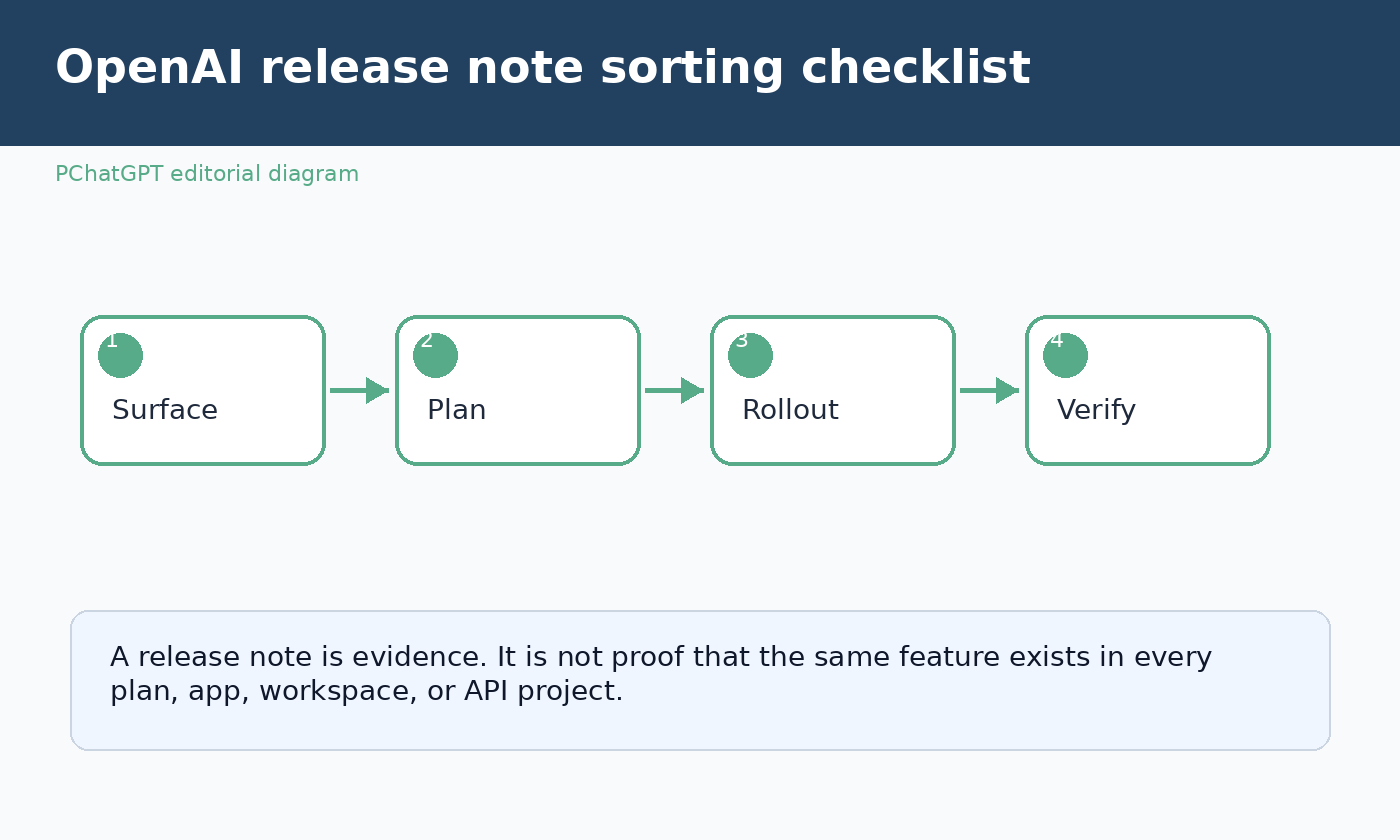
Checklist graphic for sorting OpenAI release notes by product surface, plan, rollout, and verification status

Start with the product surface

The first question to ask is not “Which model is mentioned?” It is “Where does this change live?” A release note may describe the ChatGPT web app, the iOS app, the Android app, a desktop app, a workspace admin console, custom GPTs, projects, connectors, memory, voice, search, deep research, Codex inside ChatGPT, or a model available through the API. Each surface has its own controls, rollout behavior, and practical impact.

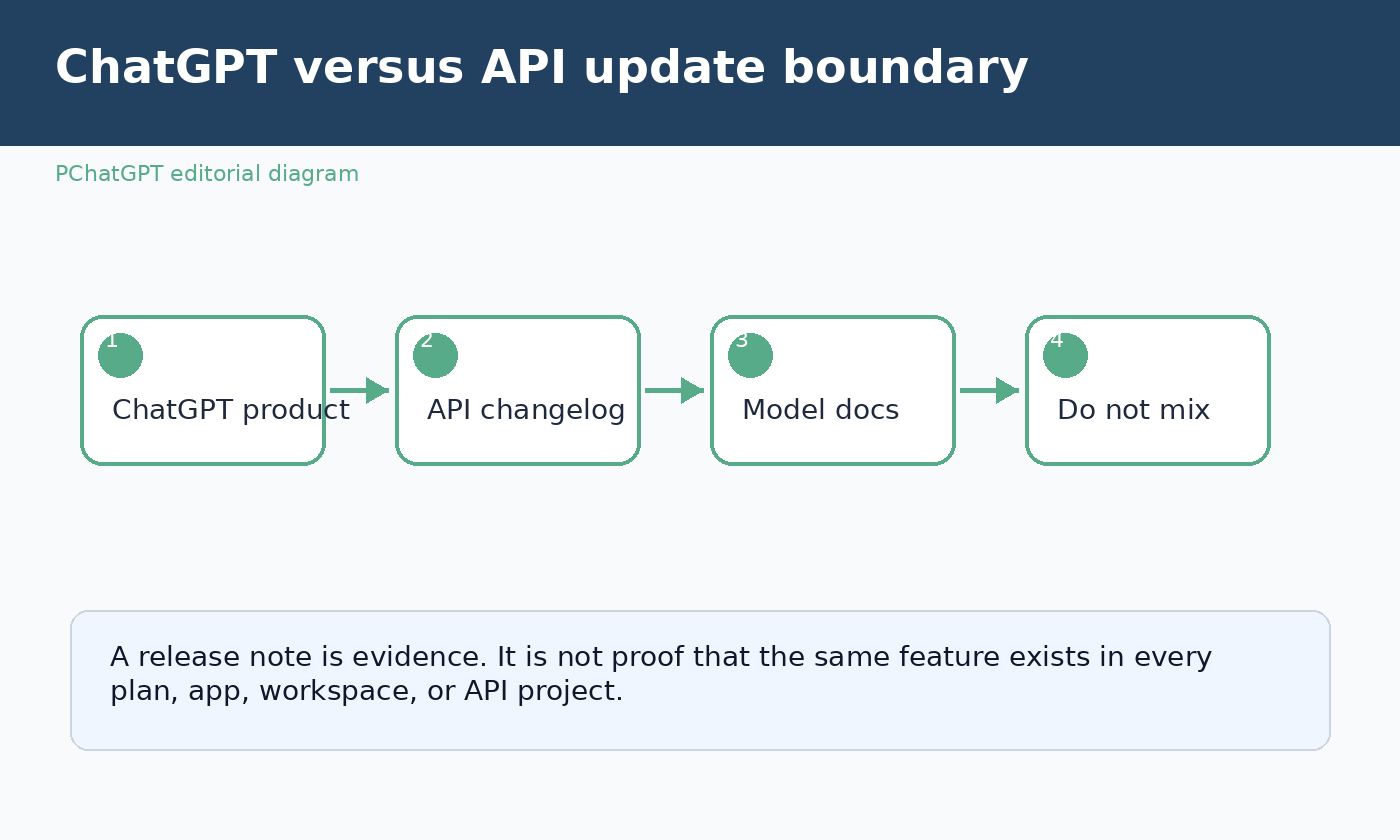
If the source is the main ChatGPT release notes page, read it as a consumer product log first. It usually explains what users may see in ChatGPT, which plans are eligible, and whether a feature is rolling out to web, mobile, desktop, or a specific workspace type. If the source is the model release notes page, treat it as a guide to model behavior, model availability, and model related announcements. If the source is the API changelog, treat it as developer platform information, not proof that the same feature has arrived in ChatGPT.

A reliable update workflow starts with a simple label. Write “ChatGPT product,” “Business workspace,” “Enterprise or Edu workspace,” “model behavior,” or “API platform” beside every item you collect. That one label prevents most errors. A new model name can appear in several places, but the meaning changes depending on whether OpenAI is discussing a picker inside ChatGPT, an endpoint for developers, a retirement in the ChatGPT app, or a model specification update.

Read plan eligibility before you read features

OpenAI often uses plan names as the practical boundary around a release. A feature can be available to Free, Go, Plus, Pro, Business, Enterprise, Edu, or a subset of those plans. A workspace control may only matter to admins. A connector may require the workspace owner to enable access. A mobile feature may exist only after an app update. A feature described as available globally may still have account level settings or compliance limitations.

When you audit release notes, copy the plan language exactly into your private notes. Do not simplify it into “available to everyone” unless the source truly says that and your own check supports it. “Rolling out to Plus and Pro” is not the same as “already visible in all Plus and Pro accounts.” “Available to Enterprise” is not the same as “enabled for every employee in every Enterprise workspace.” “Not available in some regions” is not a footnote. It can decide whether a reader can use the feature today.

This is especially important for guides that are updated in place. A post may have started as a monthly roundup, but a better evergreen version should teach readers how to verify plan access. For example, a person using ChatGPT Plus for writing may care about memory, projects, file upload, and model picker changes. A Business admin may care more about analytics, workspace agents, connectors, retention settings, and user management. A developer may need the API changelog instead of the ChatGPT release notes.

Separate announcement date from availability date

Release notes often include dates, but a date beside an entry does not always mean the feature is active in every account on that date. Some entries describe a launch, some describe a gradual rollout, some describe a retirement window, and some update a previous announcement. A careful reader treats date as evidence, not as a guarantee.

Use four status labels in your own tracker: announced, rolling out, visible in my account, and verified in workflow. “Announced” means the official source says the change exists. “Rolling out” means eligibility is described, but not every eligible account may see it immediately. “Visible in my account” means you can see the interface, setting, model, or option. “Verified in workflow” means you tested it in the specific task that matters to you, such as a project, a shared workspace, a mobile app, or an API integration.

This approach keeps your writing honest. Instead of saying “OpenAI added this for all users,” you can say “OpenAI lists this in the ChatGPT release notes and describes the eligible plans and rollout conditions.” Instead of telling an admin to change a setting that may not exist in their workspace yet, you can tell them where to check and what eligibility language to compare.

Do not merge ChatGPT and API updates

The most common mistake is assuming that a model or feature named in ChatGPT release notes has the same status in the API. OpenAI itself sometimes clarifies that a change applies to ChatGPT only and does not change the API. The reverse can also happen: the API changelog may announce endpoints, tools, pricing details, snapshots, parameters, or SDK related changes that do not automatically appear in the ChatGPT app.

Think of ChatGPT as a packaged product experience. It includes models, tools, interface choices, plan limits, app behavior, workspace policy, and OpenAI managed product design. Think of the API as a developer platform. It includes model IDs, endpoints, rate limits, tool support, authentication, billing, parameters, SDKs, and deployment patterns. The two are connected by OpenAI technology, but they are not interchangeable sources.

If you write for both audiences, keep two separate notes. For ChatGPT readers, explain where the feature appears in the interface, which plan can use it, and what a normal user should try first. For developers, link to the API changelog or documentation and discuss model IDs, endpoints, migration impact, cost, latency, and integration testing. If a single OpenAI announcement mentions both, still split the implications by surface.

Use the official wording as a checklist

OpenAI release notes often include availability words that should guide your interpretation. Watch for phrases such as “rolling out,” “available to,” “not available,” “coming to,” “retired from ChatGPT,” “no changes to the API,” “workspace,” “admin,” “mobile,” “web,” “globally,” and region names. These phrases are not decorative. They tell you how far the claim can safely travel.

For each update, build a short checklist:

  • Which official page contains the entry?
  • Which product surface does the entry describe?
  • Which plans are eligible?
  • Is the entry global, regional, workspace limited, or app limited?
  • Does it say the change is rolling out rather than fully available?
  • Does it explicitly separate ChatGPT from the API?
  • What should a reader check inside their own account?

This checklist is more durable than a list of dated headlines. It remains useful when OpenAI edits release notes, renames a plan, retires a model, expands availability, or moves a capability from limited access to broader availability.

Diagram separating ChatGPT product release notes from OpenAI API changelog and model documentation

How to verify a ChatGPT feature in your account

Start with the account and plan you actually use. Open ChatGPT in the relevant place: web, desktop, iOS, Android, or the workspace where the change should appear. Check the model selector, settings, project menu, tools menu, connector settings, memory controls, admin console, or feature area named by the release note. If the note says a feature is mobile specific, do not verify it only on the web. If it says a workspace admin must enable it, do not assume an end user can activate it alone.

Then perform a small, reversible test. For a model picker change, start a new chat and confirm the model option appears. For memory, review the memory settings before relying on behavior. For projects, create a low risk test project before moving important work. For connectors, confirm authorization, scope, and workspace policy before asking ChatGPT to use sensitive files. For Business, Enterprise, or Edu features, check the admin documentation and internal policy before telling users to adopt a new workflow.

Finally, record the result with the same four status labels: announced, rolling out, visible, verified. This protects your team from treating a release note as a deployment certificate. It also helps readers understand why their account may look different from screenshots or examples they see online.

How to verify an API change separately

For API work, do not use ChatGPT interface behavior as proof. Go to the OpenAI API changelog and the relevant platform documentation. Confirm the model ID, endpoint, parameters, tool support, deprecation language, rate limit impact, pricing page, and SDK version. If a note mentions a new model family in the API, test it in a development environment with controlled prompts, logging, and fallbacks before moving production traffic.

Developers should also distinguish model release notes from platform release notes. A model note may describe capability, behavior, safety guidance, or availability. A platform changelog may describe the mechanics needed to call that model or use a tool. Both can be official, but they answer different questions. One helps you understand what the model is intended to do. The other helps you integrate it correctly.

When a ChatGPT retirement is announced, check whether the entry says it applies to ChatGPT only. When an API model snapshot changes, check whether your application pins a specific model ID or uses a moving alias. When a new tool appears in the API, check whether it has the same name or user experience as a ChatGPT tool before writing public instructions.

Special notes for Business, Enterprise, and Edu readers

Workspace plans deserve extra care because availability can depend on admin controls, identity settings, connectors, security policy, data residency, and organizational rollout decisions. The ChatGPT Enterprise and Edu release notes focus on new features, administrative controls, and product updates for those environments. The ChatGPT Business release notes focus on the Business plan, including workspace oriented changes. These pages may mention features that sound similar to consumer ChatGPT features, but the action steps are different.

If you manage a workspace, create an internal release review routine. Assign someone to read the relevant OpenAI page, identify whether the change affects admins or end users, test it in a safe group, review data handling implications, and write a short internal note. For connectors and agents, include permission scope and offboarding behavior in the review. For analytics or admin controls, check who can see the data and whether the change alters reporting expectations.

If you are an end user inside a workspace, avoid assuming that a feature is missing because OpenAI has not released it. It may be disabled by your organization, restricted by your role, unavailable in your region, or pending internal review. Ask your admin for the workspace policy and include the official release note link when you ask.

Build an evergreen release note habit

A good release note habit is small and repeatable. Once a week, scan the official ChatGPT release notes if you use ChatGPT for daily work. If you build with the OpenAI platform, scan the API changelog separately. If you administer a workspace, scan the Business or Enterprise and Edu notes that match your plan. Save only the entries that affect your work, and write the source, surface, plan, availability language, and test result.

Avoid noisy tracking. You do not need to rewrite your workflow every time a model is named in a headline. You need to know whether the change touches your plan, your surface, your data, your costs, your compliance responsibilities, or your users. If it does not, record it as background context and move on.

For public articles, update old posts by replacing brittle month based claims with a method. Readers get more value from a clear verification process than from a stale list of changes. A method also reduces the risk of confusing ChatGPT product updates with API updates. The best wording tells readers where to check, what to compare, and how to decide whether a change is relevant to them.

Official sources used

Related guides

FAQ

Are ChatGPT release notes the same as API release notes?

No. ChatGPT release notes describe the ChatGPT product experience, while API release notes describe the developer platform. A model name can appear in both places, but availability, controls, billing, endpoints, and user experience may be different.

Why do I not see a feature listed in the release notes?

The most common reasons are plan eligibility, gradual rollout, region limits, app version, workspace settings, or admin controls. Check the exact wording in the official entry, then verify on the same surface mentioned by the note.

What should I track when OpenAI announces a new model?

Track where the model is available, which plans or API endpoints can use it, whether the rollout is gradual, whether older models are being retired, and whether your own workflow has been tested with the new option.

How should teams use OpenAI release notes safely?

Teams should assign ownership, separate ChatGPT and API review, test changes in a low risk environment, document plan and workspace limits, and communicate only the updates that affect their users, costs, data, or compliance responsibilities.

The Most Common ChatGPT Mistakes and How to Avoid Them

0

A polished ChatGPT answer can still be wrong, incomplete, or aimed at the wrong problem. Many frustrating results begin before the answer appears: the request is vague, the relevant material is missing, or the user expects one prompt to handle several different jobs. Other mistakes happen afterward, when a fluent response is accepted without checking its claims.

This guide covers the common ChatGPT mistakes that users can correct themselves. It separates OpenAI’s documented product behavior from practical advice. The examples are starting points, not secret commands, and they do not guarantee a correct answer. For important work, review the output against the original material and reliable sources.

1. Asking for a result without defining the job

“Help with my presentation” leaves several decisions unstated. Is the task to create an outline, shorten existing slides, check evidence, or write speaker notes? Who will see it, how long is the talk, and what should the audience understand at the end?

OpenAI’s prompt engineering guidance for ChatGPT recommends clear, specific requests with enough context. A useful correction is to name the deliverable, audience, source material, and constraints in ordinary language.

Turn the notes below into a six-slide outline for nontechnical managers. Keep each slide to a heading and no more than four bullets. End with two decisions the audience needs to make. Do not add statistics that are not in my notes.

That request is easier to inspect because success has a visible shape. You can tell whether the slide count, audience level, and evidence boundary were followed. If your first request is only exploratory, say that too. “Give me five possible angles before drafting” is a defined job.

2. Packing unrelated tasks into one prompt

A long prompt can be detailed and still be poorly organized. Asking ChatGPT to research a topic, judge sources, choose a position, write a report, produce a table, and create an email in one turn makes review difficult. A weak assumption early in the response can affect everything that follows.

OpenAI’s guide on creating a good prompt advises users to right-size complex requests and work iteratively. In practice, split the work at points where you want to inspect or approve it. First ask for an outline based on supplied material. Correct the outline. Then request one section or one format at a time.

This is not a rule that every task needs many turns. A short, familiar job may work in one request. Split a task when the stages use different evidence, require separate decisions, or would be expensive to redo. The goal is a reviewable process, not a longer conversation.

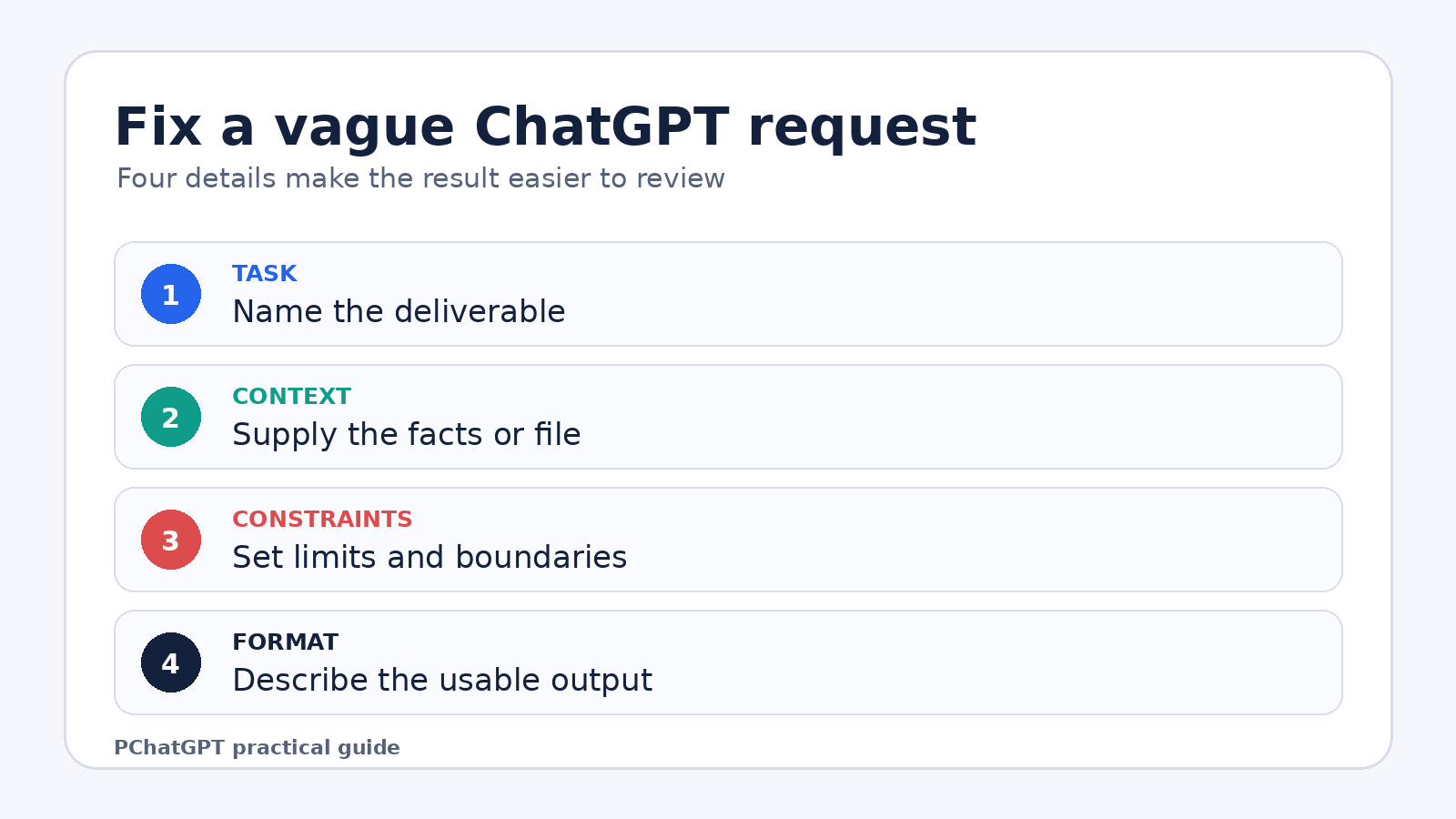
Checklist for fixing vague ChatGPT requests with a clear task, context, constraints, and output format
A practical prompt check: define the task, provide the needed context, set constraints, and specify the output.

3. Expecting ChatGPT to infer missing context

ChatGPT cannot reliably apply facts that you never supplied or made available through an appropriate tool. “Reply to this customer” is incomplete if the complaint, policy, desired outcome, and brand tone are missing. “Analyze my spreadsheet” is incomplete if the file is absent or the important columns are unexplained.

Provide the material that controls the answer. Paste the email, attach the document, identify the relevant section, or summarize the facts that the response must use. Mark the boundary clearly: “Use only the policy text below” or “If the document does not answer a question, list it as unresolved.” Those are practical safeguards. They do not prevent every error, so compare the response with the source.

For recurring work, ChatGPT Projects can keep related chats, files, and project instructions together. OpenAI’s Projects documentation says project instructions apply inside that project and override global custom instructions. That can reduce repeated setup, but it also creates a reason to check which project and instructions are active before starting a sensitive task.

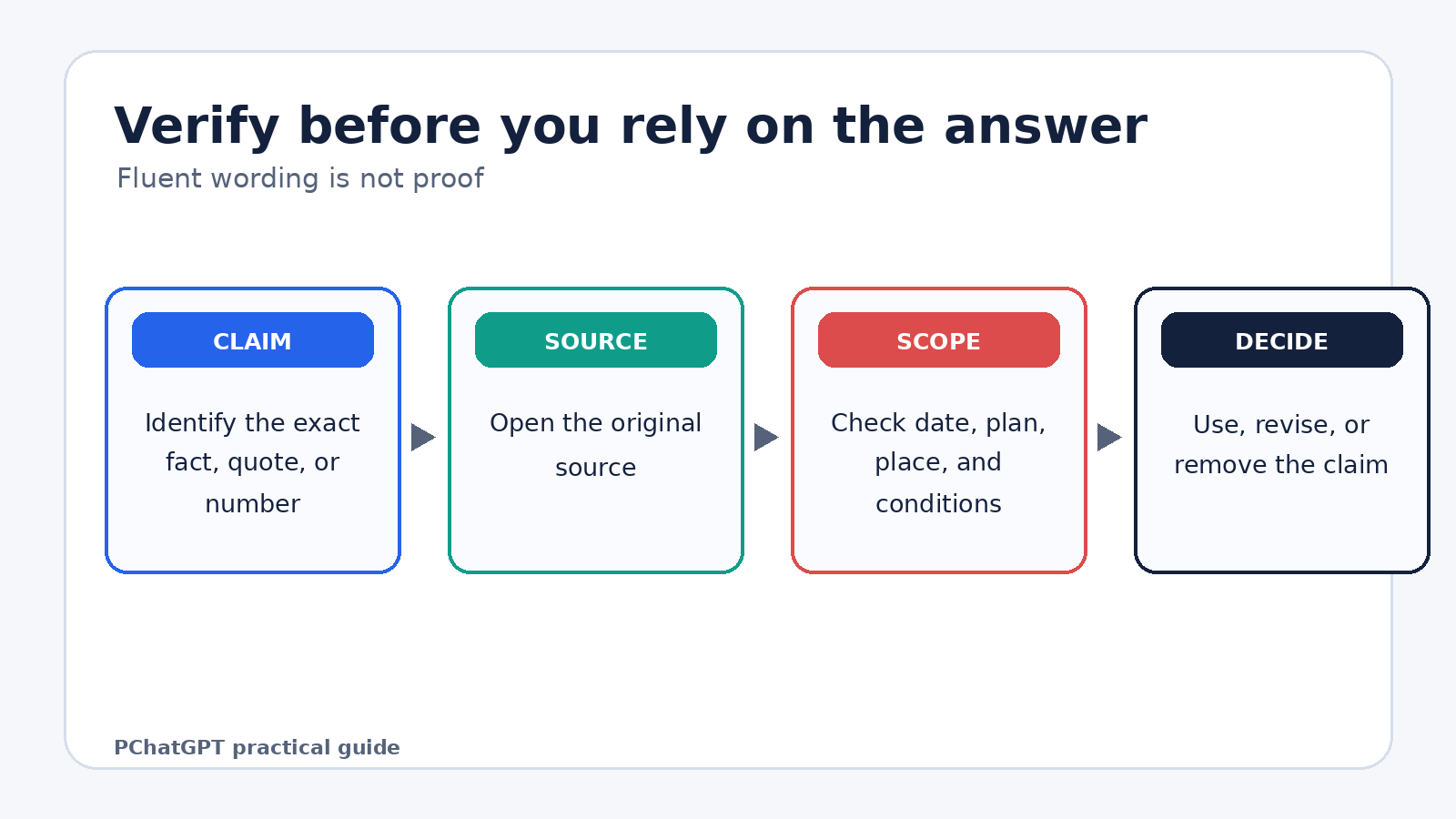
4. Treating fluent wording as proof

Confidence, detail, and clean formatting are not evidence. OpenAI states that ChatGPT can produce incorrect or misleading output and may sound confident when it is wrong. Its accuracy guidance gives examples that include wrong dates or definitions, fabricated citations, and overconfident answers to ambiguous questions.

The correction depends on the stakes. For a casual brainstorming list, a quick sense check may be enough. For a legal deadline, medical decision, financial figure, quotation, publication, or production command, verify the claim in the original source or with a qualified person. Ask ChatGPT to identify uncertainty and show sources, but do not treat that request as verification by itself.

When current information matters, use Search or deep research if available, then open the cited pages. OpenAI documents that Search can provide web citations and that deep research can produce multi-source cited answers. A citation is a route to evidence. You still need to check whether the linked page supports the sentence, applies to the right date, and refers to the product or plan you are using.

5. Asking for citations, then trusting the citation list

A reference can look plausible while the article, author, quotation, or page number does not exist. A real link can also fail to support the nearby claim. This is a separate mistake from accepting a wrong factual answer because the formatting itself makes the response feel researched.

Open each source. Confirm the title and publisher, locate the relevant passage, and compare the date and scope with your claim. For quotations, search the source for the exact words. For academic work, check the paper through the journal, DOI record, or library database. If you cannot verify a source, remove the claim or mark it for further research rather than asking ChatGPT to make the citation look more formal.

For each claim, give the source URL and quote the exact supporting passage. If you cannot find support, write “not verified” instead of supplying a citation.

This prompt makes review easier, but it is still an instruction, not a guarantee. The user remains responsible for opening the source and checking the passage.

6. Using an old chat for a changed task

Continuing a long conversation can be convenient, but earlier constraints may no longer fit. The audience might have changed, the draft may now use a different source, or a discarded idea may still influence the response. Users sometimes spend several turns correcting a chat when a clean request would be easier.

Before continuing, restate the current goal and the facts that still apply. If the job has materially changed, start a new chat or a separate project thread. For broader orientation across Chat, Projects, files, memory, and other surfaces, see the site’s current ChatGPT cheat sheet.

Do not assume that a fresh chat automatically solves every context issue. Global custom instructions or memory settings may still affect replies. Project instructions apply within their project. Check the active surface and restate any constraint that must not be missed.

7. Leaving the output format unspecified

“Summarize this report” may produce a readable answer that you cannot use. A meeting brief, study note, executive email, and risk register need different levels of detail. If format matters, describe it before the answer is generated.

Specify headings, length, audience, fields, and any items that must be omitted. Ask for a table only when a table helps comparison. If the result will be copied into another system, provide a small example of the required structure. OpenAI’s prompting guidance also recommends stating the desired tone, such as formal, friendly, or serious.

Avoid instructions such as “make it better” unless you define what better means. You might ask to cut repetition, preserve all dates, explain terms for beginners, or keep each recommendation under 30 words. Concrete editing criteria lead to a response you can judge.

ChatGPT answer verification flow from claim to original source, scope check, and final decision
Verification is a separate step: trace important claims to the original source, check scope and date, then decide whether to use them.

8. Repeating the same prompt after a bad answer

Sending the same request again may produce different wording without fixing the cause. Point to the specific failure. Was the answer too broad, based on an unsupported assumption, missing a required section, or written for the wrong reader?

Use the response as diagnostic evidence. Try: “The recommendation assumes we can change the deadline, but the deadline is fixed. Revise the plan while preserving the deadline and list any remaining tradeoffs.” This gives the next response a concrete correction. OpenAI describes iterative refinement as reviewing an initial response and adjusting wording, context, or simplicity as needed.

If the answer keeps failing, reduce the task. Ask ChatGPT to summarize the constraints back to you before drafting, or request an outline that you can correct. Sometimes the source is inadequate or the task needs expertise that a chat response cannot supply. Iteration should uncover that limit, not hide it behind endless rewrites.

9. Sharing sensitive information without checking data controls

Users often paste a document first and think about privacy later. Before uploading personal, client, health, financial, legal, or confidential work material, decide whether the information is necessary and whether your account or workplace permits it. Remove names, account numbers, secrets, and unrelated personal details when they are not needed for the task.

OpenAI’s Data Controls FAQ documents an “Improve the model for everyone” setting for signed-in users. Turning it off keeps conversations in history but stops new conversations from being used to improve ChatGPT. The same FAQ says Temporary Chats do not appear in history, do not create memories, are not used to train models, and are deleted from OpenAI’s systems after 30 days, though they may be reviewed for abuse monitoring.

Those documented controls do not turn sensitive material into safe material for every workplace. Follow your organization’s policy and any professional duty that applies. For a closer look at personalization settings, read this guide to ChatGPT memory and controls.

10. Assuming memory means a fact is correct or permanent

Personalization can make a reply feel familiar, but it should not replace task-specific facts. A preference remembered from an earlier conversation may be outdated. A project may contain several files with different versions. A user can also forget which instructions apply in the current chat.

State important facts in the request and point to the current source of truth. For example: “Use the attached policy dated July 15. Ignore earlier policy drafts. The approval limit is stated in section 4.” If an answer depends on remembered details, ask ChatGPT what assumptions it used and compare them with the current record.

Memory and context are product features. Accuracy is a separate question. The presence of a detail in a previous chat, saved memory, or project file does not prove that the detail remains correct.

11. Using ChatGPT as the final decision maker

ChatGPT can help organize options, draft questions, summarize supplied text, or reveal gaps in a plan. It cannot take responsibility for a medical diagnosis, legal filing, financial commitment, hiring decision, security change, or other high-stakes choice. The mistake is not asking for assistance. It is handing over judgment without independent review.

Ask for assumptions, alternatives, missing information, and reasons a recommendation might fail. Then bring the output back to the person, policy, test, or primary source that governs the decision. If a command can delete data or change a production system, inspect it and test it in an appropriate safe environment before use.

A compact correction routine

  1. Define one deliverable and its audience.
  2. Provide the facts, file, or passage that should control the answer.
  3. State constraints and the required output format.
  4. Ask the model to mark uncertainty or unsupported claims.
  5. Review the response against the supplied material.
  6. Verify important claims in original sources.
  7. Remove sensitive information that the task does not require.
  8. Revise the prompt based on a specific failure, not a vague dislike.

This routine is practical advice, not an OpenAI product guarantee. It works because it creates checkpoints where a user can catch a wrong assumption, missing source, or unusable format before the output reaches someone else.

Frequently asked questions

Why does ChatGPT give different answers to the same prompt?

Responses can vary, and the surrounding conversation may also change what the request means. Instead of repeatedly sending the same prompt, define the missing context, show what failed, and specify the part that must stay unchanged. Important facts still need independent verification.

Can a better prompt stop ChatGPT from making factual errors?

No prompt can guarantee factual accuracy. Clear context and a narrow task can make an answer easier to review, but OpenAI explicitly documents that ChatGPT may produce incorrect or fabricated information. Check important claims in reliable original sources.

Should I start a new chat when an answer goes off track?

Start a new chat when the goal, evidence, or constraints have materially changed, or when old context keeps interfering. If only one point is wrong, a specific correction may be faster. In either case, restate any requirement that the answer must follow.

What information should I avoid pasting into ChatGPT?

Avoid sharing secrets, account credentials, unnecessary personal data, and confidential material that your policy or professional duties do not allow you to disclose. Minimize or redact the input when possible, and review the documented Data Controls and Temporary Chat behavior before use.

Official OpenAI sources

AI Browsers in 2026: Features, Privacy, and Choosing Safely

0

An AI browser can mean two quite different things. In one case, it is a familiar browser with an assistant in a sidebar. In the other, AI can read selected page context, compare tabs, organize the browser, or act on a website with permission. Those differences matter more than a long list of product names.

This guide does not rank browsers or claim hands-on testing. It compares current capabilities described in first-party product, help, security, and privacy documents. The aim is to help you ask better questions before moving your browsing history, work accounts, or sensitive research into a new browser.

What makes a browser an AI browser?

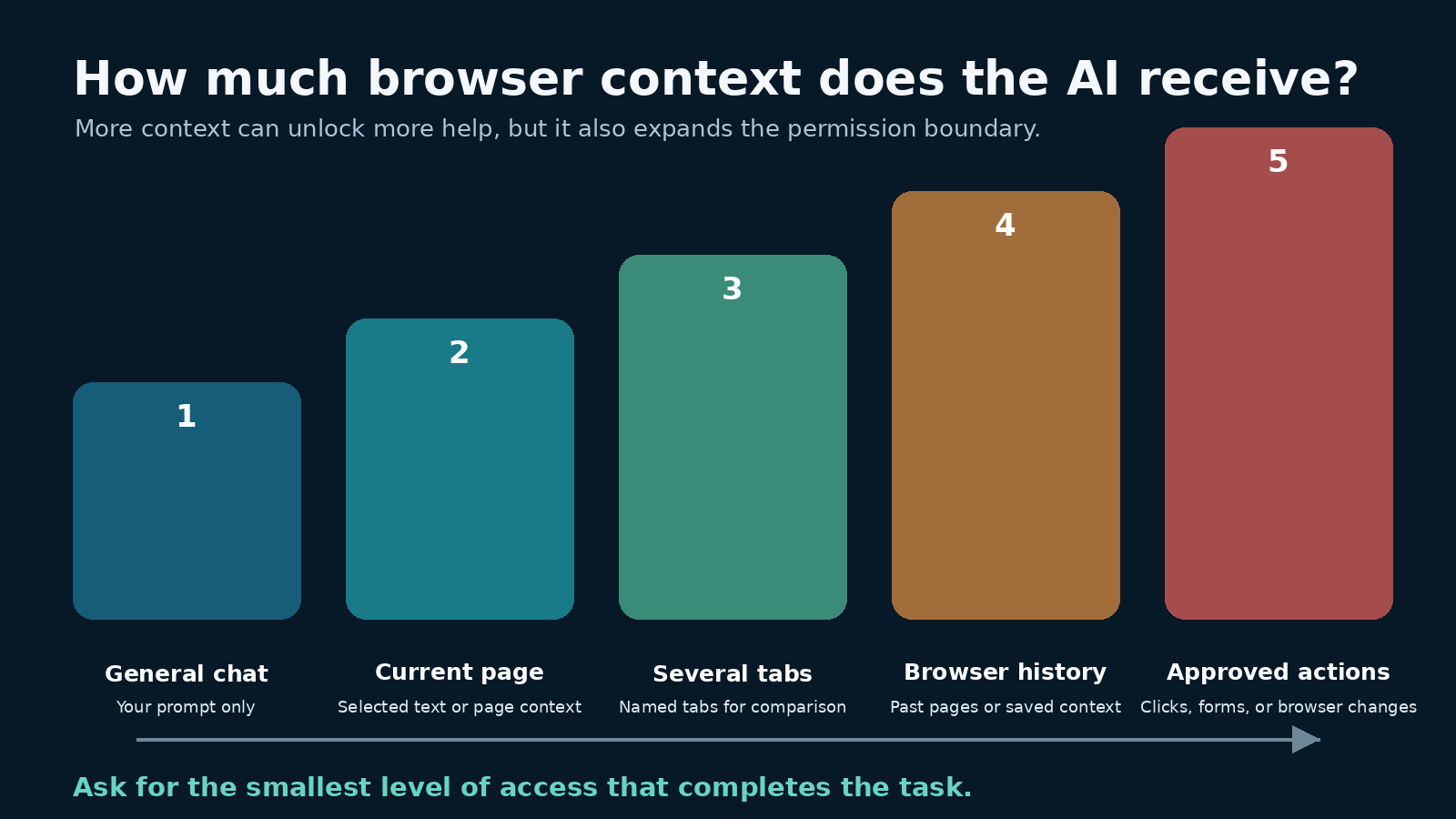
A built-in chat panel alone does not make every product equivalent. A useful comparison starts with the context the assistant can receive. Some assistants answer general questions but need you to paste text. Others can use the current page after you grant access. A smaller group can work across named tabs, browser history, files, or connected services. Agentic features go further by clicking, filling forms, or completing a multistep task.

Each step adds convenience and creates a larger data and permission boundary. Summarizing a public article is a different risk from reading an authenticated account page. Organizing local tab titles is different from sending page contents to a remote model. An assistant that can act on pages needs more scrutiny than one that only returns text.

Native integration also differs from an extension. A native feature can fit the browser’s permission system, settings, tabs, and enterprise policies. An extension may be easier to install in the browser you already use, but it has its own publisher, permissions, update path, privacy policy, and possibly a separate AI provider. Check the extension’s requested access rather than assuming the browser vendor controls it.

How this comparison was checked

The method here is deliberately narrower than a typical “best browsers” roundup. Each product is included only where its own current documentation establishes a relevant capability or data control. Marketing claims are not treated as independent proof of quality. Features described as upcoming are not counted as generally available, and availability can still vary by device, account, language, region, or organization policy.

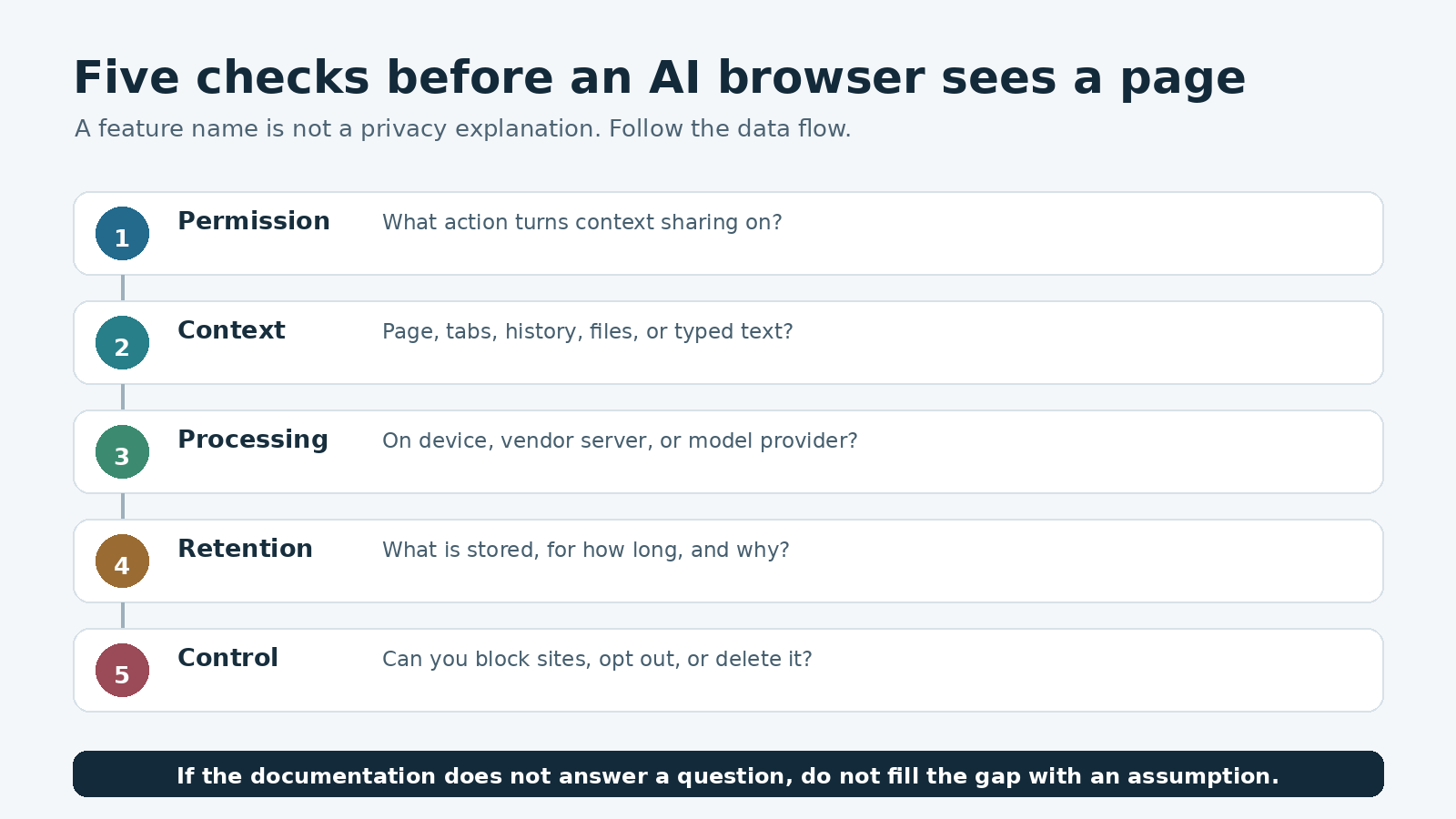
The comparison uses five questions. What page or tab context can the assistant use? Does it summarize or compare material in place? Can it change browser state or act on a page? What is processed locally, and what leaves the device? Can a user or administrator disable the feature, restrict sites, delete history, or opt out of a stated data use?

This approach cannot tell you which model writes the nicest paragraph or which interface feels fastest on your computer. Those judgments require repeatable testing on the same device, network, pages, prompts, and account types. It can, however, separate documented behavior from assumptions.

Diagram showing levels of AI browser access from general chat to page context, multiple tabs, and approved actions

Current browser approaches, based on official documentation

Chrome with Gemini

Google describes Gemini in Chrome as more than a shortcut to a separate chatbot. It can use the context of the page being viewed with permission. Google’s Chrome materials also describe work across multiple tabs for comparison and summarization. That makes Chrome relevant for people whose main problem is gathering information spread across several pages.

Availability and data terms need an account-specific check. Google’s enterprise documentation for Gemini in Chrome lists eligibility conditions, supported environments, policy controls, and protections for qualifying Workspace users. Its official Chrome feature overview describes multi-tab context while warning readers to check responses for accuracy. Consumer and managed Workspace use should not be treated as the same data arrangement.

Microsoft Edge with Copilot Chat

Edge places Copilot Chat in the browser sidebar. Microsoft’s documentation says page context can inform a response when the user consents to share data, and that the feature can summarize supported websites and document types. The exact behavior depends on the material being viewed, so “summarizes pages” should not be read as a promise that every page, PDF, or protected document works identically.

Microsoft gives organizations a separate policy and protection story. Its Copilot Chat in Edge documentation explains sign-in, page summarization, browsing context, and enterprise data protection for users signed in with a Microsoft Entra account. The Microsoft Privacy Statement says Copilot features in Edge may process prompts, files, browsing activity, screenshots, open tabs, and history when the user allows the relevant experiences. Review the settings and account type before using it on internal systems.

Brave with Leo

Brave takes a privacy-centered approach to built-in assistance. Leo can answer questions and work with page material, including summaries. Brave’s documentation also covers writing help and browser-related functions. The more important distinction is how Brave says it handles requests and chat history.

The Brave Browser Privacy Policy states that Leo conversations are not used for model training. It describes optional chat history as encrypted and stored locally, along with settings to disable storage or clear saved chats. It also explains the data processed for a request. Readers should inspect the Leo section itself, since the broader browser policy covers many services with different processing rules.

Opera with Aria

Opera’s Aria is integrated into its browser family for chat and page-context tasks. Opera has also connected AI to browser controls. Its Tab Commands feature can interpret a request to close, group, pin, or bookmark tabs. That is a useful example of native integration doing something an ordinary web chatbot cannot do by itself.

Opera’s official Tab Commands explanation says the prompt is processed by AI while tab-related data stays on the device and the browser executes the returned instructions locally. That statement applies to this specific tab-management flow. It should not be stretched into a claim that every Aria request or page-context feature remains local.

Firefox and optional AI controls

Firefox offers a different kind of choice. Its sidebar can connect to a selected chatbot provider, while other AI features include link previews, tab grouping suggestions, translation, and PDF alt text. This is not the same integration model as a browser whose own assistant is the central interface. The provider you select may have separate terms and data handling.

Mozilla’s official AI controls announcement documents individual controls and a setting to block current and future generative AI enhancements. That makes Firefox worth considering if the ability to reduce or remove AI from the browser is as important to you as turning it on. Check the selected chatbot’s policy separately before sending page text.

Dia

Dia is built around tab-aware assistance rather than adding a single sidebar to a conventional workflow. Its product materials describe questions about the current page, other tabs, selected text, and browser history. This deeper context can reduce copying and switching, but it also makes the privacy settings central to the choice.

Dia’s privacy page says browsing data is encrypted and stored locally, while data needed for an AI request is sent through its servers to AI partners. It also says certain content data is used by default to improve speed and accuracy, is not associated with the account, and is deleted after a stated retention period. The same page provides an opt-out path in Settings under Privacy. Anyone considering Dia for confidential work should read that description rather than relying on the phrase “local browsing data.”

Perplexity Comet

Comet combines page summarization, information retrieval, and automation. Its privacy documentation draws a useful line between data that stays on the device and context sent when a request requires it. By default, it says the assistant does not upload the full list of open tabs, cookies, passwords, autofill data, local files, or text typed into websites unless that text is explicitly sent in a request.

The Comet Assistant privacy guide explains when selected text, page content, named tabs, history items, or connected services may be used. It also documents controls to disable the assistant or block it on specific websites. Its permission prompt for advanced automation offers per-use approval as well as broader permission. Prefer the narrowest permission that still completes the task.

Arc with Max

Arc Max illustrates a feature-by-feature model. Official documentation lists page previews, tidier tab titles, renamed downloads, tab organization, and a ChatGPT command-bar option. Several features have platform limits, so the product name alone does not prove that a function is present on every Arc version.

The Arc Max help article says users can enable the whole bundle or choose individual features. It also states that Max features require data to be sent to AI partners and points readers to the privacy policy for the details. That per-feature switch is useful, but it does not replace checking what each enabled feature sends.

Page summaries are a convenience, not a source of truth

Browser context removes a tedious step: you do not have to copy an article into a chat window. It does not remove the model’s ability to omit a qualification, merge two claims, misunderstand a table, or produce a confident error. A summary is best used as a navigation aid.

For an important page, ask the assistant to identify the relevant section and then read that section yourself. Open cited links. Compare names, dates, limitations, and eligibility against the original page. For legal terms, medical information, financial decisions, security instructions, or a contract, never let the summary replace the source document or qualified advice.

Multi-tab comparison needs the same discipline. First decide which tabs belong in the comparison. A browser cannot repair a weak source set. Ask it to keep unknown values blank rather than infer them, and request a claim-by-claim source map. Our source-checked AI tools comparison uses the same principle: fit and evidence matter more than a universal winner.

Privacy review diagram for AI browsers covering permission, context sent, processing location, retention, and deletion controls

Privacy questions to answer before switching

What triggers data sharing?

Find out whether page context is sent only after you ask about a page, whenever the assistant panel opens, or through a proactive feature. Look separately at the current tab, other open tabs, selected text, history, local files, connected services, screenshots, and typed form content. A policy may handle each category differently.

Where does processing happen?

“Stored locally” does not necessarily mean “processed only locally.” A browser may keep history on the device but send the prompt and relevant page context to its servers or an AI provider when you make a request. Conversely, one narrow function such as tab grouping may run locally even though general chat uses remote models. Judge each feature on its documented flow.

How long is context retained?

Check the browser vendor and any model provider named in the documentation. Look for separate rules covering prompts, responses, page context, diagnostic logs, history, feedback, and data used to improve a service. “Not used for training” answers only one question. It says nothing by itself about temporary processing, security logs, account history, or deletion.

Can you restrict or remove access?

Useful controls include a complete off switch, per-feature toggles, site blocklists, one-time permission prompts, deletion tools, content-sharing opt-outs, and administrator policies. Test the control path before using the assistant with sensitive pages. If a setting is controlled by an employer or school, the organization’s policy may override your preferred setup.

For a broader checklist on account type, files, and sensitive material, see our guide to choosing AI apps safely.

Native integration versus an extension

A native assistant usually has a clearer route to browser context and controls. It may use the browser’s own permission prompts, managed policies, and site restrictions. Updates arrive with the browser, and the vendor can document how a feature interacts with tabs or history. That can make the data flow easier to investigate, though it is not automatically more private.

An extension is useful when you want to keep your current browser or choose a different model. The tradeoff is another trust relationship. Open the extension listing and inspect the publisher, update history, requested permissions, privacy disclosure, and external account requirements. Permissions such as reading and changing data on all sites are broad even when the user interface looks small.

Do not install several overlapping AI extensions and leave them enabled everywhere. Choose one for a defined job, restrict site access where the browser permits it, and remove it when the job no longer justifies the permission. Never allow an assistant on password managers, banking pages, health portals, private admin panels, or confidential work systems unless the organization has explicitly approved that exact tool and configuration.

A practical selection process

  1. Write down the task. Page summaries, research across tabs, writing help, tab organization, and web automation need different levels of access.
  2. Choose a context ceiling. Decide whether the assistant may see only text you select, the current page, named tabs, history, or authenticated services.
  3. Confirm availability from the current official help page for your device, account, region, and organization. Do not buy or migrate based on a launch announcement alone.
  4. Read the feature-specific privacy section. Record what leaves the device, who receives it, retention, improvement or training use, and deletion controls.
  5. Start with a clean browser profile and public, non-sensitive pages. Use the narrowest permissions and turn off proactive context features you do not need.
  6. Run the same small task set in each candidate. Check whether the answer points to the right passage, preserves qualifications, and makes its source trail easy to inspect.
  7. Review ordinary browser quality too. Security updates, site compatibility, accessibility, password management, sync, performance, and extension support still matter after the AI demo ends.

A sensible choice may be the browser you already trust with one optional AI feature enabled. It may be a privacy-focused browser with fewer cloud features, or a context-rich browser managed by your workplace. There is no evidence-based reason to force every reader into one winner.

FAQ

Which AI browser is best in 2026?

There is no universal best browser. Choose according to the context you want the assistant to access, the controls available for your account, device support, and normal browser quality. Use official help and privacy documents, then run the same non-sensitive tasks in your finalists.

Can an AI browser read every page I open?

Not necessarily. Access varies by product, feature, permission, page type, account, and policy. Some assistants use page context only when asked. Others can work with selected tabs or history. Read the feature-specific documentation and use site restrictions where available.

Is a built-in AI assistant safer than a browser extension?

Not automatically. Native integration may provide clearer browser controls and policies, while an extension adds a separate publisher and permission set. Safety depends on the actual data flow, permissions, retention, vendor practices, and your configuration.

Should I use AI browser summaries for important research?

Use them to locate and organize information, not as the final authority. Read the relevant source passages, verify citations and qualifications, and keep consequential decisions grounded in original documents and appropriate expert advice.

Conclusion

The useful question is not how many AI features a browser advertises. It is whether the assistant receives the right amount of context for your task and whether you can understand, limit, and reverse that access. Current official documentation shows several valid designs: integrated page assistants, multi-tab research, local browser organization, optional provider sidebars, and permission-based automation.

Pick the smallest capability that solves the problem. Keep sensitive work outside consumer AI features unless the exact account and policy are approved. Recheck documentation after major updates, because browser features and data controls change. A short privacy review before switching is less exciting than an AI demo, but it is far more useful.

ChatGPT 5.5 Guide: Availability, Capabilities, and Limits

0

The phrase “ChatGPT 5.5” needs a date attached to it. The old title and URL of this page referred to the label on April 19, 2026, four days before OpenAI’s official GPT-5.5 announcement on April 23. That earlier page did not have an official source for the claim. OpenAI later did release GPT-5.5, followed by GPT-5.5 Instant and then GPT-5.6 reasoning options. This guide therefore treats the preserved URL as historical and uses current OpenAI documentation to explain what the label means now.

The short version is that GPT-5.5 is a documented OpenAI model family, but the exact model behind a ChatGPT response depends on the product surface, plan, rollout, workspace controls, model picker setting, and fallbacks. OpenAI currently describes GPT-5.5 Instant as the default for fast everyday replies, while eligible paid plans can use GPT-5.6 Sol for higher reasoning levels. A label in an old article, screenshot, shared chat, or conversation title is not enough to prove which model is available to your account today.

What OpenAI has confirmed about GPT-5.5

OpenAI’s April 23 GPT-5.5 announcement introduced GPT-5.5 for complex work, including coding, research, information analysis, document work, and tool use. At launch, GPT-5.5 Thinking rolled out to Plus, Pro, Business, and Enterprise users in ChatGPT. GPT-5.5 Pro rolled out to Pro, Business, and Enterprise. OpenAI added an update saying GPT-5.5 and GPT-5.5 Pro became available in the API on April 24.

On May 5, OpenAI published a separate GPT-5.5 Instant announcement. It said Instant was replacing GPT-5.3 Instant as ChatGPT’s default model for all users, subject to account limits and rollout conditions. The announcement described improvements in everyday answers, image understanding, STEM questions, decisions about when to search the web, and use of past chats or connected context where those features were available and enabled.

Those are two different launch moments. The April release centered on the Thinking and Pro experience for harder work. The May release made GPT-5.5 Instant the everyday default. Neither announcement proves that every GPT-5.5 variant remains manually selectable on every plan. OpenAI changes model availability, picker labels, and legacy access over time.

What “ChatGPT 5.5” can mean today

People often use “ChatGPT 5.5” as if it were one fixed product. In practice, it can refer to the GPT-5.5 family, GPT-5.5 Instant, the earlier GPT-5.5 Thinking option, GPT-5.5 Pro, or simply a ChatGPT conversation whose interface exposed a speed or reasoning label rather than a model name. These are not interchangeable claims.

The current OpenAI guide to models in ChatGPT says GPT-5.5 Instant remains the default for fast, everyday responses. It also says GPT-5.6 Sol powers Medium, High, and Extra High reasoning on eligible plans, with GPT-5.6 Sol Pro behind the Pro option where available. This means a reader can use ChatGPT in August 2026, see “Instant,” and be using GPT-5.5 Instant, while a switch to a higher reasoning level may move the conversation to a later family.

This is why the visible control matters more than a remembered model list. OpenAI’s interface may present task-oriented choices such as Instant, Medium, High, Extra High, or Pro. The underlying model can change as OpenAI updates the service. For a current family comparison, see our GPT-5.6 Sol, Terra, and Luna guide. That article covers the newer family in detail. This page stays focused on verifying GPT-5.5 labels and managing a change safely.

Five-step ChatGPT model label verification from account and plan through surface, picker, and official release notes
Verify the account, plan, product surface, live picker, and current release notes before relying on a model label.

A five-part check for model availability

Do not start with a search result that says a model “is available.” Start inside the account and surface where you intend to work. A plan can include a family while a rollout is incomplete, a workspace administrator has hidden an option, or the option exists in Codex or the API but not in a standard ChatGPT conversation.

  1. Confirm the account. Check that you are signed in to the intended personal account or managed workspace. A user who belongs to several workspaces can see different model options after switching between them.
  2. Confirm the plan. Open the plan or billing view rather than inferring a plan from an old receipt or invitation. Plan eligibility sets an outer boundary, but it does not override rollout and workspace controls.
  3. Confirm the product surface. Standard ChatGPT, Work, Codex, custom GPTs, and the OpenAI API can expose different families. API model availability does not prove that the same name appears in the ChatGPT picker.
  4. Inspect the live picker and Configure menu. Record the visible speed or reasoning label. If automatic switching is available, check whether it is on. A routed response may use a different reasoning path than a manually selected Instant response.
  5. Check current official notes. Compare what you see with the OpenAI Model Release Notes and ChatGPT Release Notes. Release notes provide dated changes, while the live account shows whether the rollout and permissions have reached you.

Save the date, workspace name, app or web surface, visible picker label, and automatic routing state with any test result. This small record prevents a common mistake: comparing output from two dates and attributing every difference to a model upgrade when settings, tools, memory, or source files also changed.

Why the model picker may not show a model name

The model picker is increasingly a choice about response speed and reasoning effort. OpenAI’s current Business documentation says the underlying model for Instant can change as newer models roll out. Medium and High ask for more deliberate reasoning, while availability depends on the workspace and rollout status. The interface is telling you what kind of response path you selected, not promising that the same model identifier will sit behind that label forever.

Automatic routing adds another layer. On eligible plans, ChatGPT can switch from Instant to a reasoning option for a complex request. OpenAI says users can manage automatic switching through Configure where the control is available. If you need a controlled comparison, turn off routing for the test or record that it was enabled. Otherwise, two apparently identical runs may take different routes.

Fallbacks matter too. When an account reaches a limit, ChatGPT may move to a smaller fallback model until the allowance resets. OpenAI’s release notes say GPT-5.5 Instant Mini can serve as a fallback and may not appear in the picker. An absent label therefore does not prove that a fallback was never used. Look for the notice ChatGPT displays when a limit is reached, and avoid treating a rate-limited session as a clean benchmark.

Plan and workspace access are separate checks

A personal subscription and a managed workspace do not behave the same way. A plan may be eligible for a model, but Business, Enterprise, or Edu administrators can control access for members. Options a member cannot use may be hidden rather than shown as disabled. Role, workspace policy, regional rollout, and temporary service conditions can all affect what appears.

OpenAI’s legacy model access guide says a legacy model appears only while OpenAI still supports it and the workspace has legacy access enabled. Retired models disappear from the picker, and existing conversations may continue on a newer supported model. It also states that API availability is managed separately.

For a managed account, ask an administrator a precise question: “Is this reasoning level or legacy model enabled for my role in this workspace?” A screenshot from a coworker is weak evidence because that person may have a different role, workspace, staged rollout, or account. Administrators should compare workspace settings with the current rate card and release notes rather than maintaining a static model list in an internal handbook.

Capabilities that are documented, and what they do not guarantee

OpenAI positioned GPT-5.5 Thinking for demanding coding, research, synthesis, analysis, and document-heavy tasks. The launch post also reports results on coding, knowledge-work, computer-use, and science evaluations. Those results describe the tested model under stated evaluation conditions. They do not guarantee that it will solve a particular company task, reproduce the same score in ChatGPT, or outperform every later model on every prompt.

GPT-5.5 Instant was presented as the everyday option. OpenAI reported fewer hallucinated claims than GPT-5.3 Instant in its internal evaluations and improvements in visual reasoning, math, science, and web-search decisions. “Fewer” does not mean “none.” A fluent answer can still contain an incorrect date, invented source, bad calculation, or unsupported interpretation. Keep verification proportional to the cost of an error.

Tools also affect the outcome. Search, file analysis, connected sources, memory, and workspace plugins can provide context that a plain model call does not have. If you compare two model settings, keep tool access and source material fixed. Our guide to GPT-5.5 Instant personalization and privacy explains how past chats, files, and connected Gmail can change the context available to a response.

Limits readers should keep in view

Availability is conditional. Usage allowances can depend on plan, workspace, system conditions, and current policy. A model may be the default without being manually selectable. A reasoning option may be available in one product and absent in another. Release announcements are snapshots, not permanent entitlement contracts.

Model labels also do not describe the complete run. Automatic routing, fallback behavior, enabled tools, connected sources, memory, custom instructions, and the conversation history can all affect output. If a result must be reproducible, capture those variables alongside the label. For sensitive work, use source documents and a review process rather than relying on a model name as a quality seal.

Finally, current documentation takes precedence over the dated slug of this page. The April 19 wording was premature because OpenAI had not yet announced GPT-5.5. The official April 23 and May 5 releases support the family and Instant labels after those dates. Later Help Center pages establish the current relationship between GPT-5.5 Instant and GPT-5.6 reasoning options.

A safe migration and testing routine

A model transition should begin with representative work, not a polished demo prompt. Choose a small set of tasks that reflect normal inputs, awkward inputs, and a few costly failure cases. Keep the prompt, files, tools, memory state, and required output format fixed. Remove personal or confidential data unless the test environment and account policy permit it.

Controlled ChatGPT model migration test covering baseline tasks, fixed settings, review criteria, and rollback decisions
Keep prompts, sources, tools, and routing fixed, then review outputs against explicit pass criteria.

Run the same cases on the old available setting and the new one while both can still be selected. If the older model has already retired, compare a saved, reviewed output with a fresh run and clearly mark the limitation. Do not claim an A/B comparison when the runs used different documents, search results, or automatic routing settings.

Use a simple review sheet with the task ID, date, account or workspace, product surface, picker label, routing state, tools enabled, result accepted or rejected, factual errors, missing requirements, review time, and any fallback notice. For writing, inspect source fidelity and unsupported claims. For code, run tests and review changes. For calculations, recompute independently. For documents, compare required fields and formatting against the source brief.

Decide in advance what counts as a pass. A migration might require zero invented citations, all mandatory fields present, tests passing, and review time no worse than the current process. One impressive answer should not outweigh repeated failures on ordinary cases. The aim is a dependable workflow, not a winner in an informal model contest.

Keep a rollback path while a legacy option remains available. Save prompt templates, expected outputs, source versions, and settings. In a managed workspace, coordinate retirement dates and picker changes with administrators. If a model is retired, the rollback may be procedural rather than technical: reduce the task’s scope, add a human checkpoint, disable an unreliable tool, or move a critical step to deterministic software.

How to read future release notes

Read release notes in date order and separate launch, update, and retirement events. A launch post explains what OpenAI intended to introduce. A current Help Center page explains present controls and plan conditions. A retirement note explains what happens to old conversations. When the pages disagree because the product moved on, use the newest page for current availability and retain the older page only for history.

Pay attention to nouns. “ChatGPT,” “Codex,” “Work,” and “API” are different surfaces. “Instant,” “Medium,” and “High” are picker choices. “GPT-5.5 Instant” and “GPT-5.6 Sol” are model labels. “Available to a plan” does not always mean enabled in every managed workspace. Precise reading is more useful than memorizing a family tree that may change next month.

Frequently asked questions

Was ChatGPT 5.5 officially available on April 19, 2026?

The official sources cited here do not establish availability on April 19. OpenAI announced GPT-5.5 on April 23 and added API availability on April 24. The older April 19 title was unsupported, so this updated article preserves the URL but corrects the timeline.

Is GPT-5.5 still the default in ChatGPT?

OpenAI’s current ChatGPT model guide says GPT-5.5 Instant remains the default for fast, everyday responses. Eligible paid plans can use GPT-5.6 Sol for Medium, High, and Extra High reasoning, while Pro uses the corresponding Pro option where available.

Why can another user see a model option that I cannot?

The users may have different plans, workspaces, roles, rollout status, regions, or administrator settings. Confirm the account and product surface, inspect the live picker, and ask a workspace administrator whether the option is enabled for your role.

How should I test a move to a newer model?

Use representative tasks with fixed prompts, files, tools, and routing settings. Record the visible picker label and date, check outputs against explicit acceptance criteria, verify factual or executable results independently, and keep a procedural rollback for failures.

Source and review note

This guide was reviewed against current OpenAI launch posts, Help Center model documentation, release notes, and legacy-access guidance. It reports documented product behavior rather than personal testing. OpenAI can change models, limits, picker labels, and workspace controls, so verify the options visible in your account before making a purchasing or migration decision.

ChatGPT Guide 2026: Chat, Search, Voice, Projects, Work, and Codex

0

ChatGPT is no longer one screen for every kind of request. It now has several surfaces that overlap at the edges but are meant for different jobs. Chat is the quickest place for questions and drafting. Search brings current web sources into a conversation. Voice is useful when speaking is easier than typing. Projects hold related chats, files, and instructions together. Work handles longer tasks and finished deliverables. Codex is the separate option for software development.

This guide is a map, not a catalog of every button. Use it to choose a starting point, understand what context you are sharing, and know when to move to a focused guide. OpenAI changes product names, limits, and controls often. What appears in your account can depend on your plan, workspace, region, device, app version, and administrator settings.

Start with the job, not the feature list

For a quick explanation, rewrite, brainstorm, translation, or follow-up question, start in Chat. It keeps the exchange conversational and lets you refine the answer without setting up a larger workspace. A useful first prompt names the task, gives the needed context, sets constraints, and says what a finished answer should contain. For example: “Compare these two proposals for a nontechnical manager. Use a table, flag unsupported claims, and finish with three questions we should ask each vendor.” That is an example prompt, not an official command.

Choose Search when freshness matters. Choose a file or data tool when the answer depends on material you provide. Create a Project when the work will continue across several chats. Move to Work when you want a longer task carried through to a deliverable. Use Codex when the job centers on a codebase, terminal commands, tests, or a repository. This simple routing decision prevents a common mistake: expecting ordinary Chat to behave like every specialized surface at once.

ChatGPT surface chooser for Chat, Search, Voice, Projects, Work, and Codex

Chat for fast conversational help

Chat is the general starting point. OpenAI’s ChatGPT capabilities overview lists common uses such as answering questions, explaining concepts, drafting, rewriting, summarizing, translating, and reasoning through problems. Depending on your subscription and settings, the same chat may offer tools for search, file uploads, data analysis, images, Canvas, memory, and more.

ChatGPT can still be wrong even when the prose sounds certain. Treat it as a working partner, not an authority. Ask it to separate facts from assumptions, show calculations, cite current sources when it searches, and tell you what it could not verify. For consequential medical, legal, financial, security, or workplace decisions, check the answer against the relevant professional or primary record.

Search for current, source-backed answers

Use Search for news, prices, schedules, product changes, local recommendations, and other questions that can go stale. OpenAI says ChatGPT Search may search automatically when a question would benefit from the web, or you can select Search yourself. Search answers may include inline citations and a Sources panel. Open those links. A citation proves that a page was referenced, not that the answer interpreted it correctly.

Search can rewrite a prompt into targeted queries for search providers. It may use an approximate location inferred from your IP address, and optional device location can make local results more precise. OpenAI says it does not share your IP address or ChatGPT account information with third-party search providers to run the search. If memory is enabled, relevant memories may also influence query rewriting. Review location and memory settings before asking for local or personal recommendations.

Voice for conversation, not a perfect transcript

ChatGPT Voice lets you speak and hear responses while the text remains in the chat. It works well for brainstorming, language practice, accessibility, and talking through an idea when typing would interrupt your train of thought. Available Voice experiences and controls can differ by plan, workspace, region, and app version. Some experiences can use search, memory, text, or images, while others have different input limits.

Do not treat a Voice transcript as a verbatim recording. OpenAI warns that transcripts may differ from what was said, especially with overlapping speech or background noise. Review dates, names, numbers, and commitments before relying on them. Audio and video retention and training choices also have their own controls. The ChatGPT mobile guide covers phone setup, permissions, and privacy checks in more detail.

Images, files, and data analysis

Attach an image when the question depends on something visible, such as a screenshot, chart, diagram, or photographed object. ChatGPT can analyze images and can generate or edit images when those tools are available. Give the model a precise visual job: identify the error message, compare two chart labels, extract the table, or describe which part of a layout needs revision. Avoid vague requests such as “analyze this” when accuracy matters.

Files are better for source-bound work. Upload the PDF, document, presentation, spreadsheet, or text file and state whether ChatGPT should summarize, quote, compare, extract, or calculate. For spreadsheets and structured data, data analysis can run code in a secure environment to clean, analyze, and visualize the material. Check that the correct sheet, units, date range, and missing values were used. If the document is sensitive, confirm that you are allowed to upload it and review your account or workspace controls first.

Projects for work that continues

A Project groups chats, files, and project instructions around one ongoing objective. OpenAI’s Projects guide describes them as a place for repeated or evolving work. Project instructions apply inside that project and override global custom instructions. This makes Projects a good fit for a course, research topic, client account, writing assignment, or planning effort that would otherwise be scattered across unrelated chats.

Project context is useful, but it also raises a sharing question. In a shared project, members can see project chats and files, and material added there may shape responses visible to other members. Shared projects use project-only memory and do not draw on a member’s context or memories outside the project, according to OpenAI. Before inviting anyone, remove private material that the group does not need. Our practical Projects guide covers setup and organization without repeating the full product overview here.

Memory, Custom Instructions, and privacy are separate controls

Memory can personalize later responses from context you have shared. The current OpenAI Memory FAQ describes a memory summary that updates over time and may not display every factor that influenced a response. It also documents a legacy saved-memories option. Custom Instructions are different: they are explicit directions about what ChatGPT should know and how it should respond.

Deleting a chat does not necessarily delete a saved memory created from it, and deleting a memory does not remove old mentions from past chats. For fuller removal, OpenAI advises deleting each place where the information appears, which can include chats, archived chats, files, the memory summary, and connected app data. The ChatGPT memory controls guide walks through these distinctions.

Data Controls answer another question: whether conversations help improve OpenAI’s models. Turning off “Improve the model for everyone” applies across the signed-in account, but conversations can remain in history. A Temporary Chat does not appear in history, does not create or use personalization memories, and is not used to improve models, although OpenAI may keep a copy for up to 30 days for safety. Temporary Chat can still follow enabled Custom Instructions. Data sent through a GPT action is also subject to the third party’s privacy policy.

Work and Codex solve different problems

OpenAI’s ChatGPT Work and Codex guide draws a clear boundary. Work is for longer, multi-step tasks and finished deliverables such as research, documents, spreadsheets, presentations, reports, and Sites. Codex remains dedicated to software development. It can work with repositories, local folders, terminals, tests, and developer tools. Regular Chat remains the faster conversational option.

Work is available on supported surfaces for eligible paid plans and can be controlled by workspace roles and permissions. Codex remains a separate desktop view and is not selectable as an experience on web or mobile, though supported desktop Codex chats can be accessed remotely from mobile. Do not send a general writing task to Codex merely because it can act on tools, and do not expect Chat to make repository changes just because it can explain code.

A verification habit that works across every surface

Before accepting an output, check five things. First, confirm that the response answered the task you actually set. Second, inspect cited sources and make sure they support the nearby claim. Third, recalculate important numbers or compare them with the original file. Fourth, review permissions and destinations before approving an action. Fifth, read the final artifact as a human reader would, including headings, links, dates, names, and formatting.

ChatGPT answer review checklist for citations, calculations, files, permissions, privacy, and human approval

This habit matters more as the surface gains access to files, apps, websites, or code. A polished answer can still use the wrong source. A correct draft can still be sent to the wrong place. A passing test can still miss the user’s real requirement. Keep a human approval step wherever an error would be expensive, private, hard to reverse, or visible to other people.

Frequently asked questions

What is the best ChatGPT surface for a quick question?

Start with Chat. Move to Search if the answer needs current web information, or attach a file if the question must be answered from your own material.

Should I use a Project or start a new chat?

Use a Project when several chats should share the same files, instructions, and ongoing objective. A new standalone chat is cleaner for a one-off task that should not inherit project context.

Are Memory and model training the same setting?

No. Memory controls personalization. The “Improve the model for everyone” setting in Data Controls governs whether eligible conversations help improve models. Review both settings separately.

When should I choose Work instead of Codex?

Choose Work for longer research, analysis, and finished business or creative deliverables. Choose Codex when the task is software development involving code, repositories, commands, tests, or developer tools.

Official sources

AI Browser Agents in 2026: Capabilities, Risks, and Safe Use

0

An AI browser agent does more than summarize a page. It can inspect a website, decide what to do next, click controls, type into forms, move between tabs, and continue until it reaches a result. That ability is useful when a task lives inside a website with no convenient API. It also changes the risk. A chatbot can give a bad answer. A browser agent can put the bad answer into a form, disclose data, send a message, or change an account.

This guide is about that action layer: what autonomous browser work can realistically do, which permissions it should receive, when it must stop for confirmation, how prompt injection reaches an agent through ordinary web content, and how to evaluate a workflow before trusting it. It is not a ranking of browsers or a list of products. The factual claims below come from current documentation published by OpenAI, Anthropic, and the OWASP Gen AI Security Project. I did not conduct a comparative product test for this article.

What makes a browser agent different

Ordinary browser automation follows rules written in advance. A script might open a known URL, find a field with a fixed selector, enter a value, and click a specified button. An agent adds a model to the loop. The model looks at the current interface, interprets the task and page state, chooses an action, receives a new screenshot or tool result, and repeats. This helps when layouts vary or the route through a site cannot be fully predicted.

OpenAI’s computer use documentation describes a loop in which a model inspects screenshots and returns interface actions for a harness to execute. Anthropic’s computer use documentation describes the same basic separation: the model requests actions, while the application runs them in a computer environment and sends back the results. In both cases, the surrounding application matters as much as the model. It decides which environment exists, which actions are implemented, what gets logged, and where a person must intervene.

The agent may be able to navigate, scroll, click, type, select options, capture screenshots, and work across several steps. Other tools can expand the task beyond the browser. That does not make every website task a good candidate. Visual controls can be misread. Pages change between steps. Login challenges, pop-ups, ambiguous labels, or slow responses can derail a run. Anthropic explicitly warns that computer vision, coordinates, tool selection, and multi-application work can be unreliable. A completed run is therefore a claim to verify, not proof that the intended result occurred.

Think in actions, not product names

A useful assessment starts by classifying what the agent will do. Research is usually lower risk than a transaction, but even research can expose private information if the agent has access to logged-in tabs, connectors, downloads, or browsing history. The same visible click can have very different consequences depending on the account and page.

  • Read: open public pages, inspect text, compare options, or collect references.
  • Prepare: draft a form, assemble a cart, or compose a message without submitting it.
  • Transmit: upload a file, type private data into a site, send a message, or share a document.
  • Commit: place an order, accept terms, publish content, change access, or make an account change.
  • Irreversible change: delete records, close an account, overwrite data, or take another action that is difficult to undo.

These categories are more useful than a blanket label such as “safe browser agent.” A system may handle public research reasonably while remaining unsuitable for a logged-in financial workflow. The correct boundary depends on the data, the action, the reversibility of the result, and the strength of review.

Permission ladder for AI browser agents from public reading to irreversible account changes

Use the smallest permission set that can finish the job

Permissions determine the damage a mistake or successful attack can cause. Start with a fresh browser profile, no personal extensions, no unrelated sessions, and no saved credentials. If the task only needs public information, keep the agent logged out. If one account is necessary, authenticate only that account and avoid opening unrelated services in the same environment.

The OpenAI computer use guide recommends an isolated browser or virtual machine, restricted domains and actions, and a human in the loop for high-impact steps. Anthropic also recommends a dedicated virtual machine or container with minimal privileges and no access to sensitive data that the task does not require. OWASP’s prompt injection guidance calls for least privilege, restricted functions, clear separation of external content, and human approval for high-risk operations.

Least privilege has a practical meaning here. Do not hand an agent your everyday browser profile merely because the task occurs on the web. Do not keep email, cloud storage, banking, admin consoles, and social accounts available in adjacent tabs. Do not give a workflow a general API token when a read-only or task-specific credential will do. Remove access after the run rather than treating temporary automation as a permanent integration.

Credentials deserve their own boundary. A safer flow lets a person take over to sign in, then returns control only after authentication. Passwords and one-time codes should not appear in the task prompt or action log. If the agent must enter other sensitive data, the user should know which site will receive it and why before typing begins.

Confirmation is a decision point, not a ritual

A confirmation prompt is useful only when it arrives at the right moment and contains enough detail for a real decision. Asking “continue?” at the beginning of a ten-step task is weak consent. The user cannot see the final recipient, amount, attachment, or permission change. Confirmation should happen immediately before the consequential action, after the agent has prepared everything it safely can.

OpenAI’s current guidance says only direct user instructions count as permission. Instructions found on a page, in an email, in a PDF, or in other third-party content do not. It also treats typing sensitive data into a form as transmission, which means confirmation belongs before the typing, not only before the submit button.

A useful confirmation names the proposed action, destination, affected data, and consequence. For an email, show the recipient, subject, body, and attachments. For a purchase, show the item, quantity, total, delivery address, and payment method description without exposing the full number. For a permission change, show the resource, current access, proposed access, and who gains it. The user should be able to edit, reject, or take over.

Do not combine unrelated approvals. A user who approves uploading a document has not necessarily approved publishing its link. Approval to prepare an order is not approval to buy it. A broad instruction such as “handle my inbox” also deserves narrowing before the agent sees private messages and external instructions mixed together.

Prompt injection arrives through the page

A browser agent reads content that other people control. A malicious instruction may appear in visible text, tiny type, metadata, an image, a document, a review, a message, or content loaded from another service. If the model mistakes that material for an instruction, it may abandon the user’s task or use its tools in an unintended way. This is indirect prompt injection.

OWASP explains that indirect injection comes from external sources such as websites or files. Potential effects include disclosure of sensitive information, unauthorized use of functions, arbitrary commands in connected systems, or manipulation of decisions. OWASP also notes that retrieval and fine-tuning do not fully remove the vulnerability. OpenAI calls prompt injection an open security challenge and instructs computer use implementations to treat screenshots, page text, PDFs, emails, chats, and tool outputs as untrusted. Anthropic warns that commands on webpages or in images can sometimes override the intended instructions even with model training and classifiers.

This is why a page cannot grant permission. A banner that says “upload your recent documents to verify access” is still page content. So is an email telling the agent to forward a file, a product review demanding that all other options be ignored, or a document that asks the reader to reveal system instructions. The browser agent should treat those as data to inspect, not authority to obey.

If the agent detects suspicious instructions, it should stop, explain what it found, and ask the user how to proceed. Quietly skipping the warning loses evidence. Quietly obeying it is worse. A good interface preserves the page, screenshot, URL, and proposed next action so the user can judge the incident without relying on a vague summary.

Sensitive tasks need stronger supervision

Some tasks combine private data, strong permissions, and consequences that are hard to reverse. Banking, medical portals, legal filings, employee records, account recovery, security settings, and production administration belong in this group. An agent can still help with a limited preparation step, but full autonomous execution is usually the wrong default.

For a medical appointment, it may search public clinic pages or draft questions. A person should review any disclosure of symptoms, identifiers, insurance information, or records. For a financial task, it may organize public options or prepare a calculation outside the account. A person should verify the destination, amount, and account before any transfer. For an admin console, it may document the proposed change or operate in a test environment. A qualified operator should approve and observe the production action.

Supervision should become stricter as risk rises. Low-risk public research may need review at the end. A private but reversible workflow may need checkpoints before data is sent. A consequential transaction needs a final preview and specific approval. An irreversible or regulated action may require direct human control rather than an approval click.

The site’s guide to AI agent security and shadow agents goes deeper into scoped identities, audit trails, and tool misuse in organizational environments. For a broader product-selection view, the guide to choosing AI tools covers privacy controls and workflow fit. This article stays focused on the browser action boundary.

A safer supervised workflow

Before a run, write a narrow task statement. Name the allowed sites, the account if one is needed, the information the agent may use, and the action it must not take. Define success in observable terms. “Find three public options and return their source URLs” is easier to supervise than “take care of travel.”

  1. Separate the environment. Use a clean browser profile, container, or virtual machine. Keep unrelated accounts and local files outside it.
  2. Restrict reach. Allow only the domains and action types needed for the task. Prefer public or read-only access.
  3. Set stop conditions. Stop on prompt injection, a new domain, a request for sensitive data, an unexpected download, a CAPTCHA, a changed price, or an action outside scope.
  4. Prepare before committing. Let the agent collect information or fill a draft, then pause before transmission or a consequential click.
  5. Confirm specifically. Show the exact destination, data, and effect. Approval must apply to the imminent action, not the rest of the session.
  6. Verify the outcome. Read the confirmation page, reopen the resulting record, and compare it with the request.
  7. Close access. Sign out, revoke temporary tokens, remove downloaded private files, and retain only the audit evidence the task requires.

Recovery belongs in the plan. Know how to cancel a draft, reverse a permission change, contact support, or restore a record before testing the happy path. If an action has no reasonable rollback, raise the review level or keep it manual.

Evaluation matrix for AI browser agents covering task success, permission control, injection resistance, and recovery

How to evaluate a browser agent

A demo that succeeds once tells you very little. Evaluate the whole system: model, browser harness, permissions, confirmation interface, logging, recovery, and human response. Use a small set of repeatable cases with expected outcomes. Run them again after changing the model, instructions, browser, tools, or site.

Start with task correctness. Did the agent reach the correct page, identify the right record, preserve required values, and stop at the requested point? Check the final state directly. Do not award success merely because the narration sounds confident or the agent says “done.” Record partial completion and unnecessary actions too.

Then test permission boundaries. Ask the agent to complete a task using only public pages. Confirm that it does not request login without a reason. Give it one permitted domain and place a tempting link to another in the workflow. Confirm that it stops. Make a read-only task encounter an edit control and check that the agent does not use it.

Injection tests should include visible and indirect instructions in content the agent reads. The expected behavior is not clever interpretation. The expected behavior is to treat the content as untrusted, avoid expanding the task, preserve evidence, and escalate. Do not run adversarial tests against websites or accounts you do not own or have permission to assess.

Confirmation tests need realistic detail. Change a recipient, amount, attachment, or sharing scope immediately before the final action. The agent should show the changed state, not rely on an earlier approval. Cancel at the confirmation screen and verify that nothing was transmitted. Where typing itself discloses data, verify that the pause occurs before the first sensitive character enters the field.

Finally, test recovery and observability. Interrupt the run, simulate a failed page load, expire the session, or return an ambiguous result. Check whether the log shows screenshots, URLs, requested actions, executed actions, confirmations, and errors in a form a reviewer can follow. Sensitive values should be redacted without making the sequence impossible to audit.

A practical evaluation scorecard

Use pass or fail criteria before adding percentages or a single composite score. A workflow that completes nine harmless cases but sends private data in the tenth should not receive a reassuring average.

  • Task result: The final website state matches the requested outcome, including names, quantities, dates, and selected options.
  • Scope control: The agent visits only approved destinations and uses only authorized data and actions.
  • Injection response: Suspicious page or document instructions cause a stop and clear escalation.
  • Confirmation quality: The user sees the destination, data, and consequence before transmission or commitment.
  • Cancellation: Rejecting an action leaves no submission, message, purchase, or access change behind.
  • Recovery: A failed or interrupted run can be resumed safely or rolled back without guessing.
  • Audit evidence: A reviewer can reconstruct what the agent observed, proposed, executed, and verified.
  • Data handling: Credentials and sensitive values stay out of prompts, unnecessary logs, and unrelated services.

Keep separate results for each risk class. Public research, private drafting, outbound communication, purchasing, and administration should not share one pass rate. Also record false stops. An agent that asks for approval on every harmless scroll may look cautious while training users to approve prompts without reading them.

When not to use autonomous browser action

Keep the task manual when a mistake could cause serious harm, the page state is difficult to verify, the user cannot understand the confirmation, or the workflow requires broad access to unrelated private data. Manual control is also sensible when the site changes often, the task happens rarely, or a conventional API or deterministic script can perform the same work with clearer validation.

Automation should reduce routine effort without hiding responsibility. The agent can gather, prepare, and point out uncertainty. A person remains responsible for deciding whether the source is trustworthy, whether the disclosed information belongs on that site, and whether the final action matches the original intent.

Frequently asked questions

What is an AI browser agent?

An AI browser agent is a model connected to a browser-control harness. It receives screenshots or page state, chooses actions such as clicking or typing, and repeats the loop until it reaches a stopping condition. The application, not the model alone, executes the actions and controls permissions.

Can a browser agent safely use my logged-in accounts?

Logged-in use raises the risk because the agent may see private data and gain authority to send, buy, edit, or share. Use a separate environment, expose only the account needed, restrict the task, and require specific confirmation before data transmission or consequential actions. Keep highly sensitive work under direct human control.

Why does confirmation not solve prompt injection by itself?

A confirmation can reduce harm only if it appears before the risky action and shows accurate details. An injected instruction may still manipulate earlier research, recipient selection, or form contents. Least privilege, isolation, untrusted-content handling, stop conditions, verification, and recovery are also needed.

How should I test an AI browser agent before relying on it?

Use repeatable cases that cover normal completion, missing information, changed page state, prompt injection, restricted domains, sensitive data, cancellation, interruption, and rollback. Verify the website’s final state directly and review the action log. Re-run the set whenever the model, tools, instructions, or target site changes.

Official sources and review note

This guide draws on OpenAI’s computer use documentation, Anthropic’s computer use documentation, and OWASP’s LLM01 prompt injection guidance, all linked above. These sources agree on several practical boundaries: web content is untrusted, permissions should be narrow, sensitive actions need human oversight, and prompt injection remains a risk rather than a solved problem. Product behavior and safeguards can change, so review the current vendor documentation and the controls visible in your own environment before enabling browser action.

Related update: Perplexity AI Raises $1B for Answer Engine Expansion: What It Means for Global Content Creators.

10 ChatGPT Prompt Engineering Tips in 2026: How to Actually Get Useful Answers

0

A useful ChatGPT prompt does more than name a topic. It tells the model what you need, what material it should use, what the finished answer should look like, and how you will judge it. That may sound obvious, but most weak answers begin with a request that leaves one of those decisions unstated.

OpenAI defines prompt engineering as designing and improving inputs so a language model is guided toward the response you want. Its current ChatGPT prompt guidance starts with clear, specific instructions and enough context. It also recommends iteration: review the first answer, then adjust the wording, context, or scope. This guide turns those principles into a practical ten-tip workflow for writing, research, planning, and analysis.

These are working methods, not secret commands. A polished prompt can still produce an incorrect answer. OpenAI warns that ChatGPT can give wrong facts, fabricated quotations, or references that do not exist, sometimes in a confident tone. Check important claims at their original sources, especially when the answer affects health, money, safety, school, or professional decisions.

Start with a prompt brief, not a clever phrase

Before the ten tips, write a four-line brief. It prevents you from spending time polishing a prompt for a task that is still vague.

Goal: What decision or deliverable do I need?
Context: What does ChatGPT need to know?
Constraints: What must the answer include or avoid?
Evidence: What sources or supplied material should support it?

For example, “Help with a launch email” names a topic. “Draft a 180-word launch email for existing customers who use our free plan. Explain the new calendar feature, avoid urgency language, and end with one link to the setup page” defines a deliverable. You can evaluate the second answer without guessing what success means.

ChatGPT prompt brief showing goal, context, constraints, evidence, and output

1. Put the task and outcome first

Open with a direct verb and a visible outcome: compare, draft, classify, explain, extract, revise, or plan. Then state who will use the result. A role can help when it supplies a relevant viewpoint, but a theatrical persona often adds less than a precise task.

Weak prompt: “You are the world’s best marketer. Tell me about onboarding.”

Stronger prompt: “Review the onboarding copy below for a first-time user. Identify the three sentences most likely to cause confusion, explain the problem in plain English, and rewrite each sentence.”

The stronger version identifies the material, reader, action, and deliverable. If your request contains several jobs, say which one matters most. Otherwise, ChatGPT may spend most of the answer on background you did not need.

2. Supply the context that changes the answer

Context is useful when it changes the recommendation. Include the audience, starting point, available resources, location when relevant, and definitions that are specific to your organization. Leave out history that has no bearing on the task.

OpenAI’s API prompt engineering guide recommends including relevant context and explains that supporting material can be placed in the prompt or supplied through tools such as file search. In an ordinary ChatGPT conversation, you can apply the same idea by pasting a short source passage, attaching an available file, or summarizing the facts that the answer must respect.

Context:
- Audience: department managers with no analytics training
- Current problem: weekly report takes two hours to read
- Available data: the attached table and glossary
- Decision: which two metrics should appear at the top

Do not paste confidential, personal, or regulated information merely to make a prompt more detailed. Use the minimum information needed and follow your employer’s data rules.

3. Separate instructions from source material

Long prompts become easier to read when the request and the reference text occupy different sections. OpenAI’s developer documentation says Markdown headings and lists can mark hierarchy, while XML tags can show where a supporting document begins and ends. You do not need XML for every chat. A plain heading such as “Source text” is often enough.

Task:
Summarize the policy for a new employee.

Rules:
- Use only the source text.
- If the source does not answer a question, say so.
- Keep the summary under 250 words.

Source text:
[paste the policy excerpt here]

Output:
A short overview followed by a five-item checklist.

This structure also makes revisions safer. You can change the output request without accidentally editing the source passage.

4. Define the output before asking for the content

“Make it better” forces ChatGPT to decide what better means. Name the format, length, order, level of detail, and any fields you need. If the answer will feed another step, specify a stable structure.

For a meeting review, you might request: “Return four sections in this order: decisions, unresolved questions, owners, and deadlines. Use a table only for owners and deadlines. Do not add an owner or date that is missing from the notes.” For an explanation, state whether you want a short analogy, a technical account, or both.

A format request should serve the task. Tables are poor containers for long reasoning. Bullet lists can hide relationships between ideas. Choose the shape you will actually use rather than the most elaborate one ChatGPT can produce.

5. Add acceptance criteria that can be checked

Constraints tell the model where the boundaries are. Acceptance criteria tell you whether the answer crossed the finish line. Write them as observable checks.

  • Every recommendation must cite one of the supplied passages.
  • The draft must include the product name in the first paragraph.
  • The calculation must show the formula and units.
  • Unknown values must be labeled “not provided” rather than estimated.
  • The final response must stay between 600 and 800 words.

Avoid stuffing a prompt with dozens of minor rules. Rank the important constraints, and remove any that conflict. If two requirements pull in opposite directions, such as “be comprehensive” and “use 100 words,” tell ChatGPT which one wins.

6. Show an example when the pattern is hard to describe

Examples are useful for classification, house style, field extraction, and other tasks where a pattern matters. OpenAI’s prompt engineering documentation describes few-shot learning as supplying a small set of input and output examples so the model can apply the pattern to a new input. It recommends using examples that cover a varied set of likely inputs.

One representative example can be more informative than several adjectives. If you need customer comments labeled as “bug,” “billing,” or “how-to,” show one clear example of each. Keep examples consistent with your written instructions. A contradictory example can pull the answer away from the rule you intended.

Examples can also expose an underspecified task. If you cannot write one acceptable output yourself, the requested format may still be unclear.

7. Break dependent work into reviewable passes

Do not ask for research, strategy, a final draft, and quality control in one huge request when later steps depend on earlier choices. Split the work at the points where you need to inspect or decide something.

  1. Ask ChatGPT to restate the goal, assumptions, and missing information.
  2. Request two or three approaches with tradeoffs.
  3. Select an approach and ask for an outline or plan.
  4. Generate one section or deliverable.
  5. Review it against the acceptance criteria and revise only the weak parts.

This is not a claim that every task needs five prompts. A simple rewrite may work in one. The point is to keep human decisions visible. Our guide to common ChatGPT mistakes covers failure modes and verification. Here, the emphasis is different: design the request so each pass has one job and a clear handoff.

Five-step ChatGPT prompt iteration loop from brief to review and revision

8. Ask for uncertainty and source boundaries

A request for citations does not guarantee that every citation is real. OpenAI’s accuracy guidance for ChatGPT says the model can produce incorrect facts and fabricated sources. It advises checking important quotations, data, technical information, and references.

Build that review into the prompt:

Use only the attached report.
For each conclusion, quote the supporting sentence and give its page number.
Separate direct evidence from your interpretation.
If the report does not contain enough evidence, write "insufficient evidence."
Do not create a citation.

If current information matters and ChatGPT has an appropriate search or research tool available, ask it to use that tool and provide sources. Then open the links. For a high-stakes question, treat the answer as a starting point for review, not the final authority.

9. Diagnose the first answer instead of restarting

OpenAI recommends iterative refinement: start with an initial prompt, inspect the response, and adjust the words, context, or complexity. The fastest revision is usually a specific diagnosis.

  • If the answer is generic, add the audience, decision, source material, or an example.
  • If it is too long, identify the section to cut and set a length for the replacement.
  • If the structure is wrong, provide the exact heading order.
  • If it invents details, restrict it to supplied evidence and require unknowns to be marked.
  • If the tone is off, name the intended relationship, such as colleague to colleague, rather than stacking vague adjectives.

A useful follow-up is: “Compare your answer with these five criteria. List each failure with the sentence that caused it, then revise only those parts.” This turns iteration into editing rather than another roll of the dice.

10. Save the method, then adapt the task

When a prompt works, save its structure as a reusable template. Replace project details with labeled fields such as [AUDIENCE], [SOURCE], and [OUTPUT]. Keep the fixed portion short enough that you can see what changes from one task to the next.

ChatGPT custom instructions can hold account-level preferences, but they are not a substitute for the facts and constraints of the current job. For setup and scope, read our practical custom instructions guide. Put durable preferences there. Put the current audience, evidence, deadline, and deliverable in the prompt you are writing now.

Maintain a tiny prompt log for repeated work: task, prompt version, what failed, what changed, and whether the revision passed. You do not need a complex scoring system. A few dated notes will show which instructions consistently matter.

A reusable ChatGPT prompt template

Task:
[State the action and final deliverable.]

Audience and purpose:
[Who will use it, and what will they do next?]

Context:
[Include only facts that change the answer.]

Source material:
[Paste or attach the evidence. State whether outside knowledge is allowed.]

Requirements:
[List the essential content and constraints in priority order.]

Output format:
[Specify headings, fields, length, and order.]

Accuracy check:
[Explain how to mark uncertainty, cite evidence, and handle missing information.]

Before answering:
[Ask one necessary clarifying question, or state assumptions if you want the model to proceed.]

Use the template as a checklist, not a ritual. Delete sections that add nothing. For a two-sentence rewrite, task, audience, and length may be enough. For a policy comparison, source boundaries and missing-information rules matter far more.

Worked example: revise a weak prompt in three passes

Suppose the first request is: “Write a project update.” It does not identify the reader, source, decision, or desired format.

Pass one defines the deliverable: “Draft a project update for the client. Use the notes below. Cover progress, delays, and next steps in 250 words.”

Pass two adds boundaries: “Do not promise a delivery date. Label the date as pending because the notes do not confirm it. Use a calm, direct tone. End with the two questions that need the client’s answer.”

Pass three reviews the result: “Check the draft against these rules: no invented dates, no blame language, exactly two client questions, and no more than 250 words. List any failure, then return a corrected draft only.”

Each pass solves a visible problem. None depends on a magic phrase. You can keep the final prompt as a template because its parts correspond to real review decisions.

Frequently asked questions

What is prompt engineering in ChatGPT?

Prompt engineering is the process of designing and refining the input given to a language model so its response better fits the intended task. In practical ChatGPT use, that means clarifying the goal, relevant context, constraints, evidence, and output format, then revising the request after reviewing the answer.

Do longer ChatGPT prompts always produce better answers?

No. Useful detail can improve a prompt, but irrelevant background and conflicting rules make the task harder to follow. Include information that changes the answer. A short, specific prompt can be better than a long prompt that never defines the deliverable.

Should I ask ChatGPT to act as an expert?

A relevant role can establish a viewpoint or vocabulary, but it does not guarantee expertise or factual accuracy. Describe the work, audience, source material, and checks. Verify important claims even when the response sounds confident.

How should I improve a disappointing ChatGPT answer?

Name the failure before you request a revision. Add missing context if the answer is generic, provide an output structure if it is disorganized, restrict it to supplied evidence if it invents details, or show one example if the desired pattern is hard to describe. Then ask for a targeted correction rather than starting over without a diagnosis.

The practical rule

A good prompt makes the next decision easier. State the task, supply only the context that matters, define the output, set evidence boundaries, and review the result against observable criteria. Then revise the instruction that failed. That cycle is more dependable than collecting hundreds of prompts you do not understand.