An AI browser can mean two quite different things. In one case, it is a familiar browser with an assistant in a sidebar. In the other, AI can read selected page context, compare tabs, organize the browser, or act on a website with permission. Those differences matter more than a long list of product names.
This guide does not rank browsers or claim hands-on testing. It compares current capabilities described in first-party product, help, security, and privacy documents. The aim is to help you ask better questions before moving your browsing history, work accounts, or sensitive research into a new browser.
What makes a browser an AI browser?
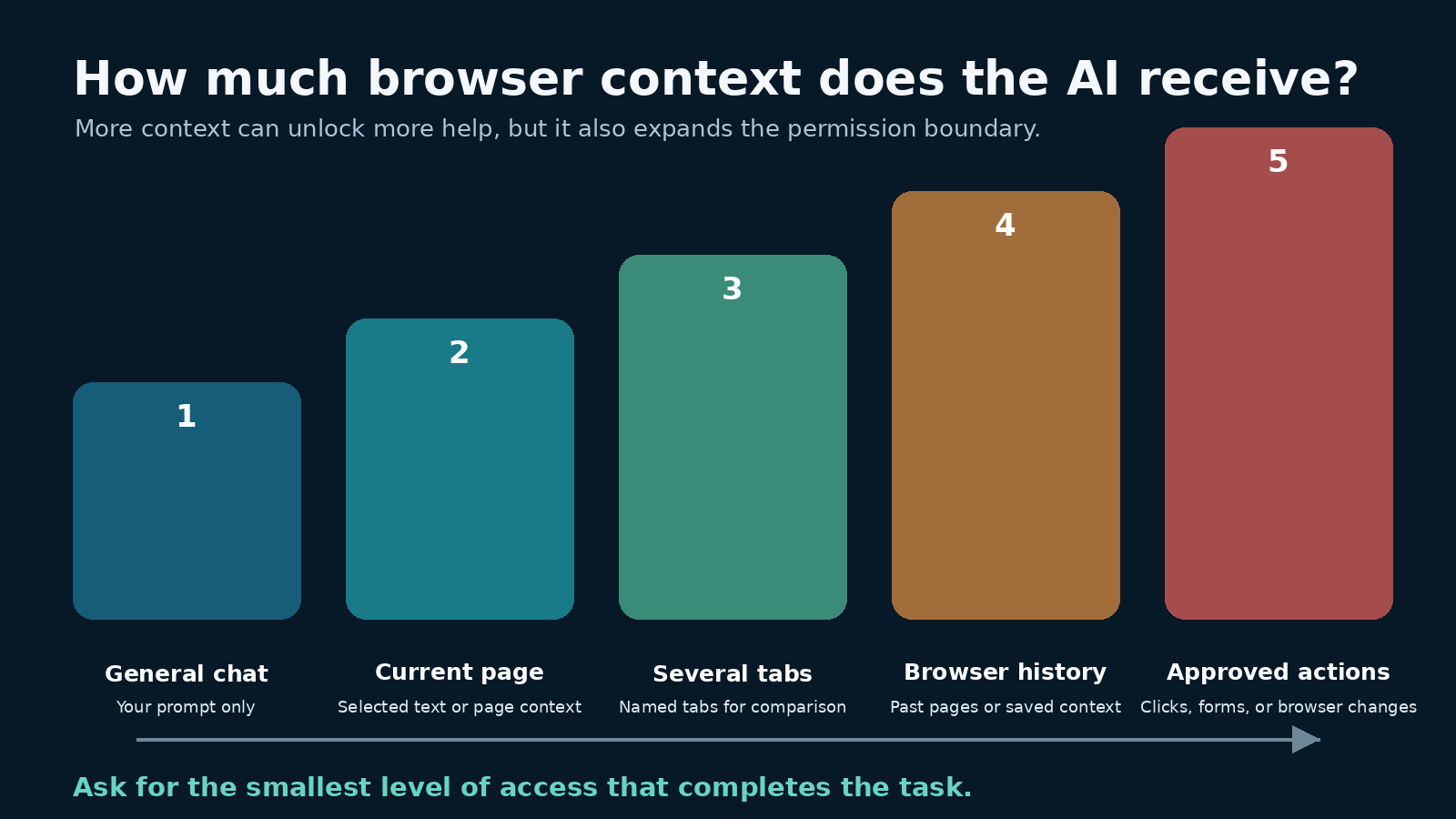
A built-in chat panel alone does not make every product equivalent. A useful comparison starts with the context the assistant can receive. Some assistants answer general questions but need you to paste text. Others can use the current page after you grant access. A smaller group can work across named tabs, browser history, files, or connected services. Agentic features go further by clicking, filling forms, or completing a multistep task.
Each step adds convenience and creates a larger data and permission boundary. Summarizing a public article is a different risk from reading an authenticated account page. Organizing local tab titles is different from sending page contents to a remote model. An assistant that can act on pages needs more scrutiny than one that only returns text.
Native integration also differs from an extension. A native feature can fit the browser’s permission system, settings, tabs, and enterprise policies. An extension may be easier to install in the browser you already use, but it has its own publisher, permissions, update path, privacy policy, and possibly a separate AI provider. Check the extension’s requested access rather than assuming the browser vendor controls it.
How this comparison was checked
The method here is deliberately narrower than a typical “best browsers” roundup. Each product is included only where its own current documentation establishes a relevant capability or data control. Marketing claims are not treated as independent proof of quality. Features described as upcoming are not counted as generally available, and availability can still vary by device, account, language, region, or organization policy.
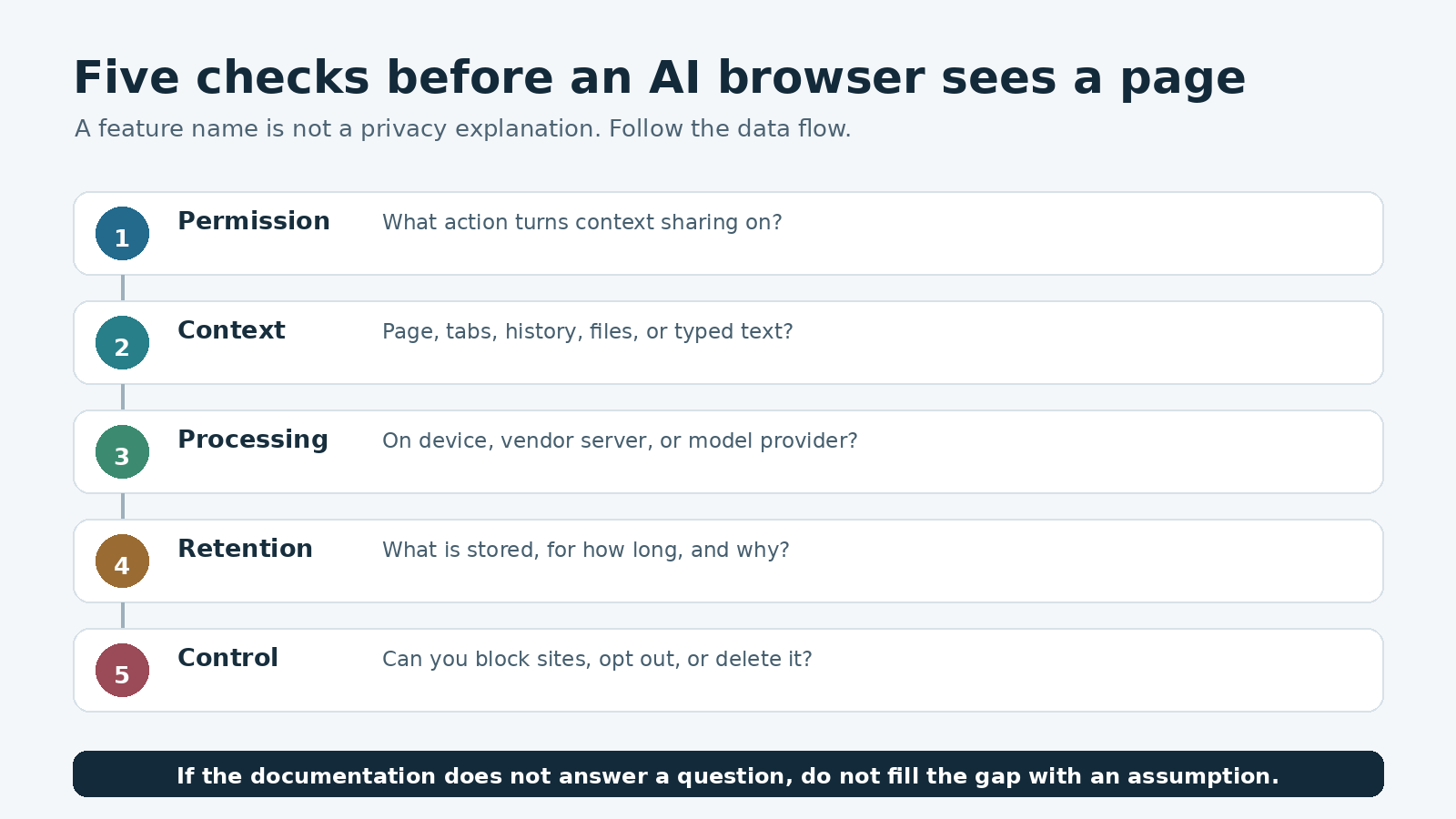
The comparison uses five questions. What page or tab context can the assistant use? Does it summarize or compare material in place? Can it change browser state or act on a page? What is processed locally, and what leaves the device? Can a user or administrator disable the feature, restrict sites, delete history, or opt out of a stated data use?
This approach cannot tell you which model writes the nicest paragraph or which interface feels fastest on your computer. Those judgments require repeatable testing on the same device, network, pages, prompts, and account types. It can, however, separate documented behavior from assumptions.
Current browser approaches, based on official documentation
Chrome with Gemini
Google describes Gemini in Chrome as more than a shortcut to a separate chatbot. It can use the context of the page being viewed with permission. Google’s Chrome materials also describe work across multiple tabs for comparison and summarization. That makes Chrome relevant for people whose main problem is gathering information spread across several pages.
Availability and data terms need an account-specific check. Google’s enterprise documentation for Gemini in Chrome lists eligibility conditions, supported environments, policy controls, and protections for qualifying Workspace users. Its official Chrome feature overview describes multi-tab context while warning readers to check responses for accuracy. Consumer and managed Workspace use should not be treated as the same data arrangement.
Microsoft Edge with Copilot Chat
Edge places Copilot Chat in the browser sidebar. Microsoft’s documentation says page context can inform a response when the user consents to share data, and that the feature can summarize supported websites and document types. The exact behavior depends on the material being viewed, so “summarizes pages” should not be read as a promise that every page, PDF, or protected document works identically.
Microsoft gives organizations a separate policy and protection story. Its Copilot Chat in Edge documentation explains sign-in, page summarization, browsing context, and enterprise data protection for users signed in with a Microsoft Entra account. The Microsoft Privacy Statement says Copilot features in Edge may process prompts, files, browsing activity, screenshots, open tabs, and history when the user allows the relevant experiences. Review the settings and account type before using it on internal systems.
Brave with Leo
Brave takes a privacy-centered approach to built-in assistance. Leo can answer questions and work with page material, including summaries. Brave’s documentation also covers writing help and browser-related functions. The more important distinction is how Brave says it handles requests and chat history.
The Brave Browser Privacy Policy states that Leo conversations are not used for model training. It describes optional chat history as encrypted and stored locally, along with settings to disable storage or clear saved chats. It also explains the data processed for a request. Readers should inspect the Leo section itself, since the broader browser policy covers many services with different processing rules.
Opera with Aria
Opera’s Aria is integrated into its browser family for chat and page-context tasks. Opera has also connected AI to browser controls. Its Tab Commands feature can interpret a request to close, group, pin, or bookmark tabs. That is a useful example of native integration doing something an ordinary web chatbot cannot do by itself.
Opera’s official Tab Commands explanation says the prompt is processed by AI while tab-related data stays on the device and the browser executes the returned instructions locally. That statement applies to this specific tab-management flow. It should not be stretched into a claim that every Aria request or page-context feature remains local.
Firefox and optional AI controls
Firefox offers a different kind of choice. Its sidebar can connect to a selected chatbot provider, while other AI features include link previews, tab grouping suggestions, translation, and PDF alt text. This is not the same integration model as a browser whose own assistant is the central interface. The provider you select may have separate terms and data handling.
Mozilla’s official AI controls announcement documents individual controls and a setting to block current and future generative AI enhancements. That makes Firefox worth considering if the ability to reduce or remove AI from the browser is as important to you as turning it on. Check the selected chatbot’s policy separately before sending page text.
Dia
Dia is built around tab-aware assistance rather than adding a single sidebar to a conventional workflow. Its product materials describe questions about the current page, other tabs, selected text, and browser history. This deeper context can reduce copying and switching, but it also makes the privacy settings central to the choice.
Dia’s privacy page says browsing data is encrypted and stored locally, while data needed for an AI request is sent through its servers to AI partners. It also says certain content data is used by default to improve speed and accuracy, is not associated with the account, and is deleted after a stated retention period. The same page provides an opt-out path in Settings under Privacy. Anyone considering Dia for confidential work should read that description rather than relying on the phrase “local browsing data.”
Perplexity Comet
Comet combines page summarization, information retrieval, and automation. Its privacy documentation draws a useful line between data that stays on the device and context sent when a request requires it. By default, it says the assistant does not upload the full list of open tabs, cookies, passwords, autofill data, local files, or text typed into websites unless that text is explicitly sent in a request.
The Comet Assistant privacy guide explains when selected text, page content, named tabs, history items, or connected services may be used. It also documents controls to disable the assistant or block it on specific websites. Its permission prompt for advanced automation offers per-use approval as well as broader permission. Prefer the narrowest permission that still completes the task.
Arc with Max
Arc Max illustrates a feature-by-feature model. Official documentation lists page previews, tidier tab titles, renamed downloads, tab organization, and a ChatGPT command-bar option. Several features have platform limits, so the product name alone does not prove that a function is present on every Arc version.
The Arc Max help article says users can enable the whole bundle or choose individual features. It also states that Max features require data to be sent to AI partners and points readers to the privacy policy for the details. That per-feature switch is useful, but it does not replace checking what each enabled feature sends.
Page summaries are a convenience, not a source of truth
Browser context removes a tedious step: you do not have to copy an article into a chat window. It does not remove the model’s ability to omit a qualification, merge two claims, misunderstand a table, or produce a confident error. A summary is best used as a navigation aid.
For an important page, ask the assistant to identify the relevant section and then read that section yourself. Open cited links. Compare names, dates, limitations, and eligibility against the original page. For legal terms, medical information, financial decisions, security instructions, or a contract, never let the summary replace the source document or qualified advice.
Multi-tab comparison needs the same discipline. First decide which tabs belong in the comparison. A browser cannot repair a weak source set. Ask it to keep unknown values blank rather than infer them, and request a claim-by-claim source map. Our source-checked AI tools comparison uses the same principle: fit and evidence matter more than a universal winner.
Privacy questions to answer before switching
What triggers data sharing?
Find out whether page context is sent only after you ask about a page, whenever the assistant panel opens, or through a proactive feature. Look separately at the current tab, other open tabs, selected text, history, local files, connected services, screenshots, and typed form content. A policy may handle each category differently.
Where does processing happen?
“Stored locally” does not necessarily mean “processed only locally.” A browser may keep history on the device but send the prompt and relevant page context to its servers or an AI provider when you make a request. Conversely, one narrow function such as tab grouping may run locally even though general chat uses remote models. Judge each feature on its documented flow.
How long is context retained?
Check the browser vendor and any model provider named in the documentation. Look for separate rules covering prompts, responses, page context, diagnostic logs, history, feedback, and data used to improve a service. “Not used for training” answers only one question. It says nothing by itself about temporary processing, security logs, account history, or deletion.
Can you restrict or remove access?
Useful controls include a complete off switch, per-feature toggles, site blocklists, one-time permission prompts, deletion tools, content-sharing opt-outs, and administrator policies. Test the control path before using the assistant with sensitive pages. If a setting is controlled by an employer or school, the organization’s policy may override your preferred setup.
For a broader checklist on account type, files, and sensitive material, see our guide to choosing AI apps safely.
Native integration versus an extension
A native assistant usually has a clearer route to browser context and controls. It may use the browser’s own permission prompts, managed policies, and site restrictions. Updates arrive with the browser, and the vendor can document how a feature interacts with tabs or history. That can make the data flow easier to investigate, though it is not automatically more private.
An extension is useful when you want to keep your current browser or choose a different model. The tradeoff is another trust relationship. Open the extension listing and inspect the publisher, update history, requested permissions, privacy disclosure, and external account requirements. Permissions such as reading and changing data on all sites are broad even when the user interface looks small.
Do not install several overlapping AI extensions and leave them enabled everywhere. Choose one for a defined job, restrict site access where the browser permits it, and remove it when the job no longer justifies the permission. Never allow an assistant on password managers, banking pages, health portals, private admin panels, or confidential work systems unless the organization has explicitly approved that exact tool and configuration.
A practical selection process
- Write down the task. Page summaries, research across tabs, writing help, tab organization, and web automation need different levels of access.
- Choose a context ceiling. Decide whether the assistant may see only text you select, the current page, named tabs, history, or authenticated services.
- Confirm availability from the current official help page for your device, account, region, and organization. Do not buy or migrate based on a launch announcement alone.
- Read the feature-specific privacy section. Record what leaves the device, who receives it, retention, improvement or training use, and deletion controls.
- Start with a clean browser profile and public, non-sensitive pages. Use the narrowest permissions and turn off proactive context features you do not need.
- Run the same small task set in each candidate. Check whether the answer points to the right passage, preserves qualifications, and makes its source trail easy to inspect.
- Review ordinary browser quality too. Security updates, site compatibility, accessibility, password management, sync, performance, and extension support still matter after the AI demo ends.
A sensible choice may be the browser you already trust with one optional AI feature enabled. It may be a privacy-focused browser with fewer cloud features, or a context-rich browser managed by your workplace. There is no evidence-based reason to force every reader into one winner.
FAQ
Which AI browser is best in 2026?
There is no universal best browser. Choose according to the context you want the assistant to access, the controls available for your account, device support, and normal browser quality. Use official help and privacy documents, then run the same non-sensitive tasks in your finalists.
Can an AI browser read every page I open?
Not necessarily. Access varies by product, feature, permission, page type, account, and policy. Some assistants use page context only when asked. Others can work with selected tabs or history. Read the feature-specific documentation and use site restrictions where available.
Is a built-in AI assistant safer than a browser extension?
Not automatically. Native integration may provide clearer browser controls and policies, while an extension adds a separate publisher and permission set. Safety depends on the actual data flow, permissions, retention, vendor practices, and your configuration.
Should I use AI browser summaries for important research?
Use them to locate and organize information, not as the final authority. Read the relevant source passages, verify citations and qualifications, and keep consequential decisions grounded in original documents and appropriate expert advice.
Conclusion
The useful question is not how many AI features a browser advertises. It is whether the assistant receives the right amount of context for your task and whether you can understand, limit, and reverse that access. Current official documentation shows several valid designs: integrated page assistants, multi-tab research, local browser organization, optional provider sidebars, and permission-based automation.
Pick the smallest capability that solves the problem. Keep sensitive work outside consumer AI features unless the exact account and policy are approved. Recheck documentation after major updates, because browser features and data controls change. A short privacy review before switching is less exciting than an AI demo, but it is far more useful.