
ChatGPT memory and Gmail context can make an answer feel less generic. With the right controls enabled, ChatGPT can use useful details from earlier conversations, files, instructions, and connected apps. That can save time when you are planning a trip, preparing for a meeting, following a project, or finding an email you already have permission to access. It also creates a serious privacy question: which information should influence a later response, and how do you remove it when the context is no longer appropriate?
This article previously attributed those experiences to a product called “GPT-5.5 Instant.” The official OpenAI documentation reviewed for this rewrite does not support that model name or the claim that such a model caused these memory and Gmail changes. The accurate story is about documented ChatGPT features, not an unverified model release. Model labels can change, while the practical controls for memory, connected Google apps, chats, and data use are what users need to understand.
The short version is that memory, app access, chat retention, and model improvement are related but separate concepts. Turning one setting off does not necessarily undo everything controlled somewhere else. A careful user reviews each layer, connects only the account needed for a task, and knows how to clean up the sources that may continue to supply context.
What ChatGPT memory means now
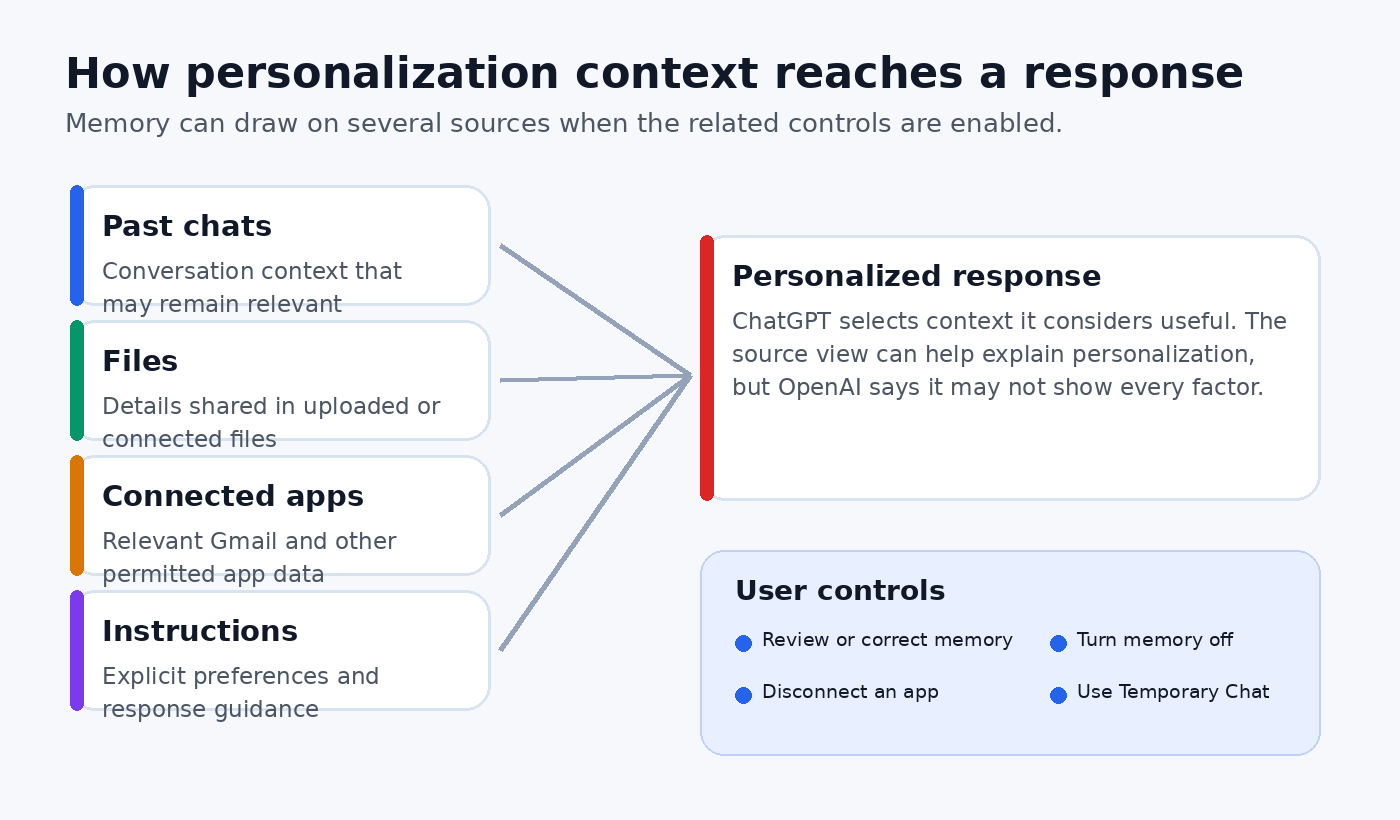
OpenAI’s current Memory FAQ says that, when enabled, memory can automatically remember useful context from chats, files, and connected apps. Its purpose is personalization: you should not have to repeat stable preferences or ongoing project details in every new conversation.
The current experience includes a memory summary in Settings under Personalization and Memory. OpenAI says this summary is automatically updated and is meant to capture important details. It is not a complete ledger of every factor ChatGPT may know or use. If you want to check whether something has been remembered, OpenAI suggests asking ChatGPT. The summary can also be edited or corrected.
That distinction matters. A summary is a management view, not a guarantee that every piece of context appears as a neat individual entry. OpenAI describes memory as a continually updated synthesis that can be broader than the visible summary. You should therefore avoid treating the screen as proof that no other chat, file, instruction, or connected app contains the same information.
OpenAI also documents a legacy saved memories system. Saved memories resemble a notepad of details that you asked ChatGPT to remember or that it saved as potentially useful. The newer memory experience updates a broader summary automatically. Accounts and interfaces may not look identical, so use the labels actually shown in your settings rather than relying on an old screenshot or tutorial.
How Gmail context enters ChatGPT
Gmail context is not the same thing as ChatGPT quietly reading any inbox on the internet. OpenAI’s Google App for ChatGPT Data Controls FAQ says ChatGPT can access content only from the Google account a user chooses to connect and only after permission is granted during setup. In a managed environment, Google Workspace policy and ChatGPT workspace settings may impose additional limits.
When a Google app such as Gmail, Calendar, or Drive is connected, OpenAI says ChatGPT may create an indexed copy and sync content to provide relevant information. In ordinary language, that means the service may prepare permitted app content so it can retrieve useful items rather than starting from nothing for each question. If memory is enabled, relevant synced content may also contribute to personalization, proactive suggestions, or later responses.
This can be genuinely useful. A user might ask for a concise brief based on a permitted email thread, identify follow-up items from correspondence, or gather context before a call. But relevance is not the same as consent from every person mentioned in an email. A mailbox can contain addresses, invoices, medical details, contracts, private attachments, and conversations written for a limited audience. The fact that an account owner can authorize access does not make every possible use prudent.
Ask for the narrowest useful task. Instead of “analyze my entire inbox,” identify the sender, project, date range, or outcome. Confirm the Google account before connecting it. Personal and work accounts often sit next to each other in a browser, and selecting the wrong one can move a task into the wrong privacy boundary.
Memory and app access are different controls
It helps to picture connected app access as a door and memory as one way information found through that door may affect future conversations. Disconnecting Gmail closes future access to the app. Turning memory off controls memory based personalization. Deleting a chat controls that conversation. Turning off model improvement controls whether eligible future consumer conversations contribute to training. These actions are important, but they are not interchangeable.
OpenAI says that if memory is enabled, ChatGPT may save and use relevant information it accessed through a connected app. That is why disconnecting an app should not be your only cleanup step. If a detail has also appeared in a chat or memory, review those locations too. The Memory FAQ is explicit that fully deleting something ChatGPT may know can require deleting every source where it appears, including past and archived chats, files, the memory summary, and a connected app that contains it.
There is another subtle point: turning memory off does not delete past chats. OpenAI says that if memory is turned on again, remaining chat history, including older chats, may contribute to new memories. If the goal is to remove a specific confidential detail rather than merely pause personalization, locate the conversations and files that contain it instead of relying on a toggle alone.
What OpenAI says about Google app data and training
The official Google app FAQ draws an important boundary. OpenAI says it does not train generalized models on data synced directly from connected Google apps or derivations of that data, with stated exceptions. Those exceptions include when a conversation is submitted as feedback, when Google app data is manually copied, pasted, or uploaded into a ChatGPT conversation, or when app data is included in ChatGPT’s response.
OpenAI also says that even if “Improve the model for everyone” is enabled, it does not train generalized models on data synced directly from connected Google apps outside those described cases. If model improvement is disabled, synced app data will not be used to improve models even when it appears as part of a ChatGPT conversation, according to that FAQ.
Do not overgeneralize this Google app rule to everything you type into a personal ChatGPT workspace. OpenAI’s Data Usage for Consumer Services FAQ says content submitted to individual services may be used to improve model performance depending on the user’s settings. It separately says content from business offerings such as ChatGPT Business and Enterprise is not used for model improvement by default unless the customer explicitly opts in.
The practical lesson is to read the policy for the data path you are actually using. Syncing permitted Gmail content, manually pasting an email into a prompt, and uploading an exported mailbox are not necessarily handled as the same path. Workspace type and data controls matter too.
Temporary Chat is useful, but it is not anonymous mode
OpenAI’s consumer privacy controls page says Temporary Chats are automatically deleted, do not inform memory, and are not used to train models. The Memory FAQ also says a Temporary Chat does not use existing memories or create new ones. This makes it useful when you want a conversation separated from personalization.
Still, “temporary” should not be read as permission to enter any secret. OpenAI’s data usage FAQ advises users not to enter sensitive information they would not want reviewed or used, and describes limited authorized access for purposes such as abuse investigation, security, support, legal matters, or model improvement where applicable. Organizational rules, legal duties, and the rights of other people still apply to content you choose to provide.
Use Temporary Chat when the absence of memory is the goal. Use redaction or omission when the model does not need identifying details. Use an approved business workspace when company policy requires it. If a task involves legal privilege, regulated records, credentials, or highly sensitive personal information, do not assume a consumer setting is enough. Follow the policy of the organization responsible for the data.
A practical privacy review before connecting Gmail
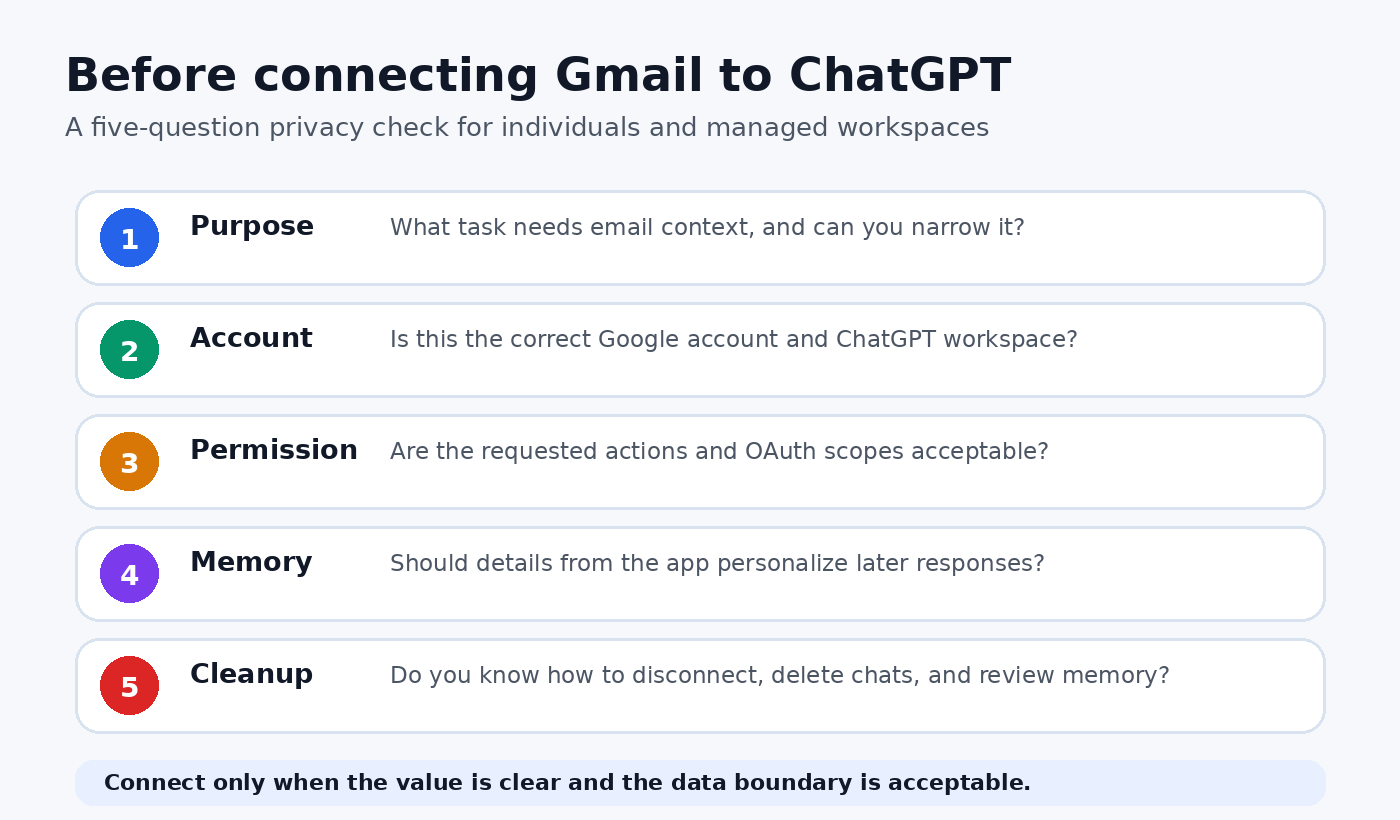
Start with purpose. Write one sentence describing why email access is needed. If you cannot state a bounded task, do not connect the inbox yet. A useful purpose sounds like “find the latest approved delivery date in messages from this vendor,” not “learn everything about my work.”
Next, check account and workspace identity. Confirm whether you are in a personal ChatGPT workspace or an organization managed workspace. Confirm which Google account the authorization screen names. If the connection is for work, ask whether an administrator has approved the use case and whether the relevant app actions are enabled.
Then read the permission request. OpenAI notes that Google apps rely on OAuth scopes and that workspace administrators can enable or disable app actions. A scope describes the type of access an action needs. If an action requires a scope that an organization will not approve, the correct remedy is to disable that action rather than asking users to retry a broken connection.
Finally, decide whether memory should be enabled for the task and plan cleanup before starting. Know where to disconnect the app, which chats or files you may need to delete, and where to review memory. This takes a few minutes and prevents a common mistake: finishing the task, disconnecting Gmail, and assuming every trace of context disappeared immediately.
Disconnecting Gmail and deleting related context
OpenAI says you can disconnect a Google app at any time in ChatGPT settings. When disconnected, the indexed copy is deleted within 30 days. The FAQ also says connected app data retained within a deleted conversation is deleted within 30 days. These are documented deletion timelines, not a promise that every visible and indexed copy vanishes at the instant you click.
For a thorough cleanup, use a source by source checklist. Disconnect the Google app. Delete relevant conversations, including archived chats if they contain the information. Remove related uploaded files. Review and correct or delete the memory summary. If your interface uses legacy saved memories, review those entries as well. Remember that deleting a chat alone may not remove a separately stored saved memory, and deleting a saved memory does not erase its mention in an old chat.
For security beyond connected apps, the site’s guide to the ChatGPT Mac app security update explains why verified software and current app versions matter. For another view of privacy controls in a separate product area, see the analysis of ChatGPT advertising and privacy. Those topics do not replace the Google app controls, but they reinforce a useful habit: separate each data pathway and verify the setting that governs it.
Good habits for individuals
Use the least data needed. If a summary works without names, remove names. If one thread contains the answer, do not invite a broad mailbox search. Keep personal and work connections separate. Review the memory summary periodically, especially after travel planning, health discussions, financial tasks, or work projects that may become outdated.
Watch for surprising personalization. OpenAI says a book icon below a response can show sources used to personalize it, such as instructions, past chats, files, and memories. The source view can help explain and correct personalization, but OpenAI cautions that it may not show every factor or source. Treat it as a helpful diagnostic, not a complete audit log.
When a response seems to know something unexpected, pause before continuing. Ask what context was used, inspect available sources, and correct inaccurate memory. A confident answer can still combine an old preference with a current email in a way that is logically plausible but wrong. Personalization improves relevance, not factual certainty.
Good habits for teams and administrators
Teams need more than a reminder to “be careful.” Define approved use cases, prohibited data, acceptable Google actions, and escalation paths. Align ChatGPT workspace app settings with Google Workspace approvals. OpenAI’s Google app FAQ explains that an enabled action paired with an unapproved required scope can produce authorization errors. Admins should either approve the needed scope under organizational policy or disable the action.
Train users to distinguish search, action, memory, and retention. Access to read a permitted email is different from permission to modify mailbox content. A useful response based on an email is different from a memory that may affect a later answer. A deleted chat is different from a disconnected app. These distinctions should appear in onboarding and incident response instructions.
Test with non-sensitive data first. Confirm that the right account is connected, that expected restrictions apply, and that users can find disconnect and memory controls. Review the workflow when Google or ChatGPT adds actions that need new scopes. Product capability can expand, but an organization’s data boundary should change only through an intentional decision.
Bottom line
ChatGPT memory and Gmail context are best understood as a set of connected but separate systems. Memory can synthesize useful details from chats, files, instructions, and connected apps. A Google connection can provide permitted Gmail context and may support personalization when memory is enabled. Data controls govern model improvement, while Temporary Chat creates a conversation that does not use or create memory.
The safe approach is not to reject personalization or trust it blindly. Define the task, select the correct account, review permissions, decide whether memory belongs in the workflow, and clean up each relevant source afterward. Most importantly, base decisions on OpenAI’s current documentation rather than an unsupported model name. The useful question is not which rumored model powers the experience. It is what information ChatGPT can access, why it needs that information, and which control lets you review or remove it.
FAQ
Does connecting Gmail let ChatGPT read every Google account I use?
No. OpenAI says ChatGPT can access content only from the Google account you choose to connect and after you grant permission. Managed workspace settings and Google Workspace OAuth approvals may further restrict available actions. Always verify the named Google account during authorization.
Does turning memory off disconnect Gmail?
No. Memory and connected app access are different controls. Turn memory off to stop memory based personalization, and disconnect the Google app separately to stop future app access. Review chats, files, and memory too if you are removing a specific detail.
Is synced Gmail data used to train OpenAI’s generalized models?
OpenAI says it does not train generalized models on data synced directly from connected Google apps or derivations of that data, except in the documented cases involving feedback, manual copying or uploading, or app data included in a response. Consumer chat content outside that direct sync path follows the applicable data controls and policies.
What is the safest way to use Gmail context for one sensitive task?
First minimize or redact sensitive details and confirm that the task is allowed. Connect the correct account with only acceptable permissions, consider Temporary Chat if you do not want memory used or created, and disconnect afterward. Then delete related chats or files and review memory if the information appeared there.