
ChatGPT Projects are most useful when your work lasts longer than one conversation. A project gives a client assignment, study plan, research question, or recurring report one organized home for its chats, sources, and instructions. You can open a fresh thread without rebuilding the entire brief, while keeping unrelated work outside the workspace.
The important update is not simply that Projects hold files. The current experience supports project-specific instructions, uploaded and linked sources, saved responses, memory choices, built-in tools, chat search, and collaboration. Used carefully, those pieces turn a project into a working context hub. Used carelessly, they can preserve outdated notes, expose material to collaborators, or make a confident answer feel better grounded than it really is.
This guide follows OpenAI’s current Projects in ChatGPT documentation and ChatGPT release notes. Features can depend on your subscription, device, region, workspace policy, and rollout status, so the controls visible in your account remain the final check.
What a ChatGPT project contains now
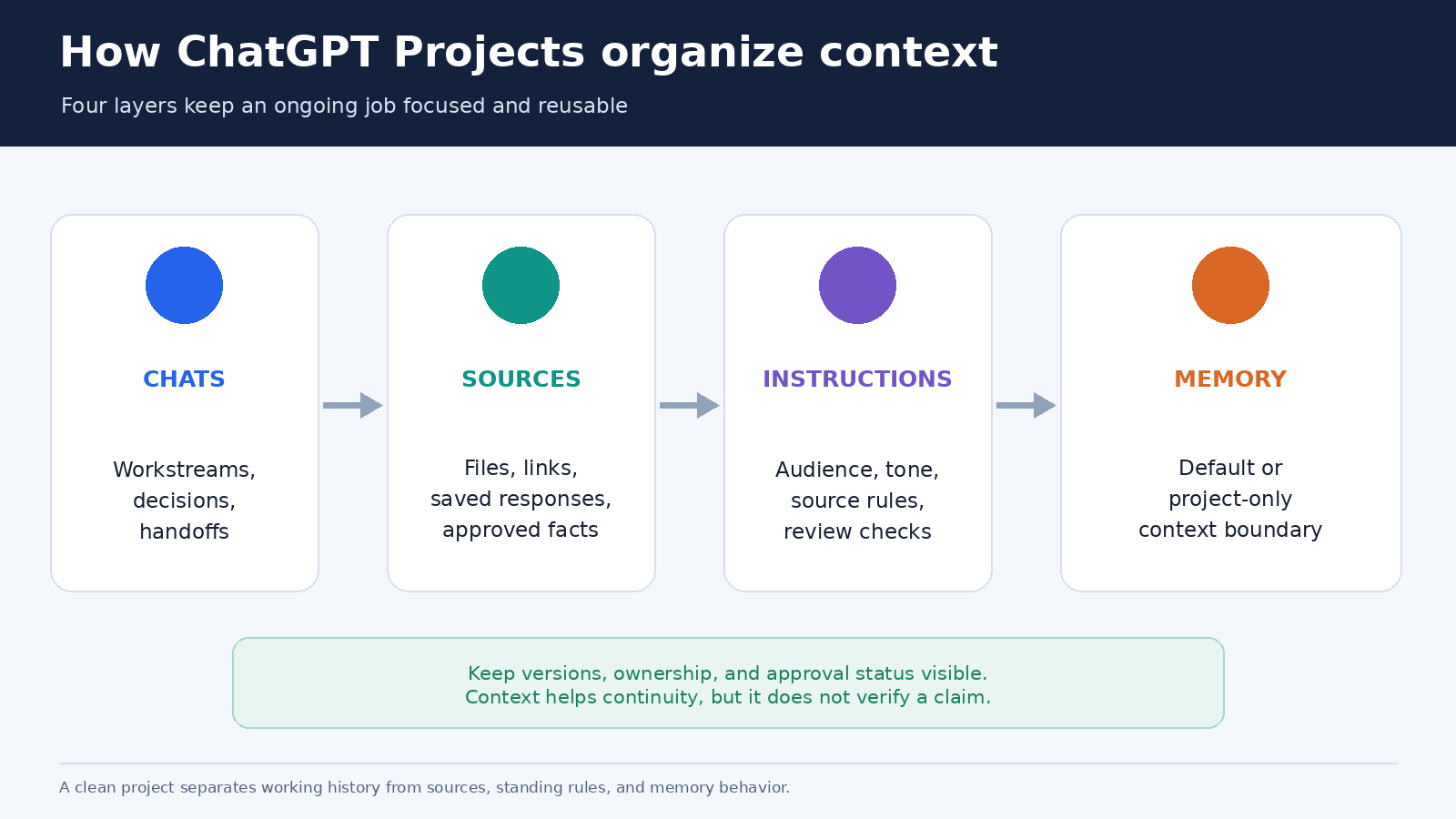
A useful project has four layers. Chats contain active work and decisions. Sources provide reference material. Project instructions define how answers should be produced inside that workspace. Project memory controls which conversations and memories may influence future project chats. Keeping these layers distinct makes troubleshooting much easier.
Suppose you are preparing a quarterly customer report. One chat can clean survey comments, another can compare this quarter with the previous one, and a third can draft an executive summary. The project sources can hold the approved metrics, glossary, and reporting template. Its instructions can require a neutral tone, flag unsupported claims, and format dates consistently. You get continuity without forcing every task through one huge thread.
Projects are available across free and paid ChatGPT subscriptions. OpenAI documents different file, collaborator, and tool allowances by plan, and those numbers can change. Check the Plans and limits section of the official Projects page instead of designing a workflow around an old screenshot or a remembered cap.
Build a clean source layer first
Before opening several chats, decide what ChatGPT should treat as reference material. Projects accept common documents, spreadsheets, PDFs, images, and pasted text. You can also save a useful ChatGPT response to project sources, which is handy for an approved summary, decision note, or reusable checklist.
Current official documentation also describes adding supported Google Drive files or folders and Slack channels by link in a private project. That route depends on connecting the relevant app and retaining access to the source. A linked location is not permission to read everything in the service. If a connection, plan, workspace rule, or source permission blocks access, use the options shown in your own account and avoid promising teammates that a source is available until you test it.
Give each source a clear purpose. A small source register can record its owner, date, status, and intended use. Mark drafts as drafts. Keep a short approved facts sheet for names, prices, dates, and definitions. Remove superseded files rather than expecting ChatGPT to infer which of two conflicting versions is authoritative.
Write project instructions that govern the work
Project instructions apply only inside their project and override global custom instructions there. That makes them the right place for local rules such as audience, tone, preferred sources, output format, and review requirements. The instructions should guide many tasks, not attempt to describe one enormous deliverable.
A practical instruction set might say: “Write for operations managers. Use plain English and short sections. Treat the approved facts sheet as controlling for names and dates. Cite external research with links. Label assumptions. Never present a draft estimate as a confirmed figure. End recommendations with an owner and next action.”
Keep task-specific details in the prompt. For example, ask one chat to compare two customer segments and another to draft the monthly summary. This division keeps standing rules stable while allowing each conversation to have a precise goal. If your wider ChatGPT setup also needs attention, our guide to ChatGPT custom instructions explains how global preferences differ from local task context.
Choose the memory boundary deliberately
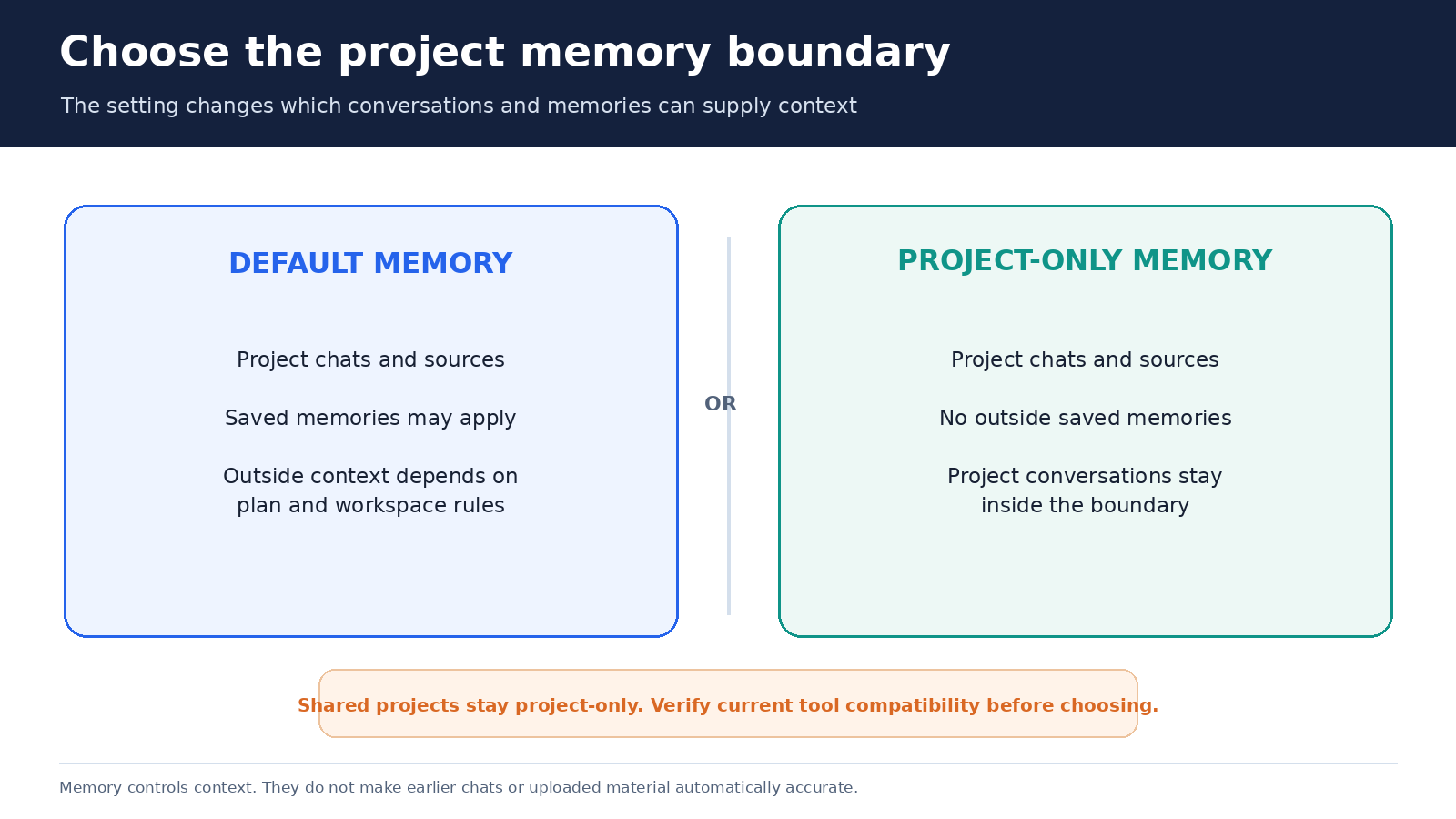
Projects can use default memory or project-only memory. OpenAI’s August 14, 2026 release notes say eligible unshared projects can change that choice later from Project settings, although a change may take a few hours to take effect. Shared projects remain project-only and cannot be changed to default memory.
Project-only memory creates the clearest contextual boundary. Saved memories from outside the project are not referenced. Chats may draw on other conversations within the same project, while outside chats cannot draw on that project’s conversations. This is useful when you want a client, course, or sensitive planning effort separated from unrelated personal context.
Default memory is less isolated, and its behavior depends on your plan and account or workspace settings. On non-Enterprise subscriptions, outside conversations may be available when memory is enabled, except where a project-only boundary applies. Enterprise and Edu projects remain contained differently under OpenAI’s documented rules. Review the table on the official Projects page for your exact workspace type.
Memory is context, not a verified database. ChatGPT may use a relevant earlier conversation, but that does not make the earlier statement accurate or current. Ask for the source behind consequential claims and restate the controlling facts in the current prompt. OpenAI also notes that there is no separate list of project memories to inspect. To stop a specific conversation from influencing the project, move or delete that conversation. For broader controls, see our ChatGPT memory privacy guide.
Use separate chats as workstreams
A project should contain several focused conversations rather than one endless transcript. Separate discovery, analysis, drafting, and review. Give each chat a clear title so search results are meaningful. If an existing eligible chat belongs in the project, use Move to project. It then inherits the project’s instructions and file context. OpenAI notes that chats created with a GPT may not be eligible to move, so start a new project chat when the option is absent.
At the end of a workstream, save only durable outputs. A useful handoff message includes the decision, evidence, unresolved questions, and next action. Save that response as a project source when it should guide later work. Do not save every intermediate answer, because a crowded source list makes old speculation look equal to approved material.
Search can help you recover a past chat, project, image, or document. Use descriptive names and distinctive terms such as a client code, report period, or research question. Search is retrieval, not validation. Open the result and confirm its date and status before reusing it.
Match the built-in tool to the job
Projects support familiar ChatGPT tools. Canvas can help develop a longer document, code, or layout. Image generation can explore visual directions. Web search can bring current web information into a conversation with citations. Voice can support hands-free work, and OpenAI’s August 7, 2026 notes say Voice can reference recent project chats, sources, and project instructions.
Paid subscriptions may expose additional tools such as deep research or agent mode, depending on the plan and workspace configuration. Admin restrictions carry into managed projects. Do not assume that a tool seen in a colleague’s project is available in yours, and do not write a workflow that silently depends on an optional feature.
There is one current compatibility point worth checking before you choose memory mode. OpenAI states that ChatGPT Work is not available in projects using project-only memory. Work is a separate capability for longer agentic tasks, not another name for ordinary project chat. Decide whether the stronger contextual boundary or access to Work matters more for that specific project, then confirm the live setting before beginning.
Share a project without losing control
Shared projects can give a team a live context hub containing chats, files, and instructions. Current sharing options and collaborator allowances vary by subscription and workspace. Owners can invite people or, where available, use a link. The two documented member roles are edit and chat. Edit access can change instructions and sources, while chat access is intended for viewing and interacting without those editing privileges.
Sharing changes the audience. Project members can see project chats and files, so review both before inviting anyone. A confidential attachment, personal note, or abandoned draft may be visible even if it is not mentioned in the newest conversation. Restrict the sharing link, remove unneeded members, and check source-system permissions as part of offboarding.
Collaboration is not simultaneous co-editing of one chat. Members can create and view conversations, and they can branch an existing chat to test another direction without overwriting the original. Use branching for alternate analyses or drafts. Record the accepted result in an approved decision note so later readers know which branch won.
Shared projects automatically use project-only memory. They do not use a member’s outside memories or conversations. That boundary helps separate team context, but it does not make every shared item safe or correct. Everyone with access still needs appropriate authorization for the material placed there.
A practical weekly project workflow
- Start with a charter. Write the outcome, audience, deadline, source owner, and definition of done.
- Prepare sources. Add only relevant material, label drafts, and create an approved facts sheet.
- Set project instructions. Define tone, citation rules, forbidden assumptions, and required review steps.
- Choose memory. Select default or project-only memory based on the required boundary and tool compatibility.
- Create workstream chats. Separate research, analysis, drafting, and quality review so each thread stays readable.
- Save durable decisions. Promote approved summaries and checklists to project sources, not every generated response.
- Run a weekly cleanup. Remove stale sources, resolve conflicting facts, rename vague chats, and review collaborators.
A reusable kickoff prompt can be concise: “Using the project instructions and approved sources, prepare this week’s status brief. Separate confirmed facts, interpretations, risks, and open questions. Cite each external claim. If two sources conflict, stop and identify the conflict instead of choosing silently. End with decisions needed and named next actions.”
For a broader process around prompt structure, verification, and automation planning, the ChatGPT how-to workflow guide provides complementary examples.
Quality checks before you trust the result
- Confirm that the answer used the intended source, not an older chat or similarly named file.
- Open citations and verify that each source supports the exact sentence.
- Check names, dates, totals, formulas, and version labels independently.
- Ask ChatGPT to list assumptions and unresolved conflicts, then review the list yourself.
- For shared work, confirm that collaborators and linked sources have the minimum necessary access.
- Before publishing or sending, compare the final output with the project charter and approved facts sheet.
A Project reduces repeated setup, but it does not remove human responsibility. Its best use is to make context visible, workflows repeatable, and review easier. The final judgment about accuracy, privacy, and release still belongs to the people doing the work.
Frequently asked questions
Can I change an existing project’s memory setting?
Yes, for eligible unshared projects. Open Project settings, choose Default memory or Project-only memory under Memory, and save. OpenAI says the change may take a few hours. Shared projects remain project-only and cannot switch to default memory.
Do project instructions replace my global custom instructions?
Inside that project, project instructions take priority over global custom instructions. Put project-specific audience, source, and formatting rules there, while keeping account-wide preferences in global custom instructions.
Can collaborators see every chat and file in a shared project?
Project members can view the project’s chats and files, along with its current members. Review the full project before sharing, and remove confidential or irrelevant material that collaborators should not access.
Does project-only memory guarantee accurate answers?
No. It limits which conversations and saved memories can provide context, but it does not verify those materials. Check controlling sources, citations, dates, calculations, and final claims before relying on an answer.