
ChatGPT can save time at work, but usually not in the dramatic way a product demo suggests. The dependable gains are smaller and more practical: turning rough notes into a clean action list, getting a first draft on the page, comparing two documents, or finding the awkward parts of a report before a colleague sees it. Done several times a week, those minutes add up.
The trick is to improve a real workflow rather than collect clever prompts. Choose work that is repetitive, easy to check, and low risk. Give ChatGPT the material it needs, ask for a defined output, then review the result. This guide shows how to do that with planning, meetings, email, writing, document review, and simple data analysis. It also explains where Projects, files, search, and privacy controls fit into a sensible working routine.
Start with a task you already understand
Before opening ChatGPT, look at your last working week. Which tasks appeared more than once? Where did you spend time rearranging information rather than making a decision? Good candidates include cleaning meeting notes, drafting status updates, preparing an agenda, turning feedback into revisions, or summarizing a document you have already read.
Avoid beginning with a high stakes decision or a task whose correct answer you cannot recognize. If you do not know what a good result looks like, you cannot judge whether the tool helped. A routine weekly update is a stronger first experiment than legal advice, a hiring decision, or an unsupervised message to a client.
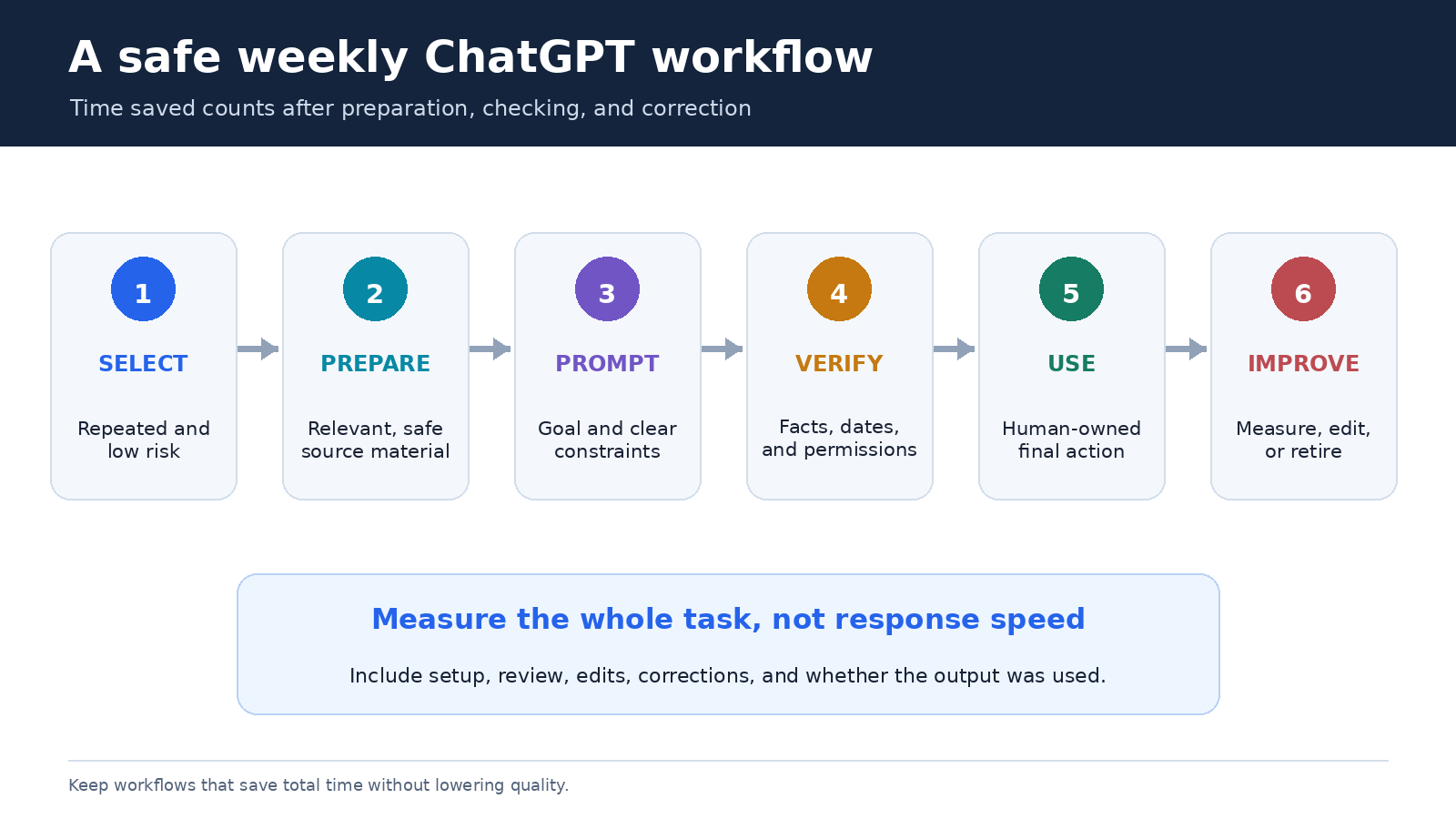
Use a simple test: run the same workflow three times and measure the whole job. Count preparation, prompting, checking, and editing, not just the seconds before an answer appears. A draft produced in one minute is not a time saving if it needs twenty minutes of repair. Keep the workflow only if it reduces total effort without lowering quality.
Use a six-part request instead of a vague prompt
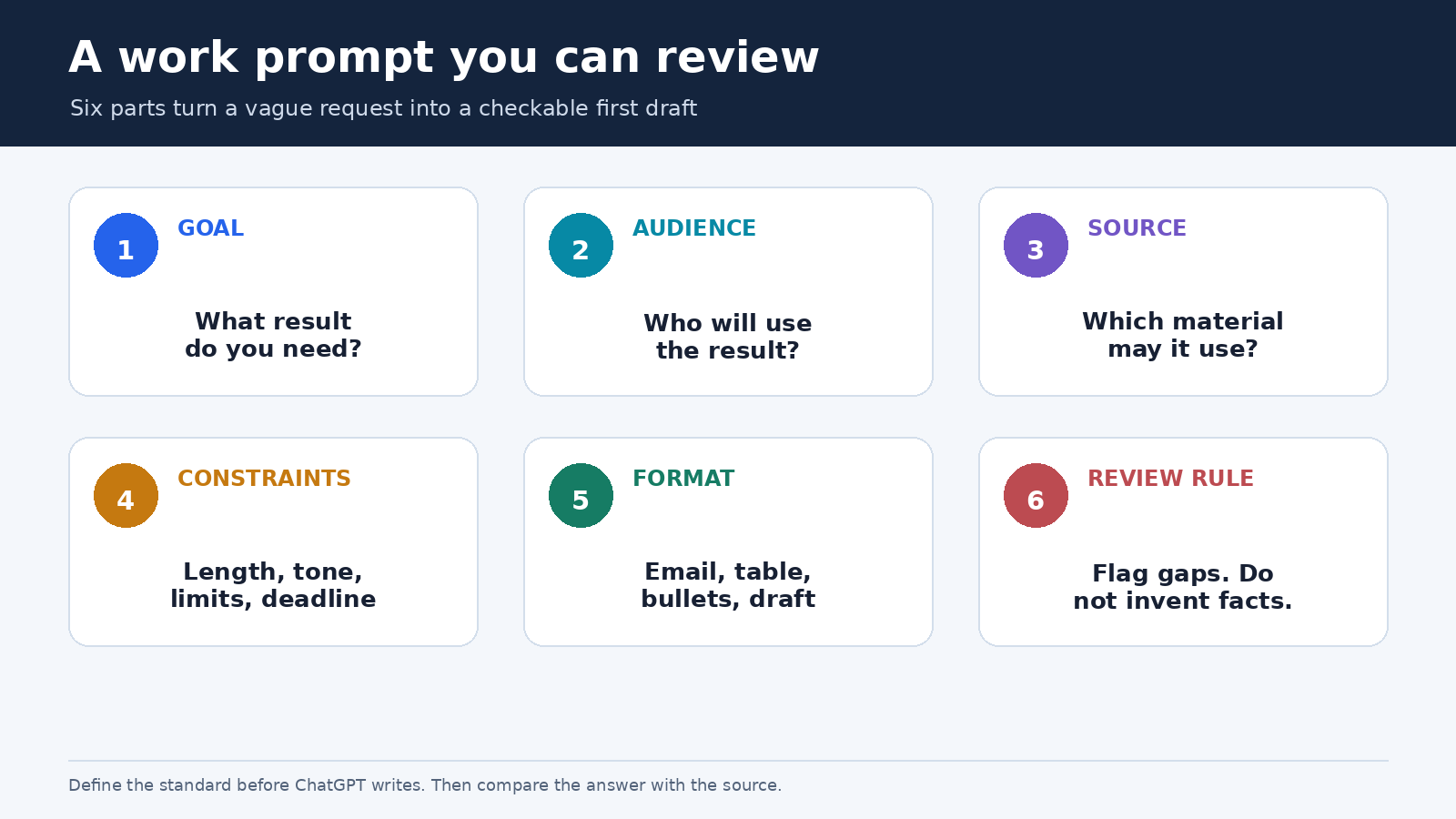
Most weak results begin with missing context. “Write my weekly update” forces ChatGPT to guess the audience, purpose, source material, tone, and length. You can fix that without writing a page of instructions. A useful workplace request has six parts:
- Goal: state the outcome you need.
- Audience: name the person or group who will use it.
- Source: paste or upload the material it may rely on.
- Constraints: set length, tone, exclusions, and deadlines.
- Format: ask for bullets, a table, an email, or another usable shape.
- Review rule: tell it to flag uncertainty and avoid inventing missing facts.
For example: “Turn the notes below into a Friday update for my project lead. Use three sections: completed, blocked, and next week. Keep it under 180 words. Preserve dates and owner names exactly. If a detail is missing, label it ‘not provided’ rather than guessing.” This request is easy to evaluate because the standard is visible before the answer arrives.
If you want more examples, the site’s daily productivity prompt guide offers reusable patterns. Treat those patterns as starting points. The best prompt is the shortest one that reliably produces work you can check and use.
Build a fifteen-minute weekly planning routine
Weekly planning is a good first use because the judgment remains yours. Gather your open tasks, calendar commitments, and known deadlines in one place. Remove private details that are not necessary. Then ask ChatGPT to group the work, identify clashes, and propose a realistic order.
A practical prompt might say: “Using only the task list and calendar notes below, create a plan for Monday through Friday. Reserve two focused blocks for the proposal, keep Wednesday afternoon free for meetings, and do not move fixed deadlines. List any scheduling conflict separately. Do not add tasks.”
The first answer is a draft, not your calendar. Check whether task durations are realistic, whether dependencies are in the right order, and whether the plan leaves room for interruptions. Then make the actual choices yourself. The value is not that ChatGPT knows your priorities better than you do. It saves the clerical effort of grouping and reshaping the information so you can see the tradeoffs sooner.
At the end of the week, compare plan and reality. Which items repeatedly moved? Which estimates were wrong? Add one useful lesson to next week’s prompt. That small feedback loop is more valuable than endlessly rewriting the template.
Turn meeting notes into actions without losing the record
Meeting follow-up often combines two different jobs: preserving what happened and creating a concise next-step list. Keep those jobs separate. Save the original notes, then ask ChatGPT to create a derivative action list rather than replacing your record.
Give it a fixed schema: decision, action, owner, due date, and open question. Add a rule that absent owners or dates must be marked as missing. Afterward, compare every action with the source notes. This catches a common problem where confident wording makes an inference look like an agreed commitment.
You can also ask for a short follow-up email based on the verified table. Review names, dates, promises, attachments, and recipients before sending. Never let polished prose hide an unverified detail. If the meeting involved sensitive commercial, personnel, health, or customer information, follow your employer’s approved tools and data policy before entering anything into an AI service.
Draft email faster while keeping your voice
Email is a useful drafting task because you retain a clear final checkpoint: the Send button. Start with your own facts and desired outcome. Ask for a draft that is direct, respectful, and specific about the next action. If tone matters, provide one short example you wrote rather than relying on broad labels such as “professional.”
For a difficult reply, try a two-pass process. First ask ChatGPT to identify the recipient’s questions, commitments, and emotional signals. Correct that analysis if needed. Then request a response that addresses each verified point. This is often safer than asking for an instant reply to a long thread.
Before sending, read the draft aloud. Remove stock phrases you would never use. Confirm that it does not promise budget, timing, scope, or approval you cannot grant. A good assisted email should sound like a clearer version of you, not like a generic corporate announcement.
Use files for comparison, extraction, and first-pass analysis
OpenAI’s current File Uploads FAQ says ChatGPT can work with common documents, spreadsheets, and presentations. It describes three broad uses: synthesizing information, transforming it into another form, and extracting specific details. In daily work, that can mean comparing two policies, pulling deadlines from a brief, reviewing presentation structure, or summarizing a spreadsheet.
Be precise about scope. Instead of “analyze this spreadsheet,” ask: “Using the revenue and region columns, calculate the total by region, identify any missing values, and show the result in a table. State which rows were excluded and why.” Then spot-check calculations against the source. A nicely formatted chart can still be built from misunderstood labels or incomplete rows.
Document comparison works best with an explicit rubric. Ask for changes in dates, responsibilities, pricing, definitions, and approval steps. Require a quote or page reference for every reported difference. If a PDF is image-heavy, remember that file handling can differ by plan and format. OpenAI notes that, outside supported visual retrieval cases, document retrieval may use extracted digital text and discard embedded images. Inspect visual material yourself when it matters.
Keep recurring work together in a Project
When one task stretches across many chats, repeating background information becomes its own form of waste. OpenAI’s Projects guide describes Projects as workspaces that group chats, files, and project instructions around a shared objective. They are suited to repeated work such as weekly research, planning, and content drafts.
Create one Project for a genuine stream of work, not one for every small task. A project called “Q3 customer research” might contain the research brief, an approved terminology list, interview notes, and instructions for how summaries should be formatted. Start a fresh chat for each interview or deliverable so the threads remain understandable.
Project instructions should contain stable preferences, such as audience, terminology, and output conventions. Put changing facts in the current request. OpenAI says project instructions apply inside that Project and override global custom instructions, so review them when a response feels oddly constrained. Delete stale sources, label versions clearly, and check access before sharing a Project. In a shared workspace, anything added as context may inform responses visible to other members.
For a broader method that connects research, writing, and repeatable review, see the ChatGPT workflow guide.
Choose the right ChatGPT tool for the job
The official ChatGPT capabilities overview lists tools including web search, deep research, file uploads, data analysis, Canvas, memory, and Projects. Availability can depend on your subscription and settings. The useful question is not “Which feature is most powerful?” It is “What evidence and output does this task require?”
- Ordinary chat: use it for brainstorming, rewriting, outlining, and short transformations when you provide the source material.
- Search: use it when facts may have changed and you need current, linked sources. Open the sources and verify important claims.
- File upload: use it when the answer should come from a document, presentation, or spreadsheet you already have.
- Data analysis: use it for structured data, calculations, cleaning, tables, and charts. Check assumptions and sample the math.
- Canvas: use it when a draft needs several rounds of focused editing rather than a stream of separate replies.
- Projects: use them when files, instructions, and multiple chats belong to one continuing objective.
Do not stack tools simply because they are available. More moving parts create more places for context, permissions, or facts to go wrong. Use the least complex setup that produces a reviewable result.
Protect private information before you paste
Time saved is not worth an avoidable data incident. Follow your organization’s rules first. Remove personal identifiers, secrets, credentials, unpublished financial details, and confidential client material unless your approved workspace and policy explicitly allow them. Replace names with roles when identity is irrelevant to the task.
OpenAI’s Data Controls FAQ explains that signed-in users can turn off “Improve the model for everyone” in Settings under Data Controls. Conversations can remain in history while not being used to improve models. The same page says Temporary Chats do not appear in history, do not create memories, are not used to train models, and are deleted from OpenAI’s systems after 30 days, subject to abuse monitoring.
Those controls are useful, but they do not replace workplace authorization, careful redaction, retention requirements, or access management. Also remember that uploaded files follow retention rules tied to their chat or GPT context. If you do not need a piece of information to complete the task, the safest and fastest choice is not to include it.
A simple Friday review for every saved workflow
Spend ten minutes each Friday reviewing the prompts you actually used. For each one, record the source preparation time, response time, checking time, number of factual corrections, and whether the output was used. One line in a spreadsheet is enough.
Keep prompts that save total time across at least three comparable tasks. Revise prompts that repeatedly miss the same constraint. Retire workflows that create more checking than they remove. This prevents a prompt library from turning into a museum of impressive examples that nobody trusts.
When a workflow works, save the prompt with a short note: purpose, allowed inputs, expected output, review checklist, and owner. If colleagues will use it, include a realistic example and a clear warning about data that must not be entered. A modest template with good guardrails is more useful than an elaborate automation no one can audit.
Frequently asked questions
Which work task should I try first?
Start with a repeated, low-risk task whose output you can quickly compare with a source, such as turning your own meeting notes into an action table or converting a task list into a weekly plan. Measure all preparation and review time before calling it a saving.
Can ChatGPT replace my review step?
No. It can prepare, reorganize, and critique material, but you remain responsible for factual accuracy, permissions, tone, commitments, and decisions. Review becomes more important when an output will be published, sent externally, or used in a consequential choice.
Should I keep one long chat for all my work?
Usually not. Separate unrelated tasks so context does not become confusing. For continuing work, use a clearly named Project with current files and focused instructions, then create distinct chats for individual deliverables or work sessions.
How do I know whether ChatGPT really saved time?
Compare at least three similar tasks and include setup, prompting, fact-checking, editing, and corrections. Also track whether the result was actually used. Faster generation alone is not productivity if the output creates extra review or weakens the final work.
Sources
- OpenAI: ChatGPT Capabilities Overview
- OpenAI: Projects in ChatGPT
- OpenAI: File Uploads FAQ
- OpenAI: Data Controls FAQ
Product features and limits can change. Check the linked OpenAI pages for current availability and account-specific details.