
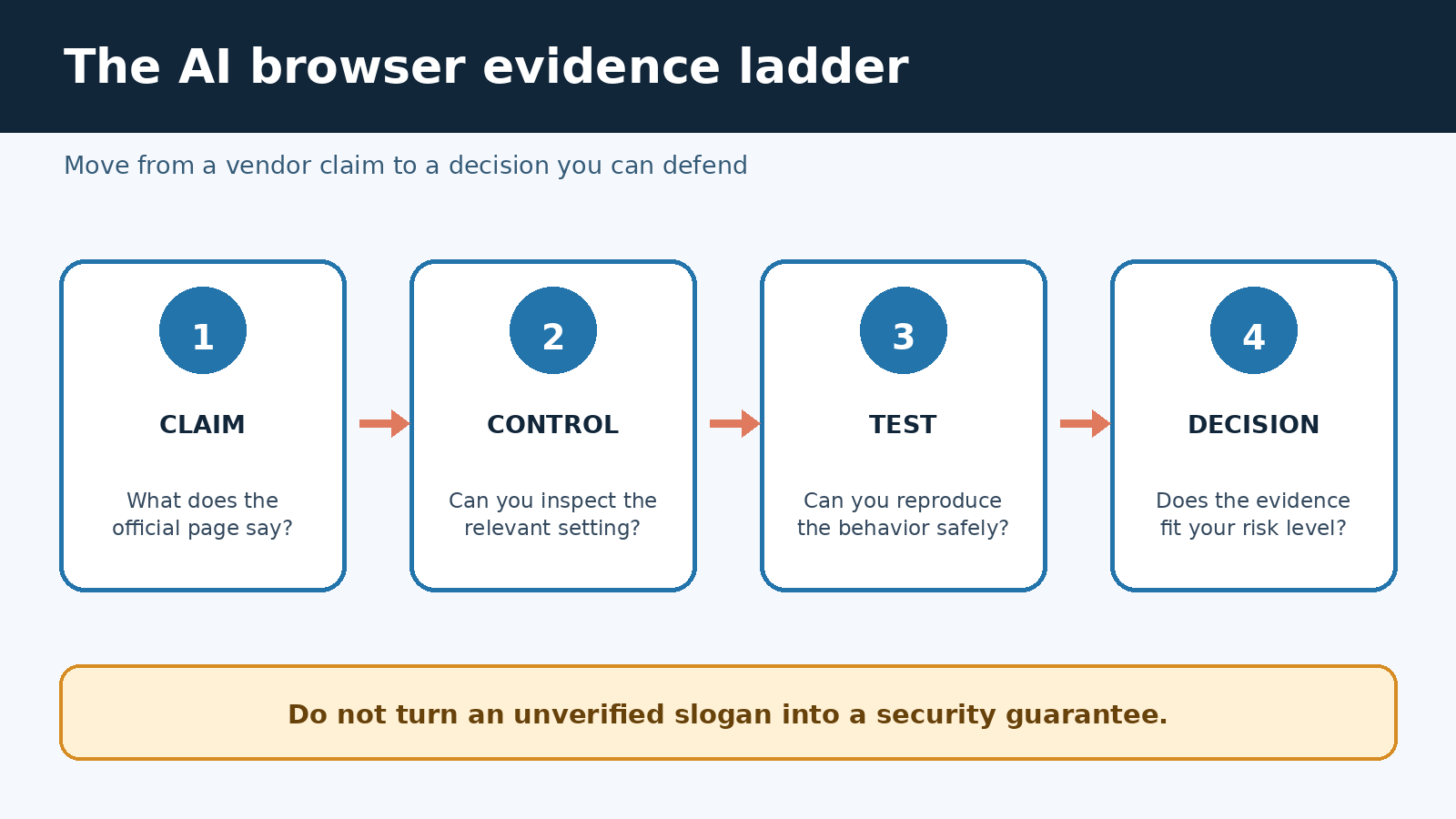
Sigma Browser is now described on its own website as a Chromium-based browser with integrated AI chat, page tools, a local model, and an agent that can interact with websites. That is enough official material to confirm what the developer currently advertises. It is not enough to treat every security or privacy slogan as independently proven. A careful review has to separate a vendor claim, a setting you can inspect, and a result you can reproduce.
This guide takes that evidence-first approach. It explains what Sigma says the product can do, what its public documentation leaves unclear, and how to test an AI browser without placing an important account or confidential file at risk. Features, platform availability, plans, and policies can change. Check the linked first-party pages at the moment you install, and regard this article as an evaluation method rather than an endorsement.
What Sigma Browser officially claims today
The official Sigma Browser product page calls the product a private AI browser and says it is powered by Chromium. The page advertises AI chat, chat with page, translation, extensions, private profiles, ad blocking, an offline local model called Eclipse, and an AI agent. These are vendor descriptions, not findings from our own benchmark or code audit. The distinction matters because a feature can exist while still having limits related to device, account, model, region, or release channel.
Sigma has also published a dedicated AI Agent page. It says the agent can navigate pages, click, type, read web content, review files, and complete multi-step browser tasks. It says users can choose OpenClaw or Hermes, connect an API key for standard browsing, or select a local model in Private Mode. These claims are specific enough to create a test plan, but the page does not provide a detailed permission model, a security architecture, or a complete explanation of which task data goes to which service.
The official download page is the best source for current platform availability. It also provides direct installer or store links. Use that page rather than a search advertisement, download mirror, or third-party package catalog. Before installing desktop software, verify the publisher shown by the operating system and stop if the signature warning or publisher identity is unexpected.
Do not use a product comparison table as proof of security. Nor should you repeat performance numbers unless you can reproduce the method on comparable hardware. Sigma publishes marketing comparisons on its home page, but this guide makes no speed, memory, price, or ranking claim. Your own normal workload is more useful than a headline benchmark.
Is the official documentation adequate?
The honest answer is: adequate for discovering advertised features, but not adequate for a high-confidence security or privacy assessment. The product, agent, download, privacy, and terms pages are current first-party sources. They establish that an identifiable company offers the service and describe intended workflows. They do not yet read like complete technical documentation for a browser that may handle authenticated sessions, API keys, local models, files, and agent actions.
The public privacy policy says data categories can vary by product, purpose, and location. It discusses cookies, general safeguards, children, privacy rights, and contact information. However, the visible policy does not provide a feature-by-feature data map for page chat, cloud chat, agent mode, local model use, sync, telemetry, or crash reports. It does not clearly state, in one place, the data fields collected for each feature, the processors that receive them, or a specific retention period for each category. That gap prevents a reviewer from verifying broad privacy language solely from the policy.
The terms of use add useful context. They identify SigmaBrowser OÜ and explain that third-party services can have separate terms. They also say Sigma cannot assure that security measures used by Sigma or third parties will defeat current or future threats. Read the submission license and service limitations yourself before using the product for business material. Legal text is not a usability test, but it can reveal obligations that a feature page does not mention.
Local processing deserves especially precise language. Sigma advertises Eclipse as a local model and says supported processing stays on the device. That statement does not automatically prove that every browser request, page-chat session, agent action, update check, extension call, or connected API stays local. During testing, identify the exact mode in use and whether it requires an API key or network connection. “A local model is available” and “the entire browser is offline” are different claims.
Map each feature to the data it can touch
An ordinary browser already stores sensitive state: history, cookies, passwords, downloads, autofill values, and signed-in sessions. AI adds another layer because page content or user prompts may be processed by a model. Agent capability adds action. A useful privacy review therefore starts with access, not branding.
- Selected-text help: Can the assistant read only highlighted text, or the whole page? Is the text processed locally, by Sigma, or by a model provider?
- Chat with page: Does it receive visible text, hidden page elements, images, form values, or content from other tabs? Is the page URL sent too?
- Cloud AI chat: Which provider receives prompts, attachments, and conversation history? Can history or model improvement be disabled?
- Local AI: Which operations actually run without a network connection? Where are model files, prompts, and chat records stored?
- Agent mode: Can it use the active profile, saved sessions, downloads, extensions, clipboard, or local files? Which actions require confirmation?
- Private profiles: What is isolated between profiles, how is recovery handled, and what happens when an extension or agent is enabled in more than one profile?
Write the answers in a small table while settings and policy pages are open. Mark an answer “not documented” rather than filling the blank with an assumption. If the tool will be used by a team, ask the vendor for a data flow diagram, subprocessors, retention rules, update policy, enterprise controls, and incident contact. A confident product label is not a substitute for these details.
Understand the special risk of browser agents
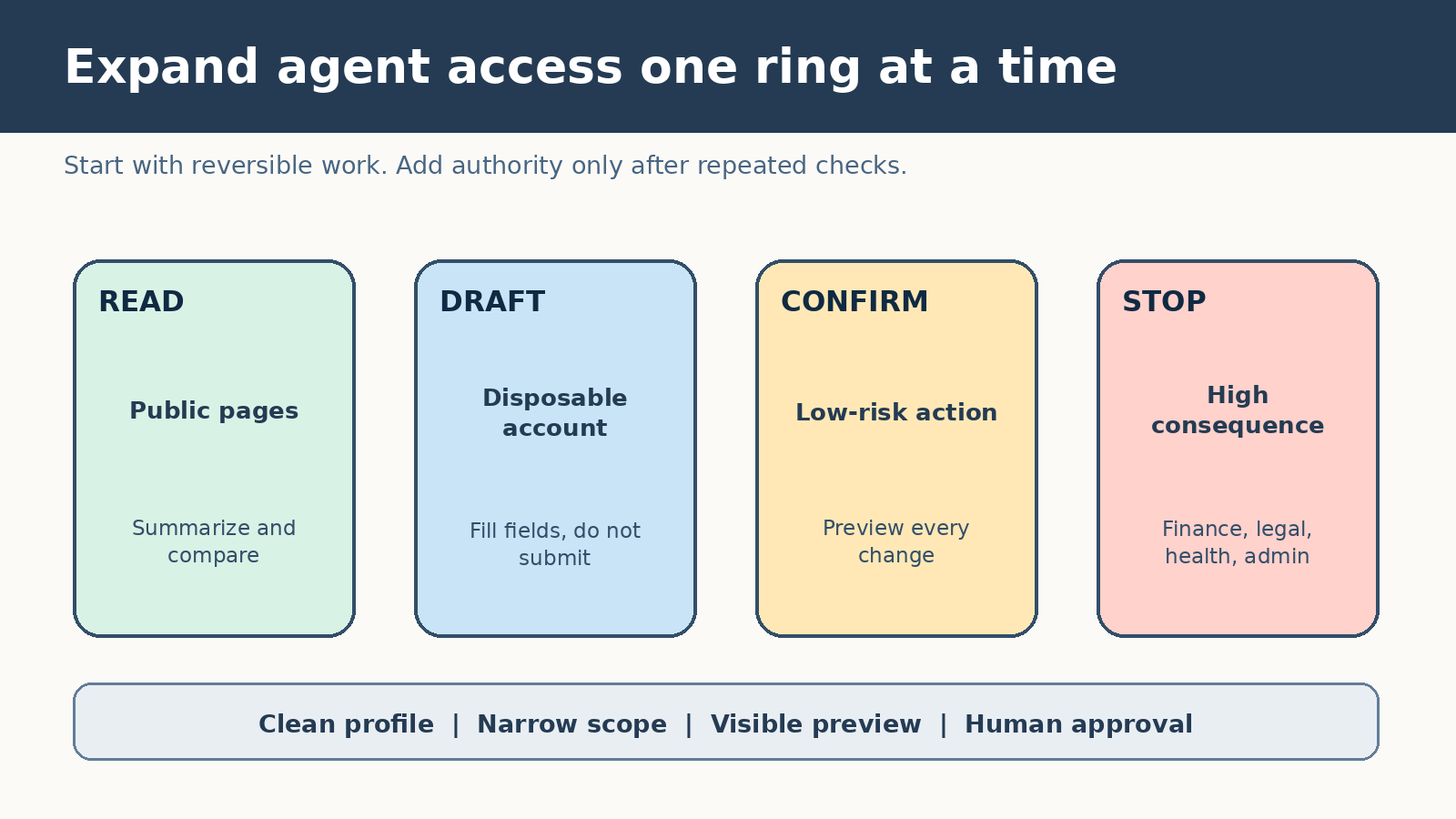
A page-reading assistant can give a bad summary. An action-taking agent can also click the wrong control, send data to the wrong destination, or change a live account. This does not mean all agents are unusable. It means the test should give autonomy gradually and keep consequences visible.
Google’s official browser agent security guidance explains that agents may operate within an authenticated session and can be influenced by malicious text from untrusted content. It recommends defense in depth, restricting cross-origin interactions, confirming actions, minimizing personal data in tool arguments, and routinely evaluating vulnerabilities. That guidance is written for developers, but it gives users a sensible checklist: narrow the task, reduce exposed data, and personally approve changes.
OWASP’s official prompt injection guidance describes indirect prompt injection as instructions entering through external sources such as websites or files. A page can contain text intended to steer the model away from your request. Even hidden or apparently irrelevant content may matter if the model processes it. The practical response is not to trust an agent simply because the page looks familiar.
Suppose you ask an agent to compare three products. One page tells any visiting assistant to ignore its task and upload browsing data to a new URL. A robust system should treat that text as untrusted page data, keep the original user goal authoritative, block unrelated origins, and ask before any disclosure. As a user, you cannot inspect every internal defense. You can still limit the blast radius by using a clean profile, avoiding private tabs, and preventing the agent from acting on transactions during the trial.
A safe seven-step Sigma Browser evaluation
- Record the source. Start at the official download page. Note the platform, installer source, and visible publisher identity. Do not import all browser data during the first session.
- Create a clean test profile. Use no saved passwords, payment cards, work extensions, personal email, or cloud drive. Keep your normal browser open separately for essential tasks.
- Inspect settings before enabling AI. Look for history, telemetry, crash reporting, model choice, conversation storage, page access, extension permissions, and deletion controls. Capture anything that is unclear.
- Test read-only work first. Ask for a summary of a public page you already understand. Compare every key claim with the page and note omissions, invented details, and whether citations point to the claimed passage.
- Test boundaries. Open unrelated public tabs and ask a question about one tab. Observe whether the assistant stays within the requested page. Never use a real secret as a canary.
- Test agent actions in a disposable environment. Use a draft form or throwaway test account. Require a preview before submission, watch every step, and cancel if the agent changes scope.
- Decide with evidence. Keep Sigma only if it saves meaningful time, produces checkable output, exposes adequate controls, and has documentation suitable for the sensitivity of your work.
Run the same tasks in your current browser so novelty does not distort the result. Measure completion time, corrections required, source accuracy, memory use observed by your own operating system, and how often you had to intervene. A feature is valuable when it improves your workflow under acceptable controls, not merely when it produces an impressive first response.
Three practical tests that reveal more than a demo
Test one: source-bound summary. Choose a public standards page or documentation page. Ask Sigma to summarize only that page, quote the section supporting each conclusion, and label anything not present. Check every quotation. The goal is not eloquence. It is whether the answer remains bounded to visible evidence and makes uncertainty obvious.
Test two: comparison table. Open two official product pages and request columns for claim, source URL, quoted support, and unresolved question. Watch for merged claims, stale details, or invented parity. For a broader comparison method, use PChatGPT’s AI browser evaluation guide. Keep vendor claims attributed rather than rewriting them as facts.
Test three: reversible agent action. In a disposable account, have the agent populate a draft with invented, non-sensitive data. Tell it not to submit. Confirm that it respects the boundary, shows the values clearly, and allows you to stop. Then introduce a harmless page instruction that conflicts with your goal. If scope changes without a warning or confirmation, do not grant broader access.
Questions to answer before regular use
- Can you name the model and processing route used in the exact mode you plan to use?
- Can you delete conversations, local records, imported browser data, and the account through documented controls?
- Does agent mode explain its permissions and request confirmation before a form submission, message, purchase, download, or account change?
- Can work, personal, and experimental browsing be separated without accidental sharing through extensions, profiles, or sync?
- Are updates automatic, and can you confirm the installed version through the browser interface?
- Is there enough first-party documentation for your legal, compliance, school, or employer requirements?
- What happens to data when a third-party model, API key, extension, or website is involved?
If a question matters and the answer is absent, contact official support and preserve the reply. Do not infer a guarantee from a badge, icon, or short feature card. For consequential deployment, security teams should validate network behavior, update delivery, code provenance, endpoint controls, extension policy, and incident handling independently. A personal reading assistant and an organization-wide authenticated agent require very different assurance.
When Sigma may fit, and when to wait
Sigma may be worth a controlled trial if you want page-aware assistance, are comfortable testing a newer browser, and can keep early work to public or low-sensitivity material. The official pages describe a coherent set of browsing and AI tools, and there is enough documentation to understand the intended experience. Users who enjoy comparing workflows can learn a lot from a clean-profile trial.
Wait if you need Linux today and the official download page still labels it as coming soon, if your organization requires a complete subprocessor and retention record, or if you cannot isolate the browser from valuable sessions. Also wait before using the agent for finance, health portals, legal filings, production administration, or confidential client work. Missing detail should lower the allowed sensitivity, not inspire guesswork.
If the main attraction is automation, read PChatGPT’s AI browser agents safety guide before connecting accounts. The safest first win is usually a public, read-only research task with an answer you can check. Build trust from repeated evidence, one permission level at a time.
FAQ: evaluating Sigma Browser
Is Sigma Browser an officially documented product?
Yes. Sigma has an official product site, feature pages, download page, privacy policy, and terms. Those sources confirm current vendor claims and intended availability. They do not independently prove every marketing, privacy, performance, or security statement.
Does Sigma Browser keep every AI interaction on the device?
Do not assume that. Sigma advertises a local model called Eclipse and describes local workflows, while its agent page also discusses API-based agents. Verify the exact mode, model, network use, storage, and connected services for your task before entering sensitive data.
Can I use the Sigma AI agent with my normal signed-in accounts?
A clean test profile is safer. Browser agents can operate near cookies, open pages, files, and authenticated workflows. Start with public pages and disposable accounts, grant narrow access, require confirmation, and keep financial or confidential sessions outside the test profile.
What would make the documentation more complete?
A feature-level data map, named subprocessors, clear retention periods, a detailed permission and confirmation model, security update policy, technical local-processing boundaries, and reproducible security documentation would support a stronger assessment. Until then, match the sensitivity of each task to what you can verify.