
An AI browser puts generative AI close to the pages, tabs, history, and forms you use. At the simple end, it can summarize the page you are reading. At the more capable end, a browser agent may compare several tabs, prepare a form, click controls, or work inside a signed-in session. Those are not small variations of one feature. They are different levels of access, usefulness, and risk.
This guide explains practical uses, benefits, drawbacks, and ten current options to evaluate in 2026. The list is not a ranking, and it does not claim that one product is best for everyone. It includes conventional browsers with optional AI, browsers designed around an assistant, and mobile browsing tools. Availability can depend on device, account, language, region, and administrator settings, so follow each linked official page for the current details.
What makes a browser an AI browser?
The label is broad. A browser may offer a chatbot in a sidebar, selected-text tools, page summaries, cross-tab comparison, AI search, writing help, memory, or an agent that can act on websites. A normal browser with an optional assistant can therefore be more useful for one person than a product marketed as AI native.
Start by identifying the capability boundary. Can the assistant read only text you select, the current page, several tabs, or browsing history? Can it merely suggest an action, or can it click and submit? Does it work in private browsing? Can you disable page context, memory, or the entire feature? Product names reveal less than these answers.
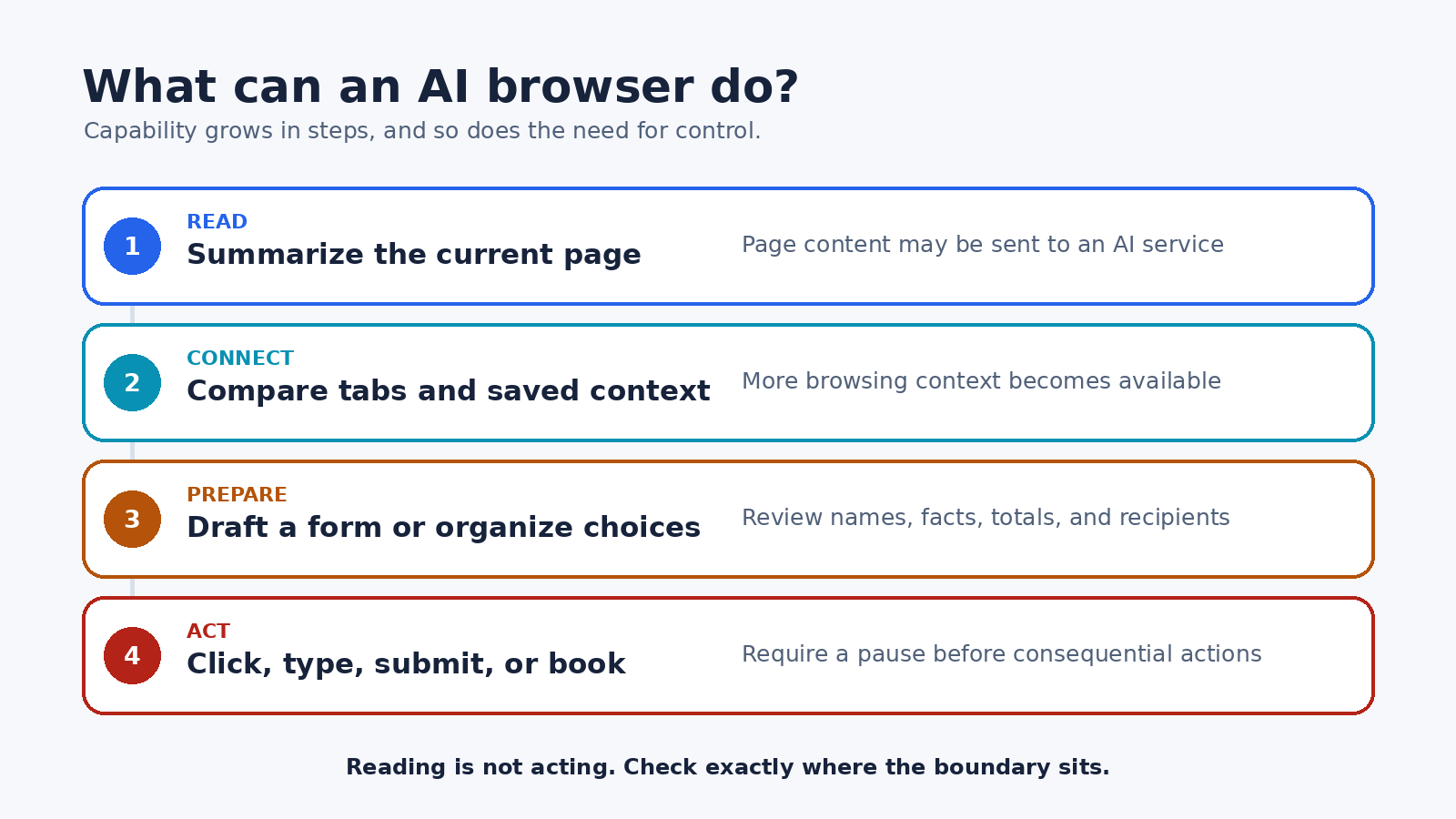
Useful jobs for browser AI
Reading a long public page. Ask for the main claim, supporting points, named sources, and unanswered questions. This can make an unfamiliar document easier to navigate, but it should not replace reading the passages that affect a decision. A summary is a map of the page, not the page itself.
Comparing open tabs. Browser context can reduce copying when you are comparing documentation, products, travel choices, or research sources. A good prompt asks the assistant to separate quoted facts from its own synthesis and attach every claim to the relevant tab or original publisher.
Explaining selected text. Selection-based tools are useful when one paragraph contains an unfamiliar term, dense sentence, or language you do not read. They also create a narrower data boundary than sharing every open tab. For many users, this modest feature is enough.
Preparing, but not sending. An assistant can turn page information into a checklist, draft a reply, organize choices, or prefill a low-risk form. Review names, dates, quantities, recipients, and totals before anything leaves the browser. Preparation and execution should be separate steps.
Repetitive navigation. An agent may help gather information from several allowed sites or perform a predictable sequence. Use this only where the process has clear stop conditions and errors are easy to reverse. Keep payments, account recovery, legal acceptance, medical choices, and irreversible changes behind an explicit human checkpoint.
The real advantages
- Less context switching: Questions and page tools can stay beside the material being reviewed.
- Faster first-pass reading: Summaries and explanations can reveal which sections deserve close attention.
- Better organization: Cross-tab tools can turn scattered pages into a comparison table or research outline.
- Accessibility support: Rephrasing, translation, and concise explanations may make difficult material easier to approach, although accuracy still needs review.
- A smoother handoff to action: Some tools can move from research to a draft or proposed action without repeated copying.
These benefits are strongest when the user can inspect the source and correct the result. They weaken when the assistant hides provenance, uses more context than expected, or acts before the user understands what will change.
The drawbacks and risks
Confident errors. An assistant can omit a condition, merge details from different tabs, misread a table, or invent a connection that the sources do not support. Important facts still need to be checked on the original page.
Broader data exposure. Page content, selected text, tab titles, URLs, history, uploads, or prompts may be processed to provide an answer. The exact data flow differs by feature. For example, Google says Gemini in Chrome uses current-tab content by default and can accept additional shared tabs. Microsoft says Copilot in Edge may use the current page, page title, open tabs, and browser history depending on the prompt. These examples show why you must read the product-specific controls rather than assume all sidebars work alike.
Prompt injection. A page can contain instructions aimed at the model rather than the reader. The OWASP prompt injection guidance explains that external content can alter model behavior in unintended ways, including when the instruction is not visible to a person. This matters most when an assistant can access private context or take action.
Excessive agency. A click, message, booking, or submission has consequences that a summary does not. Google’s browser agent security guidance recommends defense in depth, restricted cross-origin interactions, and user confirmation. No model is a substitute for narrow permissions and deterministic controls.
Changing availability. A feature may be limited by hardware, operating system, language, region, account type, rollout stage, or organizational policy. A list that ignores those conditions will age badly. Check the official support page immediately before choosing or deploying a browser.
New operational dependencies. Browser AI may rely on an account, a network connection, cloud models, local models, or third-party providers. If a feature is central to work, ask what happens when the model is unavailable, the policy changes, or an administrator disables it.
Ten AI browser options to evaluate, not rank
The following options are presented by use pattern, not from best to worst. No hands-on benchmark, price comparison, or universal winner is claimed. The right shortlist depends on the smallest capability that solves your job.
- Google Chrome with Gemini. Google’s Gemini in Chrome help page documents current-page assistance, optional sharing of additional open tabs, summaries, explanations, comparisons, and other tasks. It also states that access is still rolling out and lists account, device, region, and language conditions. Consider it when you already use Chrome and want integrated contextual help, but inspect tab-sharing and data settings before using private pages.
- Microsoft Edge with Copilot. The official Copilot in Edge guide describes page, video, PDF, and open-tab summaries, questions about viewed content, and a control for whether Copilot may read web context clues. It is a practical candidate for people already using Edge. Check the context setting and keep sensitive tabs closed when they are not needed.
- Mozilla Firefox with a chosen chatbot. Mozilla’s Firefox AI chatbot documentation describes an optional sidebar that lets users choose among supported chatbot providers. Suggested actions can send a prompt, selected text, and the page title to the chosen provider. This model suits users who value provider choice and a removable integration rather than a single browser-owned assistant.
- Brave with Leo. Brave’s Leo support guide describes an assistant built into the browser for page or video summaries, questions, translation, and generated text. Brave also documents opt-in behavior and ways to disable Leo. Its own notice says page content or highlighted text may be sent when you ask a question and warns against submitting sensitive information. That explicit warning is useful when assessing fit.
- Opera with Opera AI. Opera’s browser AI FAQ covers page summaries, information extraction, writing help, questions, and image features across its listed desktop and mobile browsers. The same FAQ explains that page content is not available on every site and is blocked on certain sensitive sites. Read its current chat storage and data-processing sections before signing in or using page context.
- Safari with Apple Intelligence. Apple’s Safari support guide documents webpage summaries on compatible Macs with Apple Intelligence enabled. Apple also notes that the capability is not available on every Mac or in every language or region. Safari is worth evaluating when concise page reading is the goal and deep autonomous action is not required.
- Samsung Internet with Browsing assist. Samsung’s Browsing assist instructions describe webpage summarization and translation inside Samsung Internet. The page notes account and network requirements and says summarization is not supported on every website. This is a focused mobile option rather than a general desktop research agent.
- Perplexity Comet. Perplexity’s Comet getting-started guide describes a Chromium-based browser with Perplexity search, page context, summaries, natural-language browser commands, and other integrated functions. Because the browser can combine assistance with browsing data and connected services, evaluate permission controls and use a separate test profile before importing sensitive data.
- Dia. Dia is built around contextual AI. The company’s security and data FAQ says conversations, history, bookmarks, and files are stored locally by default, while data needed for an AI request is sent through its servers to AI partners. It also describes optional memory and sync behavior. Dia may fit people who want to converse with browsing context, but those data paths and proactive features deserve a deliberate settings review.
- Arc with Arc Max. The Arc Max help page describes optional AI features such as link previews and tab or download organization, with several features limited to macOS. It also says Max features require sending data to AI partners. Arc is a useful example of selective AI enhancements rather than one universal chat agent. Confirm platform scope and turn on only the functions you need.
This comparison deliberately avoids unsupported scores. A focused summarizer can be safer and more predictable than a powerful agent when reading is the actual job. Conversely, a person who needs controlled multi-step navigation should evaluate action visibility, confirmation behavior, and recovery rather than counting chat features.
How to choose the right option
1. Write one concrete job. Replace “I want an AI browser” with a task such as “summarize public technical articles and point to the relevant sections” or “compare five open product documentation tabs.” A concrete job makes unnecessary permissions easier to reject.
2. Pick the lowest capability level. If selected-text explanation solves the problem, do not grant history access. If a draft is enough, do not enable submission. A smaller context window can also make the answer easier to audit.
3. Check first-party documentation. Look for supported platforms, data sent for each feature, retention, model providers, memory, training controls, private-mode behavior, enterprise policy, update process, and deletion controls. Treat a missing answer as uncertainty, not permission to assume the safest behavior.
4. Use a clean profile. Test with public pages, non-sensitive prompts, and a separate browser profile. Do not import saved passwords, payment details, or full history merely for convenience. Add access only after the narrow workflow proves useful.
5. Evaluate outputs with a fixed set. Reuse several public pages that contain headings, tables, exceptions, and conflicting claims. Check whether the assistant points to source passages, preserves qualifications, admits missing information, and avoids mixing facts across tabs. This is a personal acceptance check, not a published performance benchmark.
6. Test refusal and recovery. Give the tool an ambiguous request and see whether it asks before a consequential step. Interrupt a task. Change a key detail. Confirm that you can take over, undo a draft, and understand what occurred. If the browser hides its path, do not use it for higher-risk work.
Readers considering action-taking products can also use the PChatGPT AI browser agents safe-use guide. Teams managing wider agent access should review the site’s AI agent security and governance guide for inventory, permissions, and evidence practices.
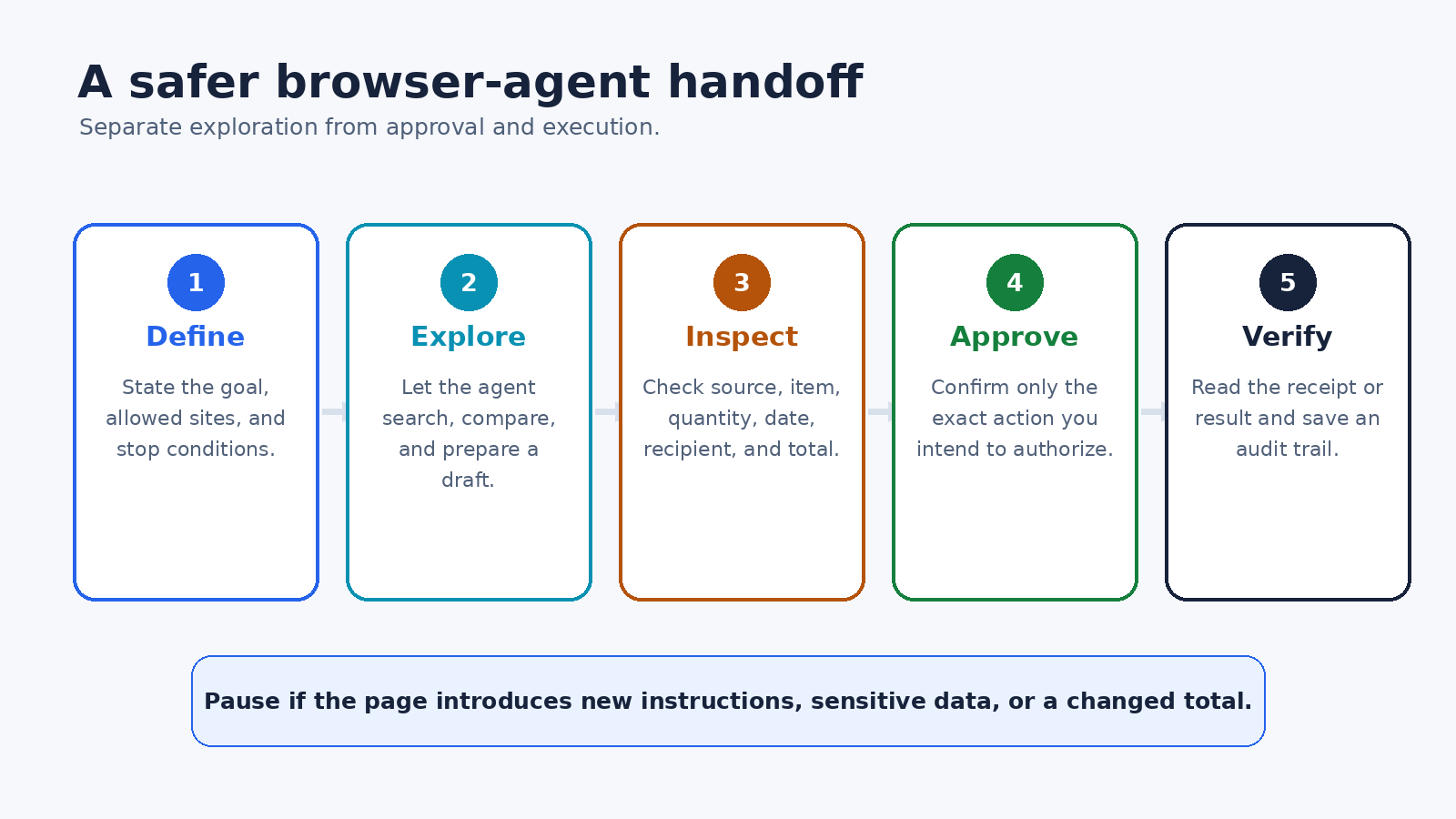
A safer workflow for browser agents
Start every agent task by naming the goal, allowed sites, prohibited actions, and stop conditions. Let the agent explore public information and prepare a draft. Then inspect the source, exact item, quantity, date, recipient, destination, and total. Approve only the specific action you intend, not a vague continuation request.
After execution, verify the result in the target system. Read the confirmation or receipt and save a useful record. Pause if a page introduces new instructions, asks for sensitive data, changes a total, or redirects to an unexpected origin. Content discovered on the web is evidence to assess, not authority to override your rules.
For work accounts, involve the security or privacy owner before enabling browser memory, cross-tab context, connected apps, or action tools. Administrators should know which data can leave the device, which providers process it, how incidents are investigated, and whether logs are available. A feature that is acceptable for public research may be unsuitable for customer, employee, financial, legal, or health information.
FAQ
What is the difference between an AI browser and a browser agent?
An AI browser is the broader category. It may only summarize pages, explain selections, translate text, or organize tabs. A browser agent can take actions such as navigating, clicking, typing, or submitting. Always check the actual permission and action boundary because vendors may use the terms differently.
Are AI browser summaries reliable?
They are useful as a first-pass navigation aid, not as guaranteed truth. A summary can omit exceptions, confuse page elements, or state an inference as fact. Open the cited source, locate the relevant passage, and verify any detail that affects money, safety, rights, work, or another person.
Should I let an AI browser use my normal signed-in profile?
Begin with a separate profile and public, non-sensitive pages. Only connect an account when the task truly requires it and the product’s official documentation and controls are acceptable. Keep unrelated private tabs, saved credentials, and payment information outside the test environment.
Which AI browser is best in 2026?
There is no evidence-based universal winner. Choose according to the smallest capability you need, your devices, documented data flow, controls, source visibility, and tolerance for agent action. Recheck official support pages because availability and behavior can change faster than a static ranking.
Final take
AI browsers are most useful when they shorten the distance between a source and a reviewable draft. They become more dangerous when convenience hides context sharing or turns an unverified answer into an action. Define the job first, grant the smallest useful scope, keep consequential steps behind human approval, and verify the outcome where it happened.
The ten options above are a research shortlist, not a leaderboard. Use official documentation to narrow it, then test one ordinary workflow in a clean profile. The best fit is the product that solves that workflow with understandable data boundaries and no more authority than the task requires.