

An answer engine can save time by searching, reading, and turning several pages into a direct response. The danger is equally simple: a smooth answer can make you forget which page supported which sentence.
Perplexity’s official guide describes Comet as a Chromium-based browser with Perplexity AI built in. It also says Comet retains familiar browser functions, including bookmarks, page translation, and support for most Chrome extensions. Comet Intelligence can use browsing history for personal search, while the setup tools can import selected data from another browser.[1] Those are product features. They do not, by themselves, prove that an answer is accurate or that every cited page supports the wording you received.
This guide focuses on a practical discipline: use Comet to find, organize, and question material, but keep the evidence visible and make the final judgment yourself. Whenever this article labels a step as editorial advice, it is a recommended workflow rather than a feature promised by Perplexity.
What Comet changes, and what it does not
In an ordinary research session, the browser and the chatbot are often separate. You copy a passage, switch tabs, ask a question, then return to the source. Comet reduces some of that movement because AI assistance is part of the browser. The official documentation presents it as both a standard browser and an AI-enabled environment.[1]
That integration can make context easier to provide, especially when you want to ask about a page or a set of tabs. It can also blur the line between the text on screen, information found elsewhere, and the model’s own synthesis. A concise answer may combine those layers without making the boundary obvious in every sentence.
Editorial rule: treat Comet’s response as a research map, not as the evidence itself. The response can point you toward claims, pages, and disagreements. Your evidence remains the original material that you open, read, and record.
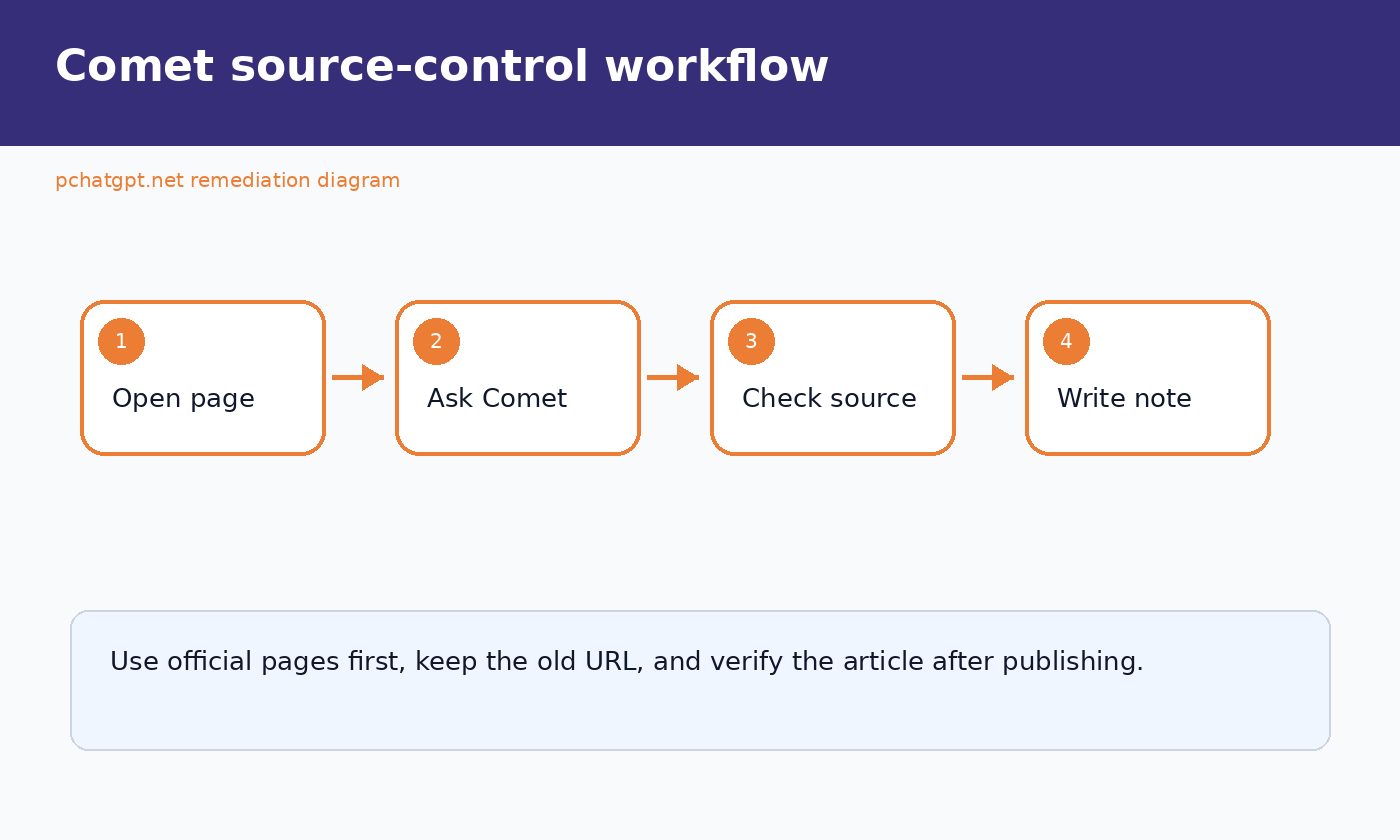
Define source control before you ask a question
Source control in this context does not mean software version control. It means knowing where a claim came from, what the source actually says, and whether you can reproduce the path from evidence to conclusion. You lose control when a citation looks relevant but does not support the sentence, when a summary quietly merges different dates or definitions, or when you cannot tell whether a statement came from an open tab or a broader search.
Write an evidence target
Start with a question that names the evidence you need. “Is this product good?” invites a broad opinion. “Which functions does the vendor document, and which limitations are stated on the same page?” creates a checkable task. For a comparison, specify the date, plan, operating system, and feature category where those details matter.
A useful prompt can also state what should be excluded: forum speculation, copied press releases, undated feature lists, or pages that merely repeat another article. This does not guarantee perfect retrieval. It does make your standard visible, so you can judge the result against it.
Separate discovery from verification
Use one pass to discover candidate sources and a second pass to verify claims. During discovery, ask for relevant official pages and a short explanation of why each page matters. Do not draft the final article yet. Open the candidates, discard weak matches, and note the pages that contain direct support.
During verification, work claim by claim. Ask whether the selected page supports the exact wording, not merely the general topic. A page about Perplexity as a company cannot automatically support a claim about Comet. A partnership announcement cannot establish a browser feature. Shared branding is not shared evidence.
Keep a small evidence table
Editorial advice: record four fields for every important claim: the proposed wording, the source URL, the supporting passage, and your verification status. “Verified” should mean you read the passage yourself. Use “partial” when the page supports only part of the sentence, and “remove” when the match fails.
This modest table prevents citation drift. It also makes later editing safer. If a sentence changes, you can compare the new wording with the passage instead of assuming the old citation still fits.
A controlled workflow inside Comet
1. Begin with a clean research window
Open only the tabs needed for the current question. Keep personal accounts, payment pages, private dashboards, and unrelated work outside the session. This is editorial risk control, not a statement that Comet mishandles those pages. A narrower workspace simply reduces accidental context mixing and makes it easier to see what the assistant could be using.
If you are evaluating Comet rather than adopting it, use a separate browser profile and import only what you need. Perplexity’s setup guide says users can choose which items to import, and it explains that Comet may request keychain access to store sensitive information used for password management, autofill, and Comet Intelligence.[1] Read the prompt before approving it rather than treating installation dialogs as routine.
2. Ask for a source list before a synthesis
Request candidate pages first. For example: “Find the official documentation that defines Comet, explains installation, and describes data import. Return the title and URL of each page. Do not summarize yet.” This gives you a visible retrieval stage. Open every candidate and confirm that the page is official, current enough for your task, and specific to the claim.
Only then ask for a summary based on the approved pages. Name those pages in the prompt when possible. The aim is not to force a particular answer. It is to limit silent substitution of convenient but weaker material.
3. Make the answer expose its support
Ask for one citation next to each factual statement and request a short supporting excerpt. Then check the excerpt on the source page. Citations can be wrong, incomplete, or attached at paragraph level even when only one sentence is supported. The verification step belongs to the reader.
For numerical, legal, medical, financial, or safety-related material, raise the standard. Look for a primary document, confirm the date and scope, and get qualified review where the consequences warrant it. A browser assistant can organize research, but it does not transfer responsibility away from the person publishing or acting on the result.
4. Compare the response with the live page
Do not verify from the AI’s quotation alone. Search the open page for a distinctive phrase, read the sentences around it, and check headings or footnotes that define its scope. A sentence can be copied accurately while losing an exception in the next paragraph.
Also check whether the page has changed since the answer was generated. Product documentation is especially fluid. Record an access date for claims that may change, and avoid writing permanent language such as “always” unless the source truly supports it.
5. Draft from notes, then run a claim audit
Once the evidence table is complete, draft from that table rather than from the assistant’s prose. This reduces the chance that polished but unsupported phrasing survives into your article. After drafting, underline every externally checkable statement. Each one should have direct support, be clearly framed as analysis, or be removed.
Finally, click every citation in the finished draft. Link testing catches broken URLs, redirects, and citations accidentally moved during editing. It is dull work, but it is faster than correcting a published claim.
Prompts that preserve an audit trail
The wording below is editorial guidance. It describes ways to structure requests, not guaranteed Comet behavior.
- “List candidate primary sources for this question. Give each page title, publisher, URL, and the claim it may support. Do not write a conclusion.”
- “Using only the tabs I name, create a table with one factual claim per row, the supporting page, an exact excerpt, and any limitation stated near that excerpt.”
- “Review this paragraph sentence by sentence. Mark supported, partially supported, or unsupported. Explain any mismatch without rewriting the paragraph.”
- “Find disagreement between these sources. Keep their dates, definitions, and scopes separate rather than averaging them into one answer.”
- “Create a verification checklist for the draft. Include dates, names, figures, quotations, plan restrictions, regional limits, and links.”
Notice what these prompts avoid. They do not ask the answer engine to sound certain, fill missing details, or make the result publication-ready in one pass. They create intermediate outputs that a person can inspect.
Use Comet Shortcuts without automating judgment
Perplexity’s separate Shortcuts documentation describes reusable prompts that can be called with a slash in Comet. A shortcut can point to sources, files, or tabs, and its setup can include a search mode, model, and source. The same page says entering a shortcut does not run it automatically. You can add context before submitting it.[2]
That makes Shortcuts suitable for repeatable research checks. You might create one that asks for claim-by-claim evidence or another that flags missing dates. Keep the shortcut narrow enough to review. A long instruction that searches, judges evidence, rewrites the article, and initiates an external action may be convenient, but it hides too many decisions inside one run.
Editorial rule: automate the checklist, not the approval. Let a shortcut produce the evidence table, identify uncited sentences, or format a source list. A person should still decide whether a source is authoritative, whether the excerpt supports the claim, and whether the draft is ready to publish.
Common ways source control breaks
A relevant citation is mistaken for supporting evidence
A page can discuss the right company and still fail to support the sentence beside it. Check the exact claim, including qualifiers. If the source says a feature is available under certain conditions, a sentence that presents it as universal goes too far.
Several sources are blended into one stronger claim
An answer engine may synthesize related material into wording that appears to have a single foundation. Split the statement into smaller claims and cite each one separately. If no individual source supports the combined conclusion, label it as your interpretation or leave it out.
Official, reported, and editorial statements are mixed
Use explicit labels. “Perplexity documents” introduces an official product claim. “A reviewer reported” identifies an outside observation. “Our recommendation” marks editorial judgment. This is more honest than giving every sentence the same authoritative tone.
The assistant becomes an action layer too soon
Research and execution have different consequences. Asking for a summary produces text you can reject. Sending a message, submitting a form, changing an account, or publishing a post affects an external system. Keep those stages separate and require a final human review before any consequential action.
How Comet fits into an AI browser comparison
Comet should be compared as both a browser and an answer-engine interface. Browser basics matter: extension compatibility, updates, imports, profile separation, and familiar navigation. Research controls matter too: visible sources, the ability to constrain context, and the effort required to verify a response.
For a broader map of product categories and trade-offs, read our guide to AI browser uses, pros, cons, and options. If you want a test-oriented framework, continue with our tested AI browser comparison. Use the same research question across products and count verification time, not only response time.
A sensible trial uses low-risk material and a separate profile. Measure whether Comet helps you locate primary documents, reduces repetitive navigation, and keeps citations easy to inspect. If the tool produces a faster first draft but adds a long verification burden, the net gain may be smaller than it looks.
A source-control checklist for every session
- Define the exact claim or decision you are researching.
- State which source types are acceptable and which are excluded.
- Collect candidate pages before asking for a narrative answer.
- Open each important source and read the relevant section in context.
- Record one claim, URL, excerpt, and status per evidence row.
- Keep official product facts separate from your own recommendations.
- Check dates, plans, regions, and conditions before generalizing.
- Draft from verified notes rather than copying the AI response.
- Audit every checkable sentence and click every final link.
- Require human approval before messages, forms, purchases, or publishing.
This process adds friction in the right place. The browser can accelerate discovery and organization, while the final claims remain tied to pages a reader can inspect.
The habit worth keeping
Comet’s integration of browsing and AI can make research feel like one continuous conversation. Use that continuity for navigation and questioning, but do not let it flatten the distinction between answer and evidence. Ask for sources early, verify them in context, and preserve a short record of how each important claim earned its place.
The best outcome is not the longest answer or the quickest summary. It is a draft whose factual sentences can be traced back to appropriate sources without guesswork. If you can reproduce that path after closing the assistant panel, you still have source control.
FAQ
Is Comet a separate browser or only a Perplexity extension?
Perplexity describes Comet as a Chromium-based browser with integrated AI capabilities. Its official getting-started guide also lists standard browser functions and support for most Chrome extensions.[1]
Can I trust every citation in a Comet answer?
No citation should be trusted solely because it appears beside an answer. Open the page, locate the supporting passage, read its context, and confirm that it supports the exact wording. This is editorial verification advice, not a claim that every Comet citation is faulty.
Should I import all my browser data into Comet?
Perplexity says the import process lets you select items from a previous browser.[1] Import only what you need for your planned use, and review permission or keychain prompts before approval. A limited trial profile is easier to audit than a complete migration.
What is the safest useful task for a first Comet test?
Try a reversible research task using public material. Ask Comet to find official pages, organize claims, and build an evidence table. Verify the output yourself. Avoid forms, purchases, publishing, or sensitive logged-in pages until you understand the controls and have decided that the workflow is appropriate.
Sources
- Perplexity Help Center, “Getting Started with Comet”. Official overview of Comet, installation, keychain access, default-browser setup, and data import.
- Perplexity Help Center, “Comet Shortcuts”. Official instructions for creating, configuring, and using reusable prompts in Comet.