ChatGPT for Excel and Google Sheets matters because spreadsheets are where many people already do their work. Budgets, trackers, forecasts, KPI reports, lists, models, and messy exported data often live in Excel or Google Sheets long before they become a polished dashboard or document. OpenAI’s spreadsheet experience puts ChatGPT in a sidebar next to that work, so the task can start from the workbook instead of a blank chat window.
The useful way to read this product is not as a magic spreadsheet button. OpenAI describes it as a spreadsheet-native AI experience for building, updating, and understanding spreadsheets. That wording is important. It can help with formulas, workbook questions, labels, formatting, assumptions, charts, scenarios, and summaries, but the user still has to choose the scope and check the result. A spreadsheet can drive money, payroll, grades, customer lists, or operational decisions. Polished output is not the same as verified output.
This guide explains what OpenAI officially says ChatGPT for Excel and Google Sheets can do, how setup works, where the Excel and Sheets experiences differ, how Skills and apps fit in, and how to use the feature without turning a useful assistant into an unchecked automation layer.
What ChatGPT for Excel and Google Sheets is
OpenAI’s official help article on ChatGPT for Excel and Google Sheets says the feature lives in a sidebar inside Excel and Google Sheets. It is designed to help users build, update, and explain spreadsheets directly, including large files with multiple tabs, formulas, references, and assumptions.
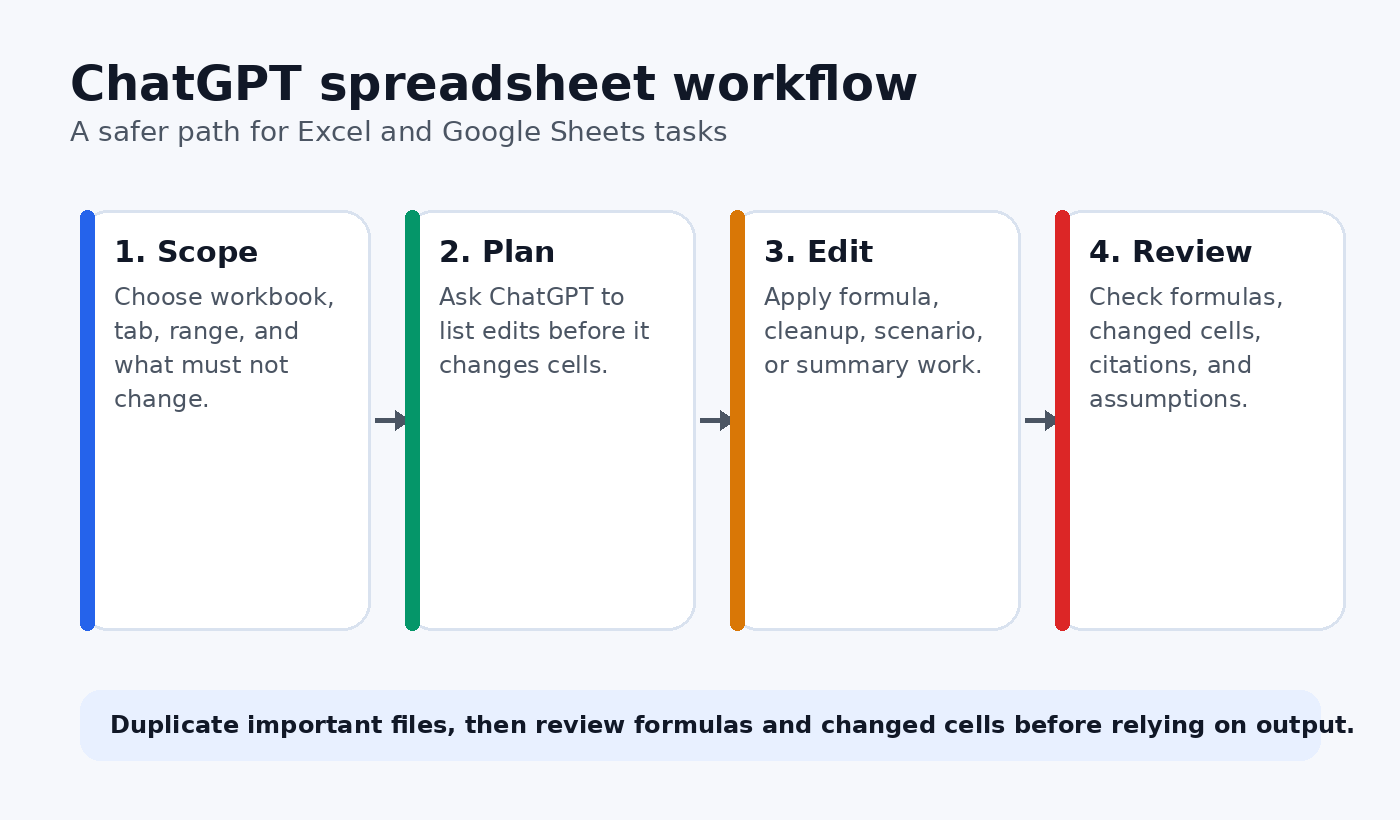
The Excel and Google Sheets versions are separate experiences, but OpenAI says they support similar workflows. You can create a spreadsheet from scratch, ask questions about an existing one, and make updates using natural language. That means the strongest use cases are not one-off formula tricks. The stronger use case is guided spreadsheet work where you ask for a plan, approve the scope, let ChatGPT work on a defined part of the file, and then review the changed cells.
OpenAI also says spreadsheet chats are separate from the main ChatGPT chat history. They do not sync with your ordinary chats, and spreadsheet chats have limited memory support. Treat that as a design boundary. If you want a consistent process, you need to put the rules in the prompt, a saved workflow, a Skill, or your team instructions rather than assuming the sidebar remembers everything from another ChatGPT conversation.
Who can use it
OpenAI lists global availability for Free, Go, Plus, Pro, Business, Enterprise, ChatGPT Edu, and K-12 users. The usage terms differ by plan. Free and Go include limited usage access. Plus and Pro access is subject to the plan’s agentic usage limit. Business, Enterprise, Edu, and K-12 customers had a free preview through June 2, 2026, after which usage follows plan credits and usage terms.
That plan language should keep teams from making broad assumptions. A small personal file may be a light task. A large workbook with many tabs, multi-step edits, and analysis can use more of the agentic usage limit. Business and Enterprise admins can monitor usage and purchase additional credits, according to OpenAI’s help page. If you manage a team, usage policy belongs in the rollout plan, not in an afterthought once people have already started relying on the add-in.
How Excel setup works
For Excel, OpenAI directs users to the Microsoft Marketplace listing for ChatGPT. The basic path is to open Excel on desktop or web, go to Home, choose Add-ins, search for ChatGPT, add it, open ChatGPT from the ribbon, and sign in with a supported ChatGPT account.
Organizations that cannot access the Microsoft Store for the add-in can have a Microsoft 365 admin deploy it internally using OpenAI’s manifest XML file. The admin flow uses the Microsoft 365 admin center, Integrated apps, Deploy Add-in, and Upload custom apps. That deployment detail is useful for companies where end users are not allowed to install marketplace add-ins themselves.
Excel also has a separate Codex workflow in the ChatGPT desktop app. OpenAI says users can use Codex in the ChatGPT desktop app to work directly with an open Microsoft Excel workbook through the ChatGPT for Excel add-in. In that workflow, Codex can inspect and update sheets, formulas, values, formatting, and charts. It can also use code and local files provided as part of the task. OpenAI states that this direct workbook workflow is currently available for Microsoft Excel only.
How Google Sheets setup works
For Google Sheets, OpenAI points users to the Google Workspace Marketplace listing for ChatGPT. The setup is to install ChatGPT from the marketplace, open Google Sheets, launch ChatGPT from the Extensions menu, and sign in with a supported ChatGPT account.
If an organization uses role based access control, an admin may need to enable the add-in. OpenAI says the setting is under Workspace settings, Permissions and roles, ChatGPT for Excel and Google Sheets, then Enable ChatGPT for Excel and Sheets. OpenAI notes that this applies to both Excel and Google Sheets. That matters for administrators because the permission is not only a Google Sheets switch.
The practical difference is simple: Excel currently has the extra Codex desktop workflow described above, while Google Sheets uses the spreadsheet sidebar experience. Do not promise the same direct desktop control for Sheets unless OpenAI later documents it. For now, explain the difference plainly and build workflows around the supported surface.
What it can do well
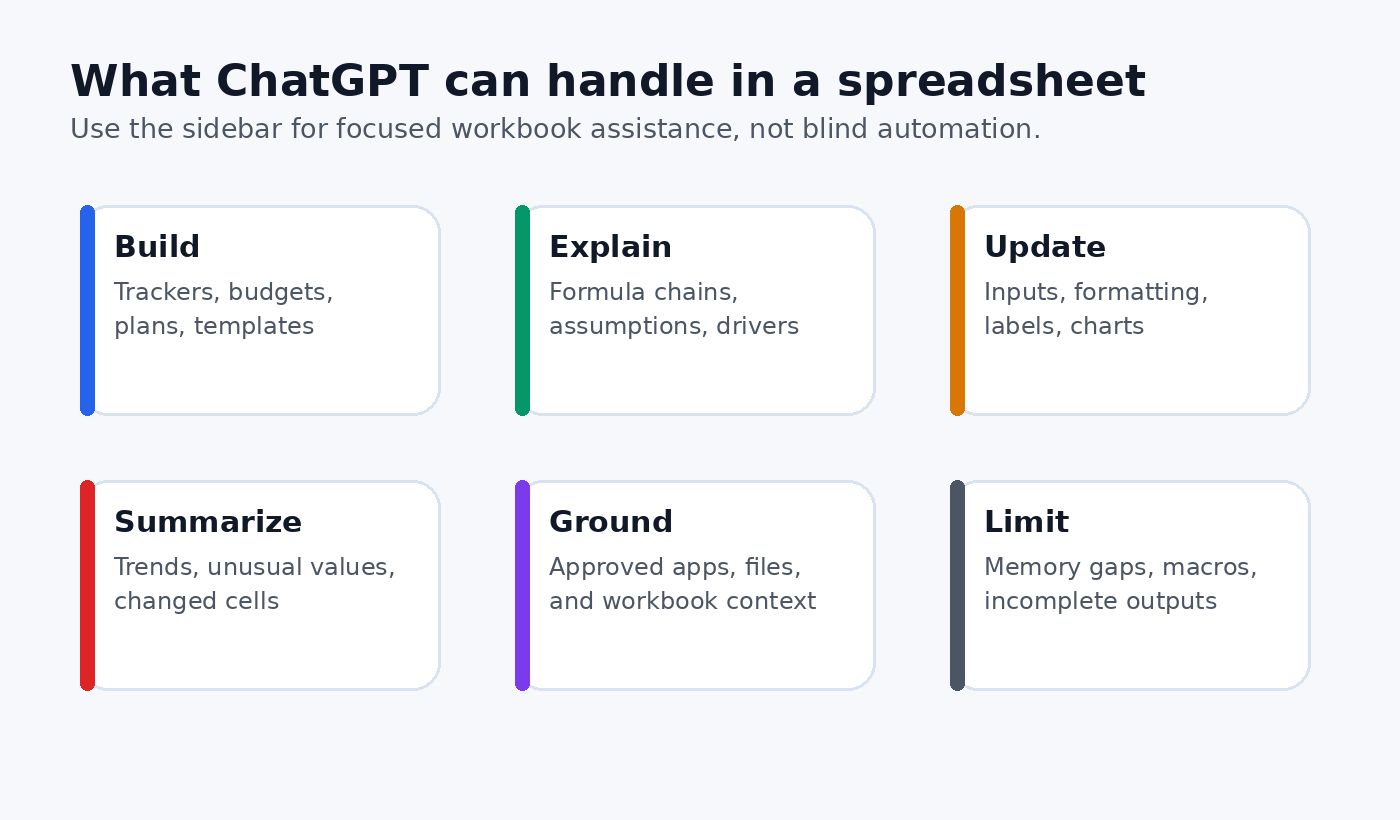
OpenAI’s examples are concrete. ChatGPT for Excel and Google Sheets can help build formatted budgets, explain an error in a specific cell, summarize trends across tabs, clean inconsistent labels, remove duplicates, update a table with new assumptions, and create scenario tabs. These are normal spreadsheet jobs, not abstract AI demos.
The best results come when you narrow the request. Instead of saying, “fix this workbook,” ask ChatGPT to inspect a specific tab, identify likely formula issues, propose a plan, and wait before editing. Instead of asking it to “make this better,” say which columns to preserve, which labels can change, which formatting should stay untouched, and what output you expect at the end.
Use the feature for work that benefits from context. Good examples include explaining a formula chain, finding inconsistent categories, summarizing changes between tabs, creating a model template, building a scenario table, and turning raw rows into a cleaner report. Weak examples include asking it to make financial, legal, or tax decisions for you. OpenAI warns that ChatGPT is not a financial, legal, or tax advisor and that outputs should not be considered advice.
Where Skills and apps fit
OpenAI says ChatGPT for Excel and Google Sheets supports Skills and apps. The OpenAI Skills help article describes Skills as reusable, shareable workflows that tell ChatGPT how to do a specific task more consistently. In a spreadsheet setting, that could mean a Skill for monthly budget cleanup, corporate finance formatting, KPI report review, or scenario analysis.
Skills matter because repeated spreadsheet work often has house rules. A finance team may want a specific layout, color convention, review checklist, and naming pattern. A support operations team may want exported tickets cleaned in the same way every week. A founder may want a lightweight investor update template from the same tracker each month. A Skill can carry those instructions so users do not rebuild the same prompt every time.
Apps are different. OpenAI says apps let ChatGPT for Excel and Google Sheets work with connected data sources so spreadsheet work can be grounded in the right context. Availability depends on the ChatGPT account, workspace admin settings, user permissions, and data source entitlements. If an app is missing, users should check whether it has been enabled by the workspace admin.
A practical prompt pattern
Start with a small brief. Name the workbook area, the task, the guardrails, and the review requirement. For example:
Review the Sales Summary tab only. Do not change formatting. Check formulas in columns E through H, explain any likely errors, and propose a fix list before making changes. After I approve the plan, update only the cells we agree on and summarize every changed cell.
That prompt works because it separates inspection from editing. It also tells ChatGPT what not to touch. The review step is not bureaucracy. It is how you prevent a helpful assistant from changing a workbook in a way that looks neat but breaks a later report.
For broader ChatGPT workflows, pair this spreadsheet process with the staged prompting approach in ChatGPT How-To Guide 2026: Practical Workflows for Research, Writing, and Automation. If the spreadsheet task becomes part of a writing or reporting workflow, also review How to Use ChatGPT to Write Without Cheating or Getting Flagged, especially for disclosure, source checking, and final human editing.
Review changed cells before relying on output
OpenAI’s limitation section is direct: outputs may be incomplete or incorrect, and users should review formulas, calculations, citations, and changed cells before sharing or relying on them. For important work, OpenAI recommends duplicating the file first so you can revert if needed.
That advice should become a default habit. Duplicate the workbook before large edits. Ask for a plan before changes. Make ChatGPT list modified tabs, ranges, formulas, assumptions, and citations after the edit. Then check the workbook manually. If the spreadsheet supports decisions about money, customers, grades, contracts, operations, or compliance, have a second person review the output before it leaves the team.
This is also where managers should decide which tasks are allowed. Cleaning labels in a copy of a tracker is low risk. Updating a financial model that will be sent to leadership is higher risk. Pulling information from connected apps or internal files may be useful, but it also raises permission and data handling questions.
Privacy, security, and admin controls
OpenAI says ChatGPT for Excel runs in Microsoft Excel and ChatGPT for Google Sheets runs in Google Sheets. Your use of those products is governed by your agreements with Microsoft or Google. OpenAI also notes that Microsoft may have the ability to read the content of your Excel workbook, attachments, and prompts as part of Microsoft’s Add-in Marketplace terms.
OpenAI says ChatGPT processes the prompt, attachments, and relevant spreadsheet context so it can update the workbook and send analysis. It also says data is stored locally in the product, users can delete or download data in Settings, and some data logs may be stored with OpenAI for 30 days for safety and integrity purposes.
For enterprise users, OpenAI lists workspace level controls including data and inference residency where available, Enterprise Key Management, and role based access controls. It also says prompts and responses are available in the Compliance API. These controls do not remove the need for a local policy. They give administrators tools to decide who can use the add-in, which connected apps are allowed, how logs are reviewed, and which spreadsheets should stay outside the workflow.
Common mistakes to avoid
The first mistake is asking ChatGPT to repair a whole workbook without defining the scope. That invites accidental edits. The second mistake is skipping the plan step. If ChatGPT cannot explain which tabs and ranges it intends to touch, the task is not ready for execution.
The third mistake is treating spreadsheet output as advice. A model may help find a formula issue or build a scenario table, but it is not your accountant, lawyer, tax advisor, or compliance officer. The fourth mistake is pasting sensitive data into an account or workspace that has not been approved for that data. The fifth mistake is assuming spreadsheet chats have the same context as your main ChatGPT history. OpenAI says they are separate experiences.
A better rule is simple: use ChatGPT to speed up structure, inspection, cleanup, explanation, and draft analysis. Keep humans responsible for final decisions, important calculations, data classification, and external sharing.
Best workflow for teams
Teams should treat ChatGPT for Excel and Google Sheets as a workflow rollout rather than a casual add-in. Start with two or three approved use cases, such as cleaning exported CRM data, reviewing KPI sheets, or creating monthly budget templates. Write a prompt pattern for each use case. Include what users may upload, what they must not upload, whether connected apps are allowed, and when a second review is required.
Then measure the workflow. Track whether users save time, whether reviewers find fewer formula mistakes, whether reports become clearer, and whether any data handling concerns appear. If the tool creates cleaner work but increases review time, adjust the prompts. If people ignore the rules, simplify them. If a Skill captures the process well, share it with the team so the workflow becomes repeatable.
For individuals, the same idea applies at smaller scale. Keep a short note with your best spreadsheet prompts. Separate formula help from data cleanup, scenario planning, and report writing. Save the prompts that produce reliable results, and delete the ones that tempt you to skip review.
Bottom line
ChatGPT for Excel and Google Sheets is useful because it meets spreadsheet users where they already work. The feature can help build, explain, update, and summarize workbook content. Excel users also have a Codex desktop workflow for open Microsoft Excel workbooks, while Google Sheets users work through the Sheets extension experience. Skills and apps can make repeated workflows more consistent and better grounded.
The value comes from discipline. Define the range. Ask for a plan. Preserve what should not change. Duplicate important files. Review formulas, citations, assumptions, and changed cells. Used that way, ChatGPT becomes a practical spreadsheet assistant rather than a risky shortcut.
FAQ
Is ChatGPT for Excel and Google Sheets available to free users?
Yes. OpenAI says the feature is available globally to Free, Go, Plus, Pro, Business, Enterprise, ChatGPT Edu, and K-12 users. Free and Go include limited usage access, while other plans follow their own usage limits and credit terms.
Can ChatGPT directly control Google Sheets through Codex like Excel?
OpenAI’s documented Codex desktop workflow is currently for Microsoft Excel only. Google Sheets users can use the ChatGPT extension experience inside Sheets, but the same direct Excel workbook control should not be assumed for Sheets unless OpenAI documents it.
Should I let ChatGPT edit an important workbook without review?
No. OpenAI says outputs may be incomplete or incorrect and recommends reviewing formulas, calculations, citations, and changed cells before sharing or relying on them. For important work, duplicate the file first so you can revert if needed.
What is the best first prompt to try?
Ask for a plan before edits. A safe starter prompt is: “Review this tab only, do not change formatting, identify formula or data quality issues, and list the exact ranges you would update before making any changes.”