
Disabling ChatGPT Memory sounds like one switch, but clearing what ChatGPT can use about you can involve several separate controls. Memory personalization, saved memories, past conversations, files, connected apps, chat deletion, Temporary Chat, and model training are related, but they do not perform the same job. If you change only one setting, information may remain in another place.
This guide explains how to disable ChatGPT memory and delete saved memories without treating every privacy control as interchangeable. The wording in your account may differ because OpenAI currently documents an improved memory summary as well as a legacy saved memories experience. Start in Settings > Personalization > Memory, then use the section below that matches what you see. Check OpenAI’s current Memory FAQ if a label or menu has changed.
First, identify what you actually want to stop
A useful privacy review begins with the desired result. Perhaps you want future answers to stop referring to a dietary preference. Perhaps you want ChatGPT to stop personalizing from prior conversations. You may instead want a particular conversation removed from your account, or you may want new chats excluded from model improvement. Each goal calls for a different action.
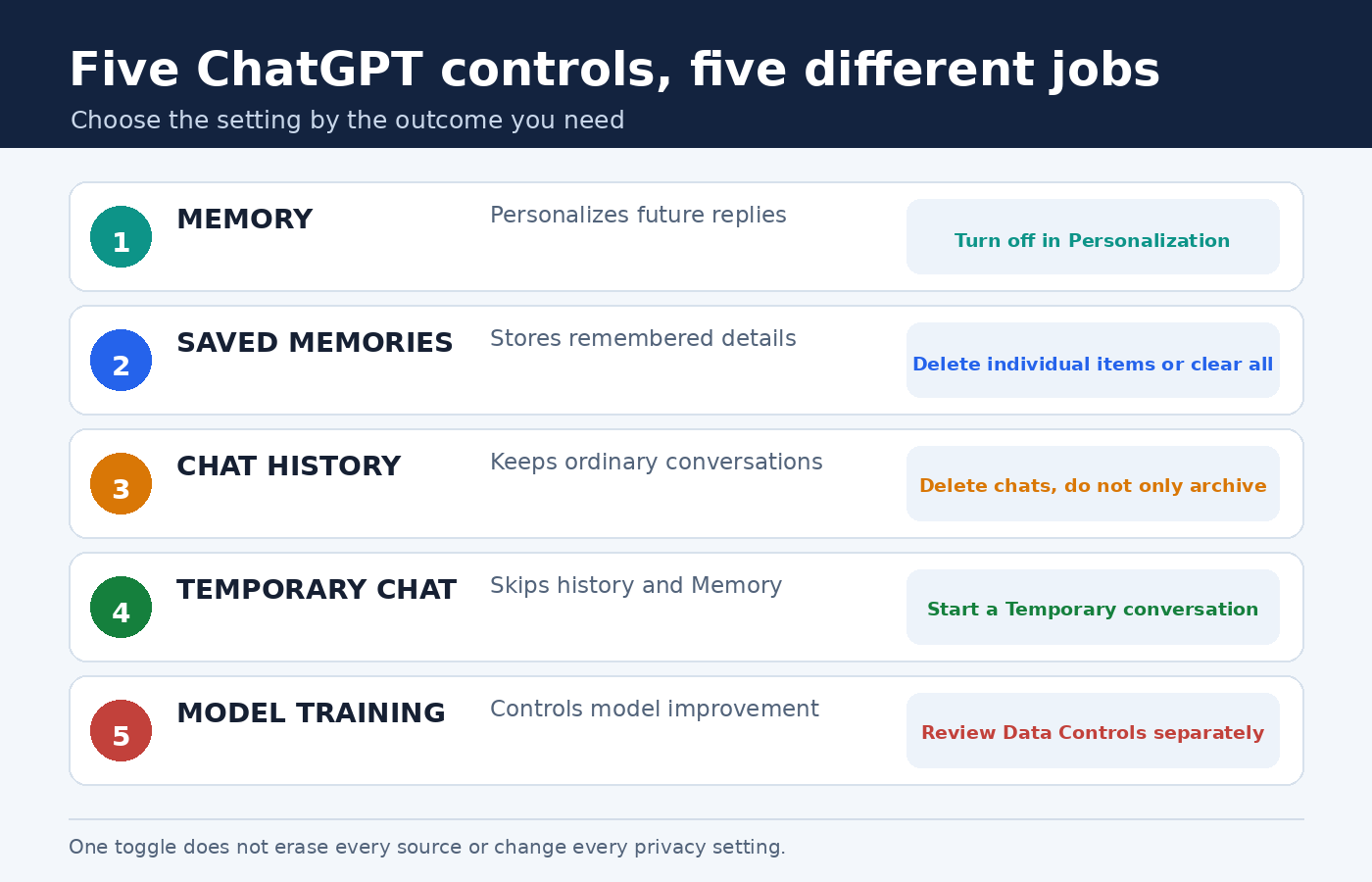
- Memory personalization uses context from chats, files, connected apps, and remembered details when it is enabled.
- Saved memories are details in the legacy system that ChatGPT can carry into later responses. OpenAI says this notepad is stored separately from chat history.
- Chat history contains conversations you keep in your account. Archived chats still exist and are not deleted merely because they are hidden from the main list.
- Temporary Chat creates a conversation that does not appear in history and does not access or create memories for personalization.
- Improve the model for everyone is a Data Controls setting about whether eligible conversations help improve OpenAI’s models. It is not a memory or deletion button.
That distinction prevents the most common mistake: assuming that turning Memory off erases data. It changes personalization behavior, but it does not by itself delete earlier chats. Similarly, turning off model training does not switch off Memory or remove conversations from history.
How to turn off ChatGPT Memory
Open ChatGPT, go to Settings, select Personalization, and open Memory. OpenAI says Memory can be enabled or disabled there at any time. In the documented improved experience, the page includes a memory summary. OpenAI also describes a link to the legacy saved memories system, where the relevant switch may appear as Enable memory.
Turn Memory off if you do not want ordinary future chats personalized through that feature. Do not read more into the switch than the documentation supports. OpenAI says the action called Delete and turn off memory does not delete past chats. If Memory is enabled again later, the system may create memories from conversations that remain in chat history, including older conversations.
This is why a careful cleanup has two phases. First, stop or limit future personalization. Second, remove the information from the places where it already exists. If your purpose is only to pause personalization, the first phase may be enough. If your purpose is to remove a particular detail, continue through the source review.
Review the memory summary or legacy saved memories
In the current improved system, open the memory summary to review the main information ChatGPT presents as remembered. OpenAI cautions that this summary is a high level synthesis and may not show every detail that has influenced personalization. You can ask ChatGPT what it remembers, but a conversational answer should not be treated as a complete account export.
OpenAI documents ways to edit the summary, including entering a requested change and selecting text for a correction. It also documents a three dot menu with an option to delete the memories shown and turn Memory off. Use the available delete control when your intention is removal, rather than merely asking for different wording.
If your account shows the legacy saved memories experience, open its management view. Delete an individual memory when only one detail is wrong or no longer wanted. Clear all saved memories when you want to empty that legacy notepad. OpenAI says ChatGPT can also update, combine, or remove saved memories when asked, but the management screen provides a direct place to inspect what is listed.
Deleting an individual saved memory and deleting the conversation that produced it are different actions. The legacy saved-memory store is separate from chat history, so deleting the source chat alone does not necessarily remove the saved memory. The reverse is also true: deleting a saved memory does not erase mentions of that information from old conversations.
Delete the source chat separately
If a detail appeared in an ordinary conversation, locate that conversation in your history and use its menu to delete it. Do not choose Archive when the goal is deletion. OpenAI’s chat deletion and archiving guide says archived chats remain in the account under the normal retention settings.
According to that guide, a deleted chat disappears from your history view immediately and is scheduled for permanent deletion from OpenAI’s systems within 30 days. OpenAI lists exceptions where content has already been de-identified and disassociated from the account, or where it must be retained for security or legal obligations. Deleted chats cannot be recovered through the interface, APIs, or support, so export anything you are required to keep before deletion.
Deleting the source conversation is especially important when you want an old mention removed. A removed saved memory can no longer be used as that saved item, but text already written in a past chat remains part of that chat until the conversation itself is deleted. Review archived chats too, since archiving is organization, not erasure.
For a broader walkthrough of the separate switches, see PChatGPT’s guide to opting out of ChatGPT training and managing account data. It is useful when your cleanup also includes Voice, Codex, or business workspace questions.
What full removal requires
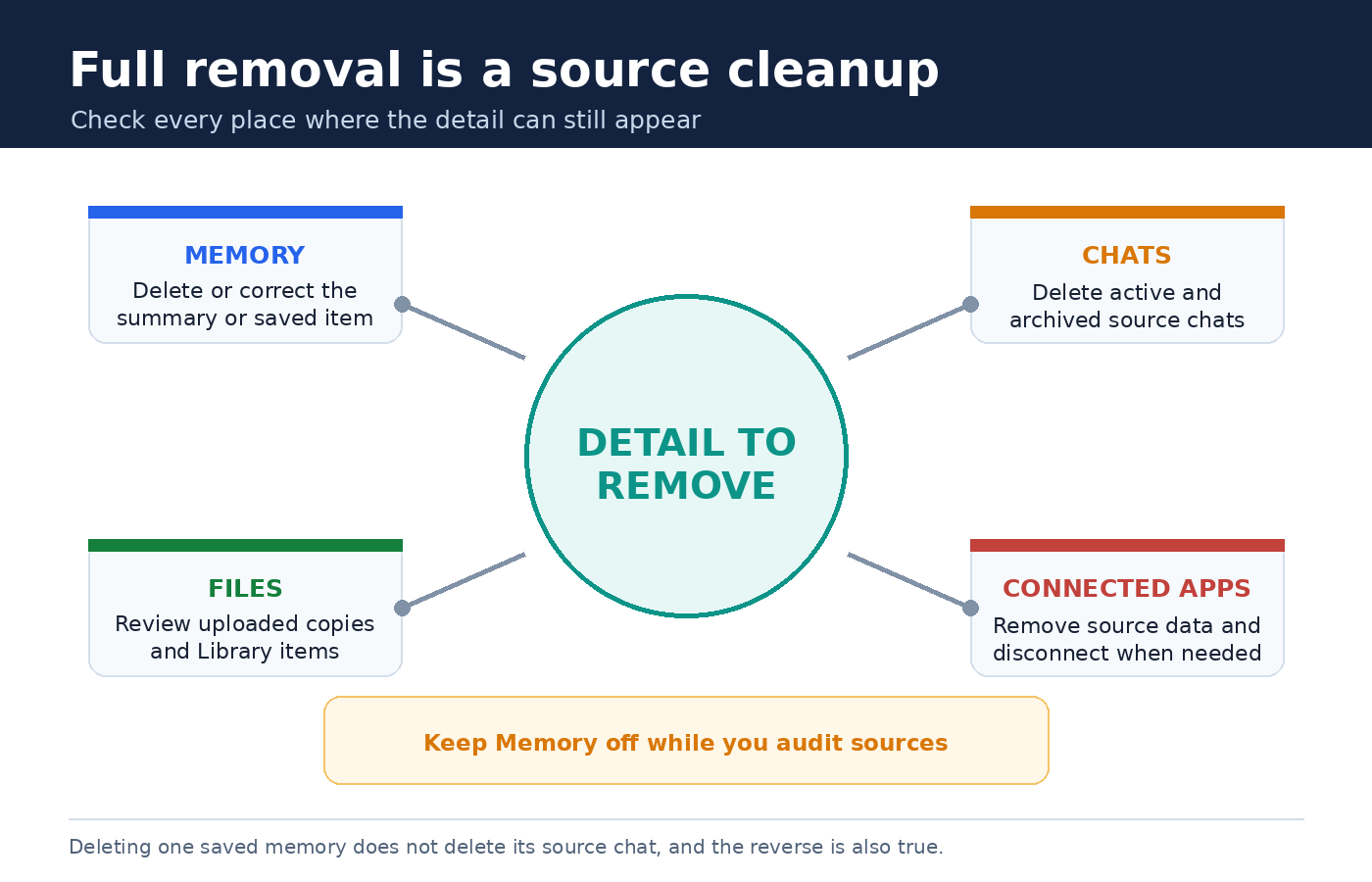
Full removal of something ChatGPT may know about you is broader than deleting one saved memory. OpenAI’s current Memory FAQ says you need to delete every source where the information appears. Its examples include past chats, archived chats, files, the memory summary, and connected apps that may contain the information.
- Remove it from Memory. Delete or correct the memory summary entry, or delete the relevant item in legacy saved memories.
- Delete chats containing it. Check both active and archived conversations. Remember that archiving does not delete.
- Review uploaded files. A fact may remain in a document even after the nearby conversation is gone. Follow the product’s file or Library controls that apply to where it was uploaded.
- Check connected apps. If the information comes from a connected source, remove it at the source when appropriate and disconnect the app if you no longer want ChatGPT connected to that data.
- Keep Memory off while auditing. This avoids intentionally re-enabling personalization before you have reviewed the remaining sources.
This is a source cleanup, not a guarantee that no copy can exist anywhere. Retention exceptions, third parties, shared text, screenshots, exports, and information already removed from association with the account require separate analysis. The practical goal is to use each documented deletion control for the content it governs and avoid absolute claims the documentation does not make.
Use Temporary Chat for a conversation without personalization Memory
Temporary Chat is the clearest choice when you are about to start a conversation that should not use or create personalization memories. Open a new chat and select the pill shaped Temporary button near the upper right, as described in OpenAI’s Temporary Chat FAQ. The precise placement may change with the interface.
OpenAI says Temporary Chats do not appear in history, do not access or create memories for personalization, and are not used to improve its models. They are not instantly destroyed, however. OpenAI may keep a copy for up to 30 days for safety purposes. The company also says limited information from prior conversations may be used in rare, high risk situations for safety and security, which is distinct from personalization Memory.
Temporary Chat can still follow enabled Custom Instructions. It can also interact with a custom GPT that has actions. Information sent to a third party through an action is governed by that recipient’s privacy policy, and the recipient may keep it for longer or use it for other purposes. Temporary Chat is therefore a useful product mode, not permission to paste secrets or material you are not authorized to share.
Training controls are a separate decision
To change the model improvement preference for a signed-in personal account, open Settings > Data Controls and turn off Improve the model for everyone. OpenAI’s Data Controls FAQ says regular conversations can still appear in history after this setting is off, but they will not be used to train ChatGPT. The preference syncs across web and mobile for the account.
This control does not delete old chats, clear saved memories, or disable Memory. Conversely, turning off Memory does not opt a personal account out of model improvement. Review both controls when both outcomes matter. If you only want to keep a conversation out of personalization but leave your general training preference unchanged, Temporary Chat has its own documented behavior.
Keep account and workspace context in mind. OpenAI documents additional controls and different defaults for business plans. An administrator may also set organizational rules. This article focuses on the controls visible to an individual ChatGPT user, not contract terms or administrator obligations.
A careful cleanup routine
Begin by writing down the exact detail you want removed. Search your visible and archived chat history for likely conversations, review the memory summary or legacy saved-memory list, and identify files or connected sources that repeat it. This is more reliable than toggling settings at random.
- Open Memory settings and disable personalization if that is your intended ongoing state.
- Delete the relevant memory summary material or legacy saved memory.
- Delete each ordinary or archived source chat that contains the detail.
- Review files and connected apps that can provide the same information.
- Check Data Controls separately if you also want new eligible conversations excluded from model improvement.
- Use Temporary Chat for future one-off conversations that should not enter history or personalization Memory.
Afterward, revisit Memory settings and the source list rather than relying only on a test question. A model response may omit something it knows, and the memory summary may not display every contributing detail. The documented controls and your inventory of sources are the stronger checklist.
Privacy settings do not make unnecessary disclosure harmless. Remove passwords, tokens, account numbers, confidential records, and sensitive details that the task does not require before submitting a prompt. For more general prevention advice, PChatGPT’s article on common ChatGPT mistakes and practical fixes explains why data minimization and human review still matter.
Frequently asked questions
Does turning off ChatGPT Memory delete saved memories?
No. Turning Memory off controls personalization behavior, while deletion removes material from the memory view. Use the delete option for the memory summary or remove items in the legacy saved memories manager. Then inspect source chats, files, and connected apps if you want the underlying detail removed more broadly.
If I delete a chat, is its saved memory deleted too?
Not necessarily. OpenAI says legacy saved memories are stored separately from chat history. Delete the saved memory and the source chat for that legacy case. In the improved system, OpenAI says full removal requires deleting every source where the information appears, which may include archived chats, files, the memory summary, and connected apps.
Does Temporary Chat use my existing memories?
OpenAI says Temporary Chat does not access or create memories for personalization, does not appear in chat history, and is not used for model improvement. A copy may be kept for up to 30 days for safety, enabled Custom Instructions can still apply, and third party actions have their own privacy policies.
Is disabling Memory the same as turning off model training?
No. Memory is a personalization feature under Personalization settings. Improve the model for everyone is a separate choice under Data Controls. Turning off training leaves ordinary conversations in history, and turning off Memory does not automatically change the training preference.