
Your phone is often where an AI assistant becomes genuinely useful. It is already beside you when a sign needs translating, a meeting note needs cleaning up, or a question appears during a commute. The hard part is not finding an AI app. It is choosing one that fits the job without handing every app access to your photos, microphone, files, contacts, and location.
This guide compares seven of the best mobile AI apps for iPhone and Android by their practical strengths, not by a pretend universal ranking. The shortlist covers general assistance, Google services, careful writing, Microsoft work, source-led search, study from your own material, and visual creation. Features can vary by device, account, region, and plan, so confirm the current app listing and provider documentation before depending on a particular option.
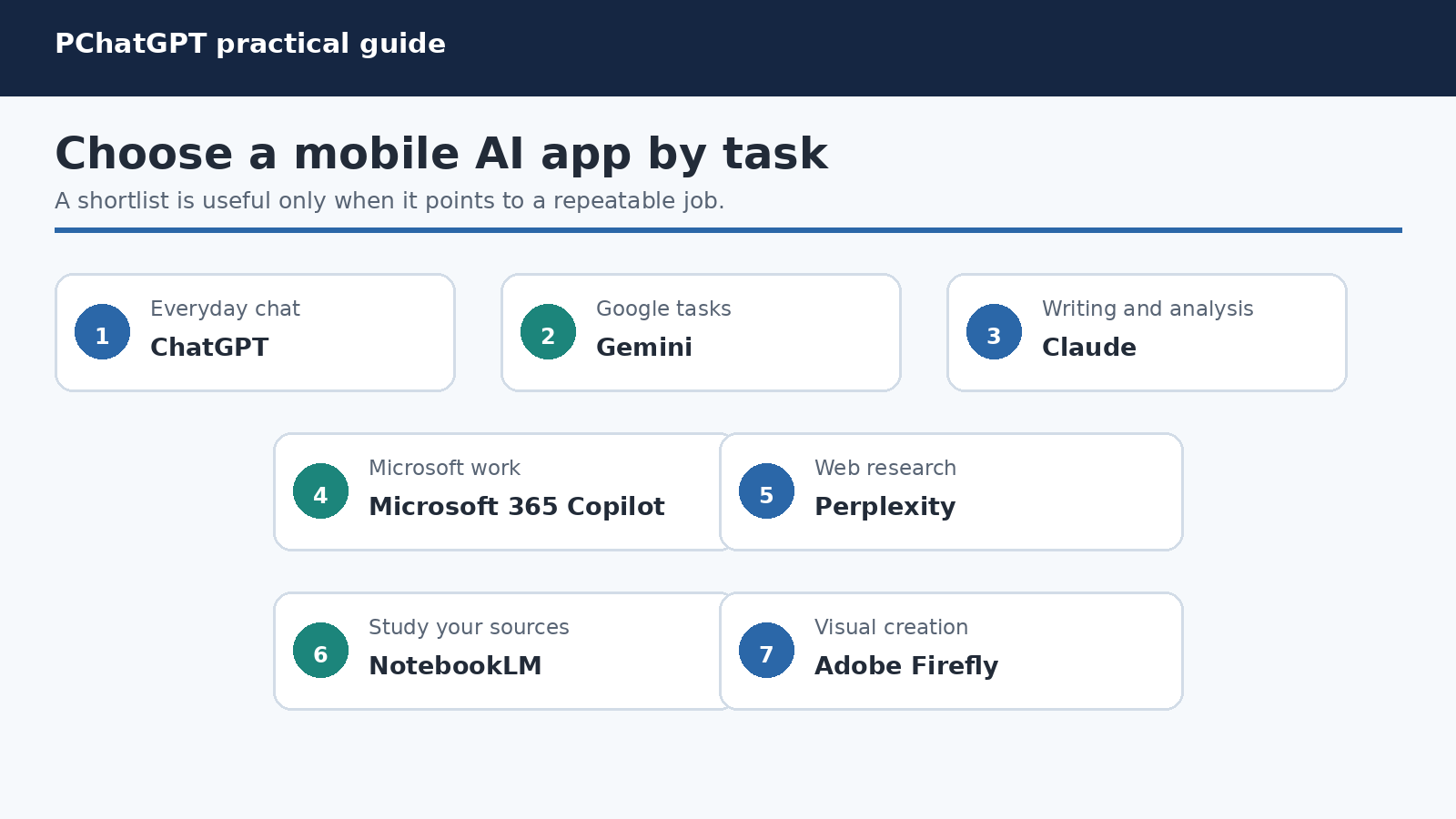
Quick picks: which mobile AI app fits your job?
- ChatGPT: a flexible general assistant for conversations, files, images, voice, brainstorming, and everyday problem solving.
- Gemini: a strong fit for people who want an assistant connected to Google services and, on Android, deeper assistant behavior.
- Claude: a thoughtful conversational workspace for drafting, analysis, and working through complex material.
- Microsoft 365 Copilot: the most natural candidate when your work already lives in an eligible Microsoft 365 environment.
- Perplexity: useful when a question should begin with web research and visible sources rather than a blank chat.
- NotebookLM: designed for learning and asking questions about a collection of sources you choose.
- Adobe Firefly: the specialist choice here for generating and editing visual media on a phone.
That summary is a starting point, not a verdict. Install the smallest number of apps that covers your real routines. One general assistant plus one specialist tool is usually easier to manage than seven overlapping accounts.
How these seven apps were selected
“Best” can become meaningless when every product is judged by a different demo. This comparison uses four practical filters. First, the provider offers an official mobile experience on both iOS and Android. Second, the app has a clear use case that can matter on a phone. Third, current capabilities can be checked against first-party documentation. Fourth, the group is varied enough to help readers choose rather than simply listing seven similar chatbots.
This is not a laboratory benchmark, and no private test results are implied. AI answers also change with the prompt, model, account, and service updates. A better personal comparison uses the same three harmless tasks in each candidate: summarize a non-sensitive page, explain a topic you understand well, and turn a rough note into a useful format. Judge accuracy, citations when relevant, editing effort, permission requests, and how easy it is to delete the conversation afterward.
1. ChatGPT: the versatile everyday assistant
OpenAI’s current ChatGPT release notes document mobile support across iOS and Android, including voice, search across conversations, files, and other app changes. The exact tools visible in your account can differ by plan or rollout. That broad interface makes ChatGPT a sensible first app for someone who wants one place to brainstorm, explain, rewrite, inspect an image, or talk through a problem.
Its strength is continuity between different kinds of input. You can begin with a typed question, add a photo or supported file when available, and refine the result through conversation. On a phone, that feels more natural than moving material between separate utilities. It is especially handy for turning an unstructured note into a checklist, generating questions before an appointment, or explaining unfamiliar language in a document.
Use it with clear boundaries. Do not upload confidential work, health records, identification, or private conversations unless you are authorized and have checked the applicable data controls. Important facts still need verification against primary material. For a broader workflow, see our practical ChatGPT how-to guide.
2. Gemini: the Google-centered mobile assistant
Gemini is the clearest fit for people whose mobile day already revolves around Google. Google’s official Gemini mobile app guide says the app supports text, voice, images, and camera input. It also explains that Gemini can work with connected apps such as Google Workspace and YouTube Music, while warning that availability varies by language, device, account, and location.
Android users may value Gemini as a mobile assistant, while iPhone users get the dedicated Gemini app. Either way, connections deserve attention. A connection that saves time can also expand the information available to the service. Enable only the connected apps needed for a current workflow, and review location, camera, microphone, and photo permissions at the operating system level.
Gemini is a practical candidate for planning with Google context, discussing something seen through the camera, or having a live spoken exchange. It is less compelling if you do not use Google services or if your managed work account blocks the features you need. Check the account type before building a routine around it.
3. Claude: a focused space for writing and analysis
Anthropic’s official getting started guide confirms Claude access through iOS and Android apps. The same guide recommends natural, conversational prompts and describes using Claude for questions, analysis, creative work, coding, and multi-step projects. For mobile users, Claude works well as a relatively uncluttered place to develop an idea through several thoughtful revisions.
Consider Claude when the desired result is not a one-line answer but a clearer argument, an outline, a critique, or a careful transformation of supplied text. A good mobile prompt includes the audience, purpose, constraints, and the form of the answer. Then ask it to identify uncertainty rather than silently smoothing over gaps.
Do not confuse polished prose with verified truth. If Claude summarizes a source, compare the summary with the source. If it proposes a technical or legal interpretation, consult authoritative guidance. Availability is also limited to Anthropic’s supported locations, and usage limits depend on the service and plan.
4. Microsoft 365 Copilot: mobile AI for Microsoft work
Microsoft’s official mobile guide describes Microsoft 365 Copilot for both iOS and Android. It highlights chat, voice, search, Library, Create, Agents, and Notebooks, while making an important qualification: what appears depends on the Microsoft license attached to the account.
That qualification is central to choosing it. Copilot is most useful when an organization has approved Microsoft 365 workflows and the user has legitimate access to the relevant files, messages, or meetings. In that context, a phone can be a convenient place to catch up, ask about permitted work content, or draft a response before returning to a larger screen.
Personal users and managed work users should not assume they receive the same grounding or tools. Check whether you are signed into the intended account, confirm what information the prompt can access, and review generated text before sending it. A concise summary on a small screen can hide a missing exception, name, or number.
5. Perplexity: a research-first answer engine
Perplexity is a useful mobile choice when the first question is “What do current sources say?” Its official mobile help collection documents iOS and Android assistant experiences, including voice options and Android-specific tools. The product’s research orientation can make it quicker to move from a question to pages worth opening.
The citations are the beginning of verification, not the end. Open the cited page, confirm that it supports the nearby sentence, look at publication context, and prefer primary sources. A citation can be real yet irrelevant, outdated, or too weak for the conclusion. For consequential decisions, build your own short source list instead of relying on the generated synthesis alone.
Perplexity suits news discovery, product research, travel questions, and quick orientation when the web matters. It is not automatically the right tool for private documents or a long creative draft. Keep the distinction between web discovery and confidential work clear.
6. NotebookLM: study grounded in sources you choose
NotebookLM takes a different approach from a general chatbot. You create a notebook around selected sources, then use the tool to explore that material. Google’s official mobile app announcement confirms iOS and Android apps and describes asking questions about sources, sharing content to NotebookLM while browsing, and listening to Audio Overviews on the go.
That source-centered design is valuable for a reading packet, course material, product documentation, interview transcripts, or a collection of reports. The quality of the notebook still depends on what you add. A neat answer grounded in a poor or one-sided source set remains poor or one-sided. Label sources clearly, include competing viewpoints where appropriate, and trace important statements back to the underlying page.
NotebookLM is the specialist pick for understanding a bounded collection. It is not the first choice for an open-ended request that needs broad web discovery. Also check whether you have permission to upload each document. “For study” does not cancel copyright, workplace, or privacy obligations.
7. Adobe Firefly: AI creation for visual work
Most apps in this list lead with words. Adobe Firefly earns a place because some mobile jobs are visual. Adobe’s official Firefly product page states that the app is available on iOS and Android and lists image, video, sound effect, and generative expansion tools. It also describes Creative Cloud syncing, which can help a creator start an idea on a phone and continue elsewhere.
Firefly is the focused option for concept images, visual variations, and edits rather than a substitute for a general research assistant. Start with a clear creative brief that names the subject, composition, mood, and output purpose. Then inspect hands, text, logos, faces, and background details carefully. Generated media can contain visual errors even when the first glance looks convincing.
Before publishing, check ownership, brand, consent, and disclosure requirements for the destination. Do not assume that an available generation tool makes every requested use appropriate. For client or workplace material, follow the organization’s approved asset and review process.
A practical comparison by task
| Primary need | Good first candidate | What to verify |
|---|---|---|
| Mixed everyday assistance | ChatGPT | Available tools, data controls, and factual accuracy |
| Google-connected help | Gemini | Connected apps, account eligibility, and location permissions |
| Drafting and sustained analysis | Claude | Source fidelity, supported location, and usage limits |
| Microsoft work context | Microsoft 365 Copilot | Correct account, license, and organizational approval |
| Current web research | Perplexity | Whether each citation truly supports the answer |
| Learning from selected sources | NotebookLM | Source quality and permission to upload |
| Visual generation and editing | Adobe Firefly | Visual defects, rights, brand rules, and disclosure |
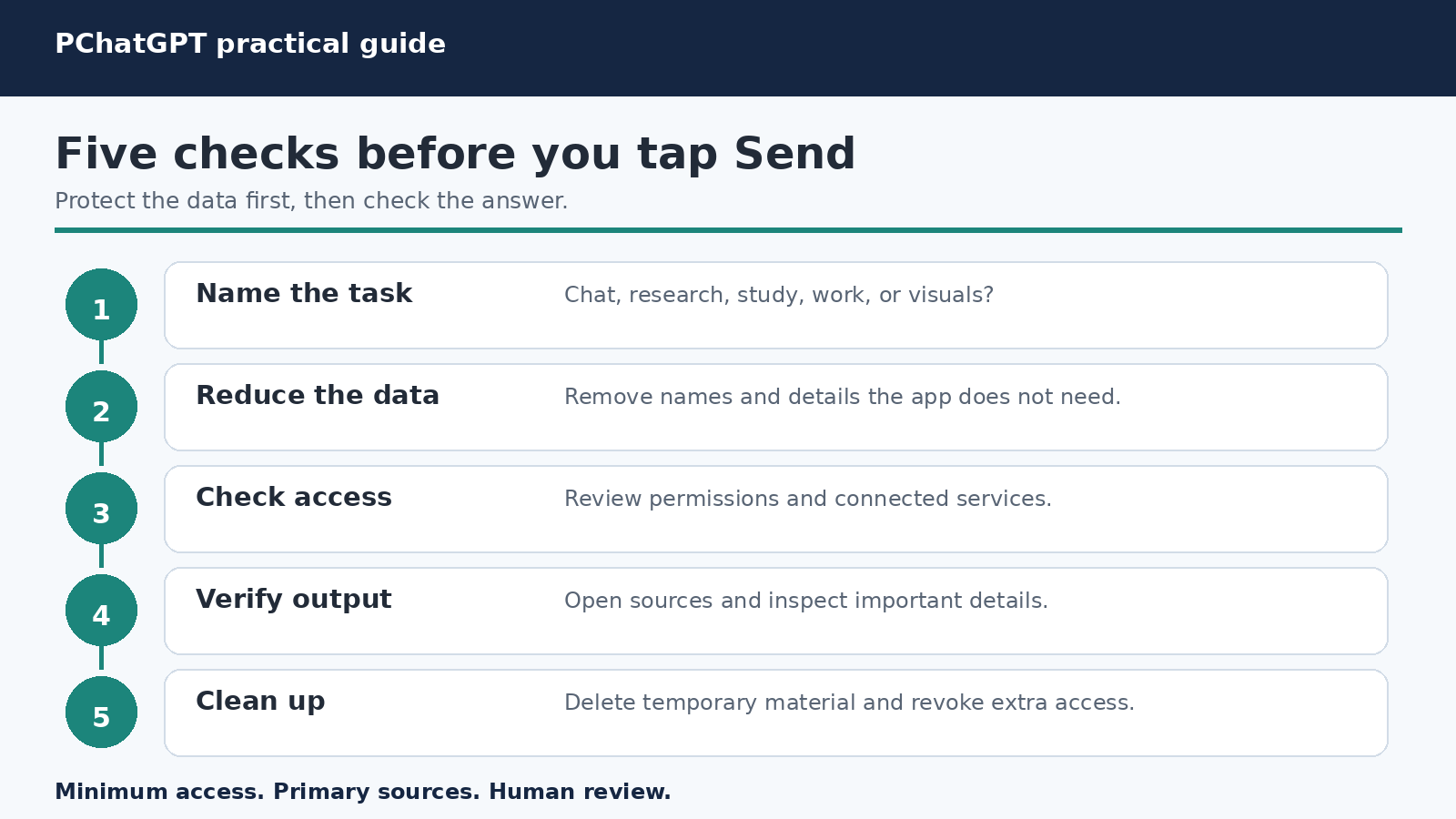
Use this five-step mobile AI preflight
- Name the task. Decide whether you need open web research, help with your own sources, workplace context, conversation, or visual creation. This prevents choosing by brand recognition alone.
- Reduce the data. Remove names, account numbers, private images, internal details, and anything else the app does not need. If the task can be completed with a fictional example, use one.
- Check permissions and connections. Review camera, microphone, photos, location, contacts, notifications, and connected services. “Allow only while using” or selected-photo access may be enough for many tasks.
- Verify the output. Open cited sources, check numbers and names, inspect generated images, and compare summaries with the original material. Never let a fluent answer bypass professional review.
- Clean up. Save the useful result in the correct system, then delete temporary chats or uploads when policy and app controls permit. Revoke connections you enabled only for a one-time job.
Readers who want a deeper privacy setup can use our guide to safer ChatGPT privacy settings and data controls. The exact menus differ across providers, but the habit of minimizing access applies to every app in this list.
How to run a fair three-day comparison
Choose no more than three candidates. Write down three ordinary tasks that contain no sensitive information. For example, ask each app to explain a familiar concept for a beginner, summarize the same public source, and convert the same messy note into a checklist. Use equivalent prompts and record how much correction each answer needs.
On day two, test the mobile-specific interaction you care about, such as voice, camera input, source sharing, or a work account. Do not enable every permission at once. Grant the minimum access needed, observe whether the app explains why it needs that access, and turn it off afterward if the workflow does not justify it.
On day three, review the less exciting details: deletion controls, account switching, export options, notification settings, battery use, accessibility, and whether the app still helps on an unreliable connection. Then keep the candidate that reduces work without creating disproportionate review or privacy overhead. Remove the others, along with permissions and connected accounts they no longer need.
Frequently Asked Questions
What is the best free AI app for iPhone and Android?
There is no single winner for everyone, and free access, tools, and limits can change. Start with the app that matches your main task, then confirm its current listing and account limits. ChatGPT or Gemini may suit broad assistance, Perplexity may suit web discovery, and NotebookLM may suit study from selected sources. Do not choose on the word “free” alone. Consider permissions, correction time, and whether a required feature is actually available to your account.
Do I need more than one mobile AI app?
Often, no. A general assistant can cover everyday questions, drafting, and brainstorming. Add a second specialist only when you repeatedly need something distinct, such as source-grounded notebooks or visual generation. Fewer apps mean fewer accounts, permissions, notifications, and privacy settings to maintain.
Are mobile AI apps safe for confidential work?
Do not assume they are. Safety depends on the provider, account type, organizational agreement, settings, and the data involved. Follow your employer’s approved-tool policy, minimize what you submit, and avoid confidential material in a personal account. Check the current provider documentation and your organization’s requirements before using any AI service with protected information.
How can I tell whether an AI answer is accurate?
Ask for sources when the task supports them, but open and read those sources yourself. Compare summaries with the original text, verify names and numbers, and use an independent primary source for consequential claims. If you already know the topic, test the app with a question that includes a subtle trap. The goal is not to make the model agree with you. It is to learn how much checking its output requires.
The bottom line
The best mobile AI app is the one that handles a repeated task well, asks for proportionate access, and produces output you can realistically verify. ChatGPT is the broad all-rounder in this group. Gemini fits Google-centered routines. Claude is a strong writing and analysis space. Microsoft 365 Copilot belongs in approved Microsoft workflows. Perplexity starts with web research. NotebookLM starts with your chosen sources. Adobe Firefly specializes in visual creation.
Pick by workflow, not hype. Test with harmless material, review permissions, keep primary sources close, and uninstall tools that do not earn a place on your home screen.