
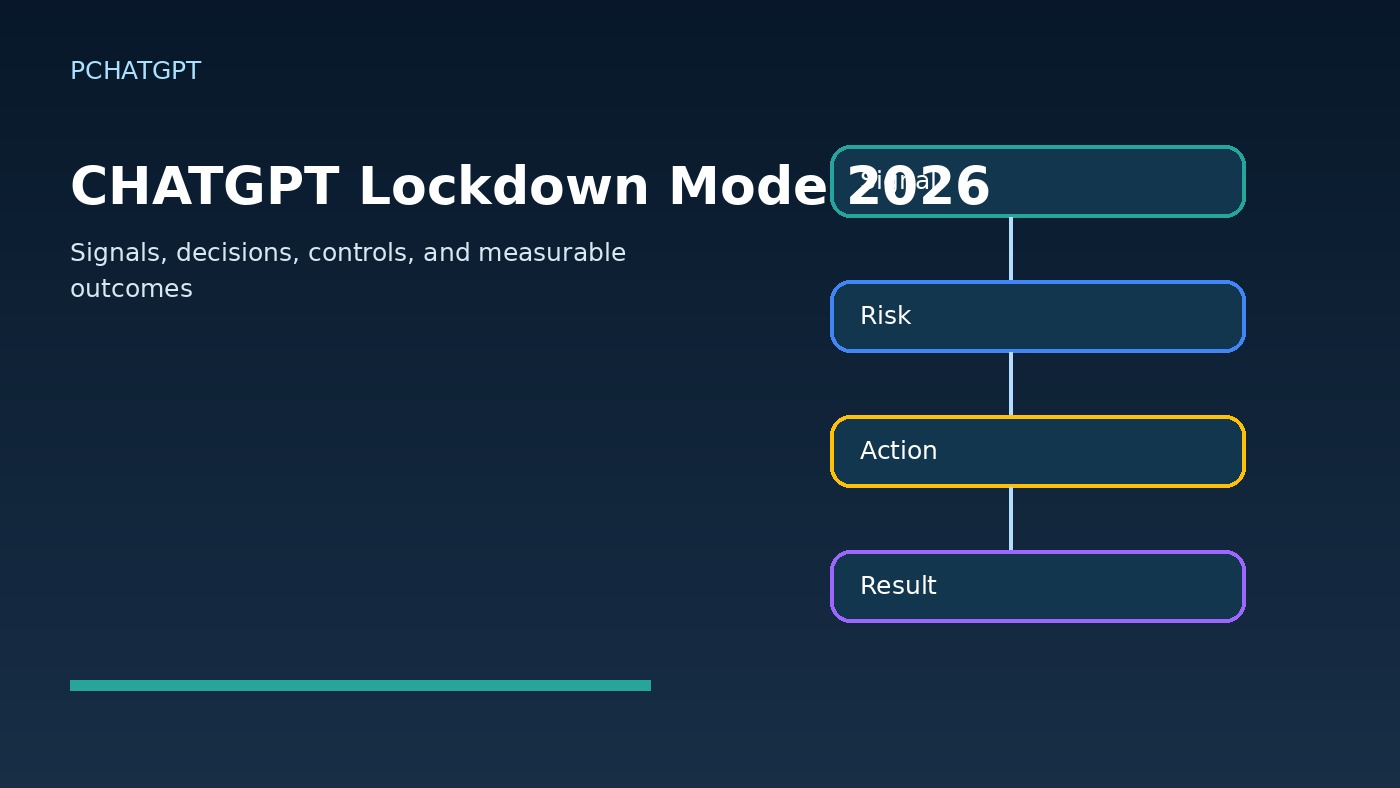
ChatGPT Lockdown Mode is an optional advanced security setting for people and organizations that handle sensitive information. It reduces one specific class of risk: a prompt injection causing ChatGPT to send data to an attacker through an outbound network request. The tradeoff is deliberate. Several useful features become limited or unavailable because they depend on live web access, downloads, or external services.
This guide is based on OpenAI’s current Lockdown Mode documentation and the ChatGPT release notes. It explains the documented controls and limits rather than claiming hands-on tests across every account or workspace. Settings can differ by account type, workspace policy, role, and rollout status.
What Lockdown Mode is designed to stop
Prompt injection happens when content processed by an AI system contains instructions that try to override the user’s intent or manipulate the model. The malicious instruction might be hidden in a web page, cached search result, uploaded document, or connected data source. A successful injection can change an answer, steer a tool, or try to move sensitive information somewhere the attacker can see it.
Lockdown Mode focuses on the last step in a data exfiltration attempt. It limits outbound network requests that could carry private content to an external destination. OpenAI describes this as another layer on top of model and system protections, sandboxing, URL-based exfiltration defenses, monitoring, enforcement, and enterprise controls. It is risk reduction, not a claim that hostile instructions can never reach the model.
That distinction matters. A hidden instruction can still influence a response even when it cannot easily transmit data out. It might cause an inaccurate summary, omit an important warning, or direct the conversation away from the user’s request. A person reviewing sensitive work must still examine sources, check unexpected behavior, and avoid treating model output as automatically trustworthy.
Capabilities that become limited or unavailable
OpenAI lists several network-enabled capabilities that are disabled or restricted while Lockdown Mode is active. Live web browsing is limited to cached content, so search results can be stale, incomplete, or unavailable. ChatGPT may not display ordinary response images or retrieve images from the web. Users can still upload image files, and image generation remains available when their account otherwise supports it.
Deep research and agent mode are disabled. Canvas-generated code cannot be approved for network access. ChatGPT also cannot download files for data analysis, although it can work with files that the user uploads manually. These limits affect workflows that rely on fresh web facts, remote files, automated browsing, or actions across services.
Lockdown Mode does not affect network access in Codex. That product boundary is easy to miss: turning on the setting in ChatGPT should not be treated as a network restriction for a Codex workflow. Teams that use both products need separate security decisions for each environment.
The setting also does not change memory, file-upload availability, conversation sharing, or whether conversations may be used to improve models. Those controls have different purposes. Anyone using Lockdown Mode for privacy should review the site’s ChatGPT Memory and controls guide and configure memory, chat history, sharing, and training preferences separately.
What Lockdown Mode does not prevent
Lockdown Mode does not remove prompt injections from material that ChatGPT reads. Cached web content and manually uploaded files can still contain malicious instructions. The model can still follow one of those instructions, misunderstand the task, or produce a wrong answer. The mode is designed to substantially reduce prompt-injection-based exfiltration risk, but OpenAI does not guarantee that exfiltration is impossible.
Residual risk can come from enabled apps, unforeseen combinations of capabilities, or newly discovered techniques. The setting also does not stop a user from copying sensitive content into an unsafe destination, sharing a conversation too broadly, or granting an app more access than the task needs. It cannot repair weak permissions in a connected source system.
Training controls are another separate issue. Lockdown Mode does not turn off use of conversations to improve models. Personal users who want to change that preference must use Data Controls. Workspace data handling continues to depend on the workspace plan and administrator settings. Similarly, Lockdown Mode and Developer Mode cannot be active at the same time on eligible personal and self-serve Business accounts. Enabling one turns off the other.
Apps, connectors, and residual exposure
App behavior depends on the account and workspace. For personal accounts and self-serve ChatGPT Business, Lockdown Mode permits connectors that use data already synced to OpenAI, but blocks live connector access and connector write actions. Finances in ChatGPT and shopping-agent experiences are among the connected experiences OpenAI says are unavailable in this mode.
Managed workspaces work differently. Lockdown Mode does not automatically disable every app, MCP, or connector. Administrators control access through workspace settings and role-based access controls. They should enable only trusted apps and the actions members need. ChatGPT app access does not override permissions in the underlying repository, channel, file store, or other source system.
OpenAI classifies untrusted app actions and trusted write actions with broad or uncertain visibility as high risk for Lockdown Mode users. Synced connectors and read actions from trusted apps have lower exfiltration-sink risk, but they can still expose sensitive source data to a malicious instruction. Even a trusted write action deserves care if its side effect could become visible to an attacker.
A sensible workspace review asks two questions for every app: what sensitive data can it read, and where can it write or create a visible side effect? Limit both sides. Keep source-system permissions narrow, assign apps only to the members or roles that need them, and use available app-usage logs for oversight. Lockdown Mode helps most when it supports this permission model rather than replacing it.
How to enable it on a personal or self-serve Business account
For an eligible personal account or self-serve ChatGPT Business account, open Settings, select Security, find Advanced security, and turn on Lockdown Mode. Confirm the change in the modal. When active, ChatGPT displays a status message above the composer.
The current Help Center availability section says Lockdown Mode is available for all account types and workspaces, and OpenAI’s June 4, 2026 release note says it became available to all logged-in users. The same Help Center page also carries a rollout notice for eligible Free, Go, Plus, Pro, and self-serve Business accounts. If the control is missing, OpenAI says it may not yet be available for that account.
A user can turn the mode off for only the current chat. Open Manage in the status message and choose the option to turn it off for that chat, or use the chat’s more-options menu, select Lockdown, and set it to Disabled. The same menu can enable it again for that chat. A per-chat exception restores capabilities, so treat it as a security decision rather than a routine workaround.
Managed workspace controls
In managed workspaces, an administrator can create a custom role, designate it as a Lockdown Mode role, and assign members or groups to it. This allows a workspace to apply stricter controls to teams that handle confidential documents without forcing the same restrictions on every member.
Role assignment is only part of the setup. Administrators should review app assignment, permitted read and write actions, and access in each connected source. If a member cannot use an app, connector, MCP, or action, check whether the Lockdown Mode role limits the capability, whether the app is assigned to the member or group, whether the required action is enabled, and whether the member can access the underlying data.
Organizations should also document when an exception is justified and who can approve it. A chat that needs live research may be better separated from a chat containing sensitive source material. Do not paste confidential data into the less restricted chat merely to regain convenience. Keep the sensitive task in the restricted environment and move only the minimum non-sensitive context needed for external research.
When Lockdown Mode is appropriate
The mode is intended for people and organizations that handle sensitive data and accept reduced functionality in return for stricter protection against prompt-injection-related exfiltration. Examples include reviewing confidential internal files, summarizing material under a nondisclosure obligation, or working with records that should not trigger live requests to arbitrary external destinations.
It is less suitable when the task depends on current web research, deep research, agent mode, networked Canvas code, or downloading remote files. In those cases, decide whether the material can be sanitized before using the required capability. Another option is to split the work: analyze confidential files in a locked-down chat, then perform public research in a separate chat that contains no sensitive details.
Users should also review account-wide instructions because persistent context can affect how a chat behaves. The ChatGPT Custom Instructions guide explains that separate control. Lockdown Mode does not make broad standing instructions safer or more appropriate for every conversation.
Troubleshooting restricted features
If web results appear stale or missing, that may be expected because browsing is limited to cached content. If deep research, agent mode, remote downloads, or network access from Canvas is unavailable, confirm whether Lockdown Mode is active before treating the behavior as a product fault. For images, remember that web retrieval and ordinary response display can be limited while manual image uploads and image generation may still work.
If an app fails in a managed workspace, the administrator should inspect the member’s role and app settings together, then verify permissions in the connected system. Enabling an app in ChatGPT cannot grant access that the member lacks at the source. If a personal or self-serve Business connector needs live access or a write action, the documented Lockdown Mode behavior blocks it; using synced data may be the available lower-risk path.
Before disabling Lockdown Mode for a chat, identify the exact capability the task needs and remove sensitive material that capability does not require. If the feature remains unavailable after a justified per-chat exception, check plan availability, workspace policy, role assignment, app action permissions, and source-system access rather than repeatedly toggling the mode.
Frequently asked questions
Does Lockdown Mode stop every prompt injection?
No. It limits outbound paths that could complete data exfiltration, but hostile instructions can still appear in cached content or uploaded files and can still affect behavior or accuracy.
Does it disable model training or Memory?
No. Training preferences and Memory are separate controls. Configure Data Controls and Memory independently, and review workspace policies where an administrator manages them.
Can I still upload files and generate images?
You can manually upload files, and image generation remains available where otherwise supported. ChatGPT cannot download files for data analysis, and web-derived or ordinary response image support may be limited.
Can a managed workspace keep selected apps enabled?
Yes. Workspace settings and role-based access controls determine app, MCP, and connector access. Administrators should allow only trusted apps and necessary actions because enabled integrations can leave residual risk.
Bottom line
Lockdown Mode narrows the routes that a prompt injection could use to send sensitive data out of ChatGPT. It does not filter every malicious instruction, guarantee correct answers, control Codex networking, disable training, or replace careful app permissions. Use it when the value of reducing outbound exposure is greater than the cost of losing live web and agentic capabilities, then pair it with separate memory, sharing, training, and workspace controls.