A missing ChatGPT conversation can mean several very different things. It might be an older chat that dropped out of the compact sidebar list, an archived chat, a conversation saved under another account or workspace, a temporary display problem, or a chat that was actually deleted. Those cases do not have the same outcome. Some are straightforward to find. A deleted chat is not.
This guide explains how to find lost ChatGPT conversations without promising a recovery method that does not exist. The steps follow current OpenAI documentation and begin with the least destructive checks. Do not delete, archive, or change account settings while you are searching. First establish which account and workspace you used, then search, inspect the archive, check service health, and use a data export if the conversation still seems to be stored but remains hard to locate.
First, decide whether the chat is hidden or gone
The word “lost” is useful in everyday conversation, but it is too vague for troubleshooting. OpenAI documents several recoverable situations. Older conversations can disappear from the quick sidebar cache without being deleted. Archived conversations stay in the account and remain searchable. A history can also look empty when you are signed into a different account or workspace, or while an incident affects the display.
Deletion is the hard boundary. OpenAI’s guide to deleting and archiving chats says a deleted chat is immediately removed from history and cannot be recovered through the interface, APIs, or support. It is scheduled for permanent deletion from OpenAI systems within 30 days, subject to stated de-identification, security, or legal exceptions. Those exceptions are retention conditions, not a user recovery window.
Temporary Chats belong on the nonrecoverable side too. OpenAI’s retention documentation says Temporary Chats are automatically deleted from its systems within 30 days. If the conversation was a Temporary Chat, do not expect it to appear in normal history or become available through the steps below.
A practical recovery checklist, in the right order
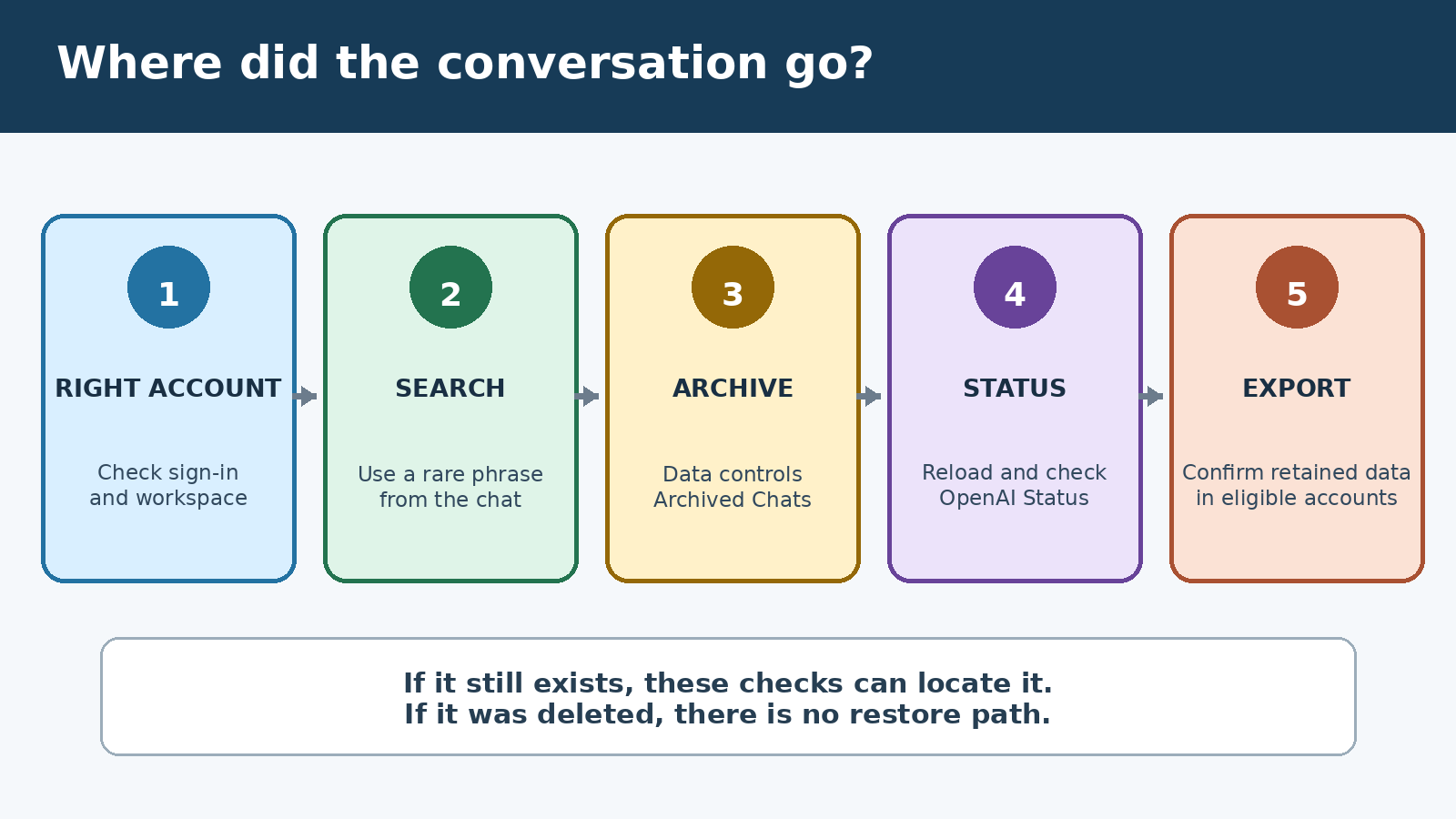
Use the following sequence. It separates a navigation problem from an account problem before you spend time on exports or support. Keep notes about the account, sign-in method, workspace, approximate conversation date, and memorable phrases. Those details make each later check more useful.
- Confirm the account and sign-in method. Check the email address or phone based account you are using. If you originally chose Google, Apple, Microsoft, single sign-on, or another method, make sure you returned through the same route. Two sessions can look similar while pointing to different accounts.
- Confirm the workspace. If your account belongs to more than one workspace, switch to the workspace where the conversation was created. Personal history and an organization’s workspace history are not interchangeable views. OpenAI specifically recommends checking the correct account and workspace when chats appear missing.
- Search the conversation history. Search for an unusual phrase from your prompt or the answer, not only the automatically generated title. Try several short, specific phrases separately.
- Inspect Archived Chats. Go to Settings, then Data controls, and use the Manage control beside Archived Chats. An archived conversation is hidden from the ordinary sidebar but has not been deleted.
- Reload the session. Refresh the page. If the history still looks incomplete, sign out and back in. On an app, confirm it is current and reopen it. Avoid pressing Delete while checking menus.
- Check OpenAI Status. A service incident can temporarily hide or disrupt history. The live status page helps distinguish a broad service problem from an account-specific one.
- Request an export if needed. A data export can help confirm which chats remain associated with an eligible account. It is evidence and a personal copy, not a tool for restoring a deleted conversation to the sidebar.
If the conversation appears at any stage, open it and verify that it is the correct one before changing anything. If you want it in the main list again, unarchive it through Archived Chats. If it contains work you cannot afford to lose, save the important result in the system where that work belongs rather than treating a chat sidebar as the only record.
Search beyond the visible sidebar
A short sidebar is not proof of deletion. OpenAI’s chat history search documentation explains that the sidebar keeps a compact list of recent conversations for speed. Older chats can be trimmed from that quick cache while remaining stored. Searching or opening an older conversation forces a full fetch and can refresh the list.
On the web, use the Search control in the left sidebar. OpenAI also documents Ctrl+K on a PC and Cmd+K on a Mac. On iOS or Android, open the left sidebar and use its search bar. Search examines keywords in conversation titles and content. Archived conversations can appear in the results even though they are absent from the normal sidebar.
Specific wording works better than a broad topic. If the conversation was about a trip, “Italy” may return too much. A hotel name, a distinctive question, a code function, a quoted sentence, or a rare product name gives the search a better target. Try the key noun alone, then a short phrase you remember typing. A title may have been generated from the opening message, so searching only the title you expected can miss it.
There are limits. OpenAI says deleted conversations are removed from the search index. Its search guide also notes that canvas content is not searchable. Search therefore answers “Can I locate a retained chat by indexed title or conversation text?” It does not prove that every fragment you remember is indexed, and it cannot bring back deleted material.
For broader organization advice after you locate the chat, see our ChatGPT unified search guide and guide to organizing files and sources in ChatGPT Projects. These related guides can help reduce future hunting, but the official OpenAI pages linked here remain the authority for retention and deletion behavior.
Archived chats are recoverable, deleted chats are not
Archiving is often the explanation when a conversation vanished after someone tidied the sidebar. It moves the chat out of the active list while keeping it in the account under the standard retention rules. Open Settings, choose Data controls, then manage Archived Chats. You can inspect the archive and unarchive the conversation to return it to active history.
Do not confuse “Delete” with “Archive.” Both actions remove clutter from the sidebar, but only one preserves the conversation. OpenAI states that deleting an archived chat also schedules it for permanent deletion. The same caution applies to Delete all chats, which includes conversations inside projects. Read the confirmation prompt before taking any bulk action.
If you know you pressed Delete, there is no legitimate recovery procedure to try. The 30 day system deletion schedule does not create an undo period. OpenAI explicitly says deleted chats cannot be restored, including by support. Be cautious of browser extensions, scripts, or services that claim otherwise, especially if they request account credentials or session tokens.
When a data export helps
If search and archive checks fail, an export can show what data is still associated with an eligible account. OpenAI’s data export instructions describe two routes: the OpenAI Privacy Portal, or Settings, Data controls, and Export in ChatGPT. Settings based export availability depends on the account and workspace. OpenAI currently lists Free, Plus, Pro, and eligible Edu workspaces, and says it is not available there for Business or Enterprise workspaces.
The export can take up to seven days to arrive. The download link expires 24 hours after delivery, and you need to download it while signed into the same account that requested it. The ZIP includes chat history and other relevant account data. Check spam and promotions folders if the message does not appear. If the link expires, request a new export.
An export is useful in two ways. First, it can confirm that a conversation remains in the account even if the interface is not showing it as expected. Second, it gives you a copy to inspect outside the sidebar. It does not reinsert a chat into ChatGPT, reverse deletion, or guarantee that a conversation made in another account will appear. Request the export only from the account you believe held the missing chat.
Check for a service or session problem
Before assuming a retained chat vanished, open OpenAI Status. Look for an active or recently resolved ChatGPT incident related to conversation history, login, or the web experience. Status is service-wide evidence, not proof about a particular account, but it can explain why several conversations suddenly disappear from view.
If no incident is listed, refresh the browser, sign out and sign in again, and try another supported device or browser. The official missing-chat checklist also recommends confirming that Chat history and training is on. Treat this as a diagnostic setting check, not as a promise that switching it now will recreate a conversation that was never retained.
If the problem survives the identity, search, archive, reload, status, and export checks, contact OpenAI Support through the Help Center. OpenAI asks users to include the account email and sign-in method, workspace or organization name when relevant, approximate time frame of the missing chats, and the checks already completed. Do not send your password. Support may investigate an access or display problem, but OpenAI’s documentation is clear that support cannot restore a deleted chat.
A simple outcome map
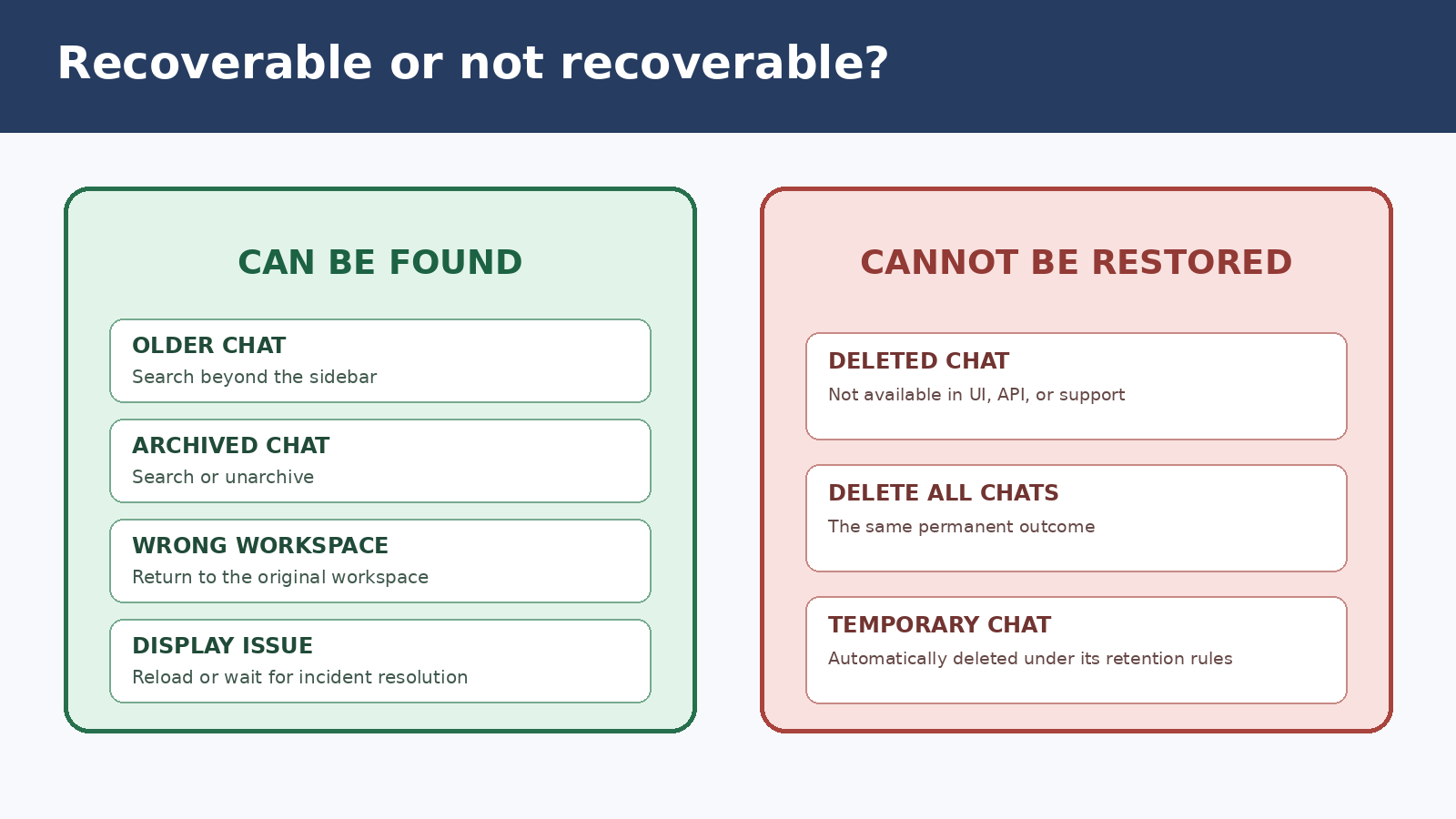
- Older chat missing from the sidebar: Usually recoverable if retained. Use history search with specific text.
- Archived chat: Recoverable. Find it through search or Archived Chats, then unarchive it.
- Wrong account or workspace: Potentially recoverable by returning to the original identity and workspace.
- Temporary service or session issue: Potentially recoverable after status resolution, refresh, or a new sign-in.
- Retained but hard to identify: An eligible account’s export may help confirm and locate its data.
- Deleted chat: Not recoverable through the UI, APIs, export, or support.
- Temporary Chat after its retention period: Not recoverable. Temporary Chats are designed for automatic deletion.
This distinction keeps the process honest. “Missing” often means hidden, filtered, or viewed from the wrong place. “Deleted” means the documented recovery options have ended.
How to avoid losing important work again
Use Archive instead of Delete when you only want a cleaner sidebar. Give important conversations distinctive opening language so later keyword searches have something memorable to find. For ongoing work, keep final decisions, approved copy, code, research notes, and source files in an appropriate document repository or project system. A chat can support the work without becoming its only record.
For especially important material, request periodic exports where your account type permits them, and download each export before its link expires. Review your organization’s retention rules if you use a managed workspace. Our ChatGPT data controls guide explains the difference between model training choices and keeping chats in history. Those concepts are easy to mix up, but changing a training preference is not a recovery method.
Most importantly, pause before deleting. Archive first when you are uncertain. Once deletion is confirmed, OpenAI provides no restore route.
Frequently asked questions
Why did an old ChatGPT conversation disappear from my sidebar?
It may only have fallen out of the compact recent-conversation cache. OpenAI says older chats can be trimmed from the quick sidebar without being deleted. Use history search with a specific phrase from the title or content. Also verify the correct account, sign-in method, and workspace.
Can I restore an archived ChatGPT chat?
Yes. Archived chats remain in the account and can still appear in search. Open Settings, choose Data controls, manage Archived Chats, and select the option to unarchive the conversation. Archiving hides a chat; it does not delete it.
Can OpenAI Support recover a deleted conversation?
No. OpenAI states that deleted chats are not recoverable through the user interface, APIs, or support. They are removed from view immediately and scheduled for permanent deletion under OpenAI’s stated retention policy. The deletion schedule is not an undo window.
Will a ChatGPT data export restore my missing chat?
No. An export can provide a copy of chat history and help confirm which data remains associated with an eligible account. It does not restore a deleted chat or place a retained conversation back in the sidebar. Search and Archived Chats are the direct tools for locating retained conversations.