Apple Intelligence is available on supported iPad and Mac models, but it did not suddenly expand to both platforms in March 2026. Apple released its first public set of features on October 28, 2024 with iPadOS 18.1 and macOS Sequoia 15.1. Since then, Apple has added capabilities and languages through software updates. The useful question now is not whether the system has arrived. It is whether your hardware qualifies, which tools are available in your language and region, and where they fit into real work.
This guide gives a current, practical answer. It covers compatibility, setup, Writing Tools, Siri, Mail, Photos, privacy, and the optional ChatGPT connection. It also separates shipping features from capabilities Apple still describes as being in development.
Quick answer: which iPads and Macs support Apple Intelligence?
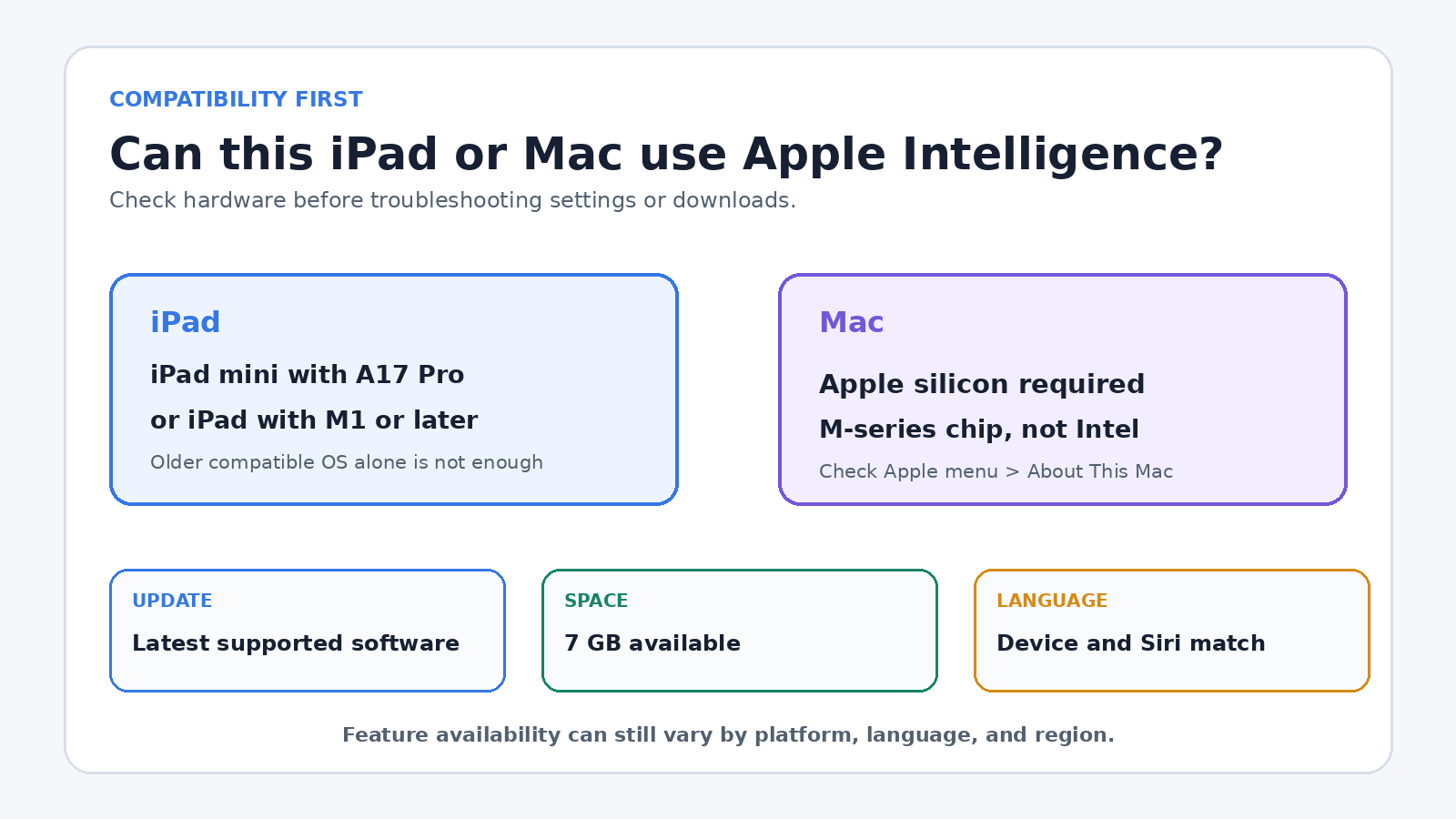
Apple’s current Apple Intelligence requirements identify two simple hardware lines:
- iPad: iPad mini with A17 Pro, or an iPad model with an M1 chip or later.
- Mac: a Mac with Apple silicon.
The chip requirement matters more than the device’s age or appearance. An Intel Mac does not qualify, even if it can run a relatively recent version of macOS. Likewise, many iPads that can run a current iPadOS release do not have the required A17 Pro or M-series chip. Operating system compatibility and Apple Intelligence compatibility are not the same test.
Apple lists iPadOS 18.1 or later and macOS Sequoia 15.1 or later as baseline requirements. It also calls for 7 GB of free device storage and matching device and Siri languages that Apple supports. These are minimums, not a promise that every listed feature works in every language, region, or software release. Apple’s page explicitly says availability can vary by platform, language, and region.
How to check and turn it on
On an iPad, open Settings, choose General, then About to identify the model and installed iPadOS version. On a Mac, open the Apple menu and choose About This Mac. A Mac chip listed as Apple M1 or a later M-series generation meets the silicon requirement. If the window lists an Intel processor, Apple Intelligence is not supported on that Mac.
After confirming the hardware, follow this sequence:
- Install the latest software update that your device supports.
- Check that at least 7 GB of storage is free.
- Set the device language and Siri language to the same supported language.
- Open Apple Intelligence & Siri in Settings or System Settings.
- Turn on Apple Intelligence if it is not already enabled.
- Keep the device connected to Wi-Fi and power while its on-device models download.
A feature may not appear immediately after an update because the models still need to download. A language change can also make Apple Intelligence temporarily unavailable until the matching model finishes downloading. Before assuming a device is broken, confirm the chip, storage, language pair, update status, and model download.
If a particular tool remains missing, check Apple’s requirements page rather than relying on a generic feature list. Regional rules differ, and some functions support fewer languages than the overall system. Managed work or school devices may also have administrative restrictions.
What actually changed on iPad and Mac
Apple’s October 2024 availability announcement documented the first public release across iPhone, iPad, and Mac. That initial set included systemwide Writing Tools, a redesigned and more flexible Siri experience, natural language search and Clean Up in Photos, Mail summaries, notification summaries, and Reduce Interruptions Focus. Later updates broadened the feature set, but this date is the factual starting point for iPad and Mac availability.
The integration model differs from opening a standalone chatbot. Apple Intelligence appears inside familiar system locations. You select text where you are writing, ask for a summary where you are reading, search Photos with ordinary language, or type to Siri. That convenience can reduce copying between apps, but it also makes review more important. An AI-generated summary or rewrite can omit a qualification even when the interface feels like an ordinary editing command.
Writing Tools on iPad and Mac
Writing Tools are among the clearest everyday uses. Apple’s current guides for iPad Writing Tools and Mac Writing Tools describe proofreading, rewriting, tone changes, summaries, key points, lists, and tables. They work in many places where text can be selected, including supported third-party apps and websites.
On iPad, select text and open Writing Tools from the contextual controls or the keyboard button when it is shown. On Mac, select text, Control-click it, and choose Show Writing Tools. Apps such as Notes and Mail may expose a dedicated button. The precise control can vary by app, but the workflow starts with text you choose rather than an unrestricted scan of every open document.
For proofreading, inspect each marked change and its explanation. Accepting every suggestion at once is fast, but it can flatten a deliberate voice, alter a technical term, or change the meaning of a quoted passage. For rewriting, choose Friendly, Professional, or Concise only after deciding what must remain unchanged. A useful instruction is specific: preserve dates, names, figures, links, and quoted text while making the surrounding explanation shorter.
Summaries are most useful as navigation aids. Ask for key points before reading a long message thread, then compare the result with the source before making a decision. A table can help expose dates, owners, and actions, but it should not become a substitute for the original agreement. If the source is read-only, the tool may let you copy its output rather than replace the source text.
People who want a repeatable drafting method can pair these system controls with a broader research and writing workflow. Keep source gathering, drafting, factual review, and style editing as separate passes. That division is more reliable than asking one tool to research, write, and approve its own answer.
Siri, Mail, notifications, and Photos
Apple Intelligence gives Siri a refreshed interface, the option to type requests, more resilient handling when a speaker corrects a phrase, and product knowledge for questions about Apple devices. These improvements can be useful for settings and simple device actions. They do not justify assuming that every ambitious Siri demonstration is already available.
Apple’s current requirements page says that more personal Siri features are still in development and will arrive in future software updates. That sentence is an important boundary. If a task depends on deep personal context, onscreen understanding, or a complex action across apps, verify the exact capability on your own device and current software. Do not treat an announcement, demonstration, or old roadmap as proof of present availability.
In Mail, summaries can provide a quick view of a message or thread, while Priority Messages and Smart Reply can help with triage where supported. Use them to find what deserves attention, not to approve payments, accept contract language, or infer a sender’s intent. Open the original message before acting on a deadline, amount, address, or commitment.
Notification summaries and Reduce Interruptions can make a busy screen easier to scan. The tradeoff is compression. Humor, uncertainty, corrections, and a late change in a group conversation may disappear from a short summary. Keep full notifications available for people and apps where exact wording matters.
Photos can support natural language search and Clean Up on compatible systems. Search is handy when you remember the scene rather than the date. Clean Up can remove a distracting element, but edited images should not be presented as untouched evidence. Preserve an original when provenance matters for work, insurance, journalism, research, or a dispute.
Privacy: on device does not mean every request stays on device
Apple describes on-device processing as the foundation of Apple Intelligence. Many models run locally, which can keep relevant work on the iPad or Mac. For requests that need more computational capacity, Apple says the system can use Private Cloud Compute. The current Apple Intelligence privacy guide says only data relevant to the request is processed on Apple silicon servers, is not stored or made accessible to Apple, and is used only to fulfill the request.
That architecture is more precise than saying everything is local. It also does not remove the need for judgment. Avoid putting passwords, private keys, unreleased financial results, health records, or confidential client material into an AI request unless your organization has explicitly approved that workflow. A technical privacy design and your legal or professional obligations are separate questions.
Mac users can create an Apple Intelligence Report in Privacy & Security settings. The report can show requests sent to Private Cloud Compute for a selected period. It is useful for transparency and troubleshooting, though an empty report can simply mean there were no such requests in that window.
Where ChatGPT fits
Apple Intelligence can offer an optional ChatGPT extension in experiences such as Siri and Writing Tools where the integration is available. It is not the engine behind every Apple Intelligence feature. Apple’s own models and Private Cloud Compute remain part of the Apple system, while ChatGPT is a separate extension that users can choose to enable.
Apple says people can use the integration without a ChatGPT account. If they connect an account, OpenAI’s account and data-use terms apply. Read the confirmation screen before sending a request, especially when an image or document is attached. Availability also depends on whether ChatGPT service is offered in the region.
A practical division is to use Apple Writing Tools for an inline proofread, short rewrite, or summary, and use a conversational tool when the task benefits from back-and-forth planning or detailed instructions. Either way, supply only the context needed, review the result against the source, and keep a human-approved final copy. For more help controlling tone without losing meaning, see this guide to writing in a preferred style with ChatGPT.
A sensible workflow for iPad and Mac
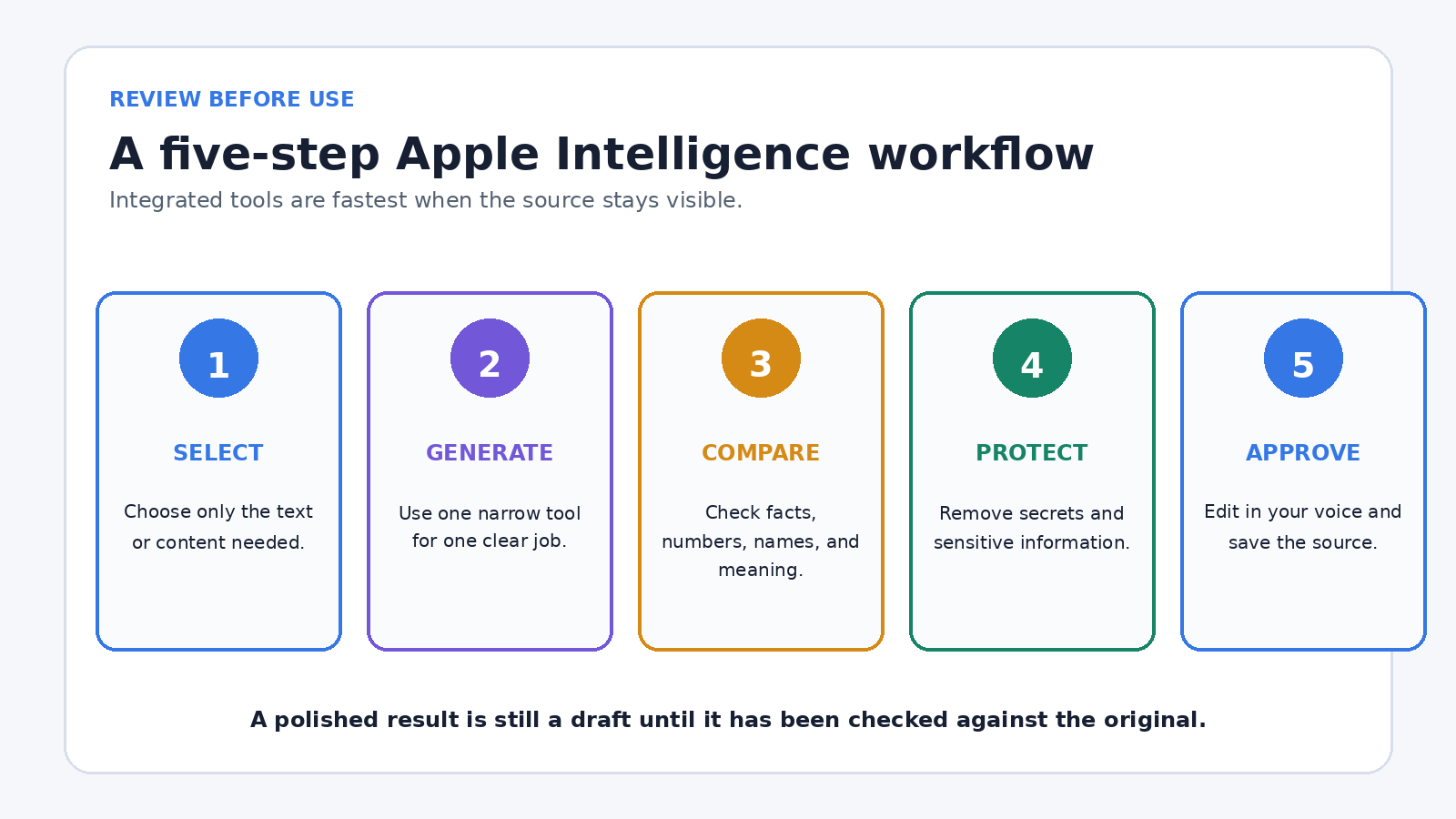
- Define the job. Decide whether you need proofreading, a shorter summary, a tone change, image cleanup, or a device action.
- Minimize the input. Select only the passage or content needed for the task. Remove secrets and unrelated personal details.
- Generate one result. Use the narrowest available tool rather than stacking several transformations at once.
- Compare with the source. Check names, dates, numbers, negations, conditions, and links.
- Edit in your own voice. Restore nuance, terminology, or context that the generated version lost.
- Save the approved result. Keep the source when the work may need an audit trail.
This routine is deliberately ordinary. Integrated AI earns its place when it removes friction from a well-understood task. It should not obscure who made the decision or where a factual statement came from.
Frequently asked questions
Does Apple Intelligence work on every iPad that runs iPadOS 18 or later?
No. Apple requires iPad mini with A17 Pro or an iPad with M1 or later. An iPad may support a recent operating system without meeting the Apple Intelligence chip requirement.
Does Apple Intelligence work on Intel Macs?
No. Apple’s compatibility requirement is a Mac with Apple silicon. Check About This Mac for an Apple M-series chip. An Intel processor does not qualify.
Is every Apple Intelligence request processed only on the device?
No. Apple says many requests use on-device processing, while more complex requests can go to Private Cloud Compute. Optional third-party extensions such as ChatGPT are a separate path and have their own confirmation and data terms.
Are all the more personal Siri features available now?
No. Apple’s current requirements page says more personal Siri features remain in development for future software updates. Check current Apple documentation and test the exact task on your device rather than relying on an older announcement.
Bottom line
Apple Intelligence has been on compatible iPad and Mac hardware since October 2024, not as a new March 2026 expansion. Today, it is a collection of integrated features whose availability depends on the chip, software, storage, language, region, and sometimes the specific app. Start with the compatibility check, use narrow tools for clear jobs, and verify generated text or summaries before they guide an important action. That approach is less dramatic than treating every update as a new AI revolution, but it is far more useful.