

“ChatGPT unblocked” sounds like a request for a clever way around a filter. On a school or workplace network, that is the wrong goal. A block may express a security, privacy, age, licensing, or acceptable-use decision. The useful goal is legitimate ChatGPT access: determine what failed, follow the network owner’s policy, and use an approved route or alternative.
This guide covers ordinary sign-in failures, local browser problems, OpenAI service incidents, and organization-managed network restrictions. It does not recommend proxy sites, mirrors, VPN tricks, DNS changes, tunnels, or any other method for defeating controls. If an administrator has intentionally blocked ChatGPT, stop and ask for an approved option.
What “ChatGPT unblocked” should mean
Safe access means using the official ChatGPT website or official app in a country where the service is supported, with an account and sign-in method you are authorized to use. On a managed device or network, it also means complying with the organization’s rules. A page that will not load is not proof that somebody is censoring the service. The cause might be an OpenAI incident, a stale session, an extension, an authentication mismatch, a firewall rule, TLS inspection, or a workspace membership problem.
Do not enter OpenAI credentials into a website that advertises itself as an “unblocked ChatGPT” mirror. A third-party page is not made trustworthy by copying the ChatGPT name or interface. Start from chatgpt.com or an official app listing, and use OpenAI Support when account-specific help is needed.
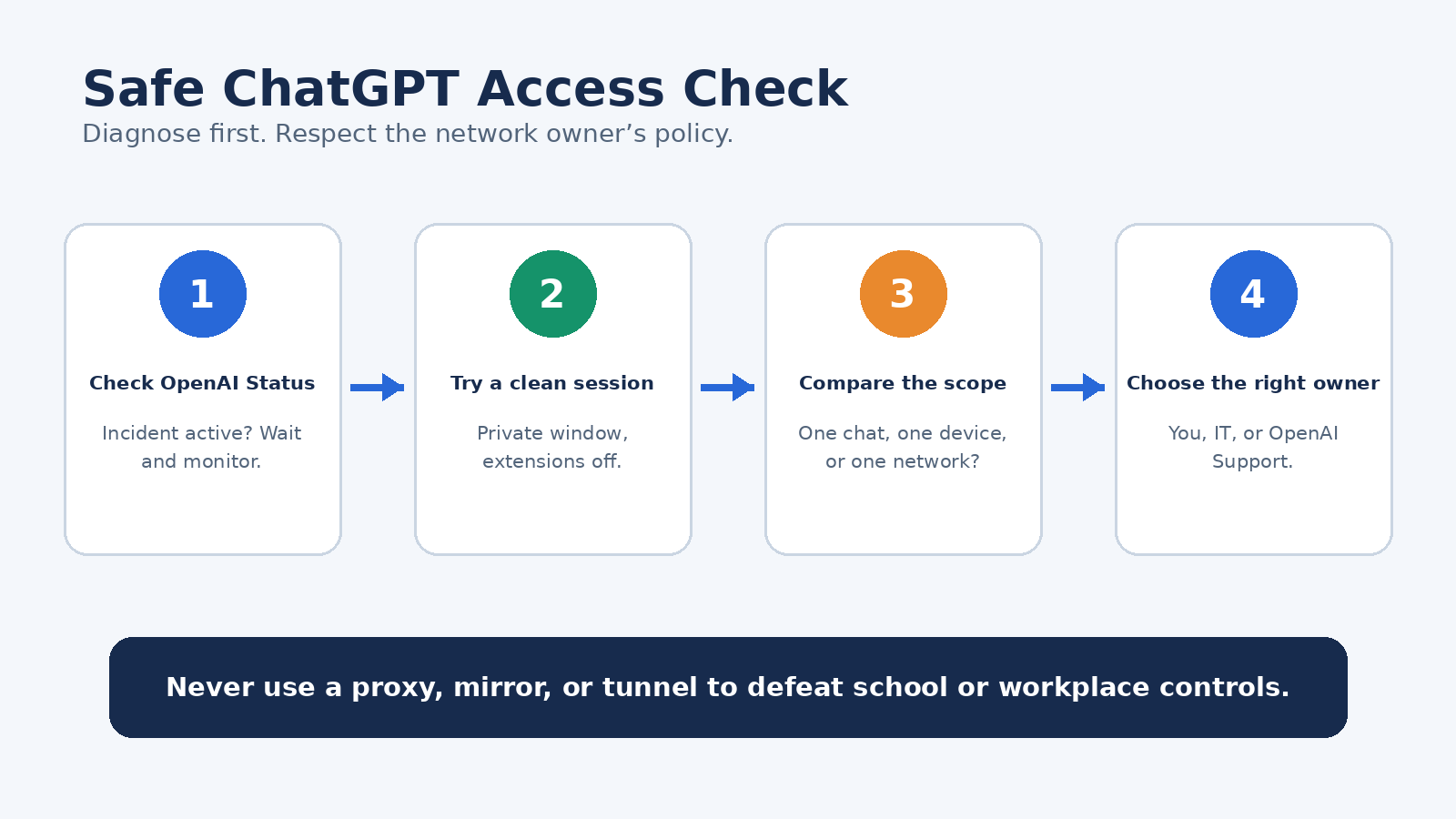
First, identify who owns the problem
A five-minute scope check can prevent hours of random changes. Write down the exact message, the time and time zone, the device, the browser or app version, and whether the failure affects one conversation or the entire service. Then ask whether colleagues or classmates see the same result. This separates a single account or device issue from a wider network or service problem.
- OpenAI may own it if the official status page reports an incident or the same error appears across unrelated devices and networks.
- You may own it if only one browser profile fails and a clean, policy-compliant browser session works.
- Your workspace administrator may own it if SSO, membership, role permissions, or a managed workspace is involved.
- Your IT team may own it if everyone on one approved network has the same failure, especially when another authorized environment does not.
OpenAI’s error troubleshooting guide recommends checking service status, refreshing or restarting, testing a private browser window, disabling interfering extensions, and comparing another browser, device, or network. On managed equipment, do only the steps your policy allows. A comparison test is evidence for IT, not permission to move work to an unapproved connection.
Check OpenAI Status before changing anything
Visit OpenAI Status and look for an active ChatGPT incident. If there is one, note the affected component and wait for an update. Reinstalling apps, clearing every browser setting, or asking IT to alter a firewall during a service incident adds work without fixing the cause.
The status page reports aggregate availability. Your plan, feature, or region can still behave differently, so a green status page does not close the investigation. It simply makes a local session, account, workspace, or network cause more likely. Keep the timestamp because Support will need to connect your report to logs.
Fix a normal browser or app session safely
If no incident is listed, reload ChatGPT or restart the official app. Try a new chat if only one long conversation is stuck. Sign out and sign back in. A private window can test whether cached site data or an extension is interfering without permanently deleting everything. If the private window works, return to the regular profile and review extensions or ChatGPT site data one item at a time.
Content blockers, script modifiers, privacy extensions, secure DNS products, and security software can interfere with loading or streaming. On a personal device, temporarily disabling an extension for a controlled test can identify the cause. On a managed device, do not disable required security software. Give the result to IT instead. Likewise, OpenAI’s general error guide may suggest turning off a VPN or proxy, but a company VPN may be mandatory. Follow company policy rather than a generic troubleshooting step.
Update the browser or official app, then retry. If the web version works but a desktop or mobile app does not, record that distinction. If text works but uploads fail, record the file type, approximate size, and exact upload error. Different symptoms can point to different blocked domains or client settings.
Troubleshoot ChatGPT sign-in and SSO
Use the same authentication method used when the account was created. An account created through Google, Microsoft, Apple, an organization’s SSO, or a password may require that original route. OpenAI’s authentication troubleshooting guide explains that an identity-provider mismatch means the attempted method does not match the original one.
If a workspace requires SSO, return to the sign-in page, enter the organization email, and choose SSO. A message saying that the signed-in email is not in the workspace usually needs a workspace administrator. The administrator should confirm that the identity provider returns the right email and that the user has been invited. Repeatedly creating personal accounts will not repair an organization membership or mapping issue.
Password-reset email will not solve every sign-in problem. OpenAI notes that an account created with social sign-in or SSO may not have an OpenAI password to reset. Use the identity provider’s recovery process when appropriate. Never send a password, one-time code, private key, or full authentication cookie to a help desk, administrator, or Support.
When the school or workplace network blocks ChatGPT
An intentional organizational block is a policy decision, not a browser puzzle. Ask the teacher, manager, IT service desk, or security team whether ChatGPT is approved for the task. Explain the educational or business purpose, the type of information you would enter, whether personal or confidential data is involved, and how the output will be reviewed. That gives the decision owner enough context to approve, limit, or reject the request.
If access should already be available, report a reproducible test. Include the official URL, exact error, timestamp and time zone, device and client version, network name or location, whether multiple users are affected, and whether the failure involves login, chat streaming, voice, or file upload. Screenshots are useful after personal information is removed.
Do not try public proxies, browser relays, “unblocked” game-style portals, unofficial wrappers, or credential-sharing. They can expose prompts and login data, violate policy, and make diagnosis harder. Do not change managed DNS, certificates, firewall settings, or security agents. Those controls belong to the administrator.
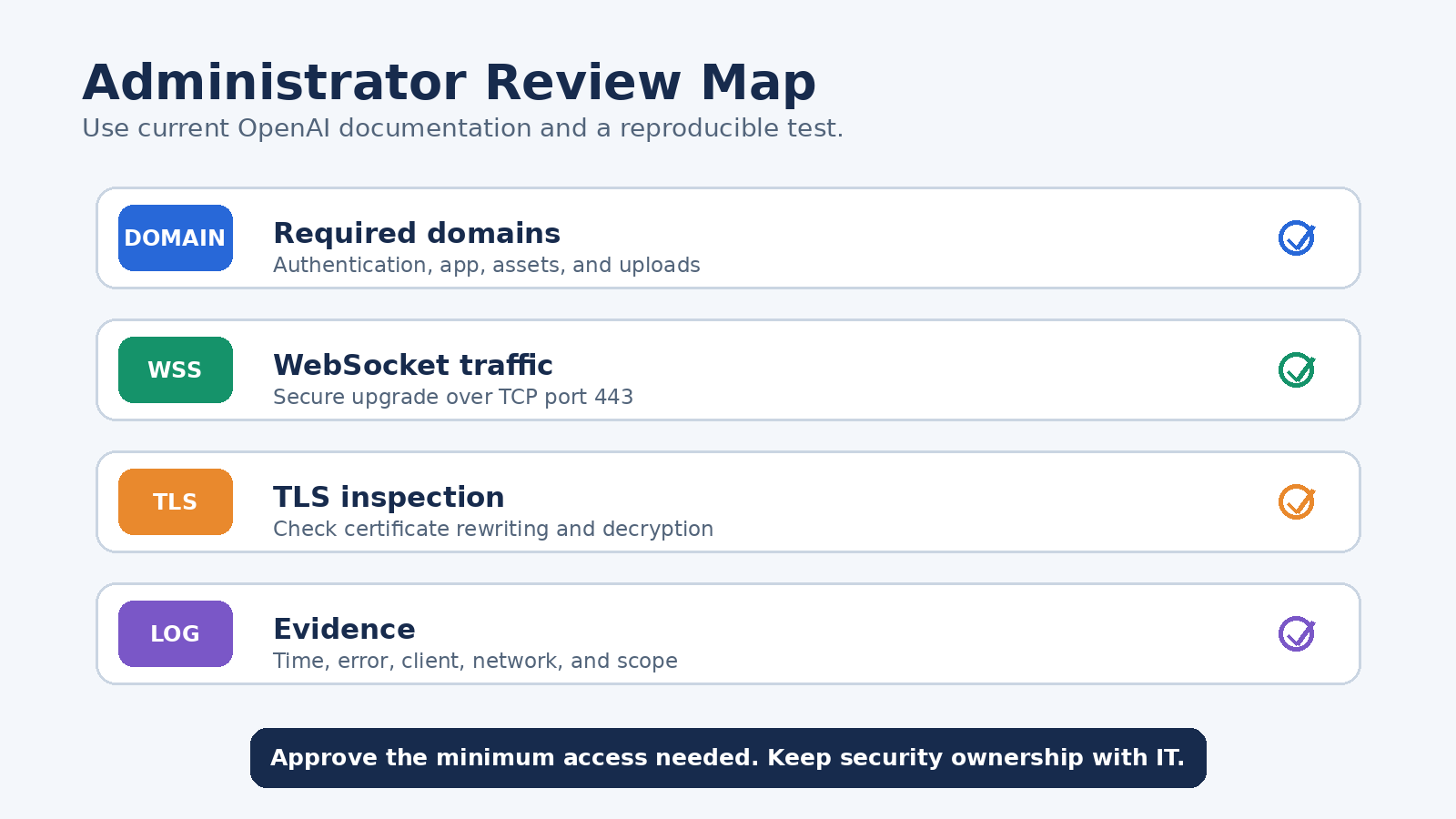
What network administrators should review
OpenAI maintains network recommendations for ChatGPT for IT teams. The page provides a current domain list and warns that URL filtering should not return unexpected content. Administrators should use that live list rather than copying a static allowlist from an old blog post because services and domains can change.
The same document says some ChatGPT features use secure WebSocket connections. Administrators may need to permit the standard WebSocket upgrade over TCP port 443 to the listed destinations. If sessions connect but streaming stalls, they can review gateway behavior, idle timeouts, and message limits. This is administrator work. End users should not reconfigure network controls themselves.
TLS inspection can also cause certificate errors, particularly in native apps. OpenAI advises administrators to review inspection or decryption for public OpenAI domains and contact Support when required enterprise policy prevents the recommended setup. The right answer is a documented exception, approved web access, or a supported configuration, not teaching users to evade inspection.
Approve the minimum access needed for the use case. A school may allow an institution-managed workspace but not consumer accounts. A company may permit text chat for public information while restricting uploads of internal files. Administrators should document which account, workspace, features, data classes, and devices are approved so users do not have to guess.
Approved alternatives when direct access is unavailable
If the official site remains intentionally unavailable, ask for an approved alternative rather than hunting for a workaround. The best alternative is the one your organization already governs. It might be a managed ChatGPT workspace, an institution-provided AI service, a teacher-led activity, an internal assistant built through an approved OpenAI deployment, or a non-AI research workflow using the library, textbook, knowledge base, or office tools.
For eligible educators, OpenAI documents ChatGPT for Teachers as a school-ready workspace with administrative controls. The current official page defines eligibility and clearly says it is not a student plan. Institutions considering broader deployments can evaluate ChatGPT Edu through official OpenAI channels. A managed offering still requires local approval, training, and rules for student or company data.
If your organization approves the official mobile app on a personal or managed device, our ChatGPT mobile guide explains everyday app and privacy settings. Approval matters: moving a work document to a personal phone can violate policy even when the app itself is legitimate. For personal data controls, see our guide to ChatGPT training and data settings.
Using ChatGPT while traveling
Before travel, check OpenAI’s current ChatGPT supported countries list. Availability can change, so do not rely on an old list or a search snippet. Follow local law, OpenAI’s terms, and your employer’s travel-security requirements. A regional availability limit is not an invitation to conceal location through a proxy or VPN.
Bring an approved fallback for important work. Save non-sensitive reference material through the organization’s authorized system, know how to contact the service desk, and avoid placing confidential information into hotel, airport, or conference systems unless your security policy permits the setup. If a required corporate VPN causes a ChatGPT error, report the conflict to IT. Do not turn off required protection simply to make the app load.
Escalate with evidence, not secrets
OpenAI Support is available through the chat bubble on the Help Center. Its support request guide asks for a concise description, steps to reproduce, timestamps with time zone, account and plan context, environment details, workspace information when relevant, and screenshots. Include the sign-in method, but never include a password or one-time code.
Support may request a HAR file for a web interface problem. A HAR records browser network interactions and may contain sensitive information. Follow OpenAI’s current capture instructions, use the browser’s sanitized export where available, inspect the file, and send it only through the approved support channel. On a work or school device, get IT approval before capturing or sharing network logs.
A good ticket says what happened without speculation: “At 14:20 UTC on 7 August, ChatGPT web sign-in returned this exact error in Chrome version X on the managed campus network. Two users reproduced it. OpenAI Status showed no incident. A private window produced the same result.” That is more actionable than “ChatGPT is blocked,” and it avoids unnecessary account changes.
A practical access checklist
- Use only the official ChatGPT site or official app.
- Check OpenAI Status and record the time.
- Copy the exact error instead of paraphrasing it.
- Test a clean session only when device policy allows it.
- Use the account’s original sign-in method and the required workspace SSO.
- Determine whether one user, one device, or the whole approved network is affected.
- Ask the administrator whether the use case and data are approved.
- Let IT review domains, WebSocket handling, filtering, and TLS inspection.
- Use a managed alternative if direct access is not approved.
- Send Support reproducible details, never authentication secrets.
The important distinction is simple. Troubleshooting restores access that is supposed to work. Bypassing defeats a control that somebody else owns. If you are unsure which situation you have, pause and ask. That protects the account, the network, and the information you planned to put into ChatGPT.
Official OpenAI sources
- OpenAI Status
- Troubleshooting ChatGPT Error Messages
- Troubleshooting authentication
- Network recommendations for ChatGPT errors
- How can I contact support?
- ChatGPT supported countries
- ChatGPT for Teachers
FAQ
How can I unblock ChatGPT at school?
Ask the teacher or IT administrator whether ChatGPT is approved for your task. If access should be available, provide the official URL, exact error, time, device, and scope. Use the institution’s approved workspace or alternative. Do not use a proxy, mirror, or tunnel to defeat the school’s filter.
Why can I open ChatGPT but not sign in?
The sign-in method may not match the method used to create the account, or the workspace may require SSO. Try the original Google, Microsoft, Apple, password, or SSO route. For a managed workspace, ask its administrator to confirm membership and identity-provider mapping.
Can I use mobile data if work WiFi blocks ChatGPT?
Only if your organization explicitly permits the device, connection, account, and data involved. A brief authorized comparison can help diagnose a network-specific fault, but moving work to a personal connection must not be used to evade policy. Ask IT for the approved route.
What should I send OpenAI Support about an access error?
Send the exact error, steps to reproduce, timestamp and time zone, browser or app version, operating system, network context, sign-in method, and workspace details when relevant. Remove sensitive information. Never send passwords, one-time codes, private keys, or unsanitized logs.