
ChatGPT Using Too Much RAM? An Evidence-Conscious Troubleshooting Guide
A claim that ChatGPT consumed 163GB of RAM before crashing is alarming, but a large number does not establish a product-wide memory leak. It describes one reported outcome on one setup. It does not, by itself, identify which ChatGPT client was involved, whether the operating system counted compressed memory or swap, how long the session ran, what other processes were active, or whether an extension, browser tab, uploaded file, long conversation, or local integration contributed.
Most importantly, the specified official OpenAI sources do not confirm a general ChatGPT defect that makes the product consume 163GB of RAM. OpenAI’s troubleshooting documentation does acknowledge that ChatGPT can become slow, freeze, load endlessly, or stop responding. Its recommended response is methodical: check service status, restart or refresh, test a clean environment, change one variable at a time, and collect diagnostic evidence if the problem persists.
This guide follows that evidence. It will help you contain a runaway session, determine whether the problem is local or service-side, preserve useful observations, and report a reproducible case. It will not turn a dramatic anecdote into a diagnosis that the official record does not support.
What the 163GB story can and cannot tell us
“ChatGPT used 163GB” sounds precise, yet precision is not the same as completeness. A useful diagnosis needs the application name and version, operating system version, time of occurrence, workload, conversation length, attachment types, browser and extension state, and the exact metric being read. A screenshot taken after a crash may document an extreme state while revealing little about the path that produced it.
The phrase memory leak also has a technical meaning. It generally refers to memory that software allocates and fails to release when it is no longer needed, causing usage to grow over time. High RAM use can resemble a leak without proving one. A long page, many rendered messages, image previews, active tabs, browser extensions, cached resources, or a malfunctioning local process can all produce pressure. The key test is repeatability under controlled conditions, not the shock value of a peak reading.
OpenAI’s official troubleshooting page groups slow, lagging, frozen, and unresponsive behavior together and recommends starting a new chat when a conversation is long or has many turns. That recommendation supports a practical test: compare the troubled conversation with a fresh one. It does not establish that long chats cause a universal memory leak, nor does it validate the 163GB figure.
First response when memory use is climbing
If your computer is becoming unresponsive, preserve the machine before preserving the chat. Stop sending new prompts, pause uploads, and close other nonessential work. If you can still interact with the session, copy any unsaved prompt or response you need. Then stop the generation, close the affected tab or app, and restart it. If the whole system is close to locking up, ending the affected process may be the safest available action.
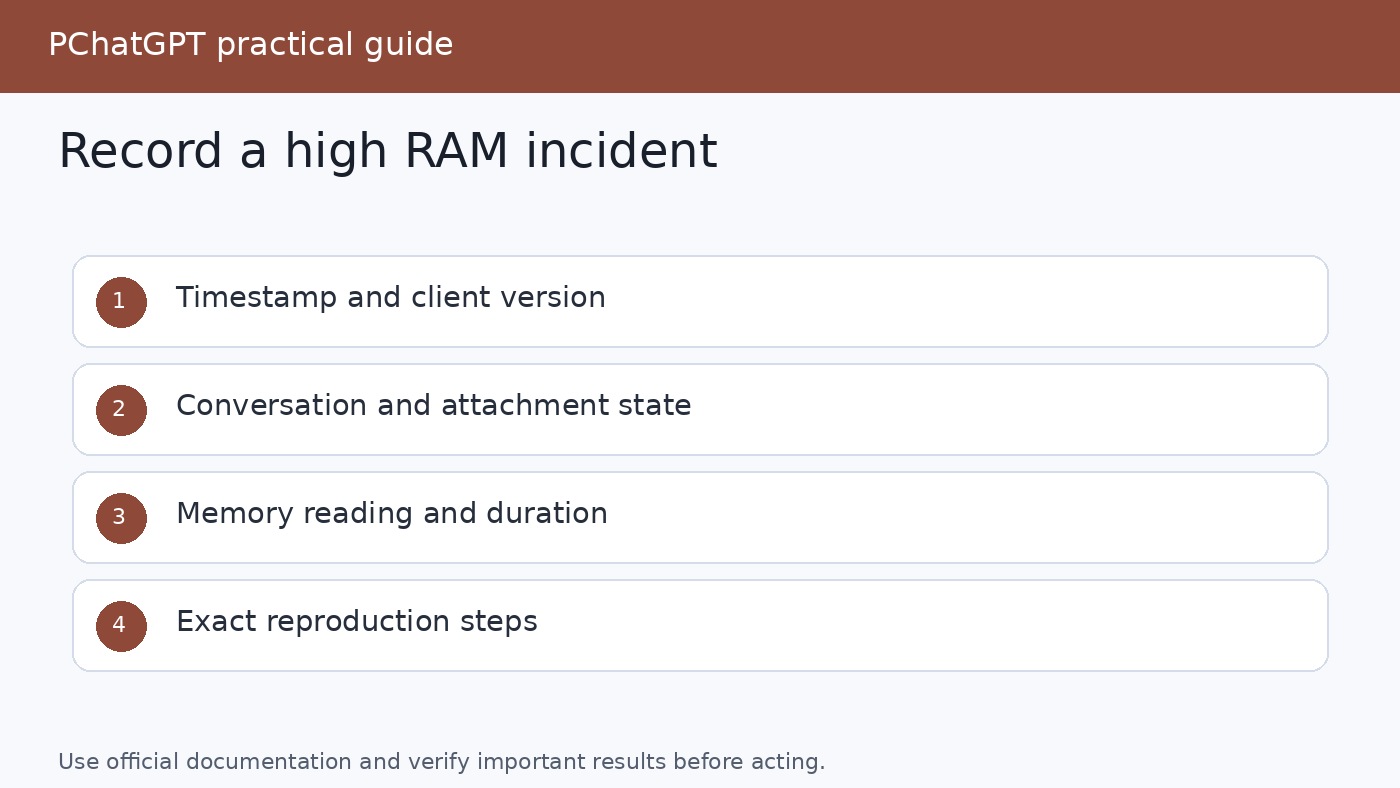
Do not keep a runaway process open merely to get a more dramatic screenshot. One timestamped capture of the process list and memory graph is more useful than allowing the computer to crash. Record the following before restarting, when feasible:
- The local date and time, including time zone.
- Whether you used the web client, the current desktop app, or ChatGPT Classic on macOS.
- The browser or app version and operating system version.
- The conversation URL or ID, without posting it publicly.
- The selected model and whether a response was streaming.
- Approximate conversation length and whether files, images, data analysis, Projects, Canvas, voice, or app integrations were in use.
- The memory value, the process to which it was attributed, and whether the value fell after closing the session.
After the restart, resist the urge to reopen everything at once. A controlled recovery produces better evidence. Open only ChatGPT, start a new conversation, submit a small plain-text prompt, and observe the process for several minutes. If normal use is stable, add back one part of the original workload at a time.
Check OpenAI status before changing your computer
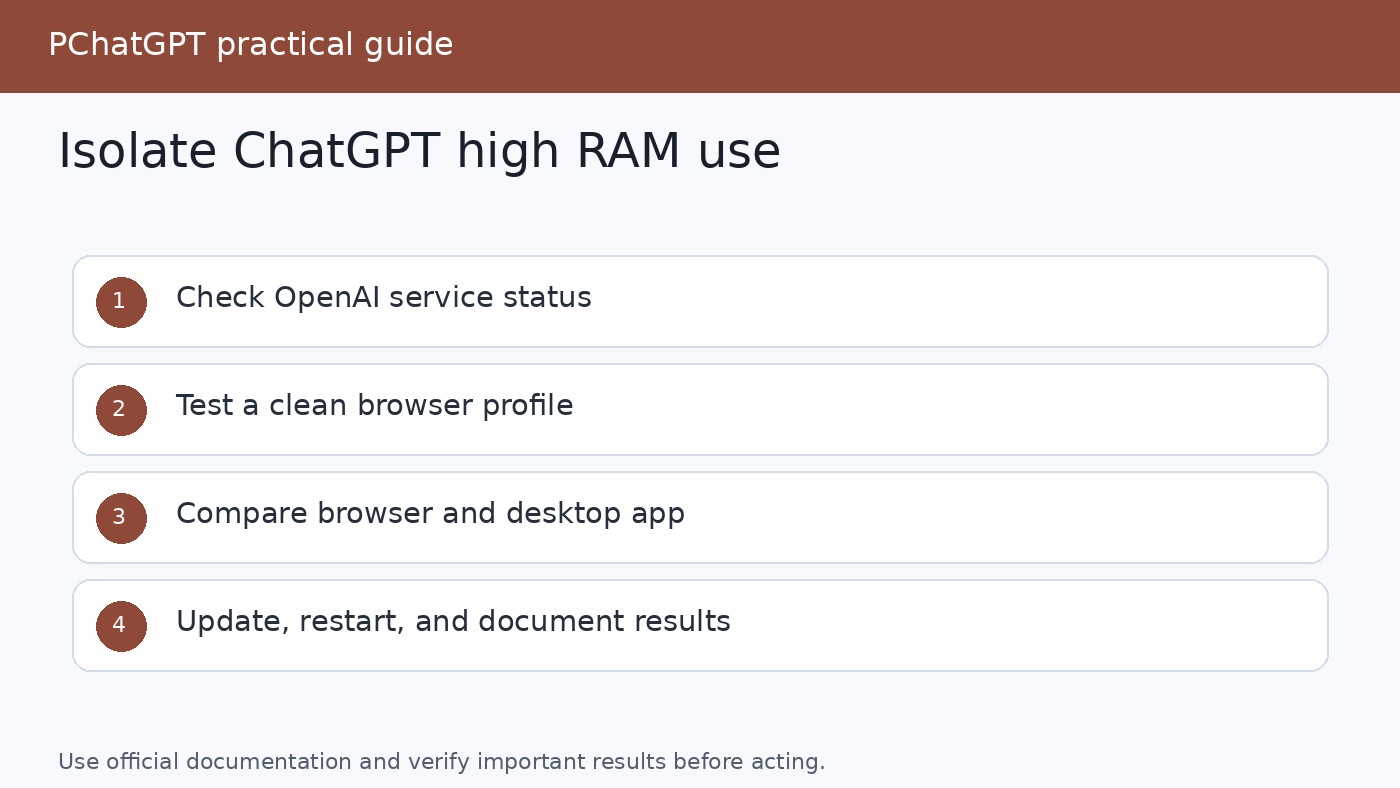
OpenAI’s troubleshooting guide repeatedly directs users to the official OpenAI status page when ChatGPT is slow, stuck, or generating errors. Check it near the time of the incident and note any active ChatGPT event. The page cautions that availability is reported in aggregate across tiers, models, and error types, so an all-clear summary does not prove that every individual session is healthy. Conversely, an active service incident does not prove that local RAM growth has the same cause.
This distinction prevents two common mistakes. The first is spending an hour clearing caches during a known service disruption. The second is blaming an outage for behavior that reproduces only in one browser profile or on one machine. Status is a triage signal, not a complete root-cause report.
If there is an active incident, preserve your timestamp and wait for recovery before running aggressive local experiments. If there is no relevant incident, continue with isolation tests. Readers comparing several assistants for reliability may also find the site’s source-checked AI tools comparison useful, especially its emphasis on verifying product claims rather than trusting a single generated answer.
Run a clean-client isolation test
OpenAI recommends refreshing the page or restarting the app, signing out and back in, trying a private browsing window, disabling extensions and content blockers, clearing site data or cookies, and testing a different browser, device, or network. Those steps are often presented as fixes, but they are also diagnostic branches. Each branch asks whether the symptom follows the account, conversation, client, profile, device, or network.
- Restart the affected client. Force reload the web page or restart the desktop app. Test a new, short conversation before opening the original one.
- Try a private window. A private session reduces interference from the normal profile’s extensions and stored site state. Sign in, use a new chat, and repeat the same small prompt.
- Disable extensions and filters. OpenAI specifically identifies browser extensions, content blockers, VPNs, proxies, and secure DNS tools as possible sources of trouble. Disable them temporarily, provided doing so is permitted and safe in your environment.
- Try another browser or device. If the same account and prompt behave normally elsewhere, the original client or machine becomes a stronger suspect. If the issue follows you, record that result rather than declaring the local machine innocent.
- Try another network only if relevant. Network changes are useful for connection errors, websocket failures, or endless loading. They are less direct evidence about local memory, so do not overinterpret them.
Use a simple test matrix. Keep the prompt constant, run each condition for a similar duration, and record starting, peak, and post-close memory. “It seemed better” is weaker than “the clean profile remained stable through three five-minute trials while the normal profile climbed each time.” You do not need laboratory perfection. You need enough consistency to separate a repeatable pattern from a one-off failure.
Separate conversation scope from client scope
A fresh chat is one of OpenAI’s explicit suggestions for a long or many-turn conversation. Test that advice directly. First run a short prompt in a new chat. Then, only if the machine remains responsive, open the conversation associated with the incident without immediately generating a response. Finally, try a comparable prompt in another new chat.
If memory rises only when the old conversation is displayed, document that. If it rises only while a particular response streams, document that instead. If every blank session causes the same growth, the conversation itself is less likely to be the only factor. Avoid repeatedly reopening a session that destabilizes the computer. One or two controlled reproductions are generally more responsible than chasing an exact peak.
Attachments deserve their own branch. Note whether the conversation contains large documents, images, generated files, charts, or data analysis. Test plain text first, then a small non-sensitive attachment if necessary. Never upload confidential material solely to reproduce a bug. A useful report can state that the symptom appeared with a file and disappeared without exposing the file publicly.
macOS app context and why version details matter
The official macOS release notes show that the client has changed over time. OpenAI records fixes for unnecessary network usage, crashes, interface problems, and performance in launching, scrolling, streaming responses, rendering, and data analysis. The notes also say the previous macOS app became ChatGPT Classic on July 9, 2026, while users could continue using it without migrating at launch.
None of those entries confirms the specific 163GB allegation. They do show why “the ChatGPT app” is not enough detail for a support case. State whether you used ChatGPT Classic or the newer desktop app, then include the visible version information. OpenAI’s release notes have previously told users to check for updates and restart to receive improvements, so updating and restarting is a reasonable controlled step after you capture the original version.
Do not use a generic release note such as “fixes and improvements” as proof that your memory problem was fixed. Test before and after under the same modest workload. If an update changes the result, report the old version, new version, and comparison. If it does not, that negative result is still useful.
For broader purchasing and workflow decisions, the guide to choosing AI apps beyond ChatGPT offers a practical reminder: select tools by the job and constraints, not by viral claims. The same principle applies here. Choose the web or desktop client based on observed stability in your actual workflow, not an assumption that one interface must always use less memory.
Protect your chat history while troubleshooting
Restarting a client and deleting a chat are different actions. According to OpenAI’s official retention policy, chats remain saved to your account until you delete them manually. Deleting a chat removes it from your account immediately and schedules permanent deletion from OpenAI systems within 30 days, subject to stated de-identification and legal or security exceptions. Deleted chats cannot be recovered.
That means deletion should not be your first reflex. If you simply need to remove a conversation from the sidebar while retaining it, OpenAI says archiving is the appropriate option, and archived chats follow the same retention rules as unarchived chats. If the conversation itself appears to trigger the problem, capture its URL or ID for private support use, save only the non-sensitive information you are authorized to retain, and decide deliberately whether to archive or delete it.
Temporary Chats are handled differently. OpenAI says they are automatically deleted from its systems within 30 days. Files also require care. The official policy says files saved to Library are managed separately from chats, so deleting a chat does not delete files saved to Library. Files attached to a custom GPT or project are retained until that GPT or project is deleted, then removed within 30 days unless an applicable legal or security exception requires longer retention.
These policies matter because a panicked cleanup can destroy evidence without removing every associated file. Before deleting anything, decide whether you need a support reference, whether a Library file must be removed separately, and whether workplace retention rules apply.
Build a support report that can be investigated
OpenAI’s troubleshooting page asks users with persistent problems across browsers, devices, and networks to collect a HAR file and browser console errors with timestamps, note the model and conversation URL or ID, and contact Support. For blank, frozen, or endlessly loading pages, it similarly recommends console logs and a HAR file with timestamps.
A HAR file can contain sensitive request details. Treat it as diagnostic data, inspect and sanitize it according to the official support instructions, and share it only through the appropriate support channel. Do not attach it to a public forum post. The same caution applies to screenshots that reveal conversation titles, prompts, account details, or filenames.
A concise report should include:
- A one-sentence symptom description without asserting an unproven cause.
- Exact local timestamps and time zone.
- Client name, client version, browser profile state, and operating system version.
- Model, conversation URL or ID, and whether the chat was long or attachment-heavy.
- Observed memory at baseline, peak, after closing the chat, and after restarting the client.
- Reproduction steps with one change per test.
- Results from a fresh chat, private window, extension-free profile, other browser, and other device when available.
- Whether the official status page showed an incident.
- Relevant console errors and a carefully handled HAR file.
Phrase the conclusion conservatively: “The desktop process rose from approximately X to Y during this sequence and returned to Z after restart” is observable. “ChatGPT has a universal memory leak” is not established by one machine. This wording helps support focus on the behavior rather than first having to untangle an inflated claim.
A practical stop rule
Troubleshooting should have a stopping point. Stop local reproduction if the system becomes unstable, if testing risks unsaved work, or if the next step would require exposing sensitive data. Use the cleanest stable client available, split very long work into new conversations when practical, keep software updated, and retain your report for Support.
If the issue disappears after a restart, log it anyway, but do not call it solved forever. If it returns under the same conditions, your earlier notes provide a baseline. If it persists across clean profiles, multiple clients, and devices, escalate with the evidence OpenAI requests. If it occurs only in one environment, focus further testing there.
The responsible conclusion is straightforward. A 163GB peak deserves attention, but it does not deserve certainty that the evidence cannot provide. Official OpenAI guidance supports systematic troubleshooting for slow, frozen, and unresponsive ChatGPT sessions. It does not confirm that the anecdote represents a product-wide defect. Measure, isolate, protect your data, and report what you can reproduce.
Frequently asked questions
Is the 163GB ChatGPT memory leak officially confirmed?
No. None of the specified official OpenAI sources confirms a general defect that causes ChatGPT to consume 163GB of RAM. The number should be treated as an anecdotal observation unless OpenAI publishes a finding or a controlled reproduction establishes the behavior on a defined client and version.
Should I delete the affected conversation?
Not immediately. Restart the client and test a new chat first. OpenAI says deleted chats cannot be recovered, while archiving hides a chat without deleting it. If you may contact Support, preserve the conversation URL or ID privately before making a deletion decision. Remember that Library files are managed separately from chats.
What is the fastest useful test?
Check the official status page, restart the browser or app, and run a short plain-text prompt in a new chat. Then compare it with a private browser window or clean profile. Record memory before, during, and after the test. This quickly distinguishes a transient session problem from behavior tied to a profile or client.
When should I contact OpenAI Support?
Contact Support when the issue persists after restart and reproduces across clean browser conditions, devices, or networks, or when the desktop app repeatedly becomes unstable. Include timestamps, model, client and version, conversation URL or ID, controlled reproduction steps, and the diagnostic material requested in OpenAI’s troubleshooting guide.