
ChatGPT Voice lets you speak with ChatGPT and hear its answer while the conversation remains available as text in the same chat. The newest option is called Live, and OpenAI says it is powered by GPT-Live-1 on paid plans and GPT-Live-1 mini on Free. That naming matters: ChatGPT Voice is the feature you use, Live is one Voice experience you may be able to select, and GPT-Live is the model family behind it. GPT-Live is not a separate ChatGPT app, and it is not the name for every kind of voice input.
OpenAI introduced GPT-Live in July 2026 as a full-duplex voice system. In plain English, it can listen while it speaks. You can interrupt, add a detail in the middle of an answer, or ask it to wait while you think. It can also hand a harder question to another model for search or deeper reasoning without ending the spoken exchange. This guide explains how to start ChatGPT Voice, choose the right option, hold a productive conversation, and handle its limits and privacy controls.
ChatGPT Voice, Live, Advanced, Standard, and Dictation
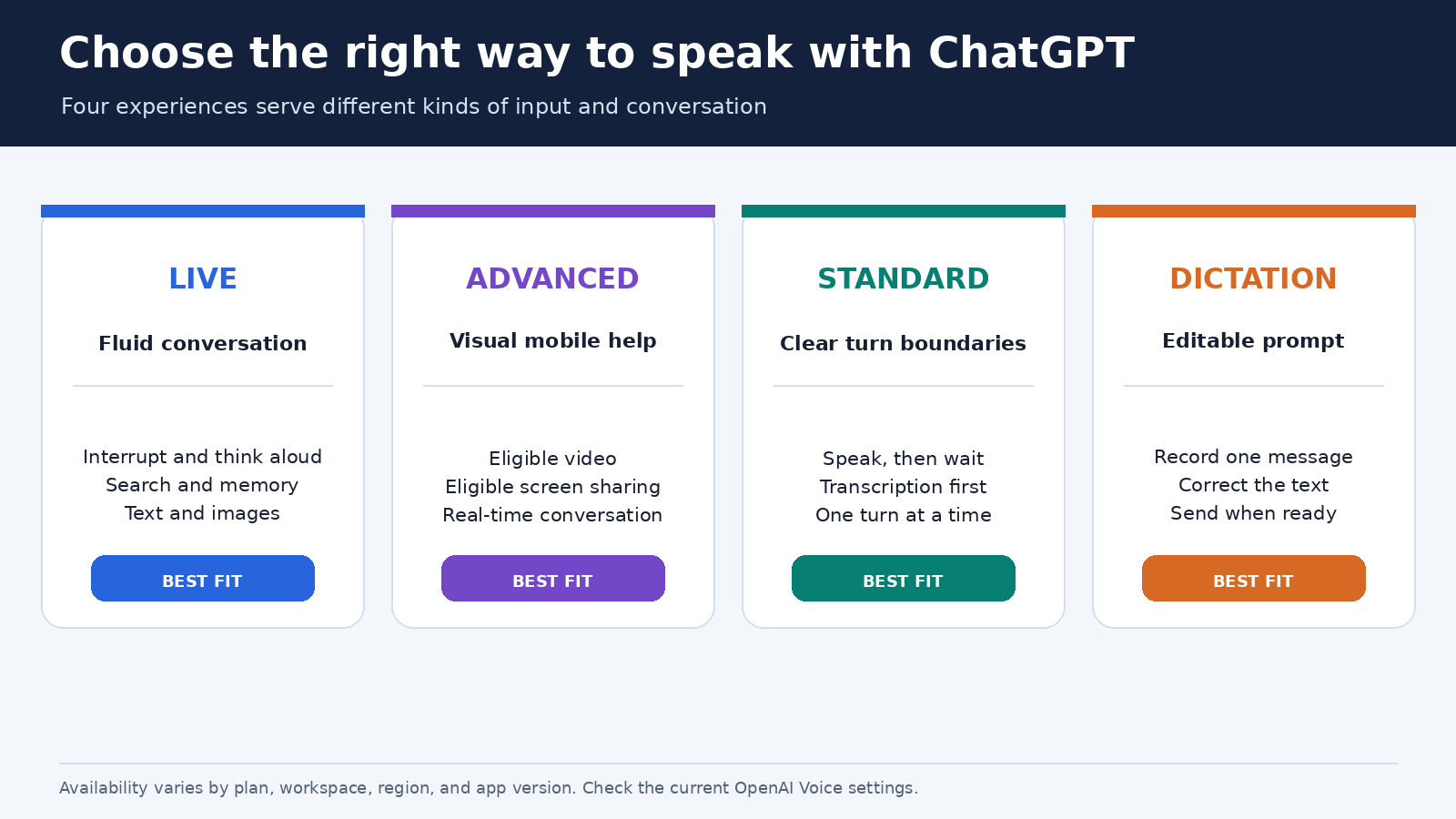
The labels can be confusing because they describe different layers of the experience. The official ChatGPT Voice guide is the best reference for the controls currently available to your account. OpenAI lists three possible Voice options, though you may not see all of them:
- Live: OpenAI’s latest natural conversation experience. It is designed for quick back and forth, including interruptions and overlapping speech. Depending on your account, it can use web search and memory, show supported visual widgets, and work with text, images, uploaded files, and Projects.
- Advanced: The previous real-time Voice experience. It remains useful for eligible subscribers who need video or screen sharing in the iOS or Android app because Live does not support those two inputs at launch.
- Standard: A turn-by-turn experience that transcribes your speech before generating a response. It is less fluid, but its clearer turn boundaries may suit a noisy room or a person who wants to finish a complete prompt before hearing an answer.
Dictation is different. Dictation records one prompt, converts it to editable text, and waits for you to send it. Use Voice when you want a continuing spoken exchange. Use Dictation when exact wording matters and you want to correct the transcription first. A Voice transcript is a useful record, but OpenAI warns that it may not match every spoken word.
How GPT-Live changes a Voice conversation
Earlier voice systems often followed a strict sequence: listen, detect silence, think, then speak. A pause could be mistaken for the end of your turn, and the model could not respond naturally until you had stopped. In its official GPT-Live announcement, OpenAI says the newer architecture continuously processes input while producing output. It makes repeated decisions about whether to listen, speak, pause, interrupt, or invoke a tool.
The practical difference is not that every answer becomes correct. It is that the interaction can feel less like recording alternating voice notes. You can say, “Actually, make that a vegetarian meal,” while ChatGPT is describing a recipe. You can ask it to slow down, repeat one number, or wait while you collect your thoughts. For a complex question, Live may delegate search or reasoning in the background and bring the result into the conversation.
Natural delivery can make an answer sound confident, so keep the normal verification habit. Ask for the source, look at the linked page, and check names, dates, prices, medical details, or legal requirements yourself. For a time-sensitive request, state the exact date, location, and time zone rather than relying only on words such as “today.”
How to start ChatGPT Voice
On iOS or Android, open the ChatGPT app and select the Voice icon in the message bar. Grant microphone permission if your device asks. On your first call, ChatGPT may invite you to choose a voice. Start speaking when the Voice session opens. The microphone control mutes or unmutes your input, and the exit control ends the call.
On the web, go to ChatGPT.com and select the Voice icon in the prompt window. Allow microphone access in the browser, then begin speaking. If the icon is missing or Live does not appear in Settings, update the app, check your browser permission, and review workspace restrictions. Availability can depend on plan, country, account rollout, app version, parental controls, and an administrator’s settings.
If your account exposes a selector under Settings, Voice, choose Live, Advanced, or Standard there. You can also choose a preferred voice and language. Some accounts include an Intelligence setting with Instant, Medium, or High choices. Higher levels can spend more time on difficult questions and may answer more slowly, especially when web search is involved.
For more device setup, shortcuts, and permission advice, see our ChatGPT desktop app guide. Remember that OpenAI retired Voice in the older macOS app in January 2026, while current desktop availability can differ by experience. Follow the live OpenAI Help Center rather than an old screenshot.
A better way to talk with ChatGPT Voice
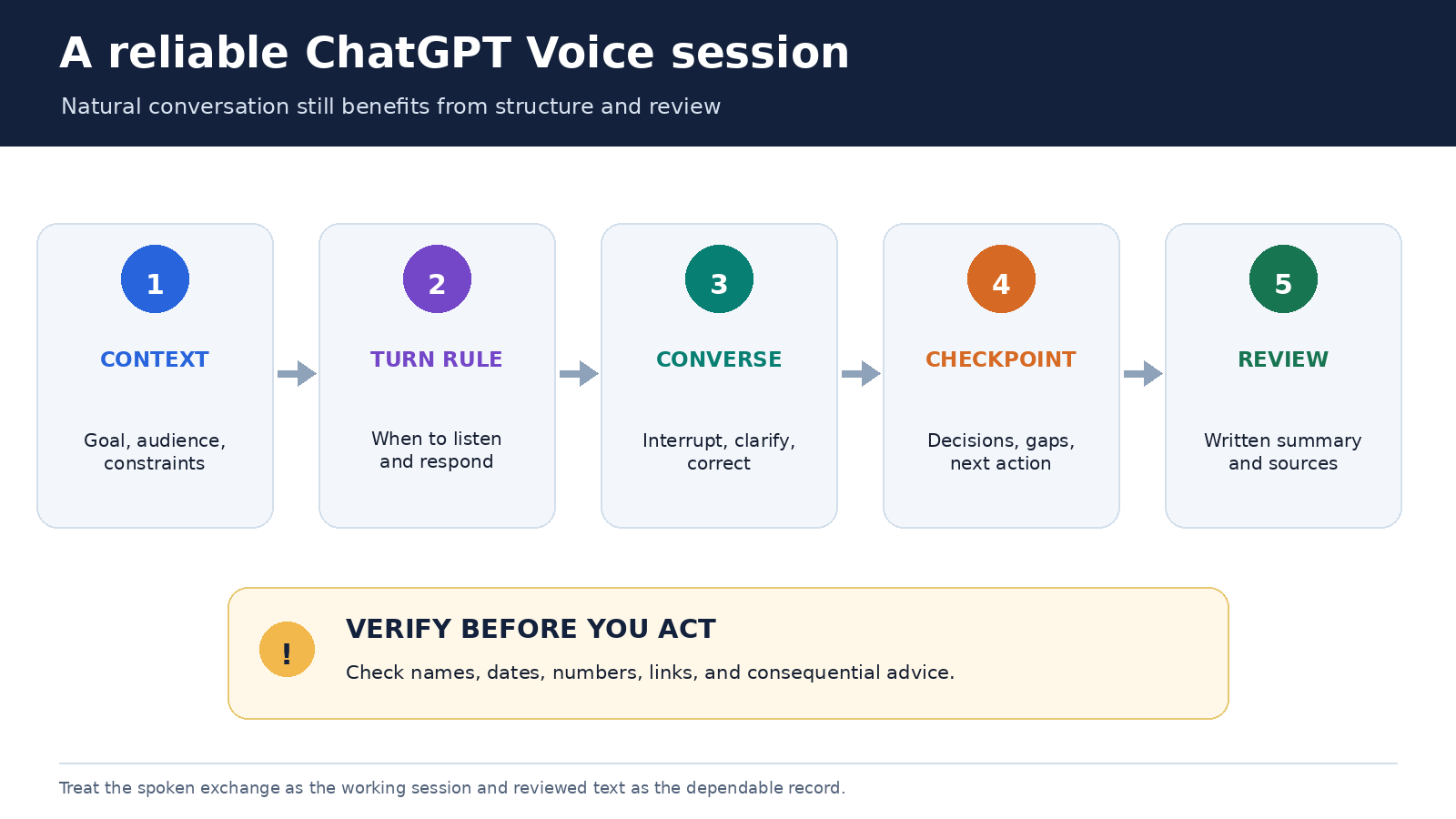
A spoken request does not need to sound like a formal written prompt, but context still improves the result. Start with the outcome, then add the audience, constraints, and preferred response style. For example: “Help me rehearse a five-minute project update for executives. Ask one question at a time, challenge vague claims, and give feedback only after I finish each answer.” That is easier to follow than a long list of disconnected instructions.
At the beginning of a Live conversation, set a turn-taking rule if you expect to pause. Try: “I am going to think out loud. Wait until I say review before responding.” OpenAI says Live can honor this kind of request, although background speech, a long silence, or other sounds can still trigger an answer. Headphones and a quieter location reduce accidental interruptions.
Use verbal checkpoints during a long discussion. Every few minutes, ask ChatGPT to summarize the decision, open questions, and next action. Correct a mistaken assumption immediately. If the exchange produces a plan, end with: “Put the final checklist in the chat as numbered text and mark anything that still needs verification.” The on-screen result is easier to scan and copy than relying on memory.
When you need continuity across several sessions, Voice can work inside eligible Projects and refer to recent project chats, sources, and project instructions. Organize the source material first rather than expecting a spoken session to recover missing context. Our ChatGPT Projects guide explains how chats, files, instructions, and project memory play different roles.
Five useful ChatGPT Voice workflows
- Rehearse a conversation. Give ChatGPT the other person’s role, your goal, and the boundaries it should respect. Practice a job interview, customer call, presentation question, or difficult but non-sensitive conversation. Ask for feedback on clarity and missing evidence, not a judgment about another person’s motives.
- Brainstorm while walking. State the problem and ask for one idea at a time. Interrupt weak directions and ask the model to maintain a shortlist. Before ending, request a written summary with assumptions and a first next step.
- Practice a language. Name your level, topic, and correction preference. You might ask for slow speech, brief definitions, and corrections after each response. OpenAI notes that fluency and accents can vary by language, so confirm pronunciation with a trusted language reference.
- Discuss a file or image. If uploads are available in your session, attach the item in the same chat and ask focused questions. The August 2026 ChatGPT release notes say GPT-Live supports file uploads and Projects. Still verify tables, quotations, and small visual details against the original.
- Get hands-free structure. Ask Voice to turn scattered thoughts into an agenda, shopping list, study outline, or sequence of tasks. Do not use hands-free convenience as a reason to skip review before buying, sending, publishing, or acting on important advice.
Use text, images, search, and visual results
Live is not limited to a blank full-screen call. OpenAI’s current design keeps Voice inside the chat, so you can listen while watching response text appear. You can type when speaking is inconvenient and, where enabled, attach an image without leaving the conversation. Supported answers may also show visual widgets for topics such as maps, weather, sports, or stocks.
These supporting tools are useful because some information is easier to inspect than hear. Ask ChatGPT to display a table of options, spell a proper name, or write an address in the chat. If Voice searched the web, open the cited result and confirm that it supports the spoken claim. Search can improve freshness, but it does not remove the possibility of a misunderstood question or an unreliable source.
Capabilities are not uniform. The Help Center says Live does not initially support connected apps or plugins, and it cannot find or add files from the ChatGPT Library, though manual file attachment may be available. Live is also unavailable with custom GPTs. Custom GPT voice conversations continue with Advanced Voice Mode and the Shimmer voice. Check the current Help Center if your interface differs, since rollouts can change quickly.
Video, screen sharing, background conversations, and CarPlay
Live does not support video or screen sharing at launch. Eligible subscribers can switch to Advanced on supported iOS and Android versions for those features. When sharing a screen, hide notifications, credentials, private messages, and unrelated tabs first. Stop sharing as soon as the visual question is resolved.
Mobile users can enable Background conversations under Settings, Voice. A session can then continue while another app is open or the phone is locked. It ends when you stop it, force close the app, hit a usage or session limit, or meet another termination condition. Background access is convenient, but mute or end the session before a private in-person conversation begins.
ChatGPT Voice is also available through Apple CarPlay on supported iPhones. Set it up before driving and follow local law. Do not handle your phone while the vehicle is moving. A spoken assistant can reduce screen interaction, but it cannot judge road conditions for you.
Limits and troubleshooting
Voice usage is not unlimited for every plan. OpenAI measures Live use over a rolling 24-hour period, publishes different allowances for Free, paid consumer plans, and workspaces, and says limits can change. A single Live conversation can last up to two hours. The app should notify you when a limit is reached. Rather than copying a numerical allowance that may soon be outdated, use the current official Voice page for your plan.
If ChatGPT interrupts too often, move away from other speakers, use headphones, reduce device audio feedback, and ask it to wait for a cue word. On an iPhone, OpenAI suggests trying Voice Isolation through Mic Mode in Control Center. If ChatGPT stops hearing you, check the microphone permission, mute state, Bluetooth input, browser input selection, and network connection.
If the wrong language is detected, set your preferred language under Settings, Voice and name the language at the start of the conversation. If an answer is delayed, remember that Medium or High intelligence and web search can take longer. If a session ends, continue in text or start Voice again. Only one Voice conversation can run at a time.
Privacy and data controls for Voice
Review privacy settings before discussing personal material aloud. According to OpenAI, audio clips from Live and Advanced conversations, and video clips from Advanced conversations, are stored with the transcript in chat history and retained for 30 days. Deleting the chat also schedules its associated clips for deletion within 30 days, subject to stated security, safety, or legal exceptions and a separate exception for clips previously shared and disassociated from the account. Archiving a chat does not delete it or its clips.
OpenAI says it does not train models on audio or video clips unless you choose to share those clips or enable the corresponding recording controls. Transcripts and other files may be used to improve models depending on your plan and the Improve the model for everyone setting. Business, Enterprise, and Edu users cannot share Voice clips for training. Read the actual controls on your account rather than assuming that one setting governs every type of data.
For a sensitive topic, consider Temporary Chat and omit names, account numbers, credentials, and private business data. OpenAI’s consumer privacy page says Temporary Chats do not inform memory and are not used to train models. It also says Data Controls can stop future conversations from contributing to training, and memory can be reviewed, edited, deleted, or turned off. Temporary Chat is a useful privacy tool, not a guarantee that no data is retained for any operational or legal purpose.
A final review checklist
- Confirm that you are using Voice, then identify whether the selected option is Live, Advanced, or Standard.
- State the outcome, essential context, constraints, and how you want turns handled.
- Use an exact date, location, and time zone for current or local questions.
- Ask for written names, numbers, links, and final action items in the chat.
- Open sources and verify important claims before acting.
- Review the transcript because it may not be a verbatim record.
- Check Data Controls, memory, chat deletion, and microphone permissions.
- Use Advanced rather than Live when eligible mobile video or screen sharing is essential.
ChatGPT Voice is most useful when speaking is the best input method, not when audio makes review harder. Live powered by GPT-Live makes interruptions and natural turn-taking more capable, but it does not replace clear context, source checking, or control of sensitive information. Treat the spoken exchange as the working session and the reviewed text as the record you can rely on.
Frequently asked questions
Is GPT-Live the same thing as ChatGPT Voice?
No. ChatGPT Voice is the product feature for spoken conversations. Live is the newest selectable Voice experience, and GPT-Live is the official model family that powers Live. Other options, including Advanced and Standard, may also appear depending on your account.
Can I interrupt ChatGPT while it is speaking?
Yes. Live can listen and speak at the same time, so you can interrupt or add information during a response. Background noise, overlapping speakers, network quality, and microphone settings can still affect what it hears.
Does Live support video and screen sharing?
Not at launch. Eligible subscribers can use Advanced Voice Mode in supported iOS and Android apps for video or screen sharing. Live supports text and images in the same chat when those features are available to the account.
Are ChatGPT Voice recordings used to train models?
OpenAI says audio and video clips are not used for training unless a user chooses to share them or enables the relevant recording controls. Transcripts and other files may be used depending on the plan and Data Controls. Review OpenAI’s current Voice and privacy pages for your account.