ChatGPT Tasks can turn a useful prompt into a scheduled habit. Instead of remembering to ask for the same briefing every morning, you can describe the result, choose when it should run, and let ChatGPT notify you when the task completes. The feature is most valuable when the request is narrow, the source expectations are explicit, and a person still decides what to do with the result.
This guide explains how to set up ChatGPT scheduled tasks for daily briefings, reminders, recurring reviews, and change monitoring. It also covers notification setup, editing, practical prompt patterns, limits, and a review routine that keeps automation useful. Product details below are grounded in OpenAI’s current documentation, while the workflow recommendations are editorial advice you can adapt to your work.
What ChatGPT scheduled tasks can do
OpenAI describes scheduled tasks as a way to automate proactive work in ChatGPT. A task can run once, repeat on a schedule, or periodically check for a meaningful change. That makes the feature a fit for reminders, daily briefings, recurring reviews, and monitoring requests. The current OpenAI Scheduled Tasks guide is the primary reference for availability, setup, notifications, management, and limits.
The distinction between a schedule and a monitoring request matters. A schedule asks for output at a chosen time, such as a weekday planning note each morning. A monitoring request checks over time and should notify you only when its stated condition is met. OpenAI says previous monitoring runs are remembered and a monitored task can stop when its end condition is reached. That is useful for a real change, but it is not a reason to write an open-ended prompt. Define the subject, the meaningful threshold, and what the notification should contain.
OpenAI’s help article says the Scheduled page is available from the ChatGPT sidebar on web, mobile, and the desktop app. From that page, users can create tasks, open prior responses, see the next run, and pause, resume, edit, or delete a task. You can also create one by asking ChatGPT in a conversation. Treat the confirmation ChatGPT shows after creation as a checkpoint: read the interpreted instruction and schedule instead of assuming they match what you meant.
Start with one daily briefing that earns its place
A daily briefing is the obvious first experiment, but broad requests often create broad summaries. Pick one decision you regularly make. A sales lead might need a short preparation list before the first call. A creator might need a morning view of deadlines and unresolved choices. A manager might want a weekday agenda built from information they intentionally provide or from an app that their account and workspace permit.
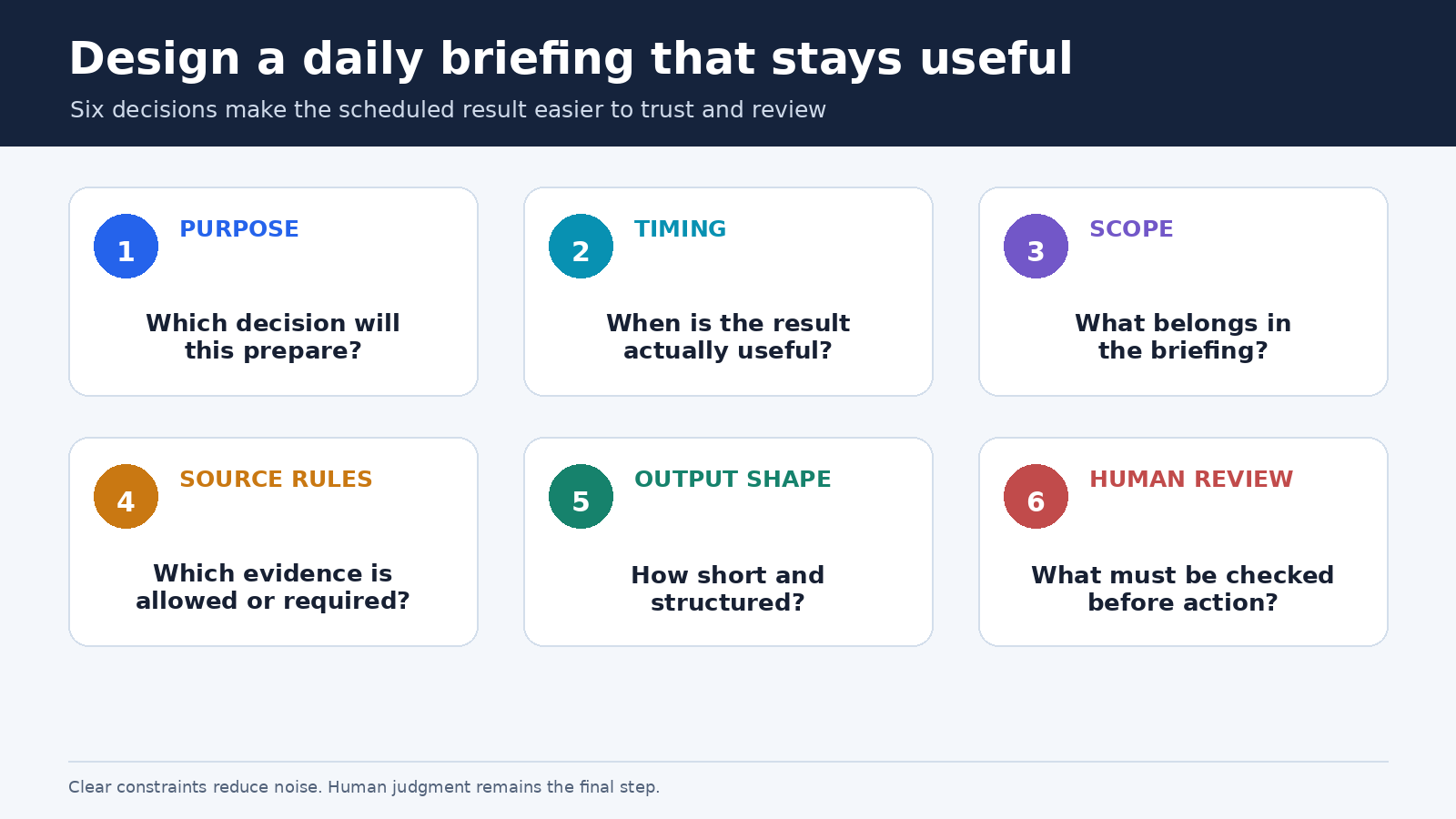
Write the task as a small operating brief. Include its purpose, timing, scope, source rule, output shape, and stopping condition. The source rule is particularly important. If you want current information, say which subjects and sources matter, ask for links, and require a clear statement when nothing material is found. If the task depends on a connected app, verify that the app is available for your account and that the needed permission is enabled. OpenAI notes that app availability and permissions can depend on workspace settings and administrator controls.
Here is a reusable daily briefing pattern:
Every weekday morning, prepare a briefing for my first 15 minutes of work. Focus on these three priorities: [priority list]. Return: (1) the three actions that deserve attention today, (2) deadlines or meetings I supplied in this chat, (3) unresolved questions, and (4) a short section called Verify Before Acting. Keep it under 300 words. Do not invent missing facts. If there is no meaningful change, say that plainly.
The prompt separates facts from decisions and gives the output a stable shape. Adjust it to the information ChatGPT can actually use. OpenAI explicitly says that a task created inside a project cannot access files stored in that project. Do not build a briefing that silently depends on those files. Put the necessary non-sensitive context in the task’s conversation, use an available authorized app where appropriate, or redesign the task so it reminds you to review the files yourself.
If you are still shaping the prompt, the site’s guide to ChatGPT prompts for daily productivity explains how to split a large request into smaller, reviewable steps. That same discipline helps scheduled output: narrow inputs produce an easier result to inspect.
Create the task and confirm the schedule
- Open Scheduled. In ChatGPT, use the Scheduled page in the sidebar, or describe the task in a chat.
- Name the outcome. Ask for a deliverable, not a theme. “Prepare my weekday launch checklist” is clearer than “help with launches.”
- State the timing. Include the day or recurrence, the time, and your intended local time context. When the confirmation appears, check the displayed next run.
- Specify the evidence rule. Say what information may be used and ask the response to mark missing or uncertain inputs.
- Fix the output shape. Give a maximum length, headings, number of items, and the final action you want to take.
- Review the confirmation. Make sure ChatGPT interpreted both the request and timing correctly before depending on it.
- Test the first result. Check whether the output is timely, factual, concise, and actionable. Edit the task if any one of those fails.
You do not need to perfect the automation on the first attempt. A better method is to run one task long enough to see its recurring failure mode. If the output is repetitive, require only material changes. If it is too long, cap each section. If it lacks context, list the exact inputs it may use. If it arrives but goes unread, move it closer to the decision it supports or pause it.
Configure notifications without creating noise
A scheduled task is only useful if its result reaches you at the right moment. OpenAI says notification choices are managed from ChatGPT Web under Settings, then Notifications, where push notifications, email, or both can be enabled. Browser notification permission may also be required for desktop alerts. For mobile push notifications, OpenAI advises creating a first task on the mobile device and granting the permission prompt.
Choose the channel according to urgency. A calendar preparation note might justify a push alert. A weekly review can wait in email. A monitoring task should alert only for a defined material change. Sending everything through both channels usually turns automation into background noise.
Use a simple notification test after setup. Create a low-stakes one-time reminder, confirm the time, and verify that the intended device receives it. Then delete the test task. This checks the schedule, ChatGPT notification setting, and device or browser permission as one chain. If an alert does not arrive, inspect all three before rewriting the task.
Build recurring workflows around decisions
The most durable tasks sit immediately before a human decision. A morning task can prepare priorities, but you choose the plan. A Friday task can assemble review questions, but you judge performance. A monthly task can request a checklist, but an owner approves changes. This keeps accountability visible and makes errors easier to catch.
Four workflow patterns are especially practical:
- Daily focus note: summarize declared priorities, identify conflicts, and propose the first action.
- Meeting preparation: produce questions, assumptions to verify, and a short desired-outcome statement.
- Weekly review: ask what changed, what remains blocked, and which commitment should be revised.
- Meaningful-change monitor: check a defined subject and notify only when a stated threshold is met.
For a richer workflow, create separate tasks rather than one giant instruction. A morning planning task and a Friday reflection task serve different decisions and should have different success criteria. This mirrors the staged method in the site’s practical ChatGPT workflow guide: isolate a stage, inspect its output, and improve the weak point instead of burying everything in one prompt.
Do not treat generated text as verified truth. For a current-events briefing, open the cited sources and check dates. For a work summary, compare it with the system of record. For a reminder involving money, health, legal obligations, or safety, use the task as a prompt to review, not as autonomous authorization. Scheduled convenience does not transfer responsibility away from the person making the decision.
Manage, edit, pause, and retire tasks
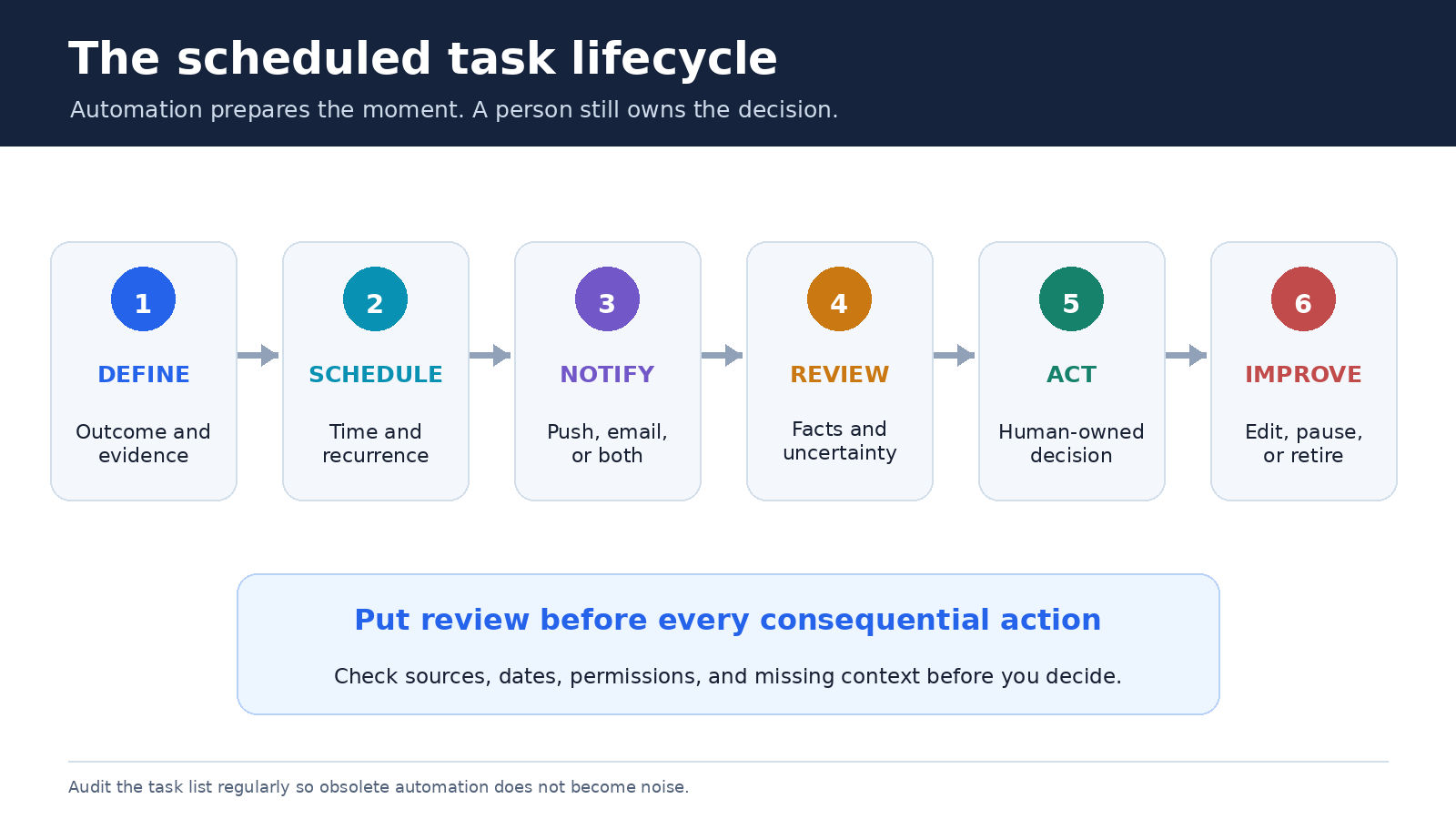
OpenAI documents two management routes. You can open Settings, choose Notifications, and select Manage tasks, or use an individual task’s menu to reach the full list. The Scheduled page also provides a central view. From a task, you can edit, pause, resume, or delete it. Use those controls as maintenance tools, not only as troubleshooting tools.
Review your list on a recurring cadence. Pause tasks tied to a finished project, delete obsolete tests, and merge only when two outputs support the same decision at the same time. Keep task names concrete so the list remains understandable. “Weekday client-call preparation” is easier to audit than “Daily update.”
OpenAI says deleting a chat associated with a scheduled task automatically pauses the task, while deleting the task does not delete the associated chat. A task can also pause after inactivity or when it needs further action. If expected output stops, check the Scheduled page for a paused state before recreating anything. Resuming the existing task avoids duplicate alerts.
Know the current limits before you design the workflow
Limits can change, so verify the official Scheduled Tasks article rather than relying on an old screenshot. At the time of this update, OpenAI says tasks are globally available to Plus, Pro, Business, and Enterprise users across ChatGPT web, mobile, and the desktop app. It also says scheduled tasks are not available in Codex, and tasks do not support voice chats or GPTs.
OpenAI currently states that tasks cannot run more than once per hour. The help page lists active-task allowances by plan and explains that reaching the applicable allowance prevents creation or resumption until an active task is paused, deleted, or completes. Because plan entitlements are product details that may be revised, consult that page for the number attached to your plan when you configure the workflow.
There are also context and permission boundaries. Project files are unavailable to a task even when the task was created in that project. Apps can be used only when they are available and authorized for the account or workspace. Managed-workspace administrators may constrain permissions or require approval for some app actions. Build around the access you can confirm, not the access you assume.
For historical context, OpenAI records Tasks changes in the official ChatGPT release notes. Use the dedicated Scheduled Tasks page for operational instructions, since it is narrower and easier to recheck.
Protect sensitive information and review permissions
A recurring task can repeatedly process the context and connected services you authorize, so minimize what it needs. Do not paste secrets, private records, or customer data simply to make a generic briefing feel personalized. If an app connection is involved, inspect the permission scope and confirm your workspace policy before relying on it.
OpenAI’s Data Controls FAQ explains the controls available for deciding whether conversations help improve its models. That setting is relevant background, but it is not a substitute for data minimization, organizational policy, or app-permission review. For a managed account, follow administrator requirements and use approved sources.
Add a “Verify Before Acting” section to any briefing that could influence an external action. Ask the task to list uncertain claims, stale inputs, and missing evidence. That instruction does not guarantee accuracy, but it makes review easier and signals that the output is a working note rather than an approved decision.
A seven-day rollout plan
- Day 1: choose one repeated decision and write a task with a clear output format.
- Day 2: create it, inspect the confirmation, and test notification delivery.
- Day 3: score the first output for relevance, accuracy, brevity, and actionability.
- Day 4: tighten one weak instruction. Do not rewrite everything at once.
- Day 5: compare the result with your source of truth and note any unsupported claims.
- Day 6: decide whether the timing and notification channel match the real decision.
- Day 7: keep, edit, pause, or delete the task based on evidence from the week.
A useful task should save attention without hiding judgment. If you spend longer correcting a briefing than preparing it manually, narrow its scope. If it reliably reminds you to inspect the right facts at the right moment, it is doing valuable work even when the final decision remains entirely yours.
Frequently asked questions
Can ChatGPT create a daily scheduled briefing?
Yes. OpenAI describes daily briefings as a scheduled-task use case. Define the recurrence, timing, allowed context, desired sections, length, and verification rule. Check the confirmation and first run before depending on it.
Where can I see and edit my ChatGPT tasks?
Use the Scheduled page, or open Settings, then Notifications, then Manage tasks. OpenAI says you can view upcoming runs and pause, resume, edit, or delete tasks from the management experience.
Can a scheduled task read files in a ChatGPT project?
No. OpenAI’s current help article says a task created in a project cannot access the project’s files. Redesign the task around available context or an approved connected app rather than assuming file access.
Why did my scheduled task stop running?
Check whether it is paused. OpenAI says tasks may pause after inactivity, when additional action is needed, or when the associated chat is deleted. Review the task on the Scheduled page and resume or edit it rather than creating a duplicate.
Make the schedule serve the work
ChatGPT scheduled tasks are best used as small, inspectable routines. Start with one briefing tied to one decision. Give it explicit inputs and a stable output shape. Test the notification path. Review every consequential claim. Then maintain the task list with the same care you would give a calendar or inbox.
The goal is not to automate every repeated thought. It is to make the right preparation appear at the right time, with enough structure that a person can verify it and act deliberately.