
ChatGPT memory can make a new conversation feel less like a blank page. It can carry forward useful details about your preferences, ongoing work, and recurring needs. That convenience also raises a practical question: what should ChatGPT remember, and what should remain confined to one conversation?
The answer is not a single privacy toggle. Memory, custom instructions, chat history, model training, and Temporary Chat are related controls, but they do different jobs. This guide explains the current ChatGPT memory settings, shows how to review personalization, and gives you a simple privacy routine based on OpenAI’s official documentation.
What ChatGPT memory does today
OpenAI’s current Memory FAQ describes memory as a way for ChatGPT to remember useful context from chats, files, and connected apps when the feature is enabled. The goal is to personalize future responses so you do not need to repeat the same background every time.
That context might include a stable preference, an ongoing goal, or a fact that changes how an answer should be framed. For example, a user might want recipe suggestions to reflect a dietary preference, or want explanations written for a particular level of experience. Memory is best treated as personalization context, not as a precise archive, password manager, or authoritative database.
The current experience includes a memory summary. It offers a high level view of what ChatGPT remembers, and it is updated as you continue using ChatGPT. OpenAI cautions that the summary may not display every detail or factor that could shape a response. If you are unsure whether a detail has been remembered, you can ask ChatGPT directly and then inspect the relevant controls.
Some accounts may also see the legacy saved memories experience. In that system, saved memories are details that you directly asked ChatGPT to remember or that it judged useful for future conversations. OpenAI says users can return to that legacy view through the saved memories link in Memory settings. Because interfaces and account availability can differ, use the labels shown in your own Settings page rather than assuming every account looks identical.
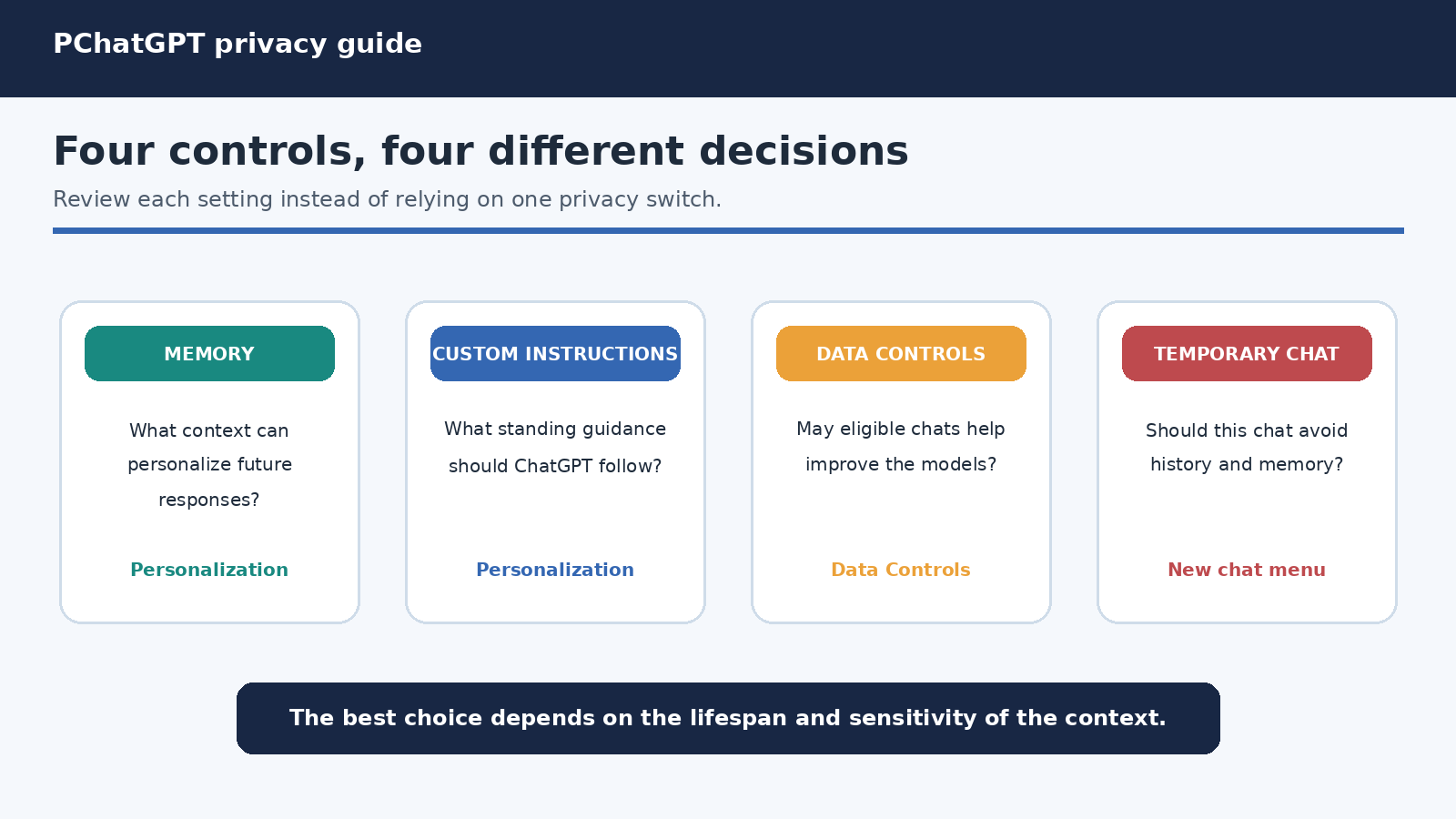
Memory is not the same as custom instructions
Custom instructions are explicit standing directions that you write. They are useful for durable preferences such as your preferred tone, units, level of detail, or the way uncertainty should be handled. Memory is based on useful context shared through conversations and other eligible sources. The distinction matters because an instruction is something you deliberately set, while memory can evolve as your conversations evolve.
A clean setup gives each type of context one job. Put stable response preferences in custom instructions. Let memory hold a small amount of genuinely reusable personal context. Put the immediate assignment, source material, and current constraints in the prompt or in a suitable project. Our ChatGPT custom instructions guide offers a deeper method for keeping standing instructions focused rather than turning them into a storage dump.
Memory should not replace task level verification. A remembered preference can become outdated, incomplete, or irrelevant to the next request. If an answer depends on a critical fact, state that fact in the current prompt and check it. This is especially important for health, finance, legal matters, account permissions, and business decisions.
Where to find and review ChatGPT memory settings
Open Settings, choose Personalization, and open Memory. OpenAI says memory can be enabled or disabled there at any time. Depending on your account and rollout, you may see a memory summary, management controls, or a link to saved memories.
- Read the summary before changing anything. Look for old preferences, incorrect assumptions, sensitive details, and information that only belonged to a finished project.
- Ask what ChatGPT remembers. This provides another view, although it should not be treated as a perfect technical audit.
- Inspect memory sources on responses. OpenAI says the book icon below an eligible response can show sources used for personalization, such as custom instructions, past chats, files, and memories. The source view may not show every factor, but it can help explain why a response was personalized.
- Correct or remove what is wrong. The current memory summary supports typed edits and corrections to highlighted text. In the legacy experience, individual saved memories can be deleted or updated.
- Test with a fresh, ordinary question. Check whether the answer still applies stale context after your edit. If it does, review the underlying chats, files, apps, and instructions that may also contain the detail.
A short review every month is more useful than trying to create a perfect profile once. Also review memory after a major life change, a completed confidential project, a shared device incident, or a change in how you use the account.
Turning memory off does not erase every source
Disabling memory stops the personalization feature, but it is not the same action as deleting chats or deleting every copy of a detail. OpenAI’s FAQ says that fully removing something ChatGPT may know can require deleting it from every place where it appears. That list can include past chats, archived chats, files, the memory summary, and connected apps that contain the information.
OpenAI also notes that using the current “Delete and turn off memory” control does not delete past chats. If memory is later turned on again, new memories may be created from chats still in history, including older chats. This is why a deletion plan should begin with the information itself, not with one switch.
In the legacy saved memories system, saved memories are stored separately from chat history. Deleting the conversation where a detail first appeared does not necessarily delete the saved memory. The reverse is also true: deleting a saved memory does not remove old mentions from previous conversations. OpenAI says a log of deleted saved memories may be retained for up to 30 days for safety and debugging.
Use a two part cleanup for a sensitive detail. First, remove or correct the memory. Second, delete the chats, files, or app connections that contain it, if deletion is appropriate for your needs. Then review custom instructions and any project sources. This approach is slower than flipping a toggle, but it matches how the controls actually work.
Temporary Chat is a separate privacy tool
A Temporary Chat starts without using memories for personalization and does not create new memories. According to OpenAI’s Temporary Chat FAQ, it does not appear in chat history and is not used to improve OpenAI’s models. OpenAI may still keep a copy for up to 30 days for safety purposes. The FAQ also says limited context from prior conversations may be used in rare safety and security situations.
Temporary Chat still follows enabled custom instructions. That detail is easy to miss. If your custom instructions contain identifying, sensitive, or simply irrelevant context, review or disable them before assuming a temporary conversation starts with no standing guidance at all.
Temporary Chat is useful for a one time question that should not shape future personalization. It is not a license to paste secrets. If you use a GPT with actions, information sent to an external service is governed by that recipient’s privacy policy and may be retained for longer. The safer rule is to minimize sensitive input regardless of chat mode.
Memory controls and model training are different
Memory determines whether past context can personalize future responses. The “Improve the model for everyone” setting determines whether eligible conversations and interactions may help improve OpenAI’s models. Turning one off does not automatically turn the other off.
OpenAI’s Data Controls FAQ says signed in users can open Settings, select Data Controls, and turn off “Improve the model for everyone.” Conversations can remain in chat history while no longer being used for training. The setting applies across the account, so a change made on the web also applies on mobile.
This gives you two independent decisions. You might want personalization but choose not to contribute future conversations to model improvement. You might disable memory while retaining ordinary chat history. You might use Temporary Chat when you want neither memory creation nor a history entry. Treat each decision separately and verify the current state of both Personalization and Data Controls.
OpenAI’s consumer privacy page also points users to controls for exporting data, deleting chats, deleting an account, app access, and optional location sharing. Those controls sit beside memory in a broader privacy picture. A careful review should include connected apps and third party actions, not only text stored in chats.
A practical personalization setup
Start with low risk, durable preferences that clearly improve answers. Preferred measurement units, a language choice, a broad professional role, and an accessibility preference can be reasonable candidates. Avoid storing credentials, authentication codes, private keys, full financial records, confidential client material, or anything you would not want repeatedly considered in future conversations.
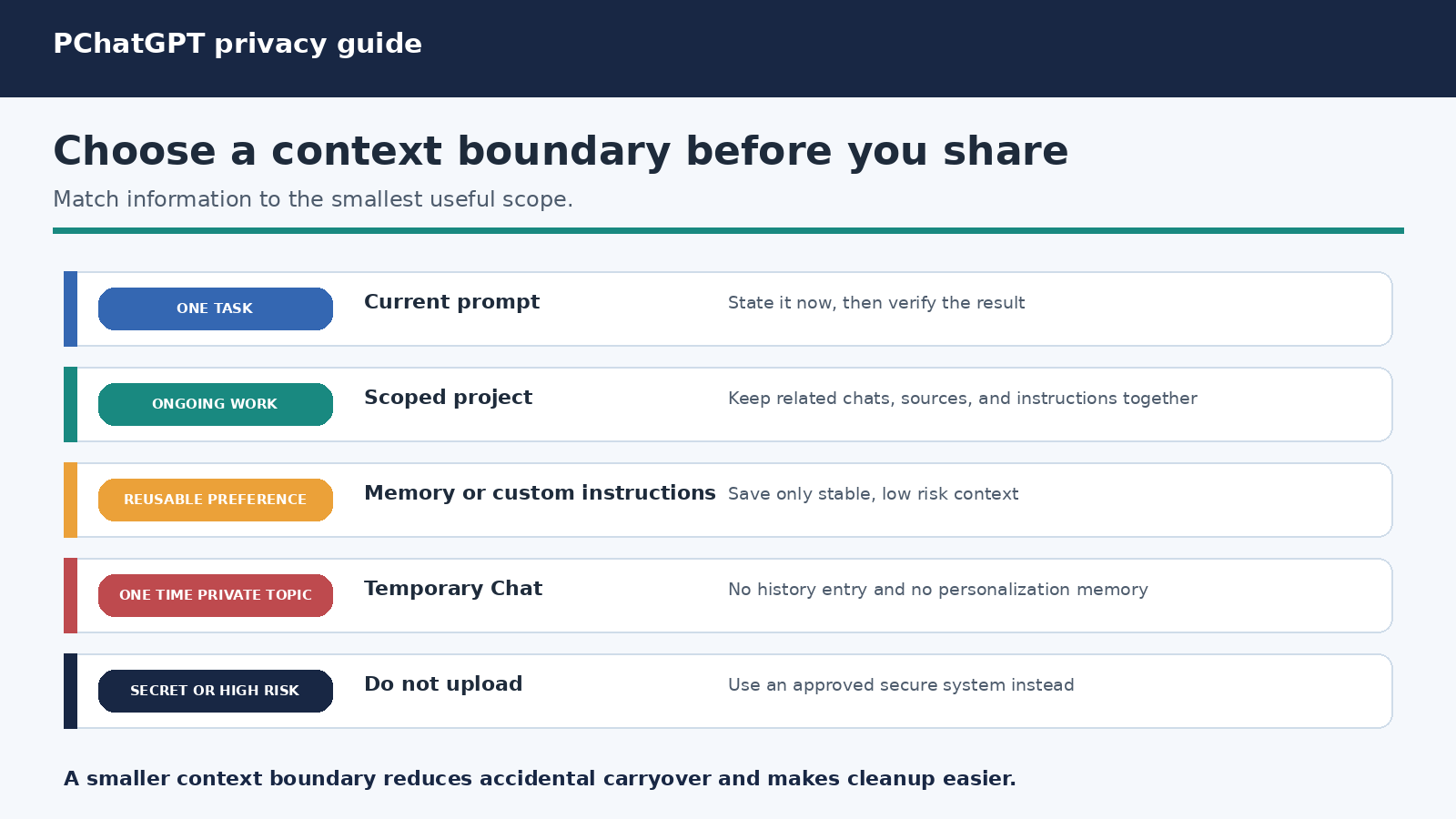
Then assign context by lifespan:
- Current prompt: details needed only for the task in front of you.
- Project: related chats, files, and instructions that belong to an ongoing body of work.
- Custom instructions: explicit and durable guidance about response behavior.
- Memory: reusable personalization that remains helpful across conversations.
- Temporary Chat: a one time exchange that should not use or create memory.
For complex work, a project can provide a clearer boundary than general account memory. Read our ChatGPT Projects guide for the difference between chats, sources, project instructions, and project memory. Even inside a project, keep authoritative documents in their original systems and verify important outputs against those sources.
Finally, decide who can access the account and devices where it is signed in. Memory privacy is partly account security. Use strong authentication, review active access, and avoid leaving a personal account open on a shared computer. A perfect memory configuration cannot compensate for someone else being able to open your chats and settings.
A five minute privacy review
- Open Personalization and read the memory summary or saved memory list.
- Remove stale, incorrect, overly personal, or project specific details.
- Review custom instructions for information that should not apply everywhere.
- Open Data Controls and confirm whether “Improve the model for everyone” matches your preference.
- Review old chats, archived chats, uploaded files, projects, and connected apps for sensitive material.
- Use Temporary Chat for suitable one time conversations, while remembering its retention and custom instruction limits.
- Test a normal new chat and inspect personalization sources when available.
Write down the choices that matter if you manage a team. For example, define which information can be entered, which tasks require Temporary Chat or an approved workspace, and when project material must be removed. Keep the policy short enough that people will actually follow it.
Common mistakes to avoid
The first mistake is assuming that deleting a chat also deletes a memory. OpenAI explicitly separates chat history and legacy saved memories, so both may need attention. The second is assuming that turning off memory also opts out of training. Training is controlled in Data Controls.
The third is treating the memory summary as a complete ledger. OpenAI says it is a high level view and may not include everything. Use it as a management interface, then check source views, chats, files, and connected apps when a detail matters.
The fourth is using memory as a source of truth. Personalization is helpful when it saves repetition, but consequential facts should be restated and checked. A remembered deadline, medication, legal status, price, or technical configuration may be stale or wrong.
The fifth is sharing too much because a chat is temporary. Temporary chats have strong privacy properties, but OpenAI may keep a copy for safety for up to 30 days, custom instructions still apply, and third party actions follow the recipient’s policies. Data minimization remains the best default.
Frequently Asked Questions
Does turning off ChatGPT memory delete my chats?
No. OpenAI says the “Delete and turn off memory” control does not delete past chats. Review and delete chats separately when that is your intent. If old chats remain and you later enable memory again, ChatGPT may create new memories from that history.
Can I see everything ChatGPT remembers about me?
The memory summary provides a useful high level view, and you can ask ChatGPT what it remembers. OpenAI says the summary may not include every relevant detail or source. Review memory sources, past chats, files, custom instructions, and connected apps when you need a fuller picture.
Is Temporary Chat completely anonymous?
No. OpenAI says Temporary Chats do not appear in history, do not create or use memories for personalization, and are not used to improve models. A copy may be retained for up to 30 days for safety, enabled custom instructions still apply, and data sent through a GPT action is subject to the third party’s policy.
Does disabling memory stop my chats from training ChatGPT?
Not by itself. Open Settings, then Data Controls, and review “Improve the model for everyone.” Memory controls personalization, while that Data Controls setting governs whether eligible conversations help improve models.